Backup and Restore
Monize includes a full backup and restore system to protect your financial data. You can create manual backups on demand, schedule automatic backups with intelligent retention policies, optionally encrypt backups with a password, and restore from any backup file.
- Manual Backup
- Restoring from a Backup
- Encrypted Backups
- Automatic Backups
- What Is Backed Up
- Support Backup (Share a Bug Report Safely)
- Backup File Format
- Docker Volume Configuration
- Security
- Tips and Best Practices
You can download a full backup of your data at any time from the Settings page.
- Navigate to Settings (gear icon in the top-right corner)
- Scroll to the Backup & Restore section
- Click Export Backup
- Your browser will download a file named
monize-backup-YYYY-MM-DD.json.gz
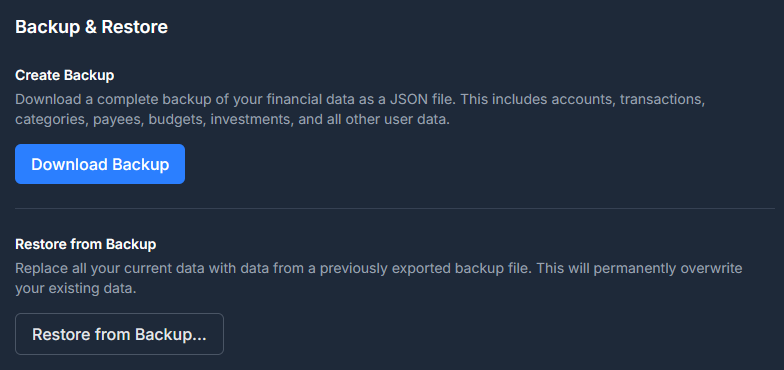
The backup is a gzip-compressed JSON file containing all of your financial data. It is streamed from the server to avoid memory issues with large datasets.
Restoring replaces all of your existing data with the contents of the backup file. This is useful for recovering from data loss, migrating to a new server, or reverting after an unwanted change.
Caution: Restoring a backup permanently replaces all of your current data. This operation cannot be undone. Consider exporting a backup of your current data first.
- Navigate to Settings (gear icon in the top-right corner)
- Scroll to the Backup & Restore section
- Click Restore Backup
- Select a backup file (
.json,.json.gz, or.gz) - Enter your password to confirm (or re-authenticate via SSO if using OIDC)
- Click Confirm Restore
After a successful restore, a summary is displayed showing the number of records restored for each data type.

The restore process runs inside a database transaction with three phases:
- Delete -- All existing user data is removed in foreign-key-safe order
- Insert -- Backup data is inserted in dependency order to satisfy foreign key relationships
- Link -- Deferred relationships (parent categories, linked accounts, linked transactions, etc.) are reconnected
If any step fails, the entire operation is rolled back and no data is changed.
By default, backups are gzip-compressed JSON files -- if someone obtains the file (intercepted in transit, stolen from a cloud-sync folder, recovered from an old drive), they can read every transaction, payee, and account name. Encryption wraps the backup in a password-protected envelope so the contents stay confidential even if the file leaks.
Both manual downloads and scheduled automatic backups honour the setting -- once you opt in, every backup written from then on is encrypted.
Encryption is worth turning on when:
- You sync your backups folder to cloud storage (Dropbox, OneDrive, Google Drive, Backblaze) and don't trust the cloud provider with your financial data
- You email backups to yourself or upload them to remote storage
- You share a server, NAS, or backup volume with other people
- You want defence-in-depth against a stolen laptop, USB drive, or external HDD
You can skip it if your backups never leave a fully trusted machine -- the local disk is the only place the file ever sits.
If you log in with an email and password (the default), Monize reuses your login password as the backup encryption password. There is no separate password to remember.
- Navigate to Settings > Backup & Restore
- In the Backup Encryption section, click Enable Encrypted Backups
- Re-enter your current login password to confirm
- Click Confirm
Once enabled, the section displays a green Enabled badge with a Disable button.
The system stores an encrypted copy of your login password (encrypted with the server's master key, AI_ENCRYPTION_KEY) so the scheduled auto-backup job can use it without prompting you each time. Your password is never stored in plaintext. When you change your login password, the stored copy is updated automatically.
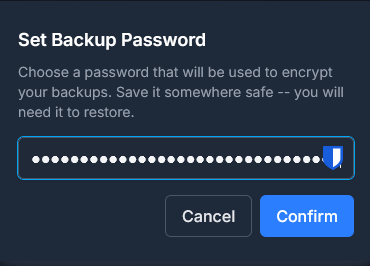
If your account uses Single Sign-On (OIDC), there is no login password to reuse. You set a dedicated backup password instead.
- Navigate to Settings > Backup & Restore
- In the Backup Encryption section, click Set Backup Password
- Enter a new backup password (must be at least 12 characters and not appear in the Have I Been Pwned breach database)
- Click Confirm
The backup password is independent from your SSO credentials -- you choose and manage it yourself. Save it somewhere secure (a password manager is ideal); without it, encrypted backups cannot be restored.
To change it later, click Change Backup Password and repeat the process. The new password takes effect for backups written from that point on; previously-written backups remain decryptable only with the password that was active when they were created.
Once encryption is enabled, exporting a backup adds one extra step:
- Click Download Backup
- A modal appears asking you to enter the encryption password (your login password for local users, your backup password for OIDC users)
- Click Download
- The browser saves a file named
monize-backup-YYYY-MM-DD.mzbe
The .mzbe extension (Monize Backup Encrypted) distinguishes encrypted backups from the unencrypted .json.gz format. The encryption password is sent over HTTPS in a request header and is never written to access logs.

The restore flow accepts both unencrypted (.json, .json.gz, .gz) and encrypted (.mzbe) files. For an encrypted backup:
- Navigate to Settings > Backup & Restore and click Restore from Backup
- Select your
.mzbefile - Authenticate as usual (current login password or OIDC re-authentication)
- Click Confirm Restore
Monize first tries to decrypt the backup using your current password (or the password stored in your account for auto-backup use). If decryption succeeds, the restore proceeds normally.
If decryption fails -- typically because the backup was created when you had a different password -- a second prompt appears:
Backup Password Required. This backup is encrypted, and your current password did not unlock it. Enter the password that was used when this backup was created.
Enter the original password (the one in effect at the time the backup was written) and click Submit. This handles cases where you have changed your password after creating the backup, or where you are restoring a very old backup onto a fresh install.
If you have lost the password, an encrypted backup cannot be recovered. Monize has no master override -- by design, the server cannot decrypt the file without the password. Always keep a copy of your backup password in a password manager.
-
Local users: changing your login password automatically updates the stored copy used by auto-backups. To stop encrypting backups, click Disable in the Backup Encryption section -- new backups will be plain
.json.gzagain, but previously-encrypted files still require the old password to restore. - OIDC users: click Change Backup Password to set a new one, or Disable to turn encryption off entirely. As with local users, existing encrypted backups still require whichever password was active when they were written.
An encrypted backup is a single binary file with a small header followed by the encrypted payload:
| Bytes | Length | Field |
|---|---|---|
| 0--3 | 4 | Magic identifier: MZBE (ASCII) |
| 4 | 1 | Format version (0x01) |
| 5 | 1 | Key derivation function (0x01 = scrypt) |
| 6--21 | 16 | Random salt |
| 22--33 | 12 | AES-GCM initialization vector |
| 34--49 | 16 | AES-GCM authentication tag |
| 50+ | -- | Ciphertext (the gzipped JSON backup payload) |
| Detail | Value |
|---|---|
| Cipher | AES-256-GCM (authenticated encryption) |
| Key derivation | scrypt with N=32768, r=8, p=1, 64 MB memory cap |
| Per-backup salt | 16 bytes random |
| Per-backup IV | 12 bytes random |
| Wrong-password detection | GCM authentication tag mismatch |
Any tampering with the file -- truncation, bit-flips, header swaps -- is detected by the GCM authentication tag and causes the restore to fail safely.
Monize can automatically back up your data on a schedule, saving compressed backup files to a folder on the server.
- Navigate to Settings (gear icon in the top-right corner)
- Scroll to the Automatic Backup section
- Toggle Enable Automatic Backups to on
- Configure the folder path, frequency, timing, and retention settings
- Click Save Settings
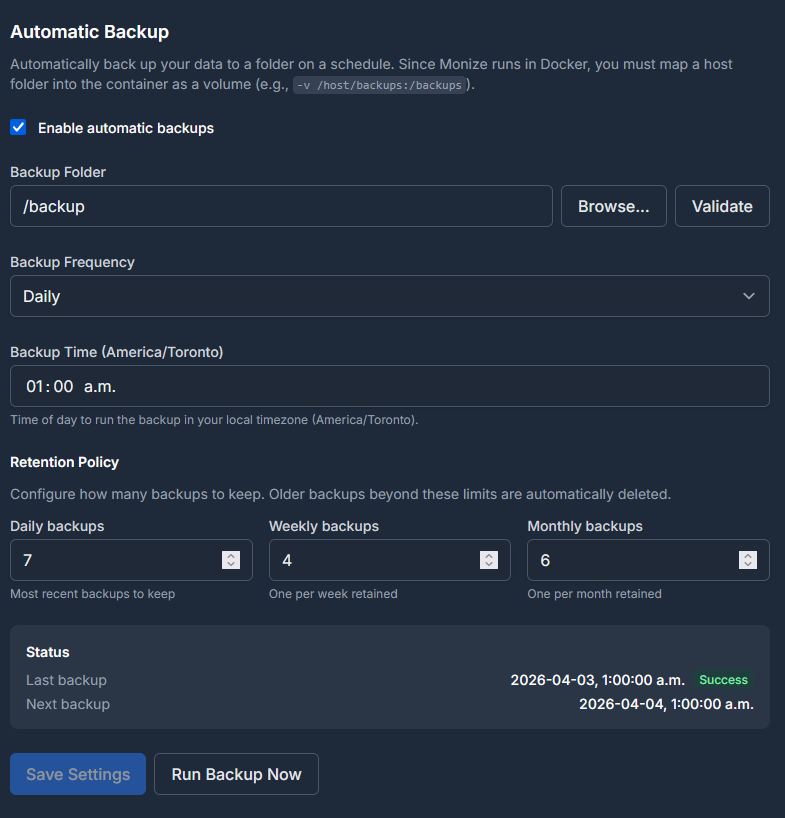
Auto-backups are saved to a folder on the server filesystem. The folder path must be an absolute path (starting with /).
- Use the Browse button to navigate the server filesystem and select a folder
- Click Validate to confirm the folder exists and is writable
- A common choice is
/backups(see Docker Volume Configuration below)
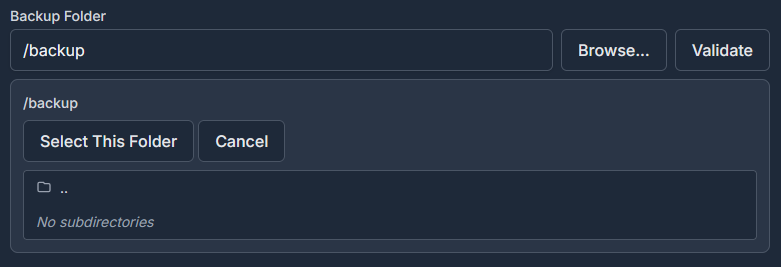
Note: The folder must be writable by the backend process. In Docker deployments, you must map a host directory to the container path using a volume mount.
| Frequency | Description |
|---|---|
| Every 6 hours | Backs up 4 times per day, aligned to the configured backup time |
| Every 12 hours | Backs up twice per day, aligned to the configured backup time |
| Daily | Backs up once per day at the configured time |
| Weekly | Backs up once per week at the configured time |
Set the Backup Time to control when backups run (24-hour format, e.g., 02:00 for 2 AM).
The backup time is interpreted in your configured timezone. The timezone is automatically detected from your user preferences.
Monize uses a three-tier retention system to balance storage usage with backup history:
| Tier | Default | Range | Description |
|---|---|---|---|
| Daily | 7 | 0--365 | Number of most recent backups to keep |
| Weekly | 4 | 0--52 | One backup per week, kept for this many weeks |
| Monthly | 6 | 0--120 | One backup per month, kept for this many months |
- The most recent backups (up to the daily retention count) are always kept
- Beyond the daily window, one backup per ISO week is promoted and renamed to a weekly backup
- Beyond the weekly window, one backup per calendar month is promoted and renamed to a monthly backup
- Files that do not fall into any retention tier are deleted
Backup files are automatically named based on their retention tier:
| Tier | File Name Pattern |
|---|---|
| Daily | monize-backup-YYYY-MM-DDTHH-MM-SS.json.gz |
| Weekly | monize-backup-weekly-WW-YYYY-MM-DDTHH-MM-SS.json.gz |
| Monthly | monize-backup-monthly-MM-YYYY-MM-DDTHH-MM-SS.json.gz |
When encrypted backups are enabled, the extension changes from .json.gz to .mzbe (Monize Backup Encrypted). Retention promotion and cleanup recognise both extensions so unencrypted backups from before you enabled the feature are still managed correctly.
Note: If you enable encrypted backups but the server cannot decrypt the stored backup password (for example, because the
AI_ENCRYPTION_KEYenvironment variable changed), the scheduled backup will fail rather than silently write an unencrypted file. Re-enable encryption from Settings to refresh the stored password.
Click Run Backup Now to trigger an immediate backup outside of the regular schedule. The backup is saved to the configured folder and follows the same retention rules.

The auto-backup section displays the current status:
| Field | Description |
|---|---|
| Last Backup | Date and time of the most recent backup |
| Status |
success or failed
|
| Error | Error message if the last backup failed |
| Next Backup | Scheduled time for the next automatic backup |
A backup includes all of your financial data:
| Category | Data Included |
|---|---|
| Preferences | User preferences, currency preferences, auto-backup settings |
| Accounts | All account types and their settings |
| Transactions | Transactions, transaction splits, and associated tags |
| Scheduled Transactions | Recurring bills/deposits, splits, and overrides |
| Categories & Payees | Category hierarchy, payees, and payee aliases |
| Tags | All tags and tag assignments |
| Loans | Loan/mortgage interest-rate change history and saved overpayment scenarios |
| Investments | Securities, security prices, security tags, holdings, and investment transactions |
| Budgets | Budgets, budget categories, budget periods, and budget alerts |
| Reports | Custom report definitions |
| Import Settings | Saved column mapping presets |
| Currencies | Currency definitions |
| Net Worth History | Monthly account balance snapshots |
Note: User credentials (password, 2FA secrets, trusted devices, refresh tokens) are not included in backups. After restoring on a new server, you will need to log in with your existing credentials.
When you hit a bug that is hard to describe, a Support Backup lets you attach real-looking data to a GitHub issue without sharing your actual finances. Find Create Support Backup under Settings -> Help & Support.
A support backup is an ordinary backup file that restores through the normal flow into a throwaway instance -- there is nothing new to install to open it -- but it is de-identified first:
- Names are masked and free text and secrets are dropped -- descriptions, notes, memos, account numbers, and API keys.
- Your amounts are scaled by a single hidden multiplier, while public values that would give the multiplier away -- FX rates, security prices, interest rates -- are kept intact.
- Every UUID is remapped, so the file cannot be correlated back to your account.
- The engine is a strict allowlist, so a future database column cannot silently start leaking.
You can scope it to specific accounts, protect it with a password, and preview the before/after (a two-column diff) before generating.
Important: This is de-identification, not anonymity. Dates, frequencies, and structure survive on purpose so bugs still reproduce -- do not treat a support backup as fully anonymous, and do not share the multiplier.
Backups are gzip-compressed JSON files with the following structure:
{
  "version": 1,
  "exportedAt": "2026-04-03T02:00:00.000Z",
  "currencies": [...],
  "user_preferences": [...],
  "accounts": [...],
  "transactions": [...],
  ...
}-
version -- Backup format version (currently
1) - exportedAt -- ISO 8601 timestamp of when the backup was created
- Each table is represented as an array of row objects
When running Monize in Docker, the backend container runs with a read-only filesystem for security. To enable auto-backups, you must map a host directory to a container path using a Docker volume.
Add a volume mount to the backend service in your docker-compose.yml:
services:
  backend:
    # ... existing configuration ...
    volumes:
      - /path/on/host/backups:/backups
Then configure /backups as your auto-backup folder path in Monize settings.
Tip: Choose a host path that is included in your server's own backup strategy (e.g., a path covered by your NAS snapshots or cloud sync) for an extra layer of protection.
Backup and restore operations include several security measures:
| Measure | Description |
|---|---|
| Authentication | All backup operations require a valid login session |
| Restore verification | Restoring requires password re-entry or OIDC re-authentication |
| Optional file encryption | Backups can be wrapped in an AES-256-GCM envelope keyed by your password (see Encrypted Backups) |
| User isolation | Backups only contain data belonging to the authenticated user |
| SQL injection prevention | Column names are validated against the database schema; all values use parameterized queries |
| Table allowlist | Only the 24 approved data tables can be restored |
| File size limit | Restore files are limited to 100 MB |
| Path traversal prevention | Auto-backup folder paths are validated to prevent directory traversal attacks |
| Transaction safety | Restore runs in a database transaction with full rollback on error |
| Demo restrictions | Restore and auto-backup configuration are disabled in demo mode |
- Export a backup before major changes -- Before bulk-deleting data, re-importing, or updating Monize, download a manual backup first
- Test your backups -- Periodically verify that a backup can be restored successfully by restoring on a test instance
- Use auto-backup with retention -- Enable automatic backups with the default retention settings (7 daily, 4 weekly, 6 monthly) for comprehensive coverage without excessive storage use
- Encrypt off-site backups -- Enable Encrypted Backups before syncing the auto-backup folder to a cloud provider, NAS, or any storage you do not fully control
- Save your backup password -- Store the encryption password in a password manager. A lost password means a lost backup -- there is no master override
- Map the backup volume to durable storage -- Point your Docker volume at a path that is covered by your server's own backup or sync strategy
- Keep off-site copies -- Periodically download a manual backup and store it separately from your server (e.g., cloud storage or external drive) for disaster recovery
- Set a quiet backup time -- Schedule auto-backups during off-peak hours (e.g., 2:00 AM) to minimize any performance impact