為了測試方便,資料庫使用嵌入式的 H2 資料庫,可以省去安裝的時間,要連到正式資料庫只需要切換資料庫設定即可 程式繼續沿用昨天的專案
- pom.xml 增加以下依賴,使用 H2 資料庫以及 Spring Data JPA
<dependency>
	<groupId>org.springframework.boot</groupId>
	<artifactId>spring-boot-starter-data-jpa</artifactId>
</dependency>
<dependency>
	<groupId>com.h2database</groupId>
	<artifactId>h2</artifactId>
	<scope>runtime</scope>
</dependency>- 增加一個 Entity 類別,模擬手機發生狀況的處理紀錄
Issue.java
@Entity
@Data
public class Issue {
    @Id
    private Long id;
    private String issue;
    private String solution;
    private String model;
	@Override
	public String toString() {
		return "model: "+model+"\n"
		      +"issue: "+issue+"\n"
			  +"solution: "+solution;
	}
}- 上面標註 @Data 會使用 lombok 幫我們建立 Getter / Setter / RequiredArgsConstructor / ToString / EqualsAndHashCode
- 改寫toString(),後面可直接寫入向量資料庫
- 增加 Repository 介面
IssueRepository.java
public interface IssueReposotory extends JpaRepository<Issue, Long> {}這就是Spring Data 的 DAO 物件,別懷疑,就這麼短,基本的增刪改查就有了
- 設定資料庫參數 application.yml
#增加以下資料庫設定
  h2:
    console:
      enabled: true
  datasource:
    url: jdbc:h2:file:./testdb
    driver-class-name: org.h2.Driver
    username: sa
    password:
  jpa:
    show-sql: true
    open-in-view: false
    hibernate:
      ddl-auto: update
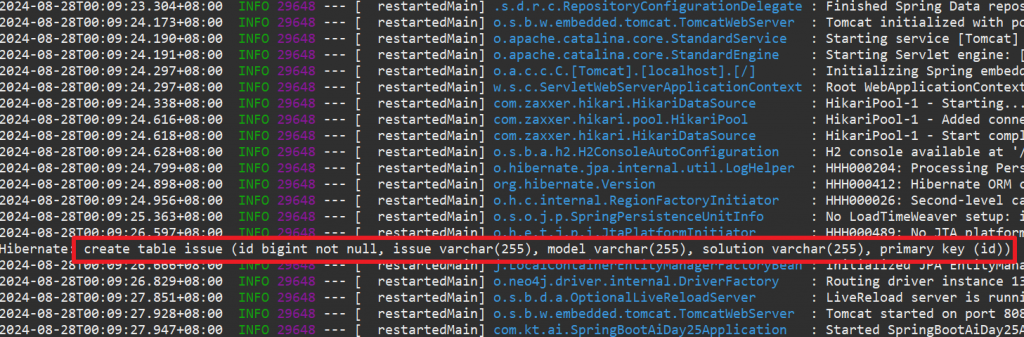
spring.h2.console.enabled=true 讓我們可以透過網頁 SQL 指令跟檢視資料 spring.datasource.jpa.show-sql=true 執行時可以在 console 顯示 SQL 語法 spring.jpa.hibernate.ddl-auto=update 會幫我們自動建立資料庫,欄位有修改時也會自動調整,在開發階段非常方便
-
啟動專案,讓 JPA 自動建立 ISSUE 表格
-
接著請 ChatGPT 幫我們產生隨機資料
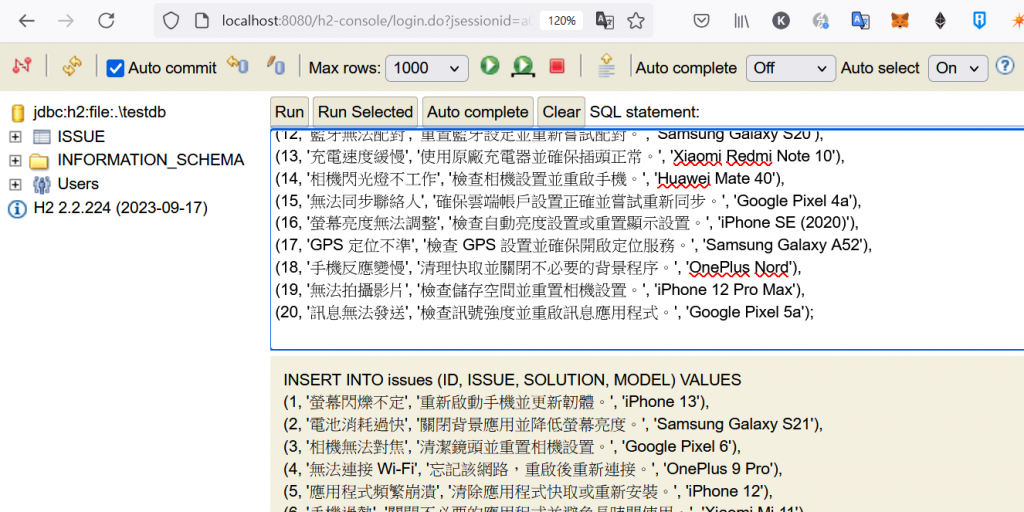
假設資料庫有 ID, ISSUE, SOLUTION, MODEL 欄位,請隨機幫我生成 20 筆測試資料,
Model可以放手機型號,資料直接給我 SQL INSERT 語句
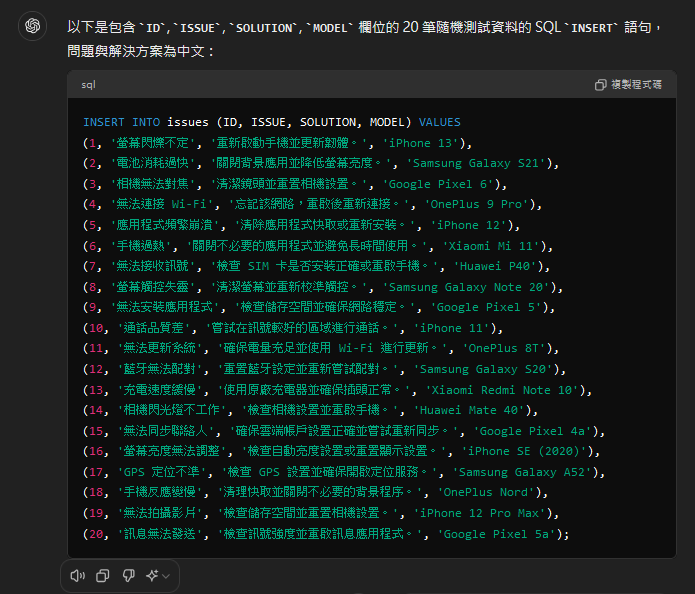
AI 真的很適合做這種瑣碎小事XD
-
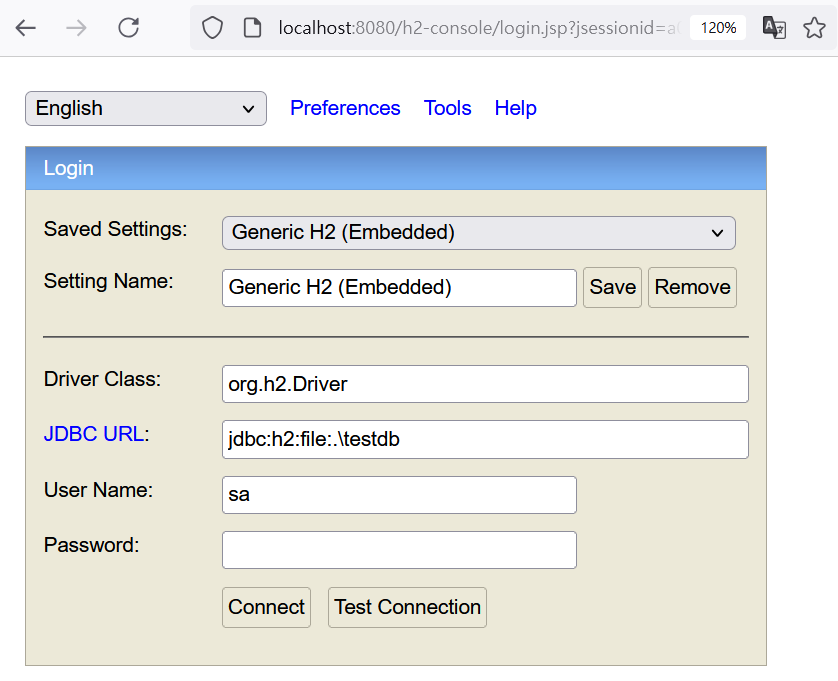
開啟瀏覽器, 網址輸入 http://localhost:8080/h2-console 登入 H2 管理介面
-
輸入第6步的 INSERT 語句新增測試資料
-
接下來增加取得資料以及匯入向量資料庫的 Service 程式
EtlService.java
private final VectorStore vectorStore;
private final IssueReposotory issueReposotory;

public List<Document> getAllIssue(){
	List<Issue> issues = issueReposotory.findAll();
	Map<String, Object> metadata = new HashMap<>();
	metadata.put("type", "issue");
	List<Document> issueDocs = issues.stream().map(
			issue -> new Document(issue.getId().toString(),
			                      issue.toString(),
			                      metadata)).toList();
	return issueDocs;
}

public void importIssue() {
	vectorStore.write(keywordDocuments(getAllIssue()));
}

public List<Document> issueSearch(String query) {
    return vectorStore.similaritySearch(query);
}
issueReposotory 使用 Required 建構子自動注入, issueReposotory.findAll() 是 JPA 取得所有資料的方法 metadata 使用 map 建立,增加的內容之後可用來篩選,這裡請不要用 Map.of 方式建立後面會無法增加關鍵字 透過 Lambda 語法將每筆 Issue 轉為 Document 再重組為
List<Document>最後在寫入向量資料庫前加上 keyword
- 增加 API 接口
EtlController.java
@GetMapping("readissue")
public List<Document> readIssue() throws IOException{
    return etlService.getAllIssue();
}

@GetMapping("importissue")
public String importIssue() throws IOException{
    etlService.importIssue();
    return "OK";
}

@GetMapping("issuesearch")
public List<Document> issueSearch(String query) throws IOException {
    return etlService.issueSearch(query);
}網址輸入 http://localhost:8080/ai/etl/readissue
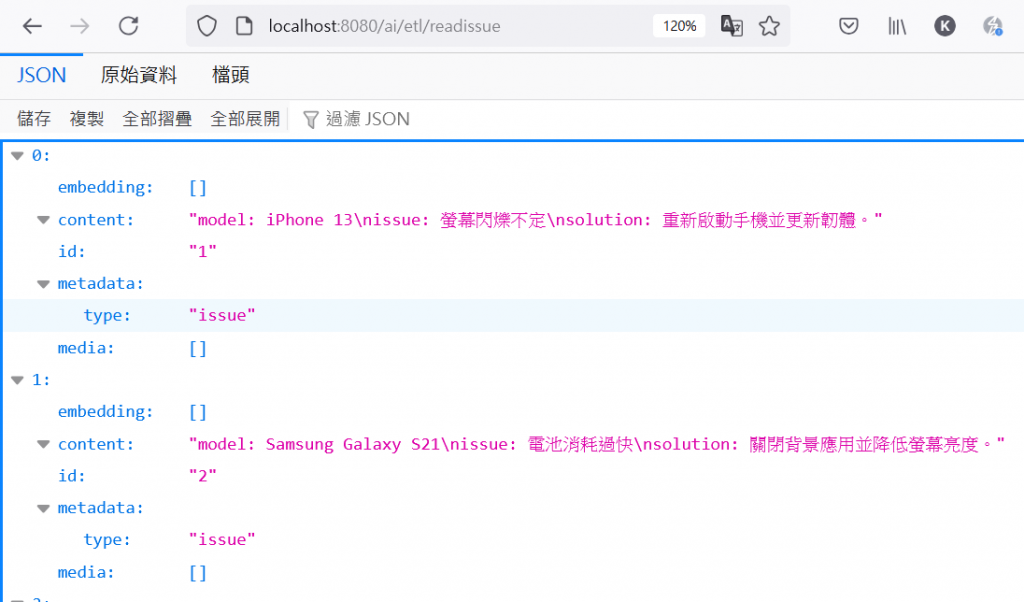
確認資料沒問題後輸入網址 http://localhost:8080/ai/etl/importissue 進行匯入工作,出現 OK 表示匯入完成
接著進入 Neo4j 確認節點資料
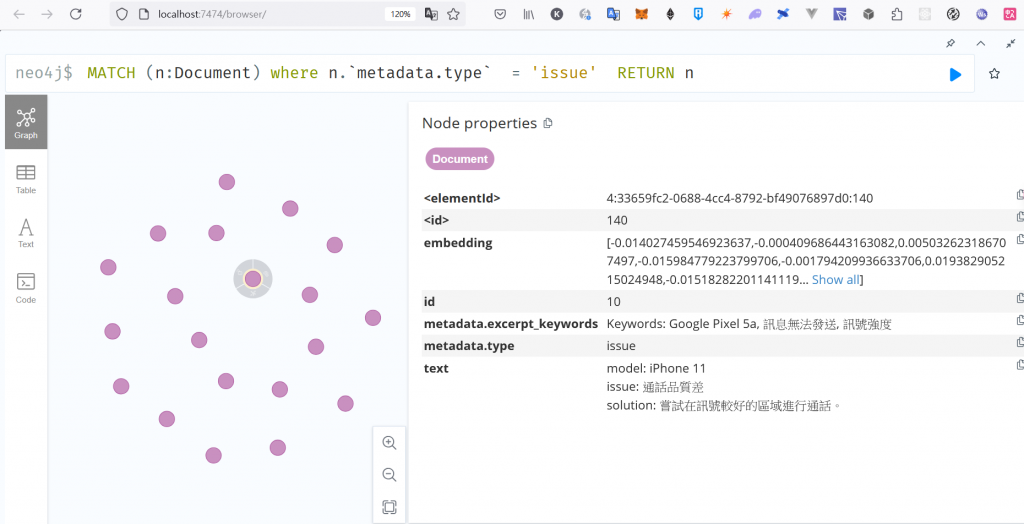
除了 text 跟 metadata.exceprpt_keywords,也有建立 Document 時寫入的 metadata ⇒ {”type” , “issue”}
接下來網址輸入 http://localhost:8080/ai/etl/issuesearch?query=螢幕狂閃要如何處理
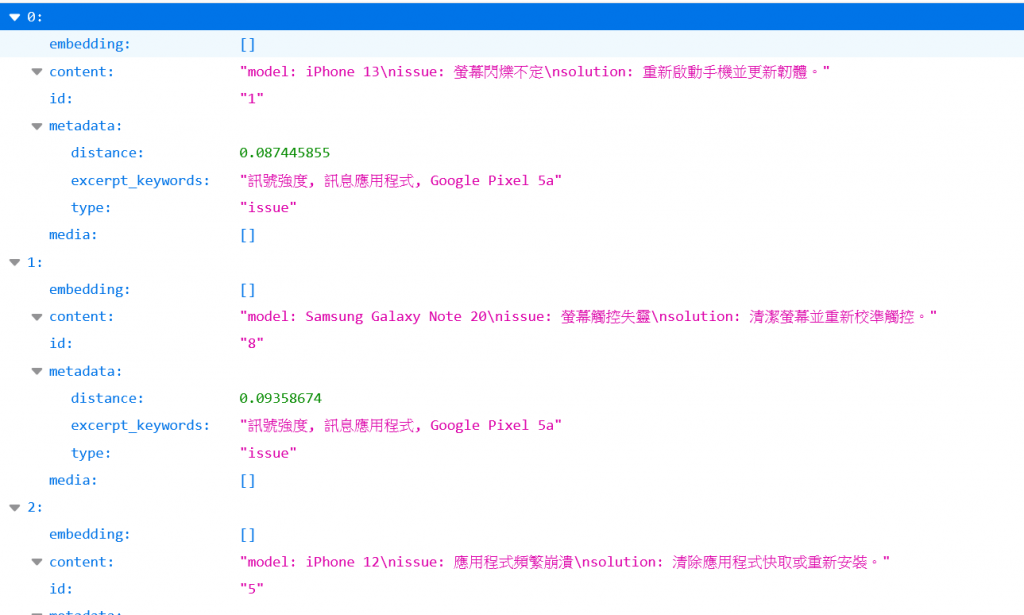
可以看到前兩筆資料都跟螢幕有關,不過第一筆更為接近我們提問的內容,這就是近似值搜尋,比傳統的關鍵字搜尋更容易找到需要的資料
今天學到了甚麼?
- 快速使用 Spring Data JPA 建立 H2 資料表格
- 使用 ChatGPT 產生隨機 insert 語句
- 透過 web 介面新增測試資料
- 從資料庫讀取內容並轉入向量資料庫
- 使用近似值查詢找到相關內容
明天就會完成 RAG 的最後一個步驟,生成資料,程式碼的撰寫也將告一段落 最後一天跟大家聊聊 Spring AI 最近 M2 版本改了甚麼東西,以及對 Spring AI 的期許