
Portable and installable builds for UWP, PWA, Electron and NWJS
Kiwix is an offline browser of archival content from Wikipedia, Project Gutenberg, TED Talks, Wikivoyage, Stackexchange, and many other sources. It makes knowledge available to people with limited or no Internet access. The software as well as the content is free for anyone to use. It requires at least one offline ZIM archive (which can be downloaded in the app). The main features of this release are the enabling of torrent downloads and seeding of archives larger than 200MB in the modern Electron apps (Electron ≥ 29 / Node ≥ 20). Additionally, macOS packages are now signed and no-longer experimental.

To use this app, download your choice of free content in-app from the Download Library on the Configuration page. For what's new, see the changes listed in the CHANGELOG. Builds are provided for 32bit and 64bit editions of Windows, Linux (tested on Ubuntu, Debian, Fedora and OpenSUSE), and macOS (Apple Silicon and Intel).
MS Store status: PUBLISHED
Winget status: PUBLISHED
Please choose the correct version (those marked [AUTO] will self-update automatically when there is a new version):
-
Any modern OS (PWA)
- Try out our installable PWA (Progressive Web App) simply by visiting https://pwa.kiwix.org/ [AUTO]. Incredibly light, no store or download required, no heavy framework! It works offline once the app has cached its code, and in Chrome/Edge/Chromium, you can install it right from within the app. On Android (Chrome and Firefox), we strongly recommend you enable the Private File System option (when you click Select Storage), as it is much faster, and you can download archives directly into this storage. On iOS (Safari), you can add the PWA to your home screen - NB on iOS only you must use Safari because Apple currently bans Service Workers in other browsers. In Firefox Android you can install the app from the browser menu. In Firefox >= 143 on Windows you can add the app to the taskbar using an icon in the address bar, and it will gain its own icon and dedicated window.
-
Linux (see installation instructions below screenshot):
- Portable (Electron) - recommended
- AppImage 64bit (Ubuntu, Debian, Fedora, OpenSUSE): Kiwix-JS-Electron-3.8.8-E.AppImage [AUTO]
- AppImage ARM64 for Linux on ARM only (Ubuntu, Debian, Fedora, opnSUSE): Kiwix-JS-Electron-3.8.8-E-arm64.AppImage [AUTO]
- AppImage 32bit (Ubuntu, Debian, Fedora, OpenSUSE): Kiwix-JS-Electron-3.8.8-E-i386.AppImage [AUTO]
- Installable (Electron)
- Deb package 64bit (Ubuntu, Debian): kiwix-js-electron_3.8.8-E_amd64.deb
- Deb package 32bit (Ubuntu, Debian): kiwix-js-electron_3.8.8-E_i386.deb
- RPM package 64bit (Fedora, OpenSUSE): kiwix-js-electron-3.8.8-E.x86_64.rpm
- RPM package 32bit (Fedora, OpenSUSE): kiwix-js-electron-3.8.8-E.i686.rpm
- Portable (Electron) - recommended
-
Windows:
- Store app for Windows 10/11 (UWP) - recommended [AUTO]
- Install from the Microsoft Store: https://apps.microsoft.com/detail/9P8SLZ4J979J
- Or, on a PC, open a Terminal (or command prompt) and run
winget install 'kiwix js' -s msstore - Or, if you cannot use the Store, sideload a signed package with
winget install kiwix.kiwixjs- this doesn't auto-update, but you can upgrade easily by runningwinget upgrade kiwix.kiwixjs
- Installable (Electron)
- Windows 10/11 Web installer (auto selects correct package, supports 64bit, 32bit, Windows on ARM64): Kiwix-JS-Electron-Web-Setup-3.8.8-E.exe [AUTO]
- Windows 10/11 64bit modern MSIX install / uninstall - Kiwix-JS-Electron-3.8.8-E.appx - recommended
- Windows 7/8/8.1 standalone 32bit: Kiwix-JS-Electron-Win7-Setup-3.8.8-E.exe
- Windows 10/11 standalone 32bit (also runs on 64bit): Kiwix-JS-Electron-Setup-3.8.8-E.exe [AUTO]
- Alternatively, run
winget install kiwix.kiwixjs.electronin a Windows 10/11 Terminal [AUTO]
- Portable - no install needed
- WARNING: Windows XP or Vista only (legacy version): kiwix_js_windows-XP-3.8.8-N-win-ia32.zip - do not use this with modern Windows!
- Windows 10/11 32bit (also runs on 64bit): self-contained portable version, no unzip needed - Kiwix-JS-Electron-3.8.8-E.exe (if you find this version slow to launch, try the Setup version above, or a zipped version below)
- [Electron] Windows 10/11 32bit (also runs on 64bit): just unzip to any drive or folder - Kiwix-JS-Electron-3.8.8-E.zip (for Win7/8/8.1, please use the Win7 installer above)
- [NWJS] Windows 10/11 64bit: just unzip to any drive or folder - kiwix_js_windows-3.8.8-N-win-x64.zip
- Store app for Windows 10/11 (UWP) - recommended [AUTO]
-
macOS (signed and notarized by Apple - see installation instructions below screenshot):
- Portable (Electron)
- macOS 12+ (Monterey or later) Apple Silicon (M1/M2/M3/M4): Kiwix-JS-Electron-3.8.8-E-macOS-arm64.zip - recommended for Apple Silicon Macs
- macOS 12+ (Monterey or later) Intel (x64): Kiwix-JS-Electron-3.8.8-E-macOS-x64.zip
- macOS 10.13-11 (High Sierra, Mojave, Big Sur) Intel (x64): Kiwix-JS-Electron-3.8.8-E-macOS-HighSierra.zip
- Portable (Electron)
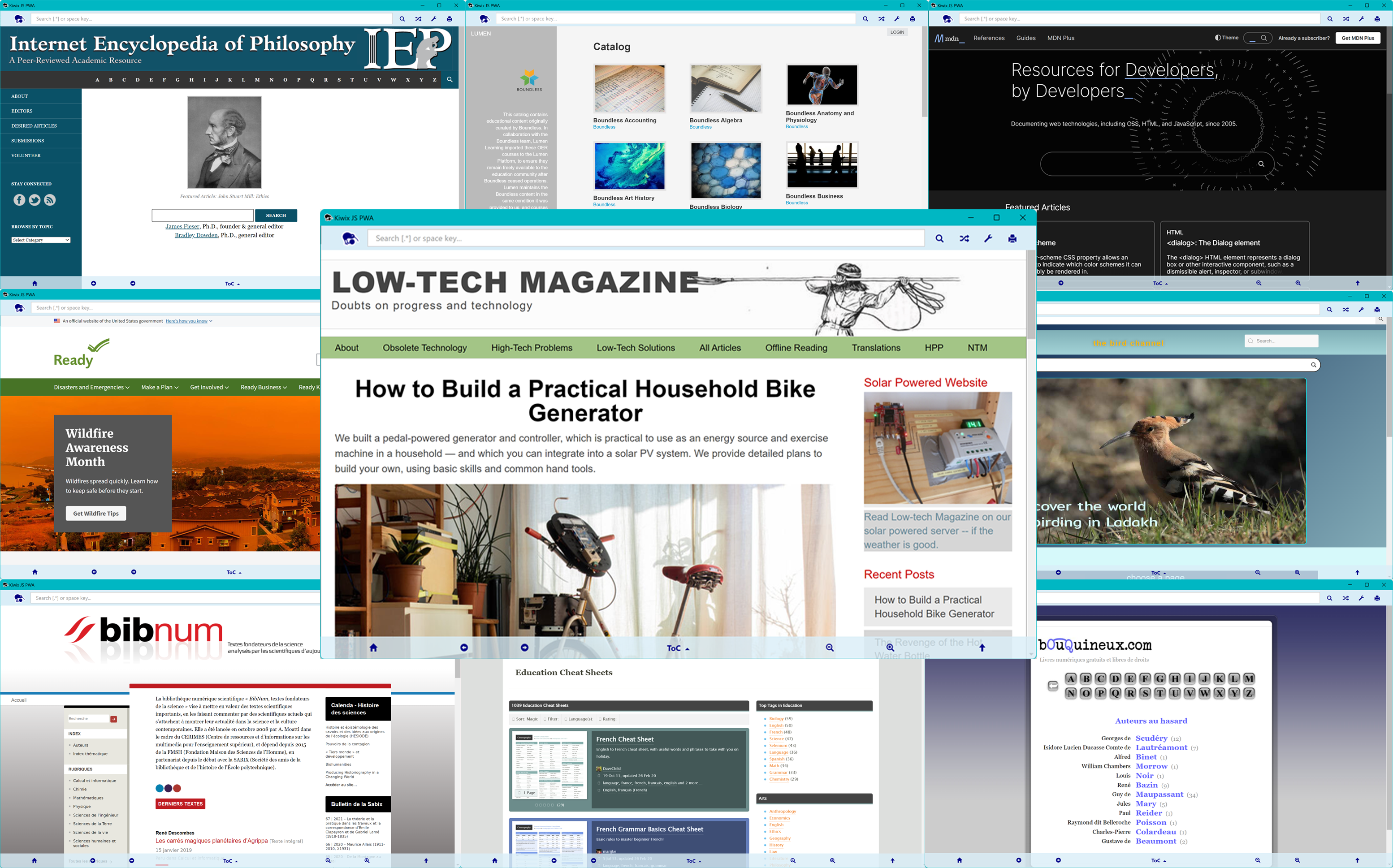
Installation Instructions
Windows
- The Windows Web installer (Windows 10/11 only) will select the correct architecture automatically and install itself, together with a shortcut in your shortcut menu. It auto-updates, but if you want to update it manually, then just install a new version over it (it will uninstall the old one for you). Please note that it needs Web access during the installation. If this is a problem, then use the correct standalone installer for your architecture.
- For the Windows 10/11 Portable builds (32bit, also runs on 64bit), the executable version (ending
.exe) can just be run, but it may be a bit slow to start up because it decompresses itself each time it runs. For a faster experience, use one of the zipped versions: unzip the contents of the package to any folder, or to a thumb drive, and double click onStart Kiwix JS [Electron/Windows]orStart Kiwix JS [Electron/Windows].bat. - For Windows 7/8/8.1, due to the deprecation of Chromium on these platforms, we only provide one option: a standalone installer built with the last version of Electron that supported Chrome on Windows 7+. This is also a 32bit package (but will run on 64bit).
- Microsoft Defender SmartScreen warning: If you get a Smartscreen notification when downloading an
.exe, or on first launch of the zipped portable apps, follow instructions to "Run anyway" if you trust this site. Additionally, when you first download an.exeinstaller, you may get a warning in your downloads "Kiwix-JS-Electron isn't commonly downloaded". If you see this, click on the file and choose "Keep anyway". A second screen may then popup telling you the publisher. So long as it's Kiwix, then click on "Show more" and allow the app. If you prefer, use one of the appx versions (ending.appxor.appxbundle) as this format runs in a secure, isolated container.
Linux
- For the Linux portable builds, download and save the correct AppImage file anywhere (e.g. your Desktop). Make it executable by opening a terminal and running
chmod +x Kiwix-JS-Electron*.AppImageand then./Kiwix-JS-Electron*.AppImage. If there are issues, see below. The AppImage will autoupdate.- On recent Linux (notably Ubuntu) you may need to install fuse2 by typing
sudo apt install libfuse2(see here). - On older Debian, you may need to add the
--no-sandboxswitch to the command (see electron/electron#17972 (comment)). - On OpenSUSE, you may need to install Chrome in order to get the dependencies necessary to run the AppImage (because Electron apps run Chrome internally). With older versions of OpenSUSE, you may additionally need to use these commandline switches:
./Kiwix-JS-Electron*.AppImage --use-gl=disabled --disable-gpu-compositing,¹ but this is no longer necessary in recent versions. - On ChromeOS, you need to run the AppImage in the Debian-based VM (Crostini). Download the appropriate AppImage for your Chromebook (the standard AppImage if it uses an Intel Celeron, or the ARM64 version if it has an ARM chip). Move this file to you Linux Files. Do
chmod +xon the file. Then run with./Kiwix-JS-Electron-x.x.x-E.AppImage. If you get errors about missing fuse and libnss3, simply install these manually:sudo apt-get install fuseandsudo apt-get install libnss3.
- On recent Linux (notably Ubuntu) you may need to install fuse2 by typing
- For the Linux installable builds:
- Debian/Ubuntu: download the correct
.debpackage. Open a terminal,cdto the directory containing the package, and typesudo apt-get updatefollowed bychmod a+x ./kiwix-js-electron*.deb, thensudo apt install ./kiwix-js-electron*.deb. To run the app from the command line, rather than from its installed icon, simply typekiwix-js-electronin terminal. On Debian, if you receive the errorlibgbm.so.1: cannot open shared object file, please runsudo apt install libgbm-dev. On older versions of Debian, you may have to add--no-sandboxto the command line when running the app, i.e.kiwix-js-electron --no-sandbox. When you want to update, just install the new version, and it will install over the old version. - Fedora: download the correct
.rpmpackage. You should be able to install it by opening the File manager, locating the package, and double-clicking it. Alternatively, open a terminal andcdto the directory with the package, and then typesudo rpm --install ./kiwix-js-electron-*.rpm(you may need to dochmod a+x kiwix-js-electron-*.rpmfirst). After install, you should find Kiwix JS Electron in your app list, and you can launch it from there. To upgrade, locate the newly downloaded package in terminal and typesudo rpm --upgrade ./kiwix.js.electron-*.rpm(ensure you specify the correct package number in place of*if you have more than one). If you find the app is stuck looking for an old sample package after upgrade, please just press the Reset button next to the version number at the top of Configuration. - OpenSUSE: download the correct
.rpmpackage. You may get a better installation experience if you first install Chrome or another Chromium browser, as the Electron app has the same dependencies as Chrome. Then open a Terminal with superuser privileges, navigate to the directory containing the.rpmpackage, and typezypper install kiwix-js-electron-*.rpm(you may need to dochmod a+x kiwix-js-electron-*.rpmfirst). If you are informed about missing dependencies, try "Solution 2: break kiwix-js-electron... by ignoring some of its dependencies'. You will also be warned that the app is not signed. You can ignore this, if you trust this repository. See above for commandline switches in older versions of OpenSUSE.
- Debian/Ubuntu: download the correct
Apple Mac
- For macOS builds: download the correct ZIP file for your Mac's architecture and macOS version (Apple Silicon, Intel, or the High Sierra build for macOS 10.13 to 11). Safari will automatically extract the ZIP file upon download, while Chrome and Firefox will download the ZIP file for you to extract by double-clicking it. Then simply double-click
Kiwix JS Electron.appto launch it. No Terminal commands are needed.- The first time you launch, macOS will ask whether you are sure you want to open an app downloaded from the Internet, and will confirm that "Apple checked it for malicious software and none was detected". Click Open. You will only see this once: macOS will not ask again on subsequent launches.
- Security note: these builds are signed with a Developer ID Application certificate and notarized by Apple. If macOS instead tells you the app is damaged, or that the developer cannot be verified, then you do not have an official release build - please download again from the Assets on this page.
- Architecture Selection:
- Apple Silicon Macs (M1/M2/M3/M4): Use the ARM64 version for optimal performance
- Intel Macs (macOS 10.15+): Use the x64 version
- macOS 10.13 High Sierra / 10.14 Mojave: Use the HighSierra version
- If unsure of your Mac's architecture, click the Apple menu > About This Mac - look for "Apple M1/M2/M3/M4" (Apple Silicon) or "Intel" in the processor information
- Troubleshooting: If you encounter issues, ensure you're using the correct architecture version for your Mac. The ARM64 version provides significantly better performance on Apple Silicon Macs. Note that nightly builds are deliberately not signed, and need extra steps to run: see Running unsigned macOS builds.
¹ With many thanks to Jay Midura for documenting the switches needed for OpenSUSE.
Release Notes
- You can download many different archives in multiple languages from the Configuration page.
- For a seamless experience in the PWA, try out the Origin Private File System: you won't have to answer permission prompts. On Android, this is also much, much faster. There is no advantage to using the OPFS in the Electron app, however.
- There is full support for reading Zimit classic (and preliminary support for Zimit 2) archives in the PWA and Electron apps (also modern NWJS app, but see Known Issues below), and legacy support in the older UWP app. If your browser cannot use the full support, it will fall back to legacy support and/or very limited support in Restricted mode.
- The app natively supports dark mode for Wikimedia, Gutenberg and Stack Exchange ZIMs (see Configuration). For Zimit archives in particular, we recommend you try the new DarkReader plugin (you can enable this from Configuration in ServiceWorker mode only).
- You can print by pressing Ctrl-P or using the print icon. If local printers are not available (after clicking on More options...) then print to PDF and use another app to print. Printing works best with Wikimedia ZIMs.
- You can open a new browsable window by middle-clicking, ctrl-clicking or long-pressing an article link (not available in every mode, see option in Configuration).
- There is support for Full-Screen mode in most browsers and frameworks, and orientation locking in some mobile browsers (e.g. Android).
- Electron versions of the app (and the PWA) now support Full-Text searching.
- You can open the ZIM's article index by typing a space in the search box. Sometimes you may need to search the URL index instead: to open this, type space / (a space followed by a forward slash) in the search box. In older ZIMs, you will find articles under the
A/namespace and images under theI/namespace, but in newer ZIMs almost all content is under theC/namesapce. - In title search, you can use wildcards
.*or.+(this works best if you start the search with a normal alphanumeric string). You can include a more complex regular expression by enclosing it within(?:my_regular_expression). See Configuration -> About for more details and limitations. - You can search for any file in a ZIM by prefixing the namespace, e.g.
C/isaac.*newton.*webpin recent ZIMs where all content is in theCnamespace, orI/isaac.*newtonin older ZIMs where images are in theInamespace and articles in theAnamespace.
Known Issues
- Opening/closing headers: In the latest Wikipedia ZIMs, opening and closing of headers is now, by design, only enabled if you transform the style to mobile in Configuration -> Display Style (mobile, desktop).
- Printing: In Electron apps, no preview is available prior to printing: we recommend you print to PDF first and then print the PDF, or use the PWA instead for printing (which has print preview). Before printing, ensure all sections you want to print are open (if you closed them). It is not possible to print Zimit-based articles in Firefox.
- There are various issues with the NWJS app - we recommend you use the Electron app instead (except on Windowx XP):
- PDFs in Zimit-based archives are blocked from viewing in the NWJS app.
- There is no support for built-in WebTorrent downloads in the NWJS app. Also, if you download an archive in-app from a mirror (from the in-app library), you will be able to pick a download directory, and the download will start, but then there will be no further indication that a download is in progress. We recommend you use the "Direct download" feature instead (this will be shown if you have picked a directory as your ZIM archive folder in the "Select storage" panel).
- In the NWJS app only, YouTube-based videos in Zimit archives do not play with sound (this does not affect other archives such as TED Talks or Khan Academy).
- Image manipulation (e.g. saving image to disk) does not currently work with the NWJS app.
- On the XP build with some recent ZIMs there is a CSS error in rendering image-heavy landing pages, due to the age of the Chromium build included in the runtime package. However, you can access all articles by pressing a space in the search box.
- Please see https://github.com/kiwix/kiwix-js-pwa/issues for further known issues. If you find a problem not reported there, please open a new issue on that page.
Instructions for sideloading (UWP)
You can sideload the UWP app easily by typing winget install kiwix.kiwixjs in a Command Prompt or PowerShell terminal (Windows 10/11). This will download and install the Electron-based appx. If you want to install the legacy UWP appx based on EdgeHTML, then simply download the appx (see below) and double click it. The app installer should launch and will let you install it.
For Windows Mobile or for sideloading manually, please download KiwixWebApp_3.8.8.0_AnyCPU.appx and the zipped PowerShell script from Assets below. Then follow the detailed instructions at https://github.com/kiwix/kiwix-js-pwa/tree/main/AppPackages#readme.