Repository navigation
Web UI Guide
The UI is served by omenhound serve at http://<addr>/. It is a dependency-free
canvas force graph embedded in the binary — no npm, no bundler, no CDN.
./bin/omenhound serve --collector sample --addr 127.0.0.1:8080
# open http://127.0.0.1:8080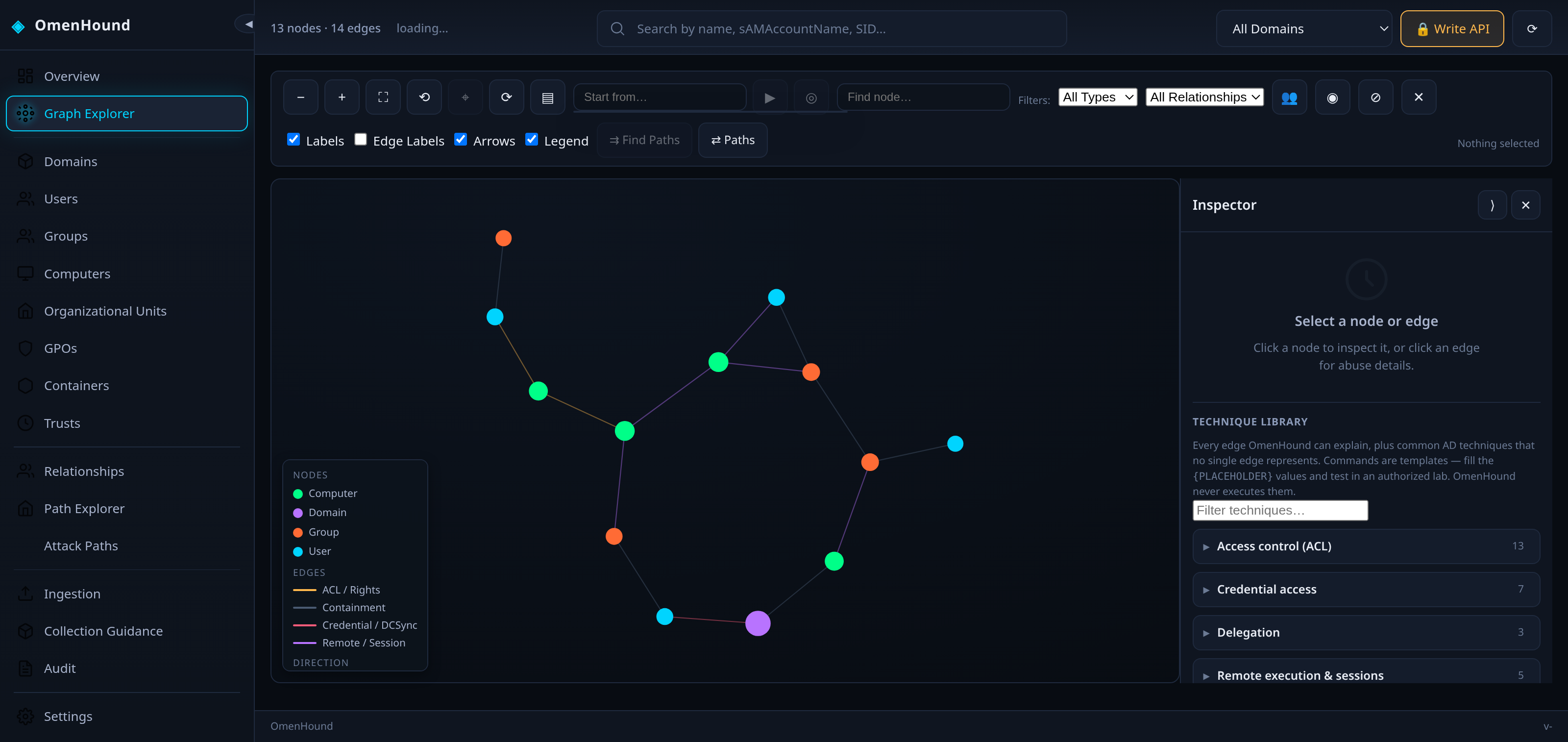
-
Nodes are coloured by kind (
User,Group,Computer,Domain,GPO,OU,Container,Trust); the legend is shown in the empty panel. -
Edges are AD relationships. Node labels show
name / sAMAccountName / SID. - Drag to pan, scroll to zoom, drag a node to move it.
- The top bar shows
N nodes · M edges.
The toolbar is grouped by purpose:
| Group | Controls |
|---|---|
| Navigation | zoom out/in, fit, reset, centre selection, re-run layout, show/hide Inspector |
| Start & selection | Start from… picker, start/target chips, set start/target from selection, clear path highlight |
| Search | find node (name / SAM / SID) |
| Filtering | node-kind filter, relationship filter, Sessions only, isolate, hide unrelated edges, clear selection |
| Display | node labels, edge labels, arrows, legend |
| Analysis | Find Paths between start and target, open Path Explorer from the starting node, toggle the route panel |
Three roles are kept deliberately separate and are never inferred from one another:
- Selected node — the entity open in the Inspector.
- Starting node — the origin of an analysis. Set it from the Start from… picker, the Inspector’s ▶ Start here button, or a relationship row. It persists while you inspect other entities.
- Target node — the destination used by path analysis.
Picking a result in Start from… sets the starting node, selects and centres it, and
shows a start chip; the canvas marks it with a solid green ring and a START
caption (the target gets a dashed red ring and a TARGET caption). Shape, letter and
caption all carry the meaning, so it survives greyscale and colour-blind rendering.
Click a node to open the node inspector:
-
kind,sid,sam,domain,dn, plus every collected property. - Outgoing and Incoming edge lists — click any entry to jump to that edge's abuse panel.
- Collapsible sections for Memberships & roles, Sessions, Credentials and Evidence & provenance (see below).
- Quick actions: ▶ Start here, ◎ Target, ⌖ Focus, ⇄ Paths, ⧉ Copy SID.
Use the header buttons to collapse (⟨/⟩) or hide (✕) the Inspector; the Panel
toolbar button reopens it. Closing the panel no longer clears the selection — Esc does.
Where the dataset contains HasSession edges ((User)-[:HasSession]->(Computer)), the
Inspector’s Sessions section lists the observed relationships from both sides, and the
Sessions only toggle filters the graph to just those identities and hosts.
OmenHound validates no session metadata, and the collectors emit sessions without timestamps or validity. The UI therefore states only “observed at collection time” and never asserts an observed / historical / stale / expired status it cannot prove. Absence of a session is never treated as proof that none exists.
OmenHound does not store secrets in the graph, so the Inspector’s Credentials section normally shows an honest empty state. If an importer supplies credential references through the property namespace below, they are rendered masked by default with an explicit per-value reveal:
cred.type        password | nthash | ntlm | kerberos-ticket | token | certificate
cred.source      where the reference came from (collector / import)
cred.ref         an opaque fingerprint or reference id — never the raw secret
cred.observed_at RFC3339 collection timestamp
cred.status      discovered | imported | validated | expired | unknown
Raw values never reach the URL, browser storage or logs, and a reference is never treated
as proof that authentication would succeed. The shipped collectors do not emit cred.*.
Set the source and target from the graph: Find Paths runs the search between the starting node and the target, and the ⇄ Paths toolbar button opens the view from the starting node or the current selection. Results honour direction (outgoing / incoming / undirected), node and relationship-type filters, max depth and max paths, and appear both in the Paths view and in the collapsible Path Explorer panel beside the canvas (a hidden panel takes no space from the graph).
The backend returns up to max paths distinct shortest routes of equal length — not every possible route; when a search limit is hit the UI says so rather than implying a complete set. With no route selected every route is highlighted in its own colour; selecting a route focuses it and dims the others (without deleting anything), and unrelated nodes/edges are faded but kept. Each entry shows Path N, start/target name and type, hop and node counts, intermediate nodes in traversal order, relationship types, and a coverage status (complete / audit unknown) — which is about data coverage, never exploitability. Controls: Show all, Focus, ↑ Prev / ↓ Next, ⛶ Fit, ⇄ Reverse, ⭳ Export (JSON) and Clear. ⌖ Show on graph pushes a route back onto the canvas, highlighting its nodes and edges until cleared.
Internally this is a read-only breadth-first search over the loaded graph; it never mutates the dataset. A connection is graph evidence — never presented as an exploitable attack path.
The Attack Paths view answers the classic BloodHound questions without writing any Cypher: Kerberoastable users, AS-REP roastable users, DCSync-capable principals, LAPS readers, unconstrained/constrained delegation, RBCD, local administrators, observed sessions, high-value targets, AdminSDHolder-protected objects, sensitive users, and owned principals. Pick a query to run it against the current graph.
Each finding shows the evidence that matched (the concrete property or the
relationship and its target). When the graph contains none of the attribute or
relationship a query depends on, the result shows a note saying so — an empty
result is only evidence of absence when that data was actually collected. ⌖ Highlight
on graph pushes the matches onto the Graph Explorer. The same queries are available
over the API at /api/v1/analytics (see the API Reference).
Ignored while typing in a form control:
| Key | Action |
|---|---|
f |
fit view |
r |
reset view |
c |
centre selection |
/ |
focus the node search |
Esc |
clear the selection and any highlighted path |
Click an edge (or an entry in the node's edge list) to open the abuse panel. This is the heart of OmenHound: the command is generated at render time from your graph's real properties.

The panel shows:
| Section | Contents |
|---|---|
| title / summary | the edge kind and source → target
|
| Read | the verify/enumerate step — confirm the condition before acting |
| Add | the act step (the command field): a copy-pasteable primary command with real SAM/DN/domain/DC |
| Alternates | alternative tooling (impacket, certipy, SharpGPOAbuse, …) |
| OPSEC | what the action looks like on the wire / in logs |
| Event IDs | Windows event IDs to correlate |
| ⚠ warnings | emitted whenever a needed property is missing — never a silent gap |
The same rendering is available over HTTP:
curl -s "http://127.0.0.1:8080/api/v1/abuse?src=<SID>&kind=GenericAll&dst=<SID>" | jq
curl -s "http://127.0.0.1:8080/api/v1/abuse/supported" | jq
curl -s "http://127.0.0.1:8080/api/v1/abuse/playbook" | jq
When nothing is selected the Inspector shows the Technique Library: the same
material grouped into 10 categories / 54 techniques, with {PLACEHOLDER} tokens kept
literal so you can fill them by hand (the abuse panel, by contrast, interpolates the
real source and target). See Technique Library.
Type in the top bar to filter by name, sAMAccountName, or SID. Non-matching nodes are dimmed in place, so you keep the surrounding topology.
Reload re-fetches /api/v1/graph (useful after an ingest) and refreshes the footer
health line: v<version> · credential-ops ON/off · write-api ON/off.
The UI is read-only by default. Graph-modifying endpoints require an operator bearer token, so the UI exposes a gated Write API control (top right). Clicking it opens the auth gate:

- The token is held in this tab's memory only and never persisted.
- The gate submits to
POST /api/v1/ingestwithAuthorization: Bearer <token>. - A bad/absent token surfaces the real server response — the screenshot above shows
denied: unauthorized, which is the actual401from the server, not a mock. - On success the control flips to 🔓 and the graph reloads.
The gate is a convenience wrapper over the same bearer-token auth the CLI and
curluse. It does not weaken the server-side checks: the token is still required and constant-time compared, and every write is audited.
The Ingestion view has a Web Upload, an Ingestion Management and a CLI / API Guidance tab.
-
Web Upload picks a Graph JSON file, takes the same operator token, and sends it to
POST /api/v1/ingest. A Domain scope box lets you restrict the import to one domain (type it or pick a known one), choose what happens to objects that declare a different domain (reject— the default — orskip) and whether objects with no domain of their own may bestamped with the selected domain. Leaving the domain empty imports every domain in the file, exactly as before. A scoped import never silently falls back to "all domains". -
Preview runs
POST /api/v1/ingest/previewfirst: a dry run that reports how many nodes/relationships would be written, matched, stamped, skipped and cross-domain, without writing anything. -
Replace existing graph (a checkbox, off by default) makes that ingest replace
mode (
?mode=replace): the current graph is deleted first, so the server ends up holding only the file you uploaded. With a domain scope selected it replaces only that domain's data and leaves the other domains intact. Leave it unchecked to merge. A confirmation dialog always precedes a replace and names the exact scope. -
Delete data (in the danger zone) clears the whole graph on demand: it shows the
current counts and, after a confirmation, calls
DELETE /api/v1/graph?confirm=true. This is the only global deletion and is deliberately labelled as global.
The Ingestion Management tab is where scoped deletion lives, kept visually separate from the global clear:
- A batch history lists every import with its id, source file, domain, time, created/updated counts and status, and a domains table lists each domain with its counts.
- Preview delete on a batch or a domain computes the impact first — nodes/relationships to delete, nodes/relationships preserved because another import shares them, and any legacy records with no provenance. Nothing is removed until you confirm.
- Confirming deletes exactly that scope. A domain deletion additionally requires you to type the domain name to confirm. The server re-validates the preview when you confirm; if the graph changed in the meantime the deletion is rejected and you re-preview, so a stale plan can never delete more than you saw.
Both actions reload the graph and reset the selection, start/target anchors and any path
highlight, so nothing keeps pointing at a deleted entity. See the
API Reference for the exact mode, scope and confirmation semantics.
Scoped deletion needs ingestion provenance: it works on the default in-memory store, and a backend that cannot track provenance returns a clear error instead of deleting blindly. With
--neo4j-uri, use the global Delete data only on a database dedicated to OmenHound.
scripts/shots.py regenerates the images above using Selenium + the system Chromium:
./bin/omenhound serve --collector sample --addr 127.0.0.1:18091 --api-token operator-secret &
python3 scripts/shots.py http://127.0.0.1:18091 wiki/img
It captures the graph, performs a real edge click for the abuse panel, and drives the
auth gate with a bad token so the denied state is genuine.
scripts/graph_ux_test.py drives a real browser against a running server and asserts the
graph, Inspector, starting-node, session, credential, path (including alternative routes,
the domain filter and inspect-from-the-drawer), domain-scoped ingestion, the ingestion
management tab and data-management (replace/delete) behaviours. It ingests a self-contained
fixture into a scratch server, so it never touches a real dataset:
make test-uiPoint BASE at an existing server to run the checks read-only against its dataset:
python3 scripts/graph_ux_test.py --base http://127.0.0.1:8080Checks whose evidence is absent from the dataset are reported as SKIP with a reason — never as a pass.
Next: Operations & Hardening →