Repository navigation
Releases
Switch 2 Dashboard 1.4.0

This release adds a Nintendo Switch Online icon maker: build your user icon the way the console does, from a character, a frame and a background.
What's new in 1.4.0
- Nintendo Switch Online icons. Open My Page → User Settings → Nintendo Switch Online Icons (or the new button in Change Icon):
- Pick a character, a frame and a background from 66 game collections and over 7,500 parts: Mario Kart World, Super Mario Bros. Wonder, Zelda, Splatoon, Kirby, Pokémon, Animal Crossing, Metroid, Miis and more. Frames and backgrounds can also be set to None.
- A live preview shows the stacked icon as you go. Surprise Me (or X) picks a random one, and Check for new icons refreshes the list when the collection grows.
- Your icon appears in the status bar, on My Page and in the Quick Settings menu.
- Nothing bundled, works offline once saved. The parts come from the community collection henry-debruin/nso-icons, the same one nso-icon-tool uses on the Switch. The plugin caches the part list, loads pictures from GitHub as you browse and saves your icon on the Deck as one PNG. Building an icon needs an internet connection; showing it doesn't.
- My Page now shows a new icon as soon as you save it, and the icon editors take over the page so the controller's focus goes straight into them.
See the changelog for earlier versions.
Install
- Download
switch2-dashboard.zipbelow. - In Game Mode: Quick Access (
…) → Decky → ⚙ Settings → General, turn on Developer mode. - Developer → Install plugin from ZIP, pick
switch2-dashboard.zip.
Updating? Install the new ZIP the same way; your settings are kept. The plugin panel should then show v1.4.0 at the bottom. If it still shows an older version, restart Steam.
Switch 2 Dashboard 1.3.0
This release brings an authentic 1:1 Nintendo Switch 2 dock menu, a built-in Profile Avatar Customizer, a Quick Settings side menu, and enhanced text contrast for the Basic White theme.
What's new in 1.3.0
- Authentic Switch 2 Dock Menu. The 10 bottom round shortcuts now feature custom vector SVG icons and Nintendo's vibrant brand colors:
- Nintendo Switch Online (Switch Red
#E60012) - GameChat (Switch 2 Indigo Blue
#0072CEwith headset) - News (Red-Orange
#E63900with official megaphone) - Nintendo eShop (Orange
#F58426with official shopping bag) - Album (Sky Blue
#00A0E9photo frame with mountains and sun) - GameShare (Purple
#8E24AAwith dual wireless Joy-Cons) - Controllers (Joy-Con Slate
#282C31with Neon Cyan & Neon Red Joy-Cons) - Virtual Game Cards (Teal
#00897Bgame cartridge) - System Settings (Slate
#546E7A8-tooth gear) - Sleep Mode (Charcoal
#37474Fstandby symbol)
- Nintendo Switch Online (Switch Red
- Authentic Switch 2 Visual Effects.
- Focus halo with glowing animated multi-color conic rainbow ring and drop shadow.
- Scale pop animation and press compression on buttons.
- 3D top-glass gloss reflection on circular buttons.
- Glowing labels in accent colors.
- Switch 2 Quick Settings Menu (Menu Rápido).
- Press Y on the HOME Menu to slide out a Switch 2 Quick Settings drawer.
- Quick adjustments for Brightness and Volume.
- Fast toggles for Theme (Basic Black / Basic White), All Software, and Instant Sleep Mode.
- Switch 2 Profile Avatar Customizer.
- Replacing the external Steam web link, User Settings → Change Icon now opens a built-in Switch 2 Avatar Creator.
- 21 Nintendo Character Icons: Mario, Luigi, Princess Peach, Bowser, Yoshi, Toad, Donkey Kong, Triforce, Hylian Crest, Master Sword, Pokéball, Pikachu, Kirby, Warp Star, Screw Attack, Inkling Squid, Animal Crossing Leaf, Switch 2 Logo, Dual Joy-Cons, Retro NES, and Steam Profile.
- 15 Official Background Colors: Mario Red, Neon Red, eShop Orange, Pikachu Yellow, Yoshi Green, Luigi Green, Neon Cyan, Sky Blue, Cobalt Blue, Waluigi Purple, Peach Pink, Slate Gray, Dark Charcoal, Pure White, and Golden Star.
- Live circular preview with ambient Switch 2 glow animation.
- Custom avatars seamlessly appear across the entire dashboard (status bar, My Page title, profile, and Quick Menu).
- One-click option to revert to standard Steam avatar.
- Enhanced Basic White Theme Legibility.
- Greatly improved contrast for game titles and shortcut labels using a deep, high-contrast Nintendo Blue (
#00508e) instead of washed-out light cyan. - Removed muddy text shadows on white backgrounds for sharp, crystal-clear readability.
- Greatly improved contrast for game titles and shortcut labels using a deep, high-contrast Nintendo Blue (
See the changelog for earlier versions.
Install
- Download
switch2-dashboard.zipbelow. - In Game Mode: Quick Access (
…) → Decky → ⚙ Settings → General, turn on Developer mode. - Developer → Install plugin from ZIP, pick
switch2-dashboard.zip.
Updating? Install the new ZIP the same way; your settings are kept. The plugin panel should then show v1.3.0 at the bottom. If it still shows an older version, restart Steam.
Switch 2 Dashboard 1.2.0
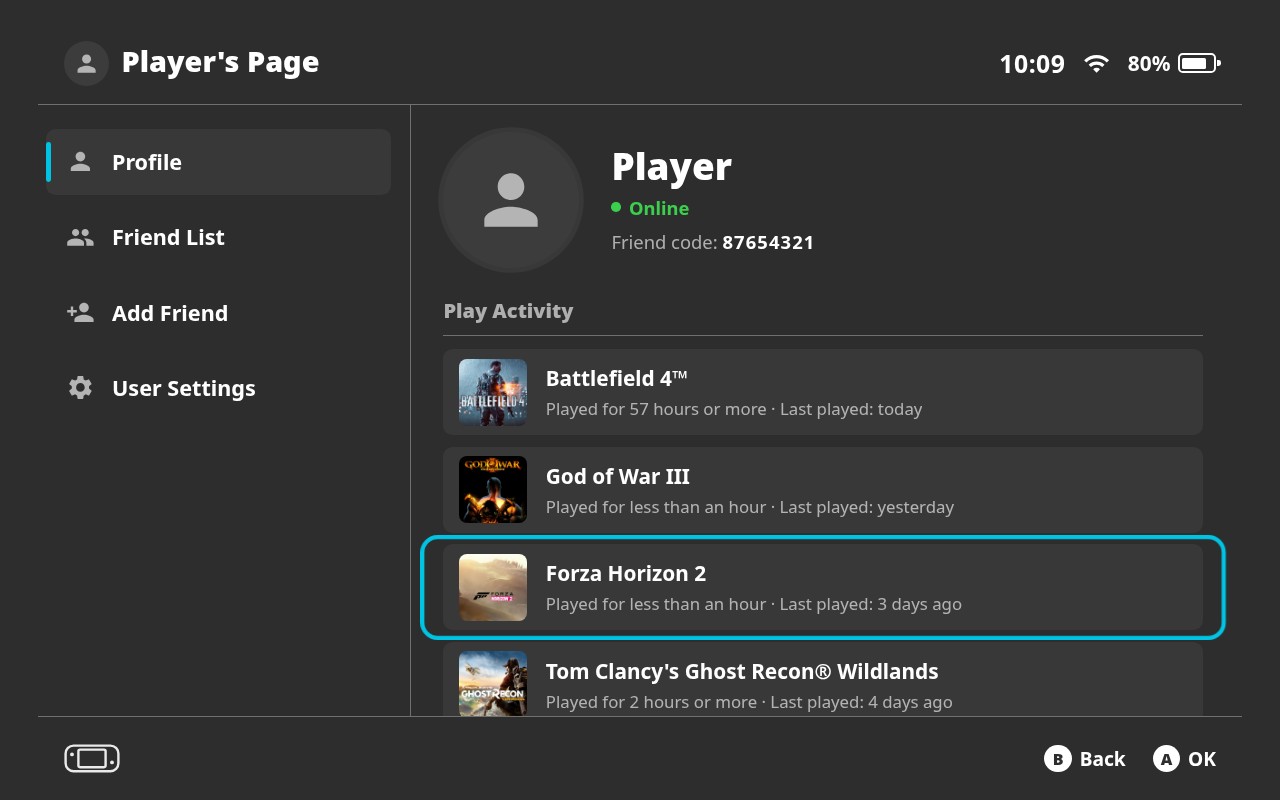
This release adds the console's My Page.
What's new in 1.2.0
- My Page. Press A on your avatar in the HOME Menu for the console's user page: a menu on the left that fills the right side as you move through it.
- Profile: your avatar, name, status and Steam friend code, plus Play Activity: each game with "Played for X hours or more" and when you last played it.
- Friend List: your Steam friends as round icons, the ones playing first, with what they're playing or when they were last online. A opens Friends & Chat.
- Add Friend: your friend code in big type, search by friend code, and your received and sent friend requests.
- User Settings: edit profile, change icon, privacy settings and Steam account.
- B goes back to the HOME Menu.
- In the Basic White theme, rows and menus use white cards, like the console.
See the changelog for earlier versions.
Install
- Download
switch2-dashboard.zipbelow. - In Game Mode: Quick Access (
…) → Decky → ⚙ Settings → General, turn on Developer mode. - Developer → Install plugin from ZIP, pick
switch2-dashboard.zip.
Updating? Install the new ZIP the same way; your settings are kept. The plugin panel should then show v1.2.0 at the bottom. If it still shows an older version, restart Steam.

Switch 2 Dashboard 1.1.0
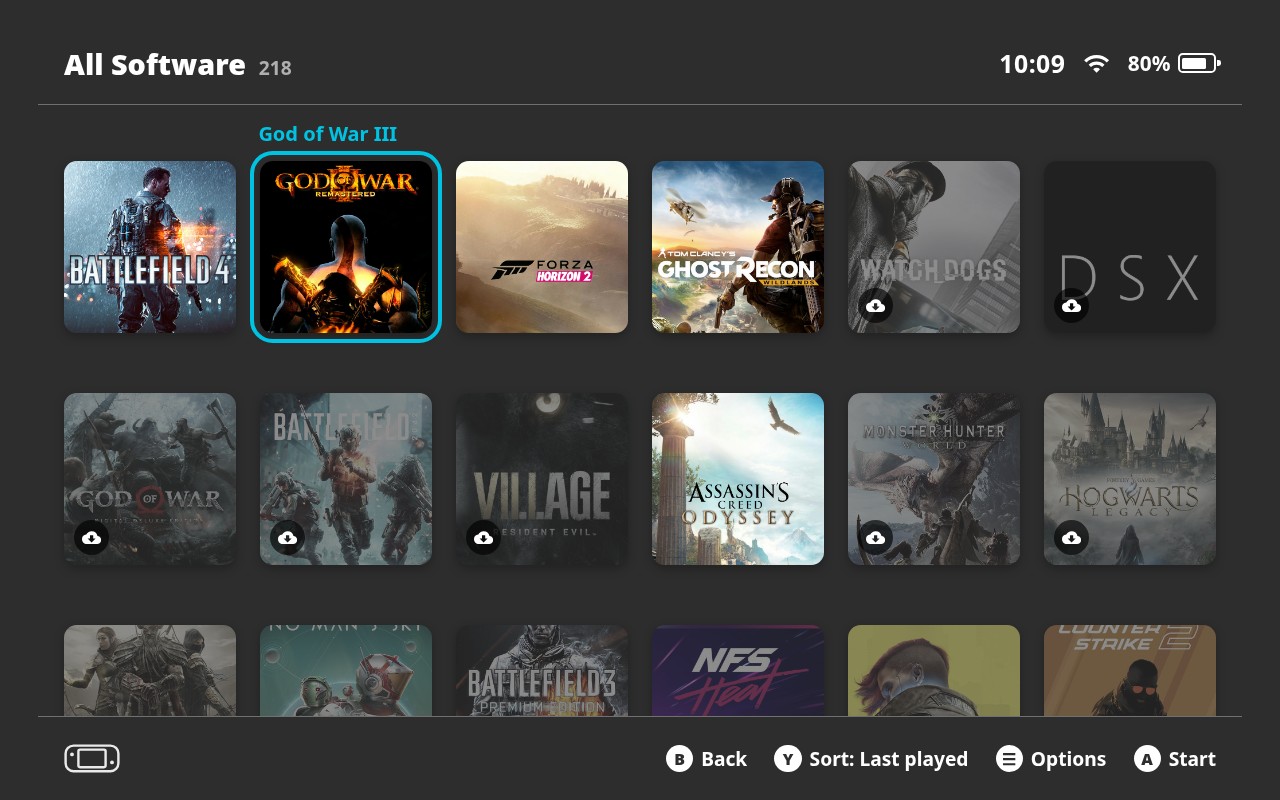
This release adds the console's All Software screen.
What's new in 1.1.0
- All Software screen. The All Software tile at the end of the HOME Menu row now opens your whole library as a grid of square tiles, six to a row, with the selected title above it in cyan, just like on the console.
- Archived look for games that aren't installed. They're dimmed with a cloud icon. Press A to open the game's page and install it.
- Sorting with Y: last played, play time or title. The current order shows in the footer.
- B goes back to the HOME Menu. ☰ opens Steam's game menu on any tile, like on the HOME Menu.
- Long titles in the grid's last column end at the tile's edge.
See the changelog for 1.0.0.
Install
- Download
switch2-dashboard.zipbelow. - In Game Mode: Quick Access (
…) → Decky → ⚙ Settings → General, turn on Developer mode. - Developer → Install plugin from ZIP, pick
switch2-dashboard.zip.
Updating? Install the new ZIP the same way; your settings are kept. The plugin panel should then show v1.1.0 at the bottom. If it still shows an older version, restart Steam.
Switch 2 Dashboard 1.0.0
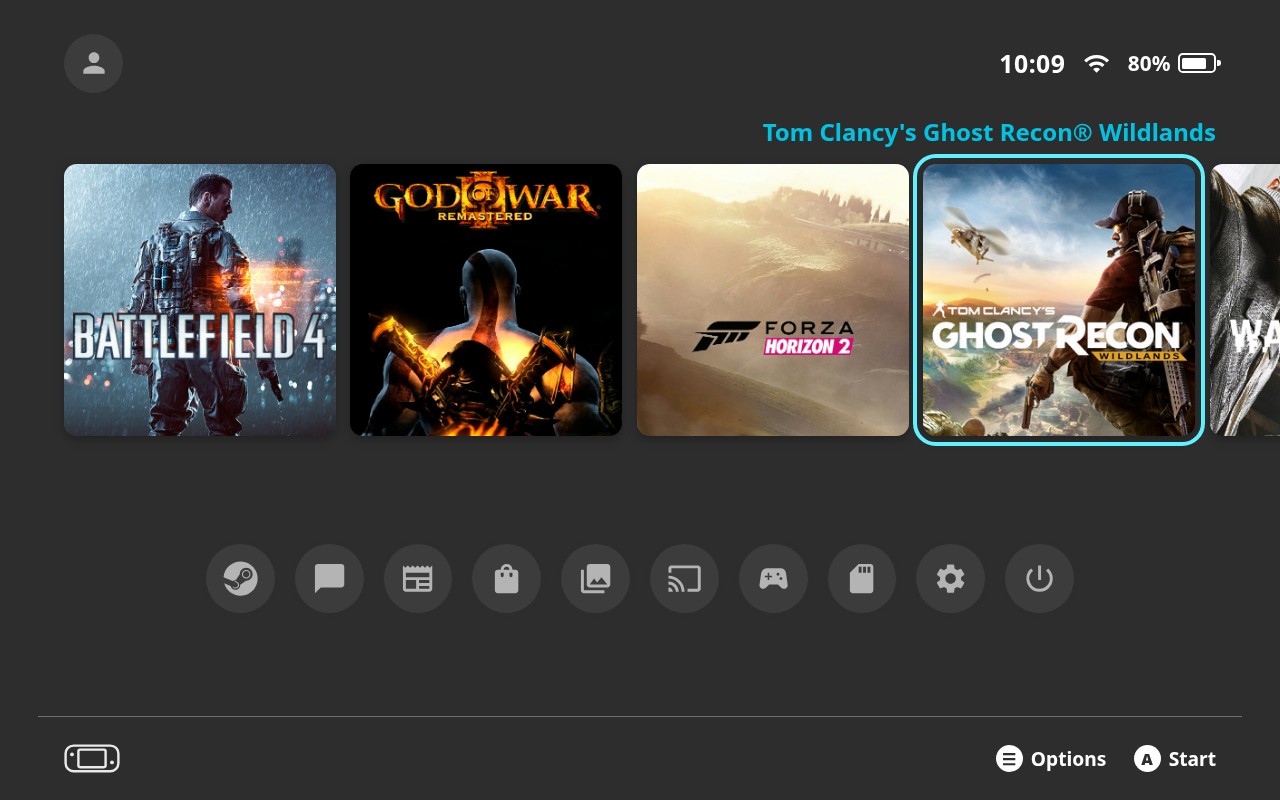
The first release: the Nintendo Switch 2 HOME Menu for SteamOS Game Mode.
What's in 1.0.0
- The HOME Menu layout. Steam's home becomes a status bar, a row of big square game tiles, ten round shortcuts and a footer with ☰ Options · A Start.
- Square game tiles. Your recent games (12 by default, 4–20 in the settings), then All Software, which opens your Steam library. The selected game's name sits above its tile in cyan, with a pulsing frame. Long names slide left so they stay on screen.
- Ten round shortcuts in the console's order, each mapped to Steam: Steam Online, Chat, News, Steam Store, Album, Remote Play, Controllers, Library, System Settings and Sleep Mode. Gray symbols, rainbow selection ring.
- Live status bar. Your avatar (My Page → your profile), the clock, Wi-Fi and the battery level. Steam's own top and bottom bars are hidden on the HOME Menu only.
- Basic Black and Basic White themes, a tile art choice (cover, banner or hero) and a 24-hour clock option.
- Your art and your games. SteamGridDB covers and non-Steam games show up like any other game. A starts or resumes a game, ☰ opens Steam's game menu, including SteamGridDB's Change artwork….
- English and Portuguese, following Steam's language.
Install
- Download
switch2-dashboard.zipbelow. - In Game Mode: Quick Access (
…) → Decky → ⚙ Settings → General, turn on Developer mode. - Developer → Install plugin from ZIP, pick
switch2-dashboard.zip.
Using PS5 Dashboard or Xbox Dashboard too? Turn their home screen off first, so only one dashboard replaces Steam's home. The plugin panel shows v1.0.0 at the bottom.