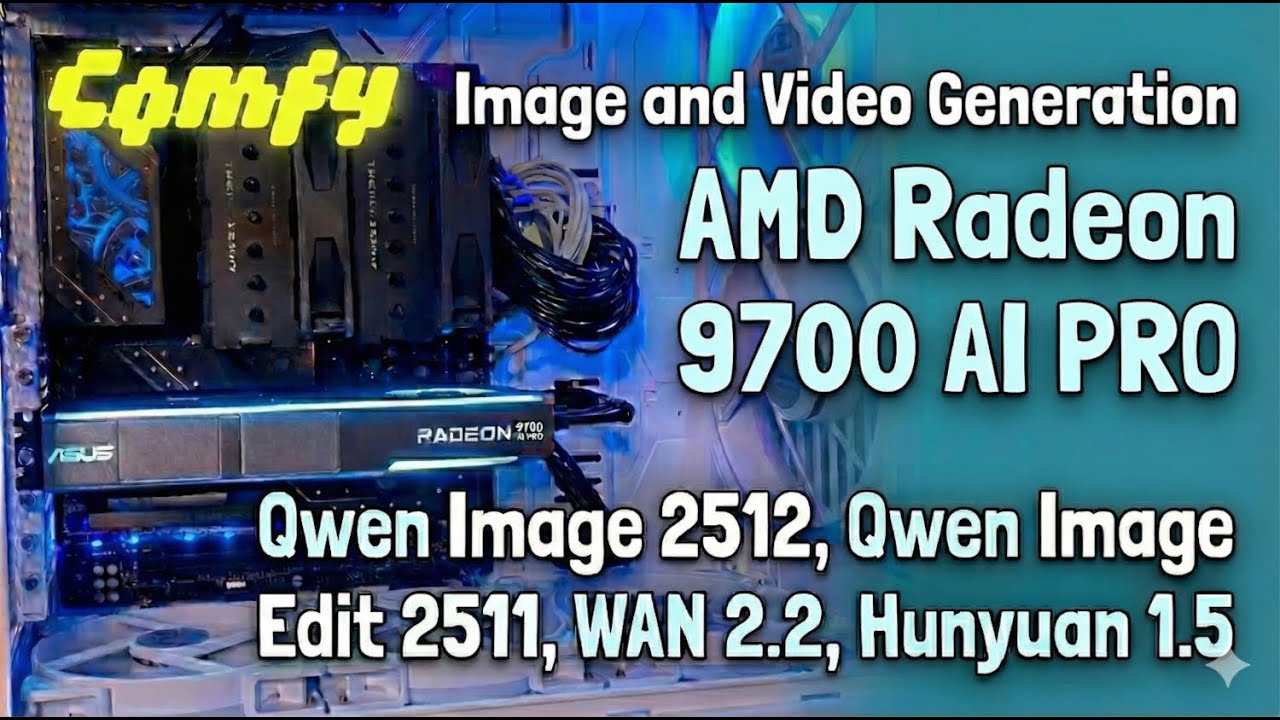
A Fedora toolbox image with a full ROCm environment (TheRock Nightlies / ROCm 7) for image & video generation on the AMD Radeon 9700 AI PRO (32GB).
This repository provides a pre-configured Docker container to run ComfyUI with validated workflows on the AMD Radeon 9700 AI PRO (32GB).
- 1. Included Workflows
- 2. Toolbox Setup
- 3. First Run Setup (Required)
- 4. Benchmarks
- 5. Kernel Log Collection
- 6. Maintainer Notes
The repository comes with a collection of ComfyUI workflows pre-validated on this hardware. You can find them in the workflows/API directory (mapped to /opt/comfy-workflows inside the container).
| Workflow | Type | Description |
|---|---|---|
| HunyuanVideo 1.5 | I2V / T2V | 4-step LoRA, 720p resolution. Configured for 32GB. |
| Qwen Image | T2I | Qwen Image 2512 (FP8) & Lightning LoRA (4 steps). |
| Qwen Image Edit | Image Editing | Qwen Image Edit 2511 (FP8) & Lightning LoRA (4/20 steps). |
| Wan 2.2 | I2V / T2V | 14B model with 4-step Lightning LoRA. |
This project uses toolbox (built on Podman) to provide a seamless development environment that integrates with your home directory.
Run the following command on your host to create the container with GPU access:
toolbox create r9700-comfy \
  --image docker.io/kyuz0/amd-r9700-comfy:latest \
  -- --device /dev/dri --device /dev/kfd \
  --group-add video --group-add render --security-opt seccomp=unconfined
--device /dev/dri&/dev/kfd: Exposes AMD GPU and compute devices.--security-opt seccomp=unconfined: Required for some ROCm/GPU operations.
toolbox enter r9700-comfyOnce inside, you have access to a full ROCm environment with PyTorch, ComfyUI, and helper scripts in /opt.
To update the container image (e.g., for newer ROCm nightly builds) without deleting your downloaded models (which should be stored in your HOME), use the provided refresh script found in the root of this repo:
./refresh-toolbox.shWarning
This will delete and recreate the toolbox container. Any files stored inside the container system (e.g., /opt, /usr) will be lost. Files in your home directory (~) are safe.
After entering the toolbox for the first time, you must configure the storage paths and download the model weights.
Run the setup script to link ComfyUI's model directories to your home folder (~/comfy-models). This ensures you don't download 100GB+ of models every time you refresh the container.
/opt/set_extra_paths.shUse the Model Manager TUI to download the required checkpoints and LoRAs for the included workflows. This tool handles the complex dependency chains (e.g., downloading base models before LoRAs).
model_manager(Or python /opt/model_manager.py)
Select the workflow you want to run (e.g., "Wan 2.2 - Text to Video"), and the manager will download the necessary files to ~/comfy-models.
Note: The manager uses the helper scripts located in
/opt/(likeget_qwen_image.sh,get_wan22.sh) under the hood. You can run these manually if you prefer CLI arguments.
We maintain a list of performance benchmarks for these workflows on the R9700 AI PRO.
👉 View Benchmarks: https://kyuz0.github.io/amd-r9700-comfy/
To run benchmarks yourself:
python /opt/benchmark_workflows.pyWe are working directly with AMD to improve kernel stability and performance for the R9700 AI PRO (gfx1201). If you encounter performance issues or crashes, you can help by collecting execution logs.
Tracking Issue: ROCm/TheRock#2591
- Make sure you are inside the toolbox.
- Run the log collection script:
python /opt/collect_perf_logs.pyThis script will:
- Run the workflows in isolation.
- Capture
hipblasltandmiopenlogs. - Save them to the
perf_logs/directory in your current folder.
Please zip the perf_logs folder and attach it to the GitHub issue mentioned above, or share it with the maintainers.
To publish collected performance logs as a GitHub Release (for tracking historical data):
-
Zip the logs:
zip -r perf_logs_$(date +%Y%m%d).zip perf_logs/ -
Create a Release:
gh release create logs-$(date +%Y%m%d) perf_logs_$(date +%Y%m%d).zip \
  --title "Performance Logs $(date +%Y-%m-%d)" \
  --notes "Logs collected on R9700 AI PRO for kernel analysis."