Setting up a GitHub Application
These steps are very general, you do not actually need any code to setup a GitHub application. What is needed is the URL's where the application will be hosted.
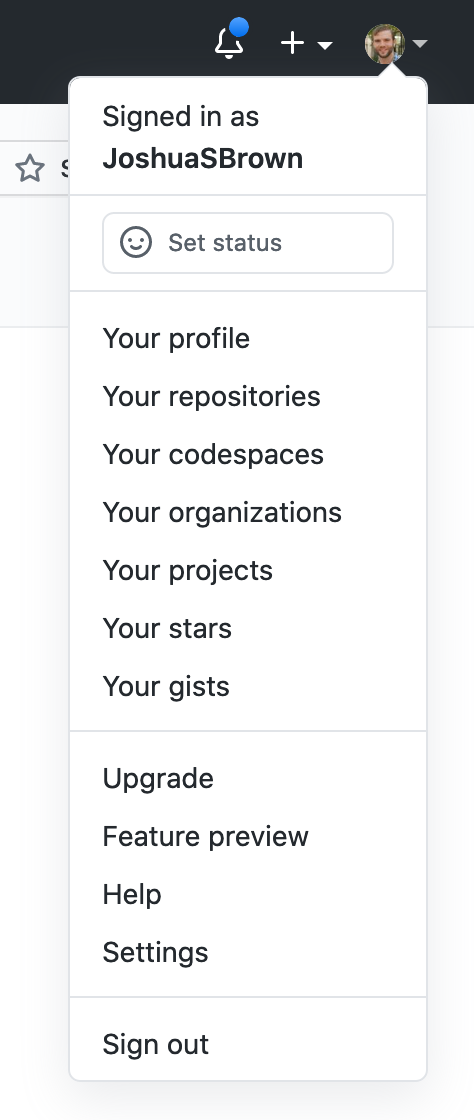
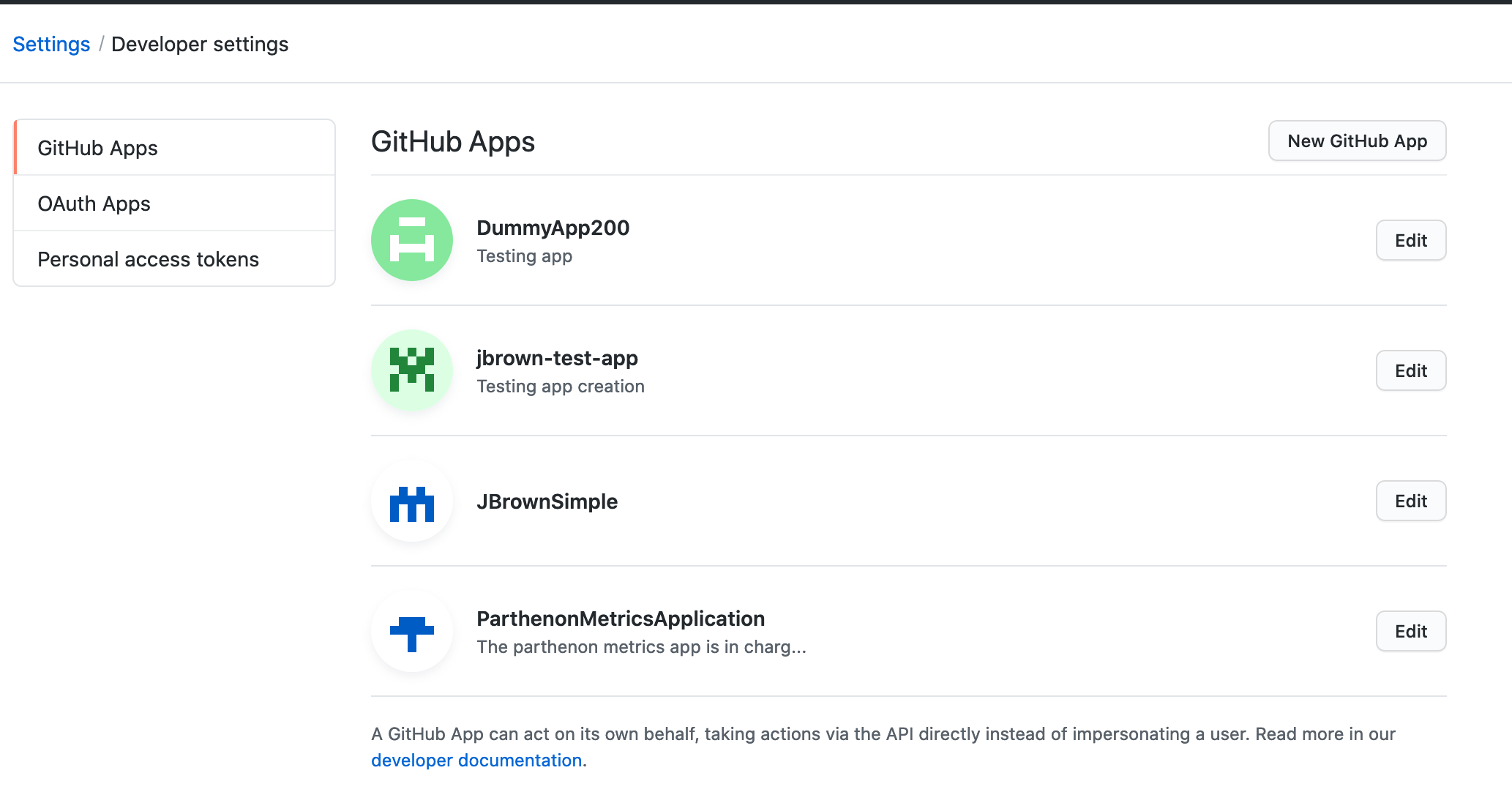
- First step, click on your profile, and choose settings, then click Developer Settings.
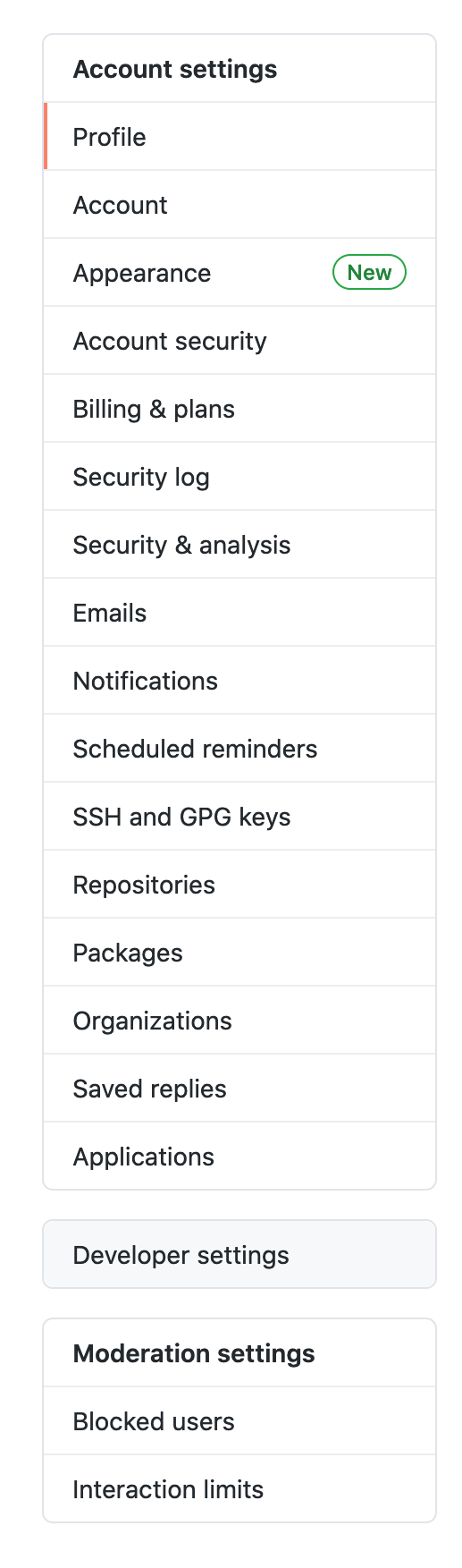
- Three different options should then be available to you, you want to be sure the GitHub Application option is selected. Go ahead and select the create New GitHub App button at the top right side of the screen.
- You will need to provide your password at this point.
- Next, you will be provided with a form. I will call this the Application Creation Page, there are a few items that are required in order to register the application with GitHub.
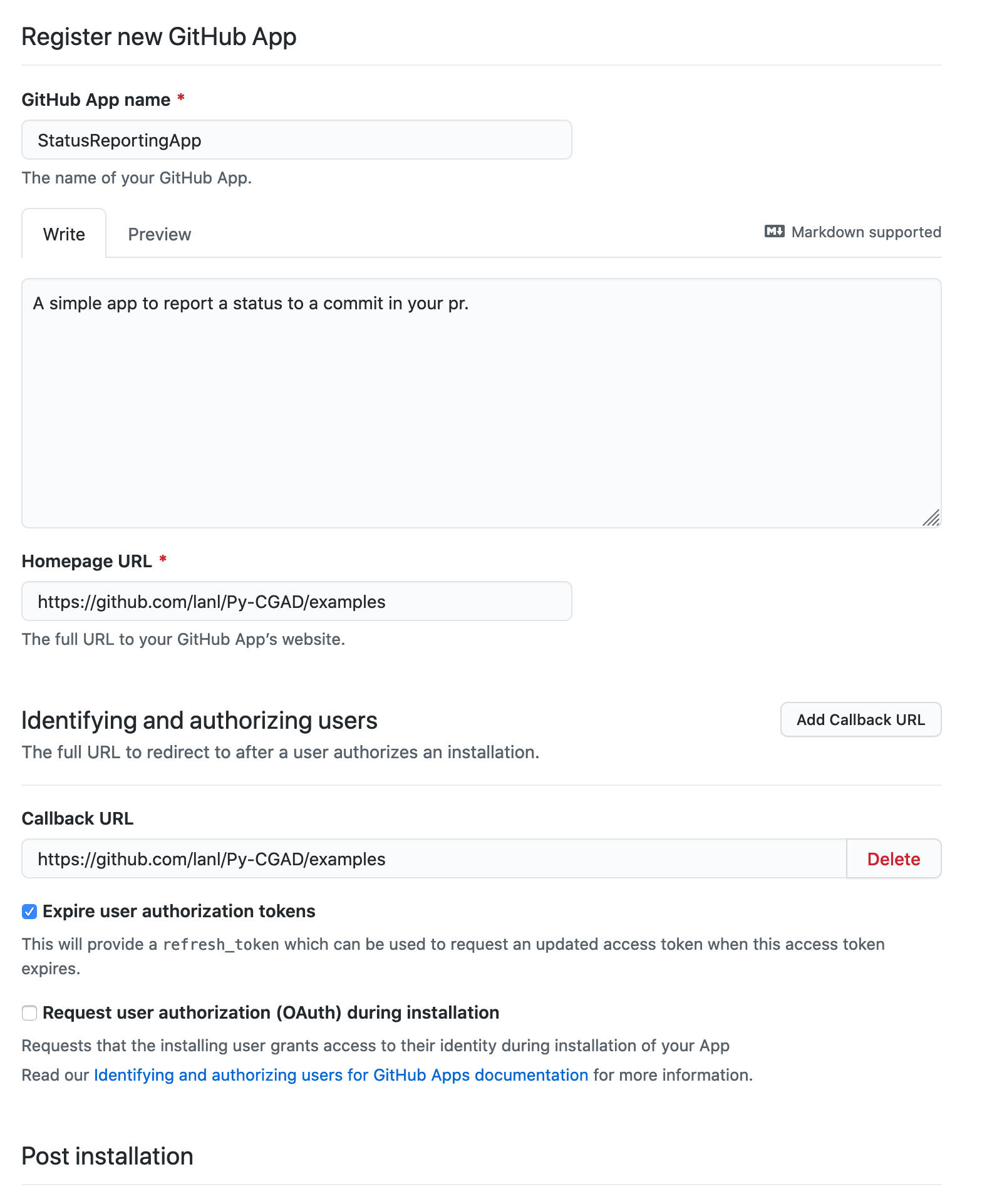
The required items are:
- GitHub App name - it is what it says the name you want to call your application
- Homepage URL - a link to the GitHub repository or the homepage of the application
- Webhook URL - a way to communicate between GitHub and a server you are hosting
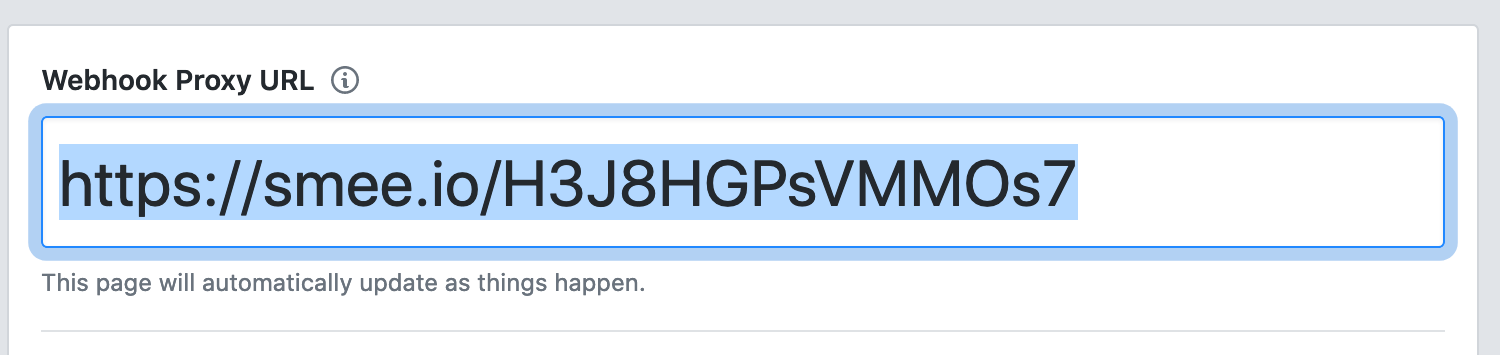
- We can get an appropriate webhook URL from smee.io. I won't get into the details on how to receive payloads from GitHub using a server it is enough to have the URL and copy it into the Webhook URL field on the Applications Settings Page.
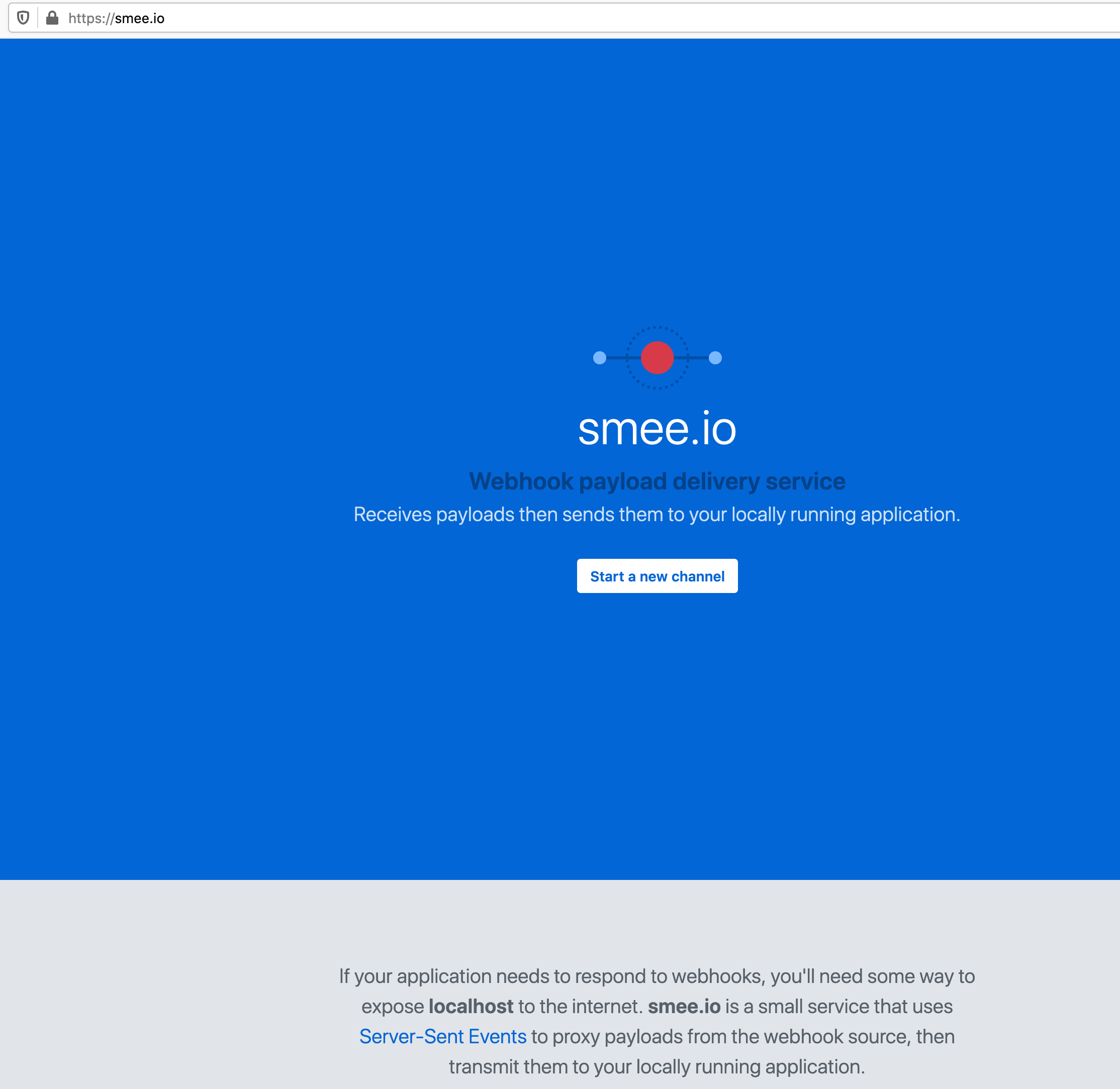
Click Start a New Channel button.
- A screen will appear giving you some advice on how to get a server running, but all you need is the URL.
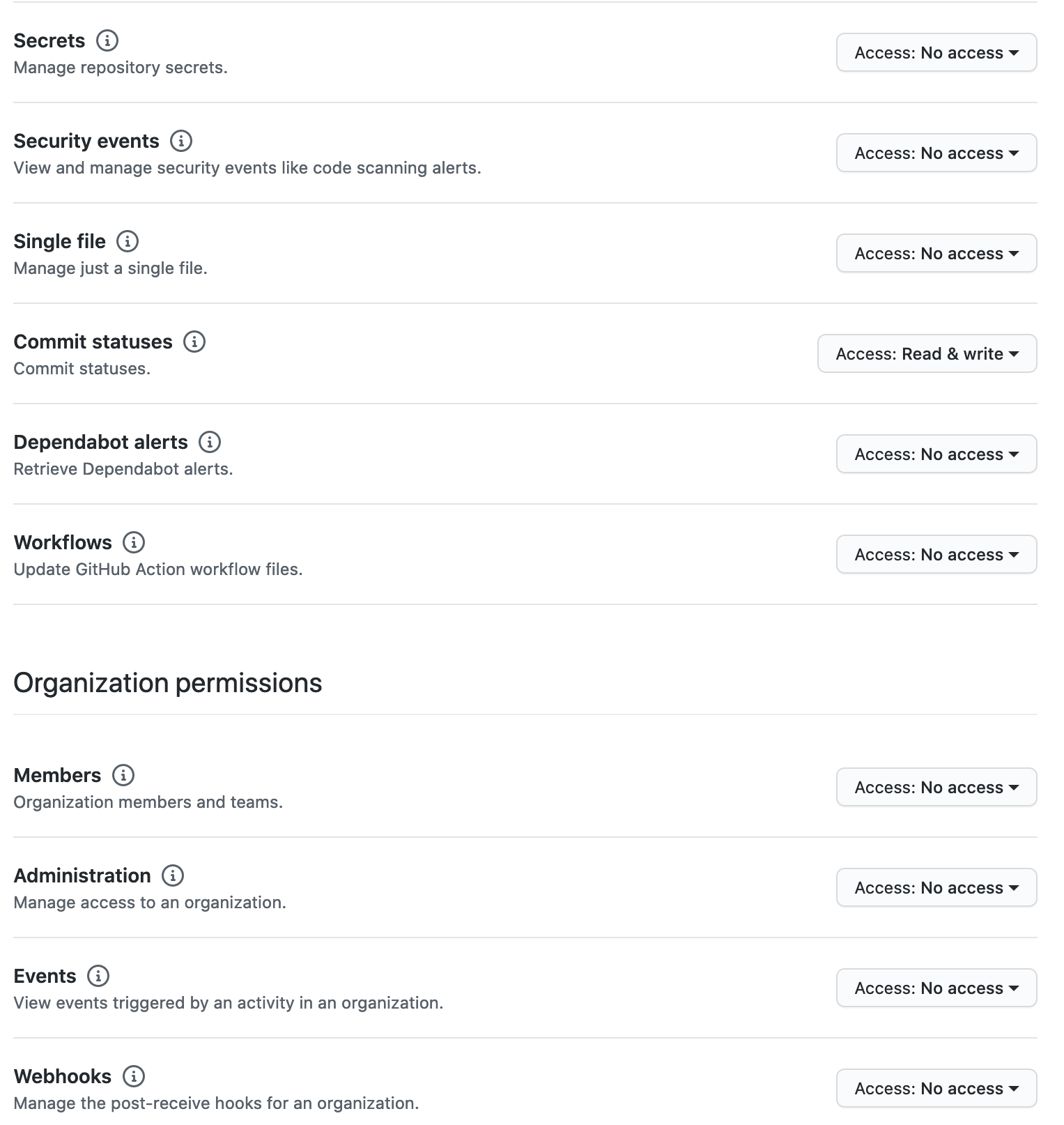
- The next step on the Application Creation Page is to define the permission that your app needs in order to execute. For instance, if my app only interacts with the settings I may only need to ensure the application has permission to make changes there.
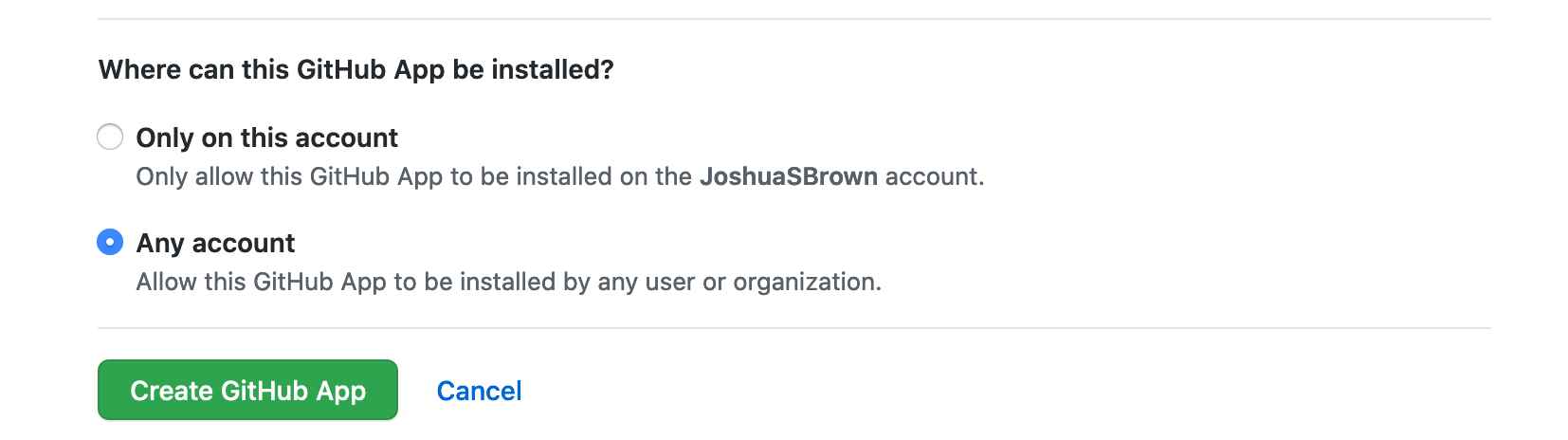
- There are a few more options, but that covers the essentials. At the bottom of the Application Creation Page you can click the Create App button.
- A new page will appear the Application Settings Page. At this point, your app has been registered with GitHub and it will be assigned a unique id the App Id which will show up near the top of the Application Settings Page. This number is needed by Py-CGAD when actually building a python app so you should take note of it. Probably the best thing about GitHub applications is their secure authentication. At this point, your app has no way of authenticating itself. You will notice in the image below immediately after creating the app there will be a banner at the top of the page indicating that there are no secret keys associated with your app.
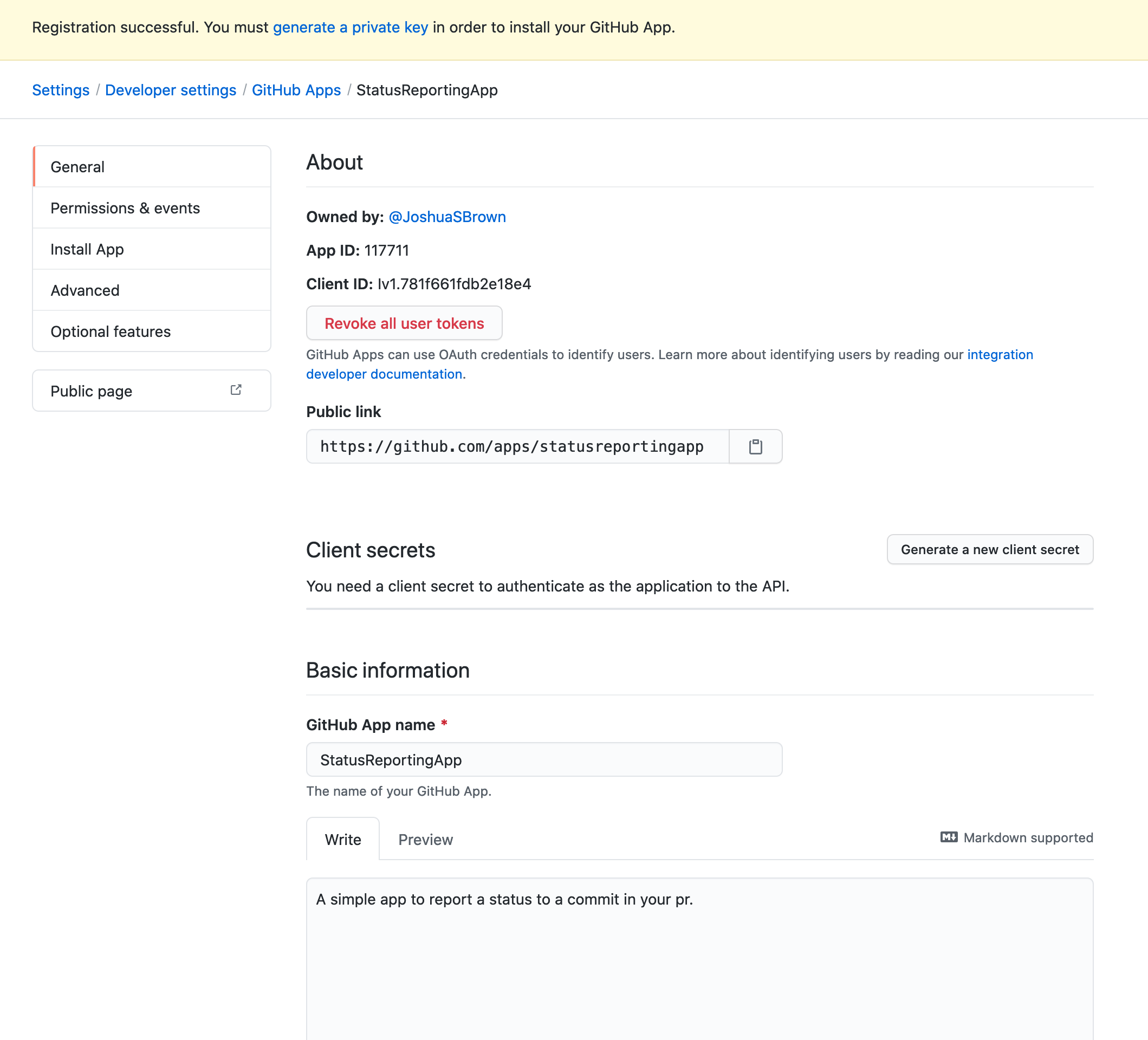
- At the bottom of the Application Settings Page there is an option to create a private key.
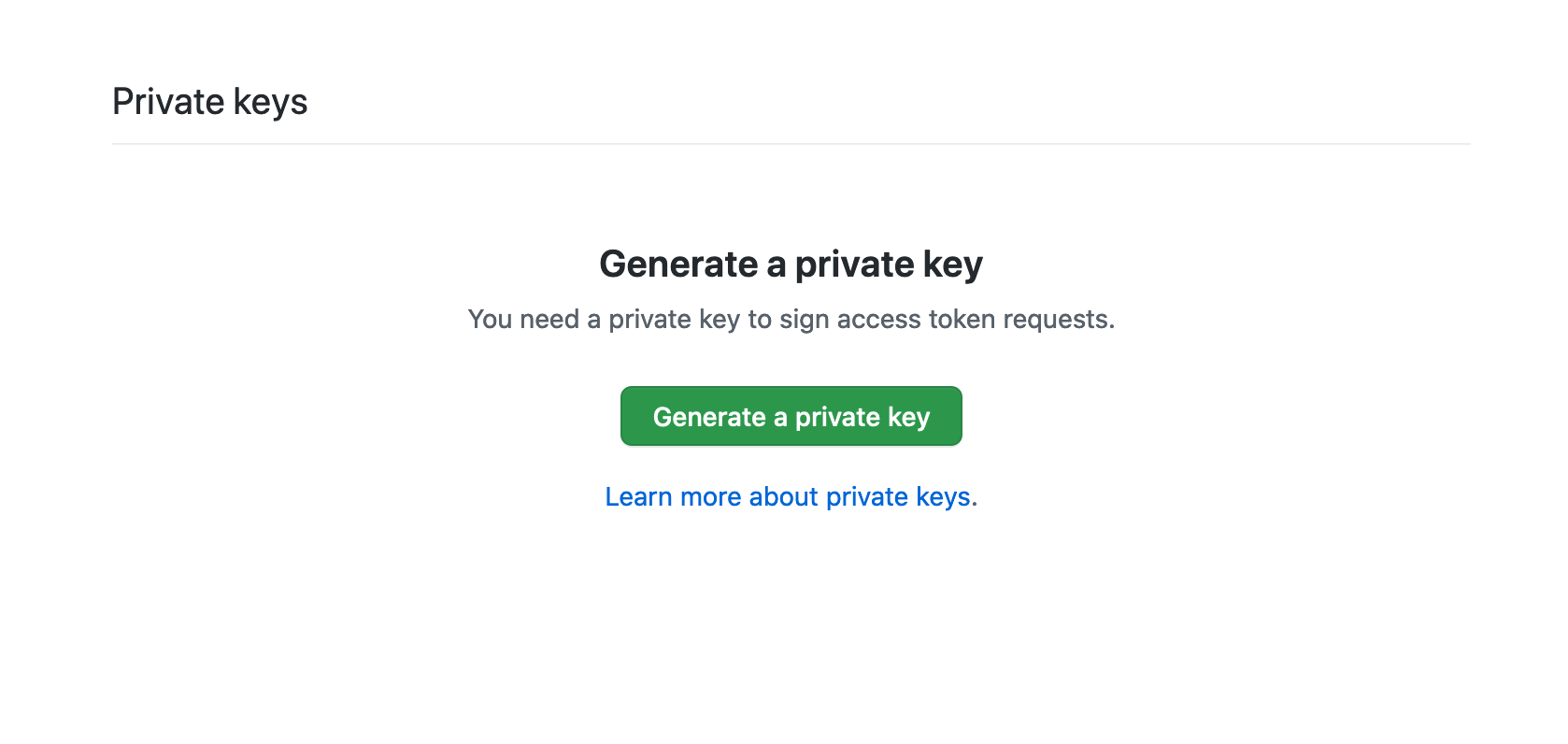
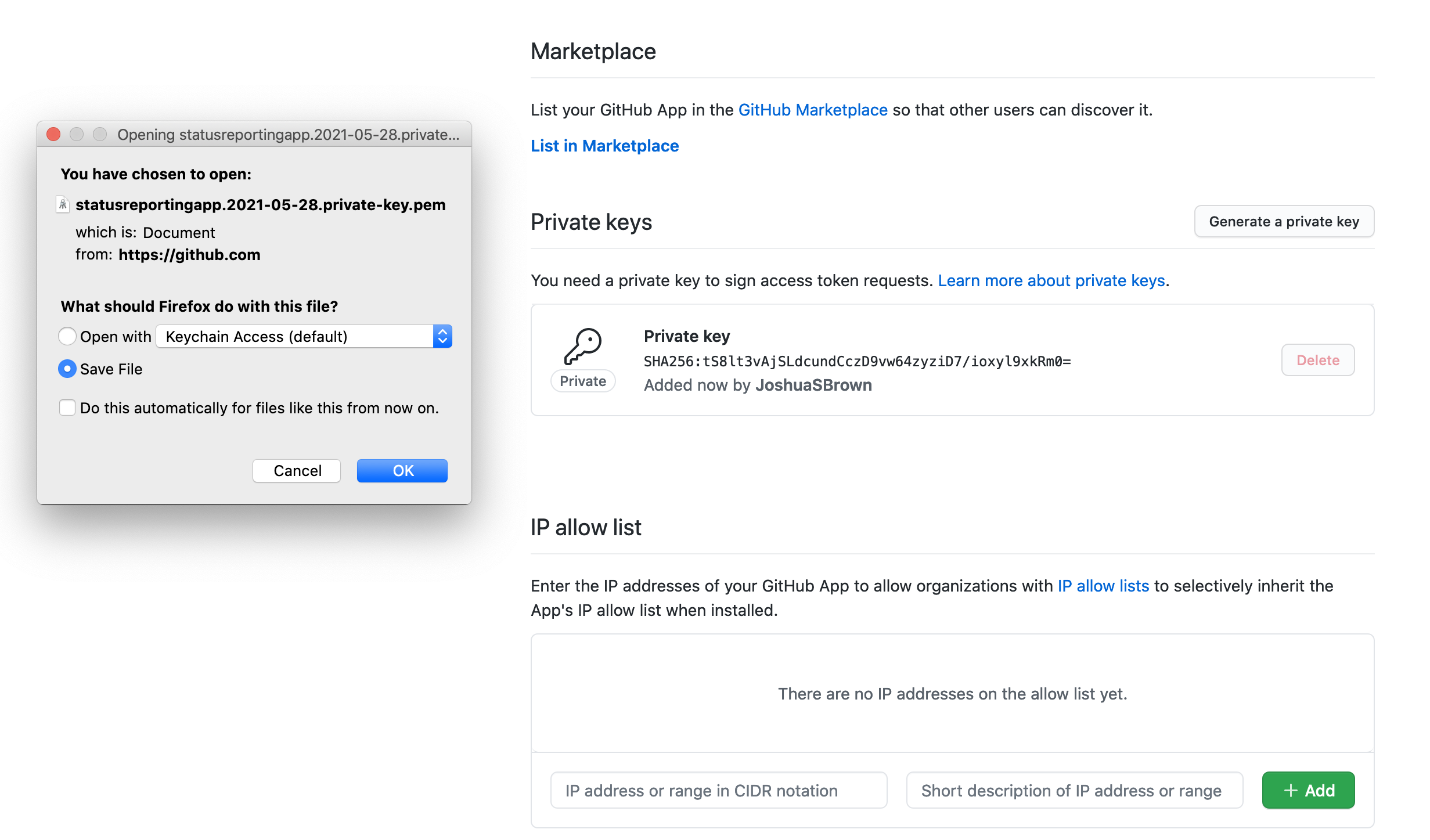
Click the Generate Private Key and save the pem file downloaded by your browser. The pem file is essential for authenticating with GitHub through RESTful API calls.
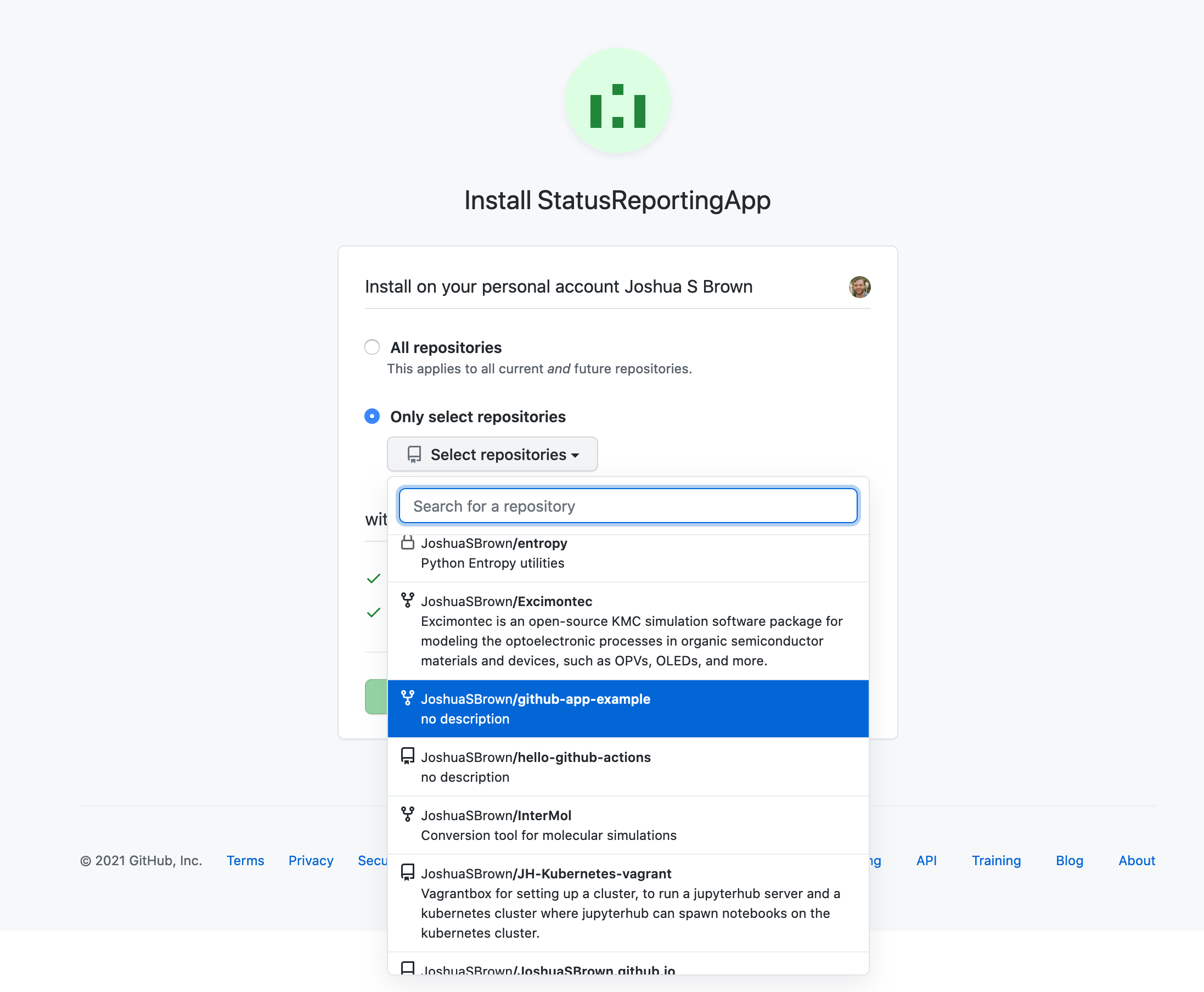
- All that remains is to install the application on the repositories that you want to use it with.