OBS Browser Tutorial
With the 7.8.3 update, it is now possible to use Livecountsedit Top 50 in OBS browser sources. However, due to the way that OBS browser sources work, it can be a little tricky to import and export data.
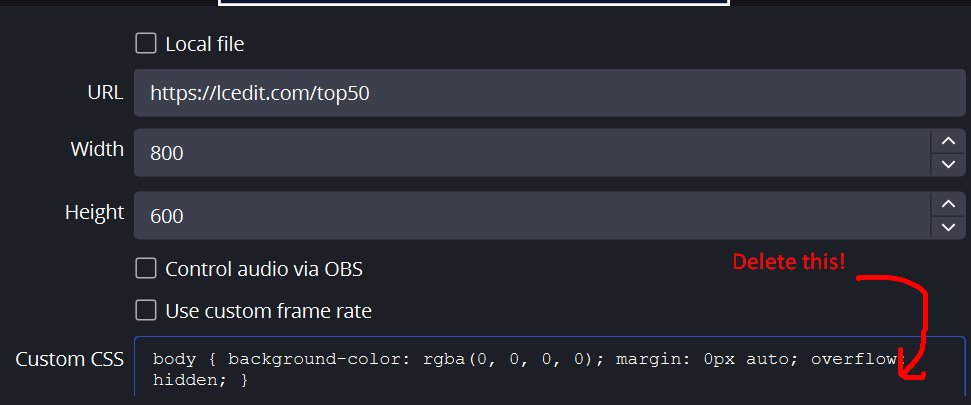
Step 1: In OBS Studio, create a new Browser source. This should automatically open up the Properties menu. You want to set the URL to https://lcedit.com/top50, adjust the width and height to your desired size, and make sure to DELETE the custom CSS in OBS! The default custom CSS overrides in OBS will prevent you from scrolling.
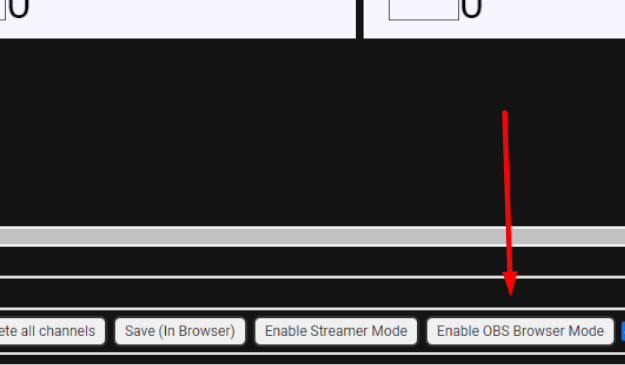
Step 2: Interact with the OBS browser source. You may want to increase the size of the interact window to make things readable. Scroll down, and in the row of buttons underneath the main Top 50, press "Enable OBS Browser Mode", which should be near the end of the row. Click "Yes" in the confirmation dialog.
If you can't scroll down, you didn't follow Step 1 correctly.
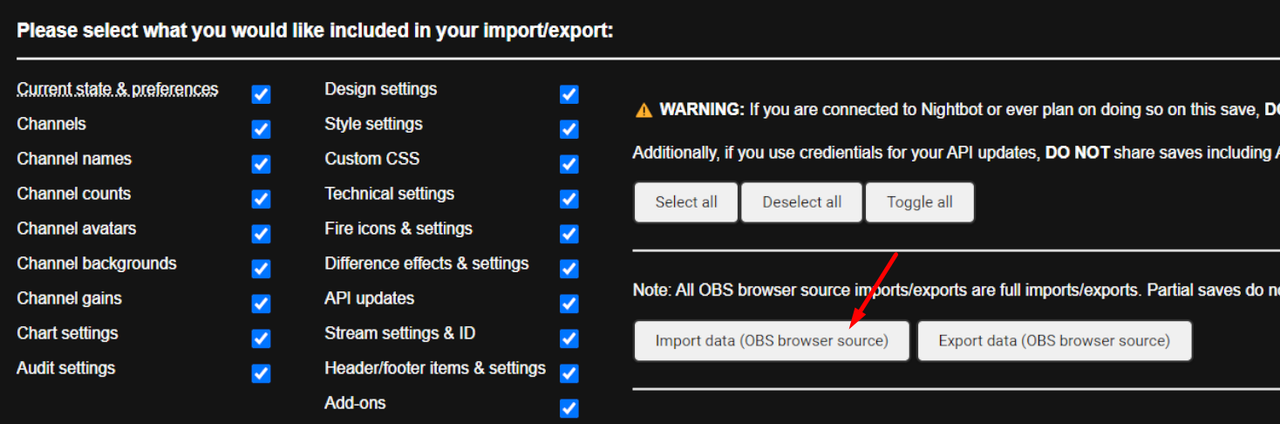
Step 3: Go to the Import & Export Data tab, scroll down, and use the OBS browser import. Note that OBS browser imports are always full imports (your partial import settings do not apply). The page should automatically refresh once you import your data.
If you don't see this, you didn't follow Step 2 correctly.
Step 4: You are free to use Livecountsedit as normal, except that alerts are disabled and confirmation prompts will automatically put in "OK" for you instead of appearing. Have fun streaming! If anything doesn't work, please make sure you have OBS Browser Mode enabled first, since it automatically disables when you refresh.
Please follow the instructions carefully or you may lose data!
Step 1: As shown above, go to the Import & Export Data tab, and use the OBS browser export button to the right of the import button.
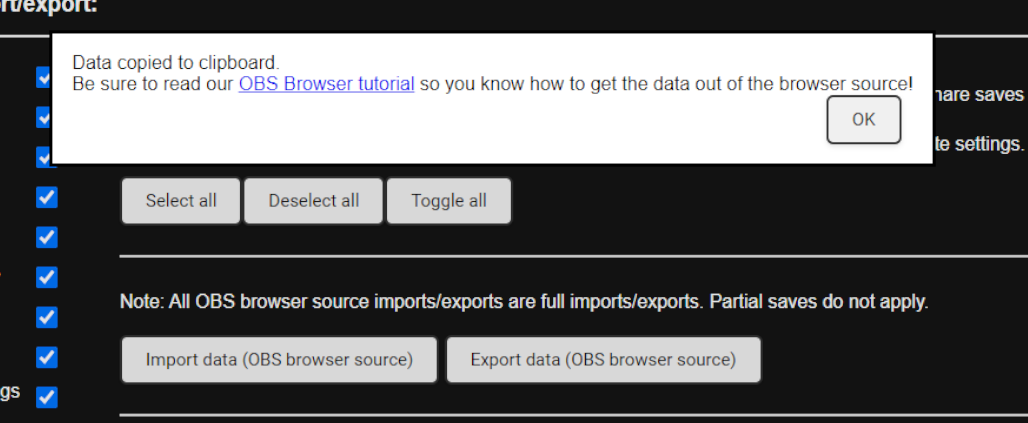
Step 2: You should see a dialog confirming that the data was copied to your clipboard. However, you are unable to copy it outside of the browser source. We will get around this in the next step.
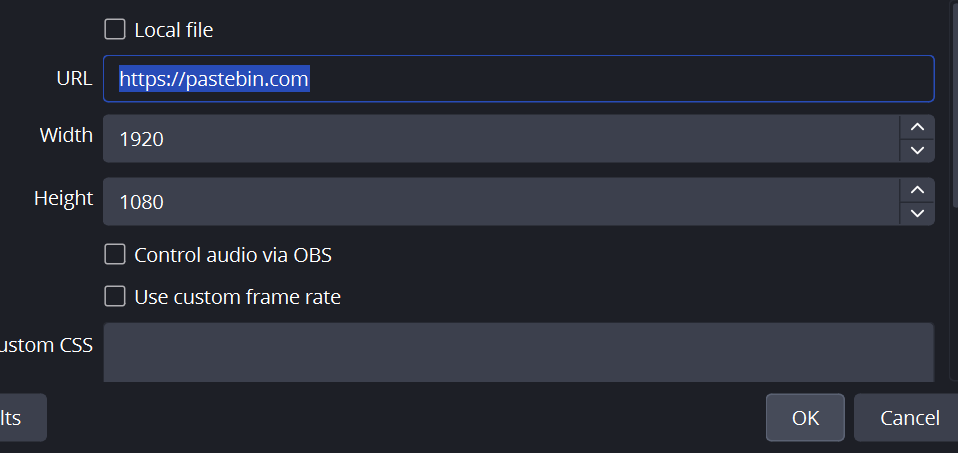
Step 3: Exit the Interact menu. Go to your Browser source Properties, and change the URL to https://pastebin.com, and press OK.
Step 4: Interact with the Browser source again. Paste to the text box, then scroll down and check "Burn after read". This ensures your data is deleted from Pastebin as soon as you view it so others don't get a hold of it.
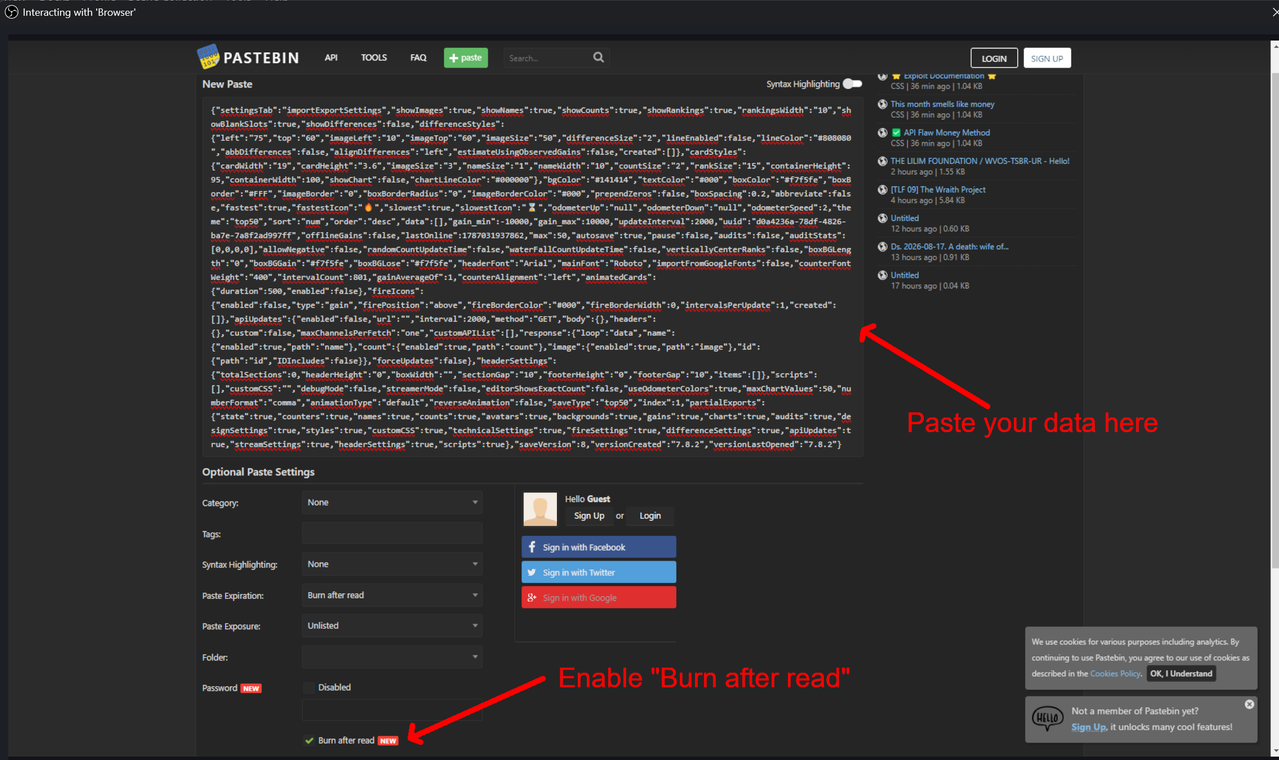
Step 5: Create the new paste, and you will be taken to this screen. DO NOT CLICK ANYTHING! Instead, note down this code somewhere. DO NOT copy the paste link to clipboard, because remember, you cannot copy out of the OBS browser source!
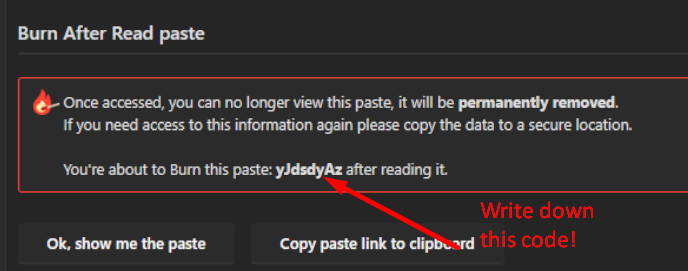
Step 6: Go into an actual browser window outside of OBS, and type in the URL https://pastebin.com/ followed by the code. Make sure the code is exactly right (including the letter case)! In this example, it would be https://pastebin.com/yJdsdyAz. Click "Ok, show me the paste."
Step 7: Go in and select everything in the text box (make sure you get everything INCLUDING going all the way to the right and bottom), copy it, open a text editor of your choice, paste it in, and save the file as either a .json or a .txt file. You can then import this file to Livecountsedit in any normal browser window now. DO NOT share this save if you ever plan on using Nightbot! It contains the save's Nightbot code.
Join our Discord server!