Graphical interface overview
When you first started the GUI you were faced with this interface:
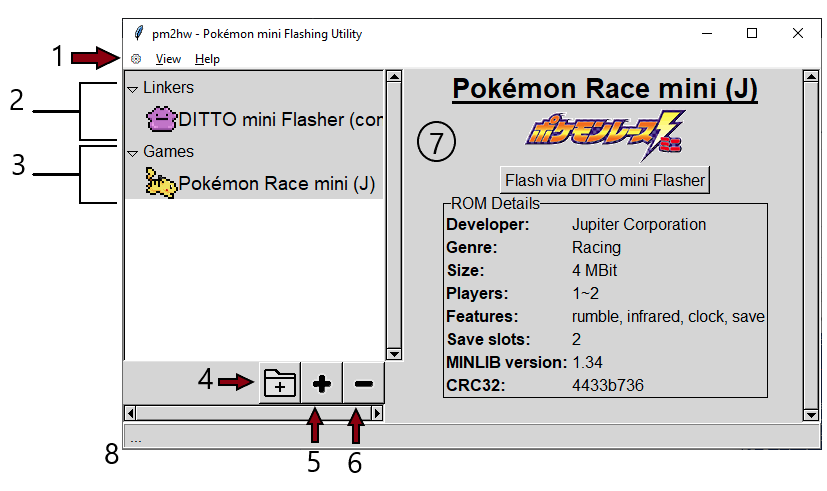
- Menu
- Linkers list
- Game library
- Add folder to game library
- Add ROM game library
- Remove game from library
- Info pane
- Status bar
Click one of the links above to see more on what each component does.
Use the menu to perform more uncommon operations or view extra information, like this help dialog! Clearly you know what you're doing here already. So here's an explanation of the rest of the options:
-
⚙
- Refresh linkers - Manually check for changes to connected linkers. While the system automatically checks for if new linkers are connected or known ones are removed, it does not check if the cards connected to them have changed. This will check that, and it may also be useful if there are bugs. Please keep in mind it will take a moment for your OS to register that the device was connected before it can appear here.
- Preferences - Open the preferences menu. From here you can change the theme and stuff.
- Exit - Close pm2hw.
-
View
- Log - Open the log pane, allowing you to see more detailed usage of the app than the status bar provides.
-
Help
- How to use - You are here!
- About - Version info, authorship, licenses. Stuff you'll need for bug reports or legal reasons.
When you connect a linker to your computer, it will appear in this list. pm2hw does not connect to it automatically, so you will not see much information immediately, simply what linker it is. Once you click the entry, pm2hw will initialize the connection and display information about the cartridge and its contents in the info pane.
To read about how to use the linker from the info pane, see here.
This is a list of the games you have registered in your library. From here, you can quickly flash your games to connected cards or simply view more information about the game.
In order to register more games, use the add folder or file options below the library list. Adding a folder will import all the ROMs it finds within it one time, it will not automatically import new ROMs added to that folder later.
To read about how to use a game's info pane, see here.
When you click a linker or a game from your library, it will open an interface into this pane. See those sections for instructions on how to use this interface.
If you select View -> Log from the menu, this pane will open above the status bar. Here you can see a log of all your actions performed during this session, similar to what you would see in a console session.