Repository navigation
Using
This page is the application from the outside — the workspace, a board, a card, an initiative, and the views that read the same work at another altitude. Installing it is the other half; nothing here needs a server.
The Kanban Toolkit button at the top left returns to Workspace Home: every board in the organisation, grouped by flight level (team, programme, portfolio), with a band filter and a search. New board makes one. Import board… brings a Trello export or a Jira CSV in as one new board, with a mapping step for lists, people and types — Importing a board explains the files and what is created.
On a browser-only build the browser is the whole workspace — nothing is sent anywhere. On an instance the boards are shared, and signing in makes the account one of the workspace's people.
The command palette (Ctrl+K, or ⌘+K) reaches every board, card and view, and the verbs that make them. The search field beside it searches every board by title, description and note, and shows the line that matched.
Every board is a team, programme or portfolio board; Board types explains what each level is for and when to choose it. The level is fixed when the board is made: Settings shows it but does not offer to change it, because a different type would hide the work the board already holds.
Every board has four fixed stages: Backlog, Not Started, In Progress and Done. The stage belongs to the column, so a card's status is never a word somebody chose; the shape inside a stage is the team's. Edit board splits a column into cells, renames them, adds a lane, or removes one — a split cell is still in its stage, the work simply reads more precisely. A lane is removed only while it is empty: deleting a column never moves a card, and a split whose remaining cell holds cards is left as it is rather than folded over them.
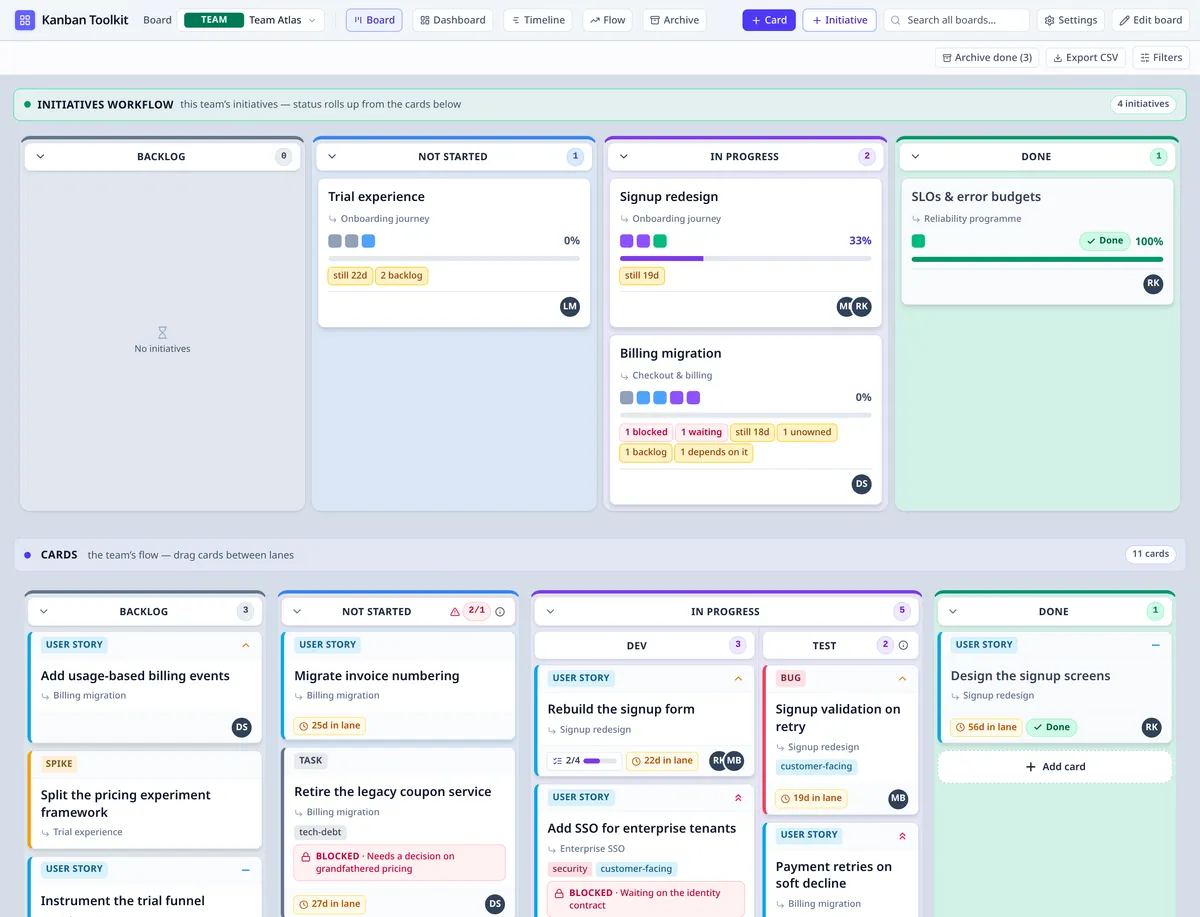
The Team Atlas demo board. The initiatives flow sits above the team's Cards flow; both read the same four stages, and the cards' progress rolls into the initiatives above them.
A portfolio board has no Edit board: its shape is its objectives, made in the strategy map, and the sections beneath them are the organisation's standard reading rather than a team's to rework.
A board carries flows, each a set of those four columns. It has exactly one initiatives flow — where the same work is read as outcomes — and one or more cards flows: the team's own. Each cards flow is a band of its own, stacked the way the initiatives flow is, with its own name, its own columns and its own count. Two Backlogs are then two different answers, so every band says which flow it is, and a card belongs to exactly one of them.
In Edit board a cards flow can be added (Add a cards flow), renamed, moved up or down, and removed — but only while it is empty and another cards flow remains, so a board never drops to none and work is never thrown away with a column set. A programme or portfolio board aggregates other boards and has no cards flow of its own.
A workflow's chevron folds its whole band away to the header, keeping the name and count in view; the initiatives and boundary workflows fold the same way. Folding is a view choice, not an edit, so it is offered without Edit board.
The drawer, card pips, initiative rollups and the boundary are explained in Reading a board.
A card is made in a lane's footer (Add card to …) or from Card in the toolbar. Drag it to another cell to move it — including into another cards flow, where the target flow's WIP limit applies. A column can carry a WIP limit; Settings decides what a limit does — tint the column (visualize), hold the move until a reason is given (justify), or refuse it (block) — and that policy covers every cards flow on the board.
The keyboard is a full way in, not a fallback: focus a card and press Shift+F10 for its menu — Move to lane, Move earlier, Move later, Set parent… — and Enter to choose. Escape closes a panel and gives the focus back. Press ? anywhere you are not typing — or choose Keyboard shortcuts in the command palette — for the full sheet, grouped by where each key works.
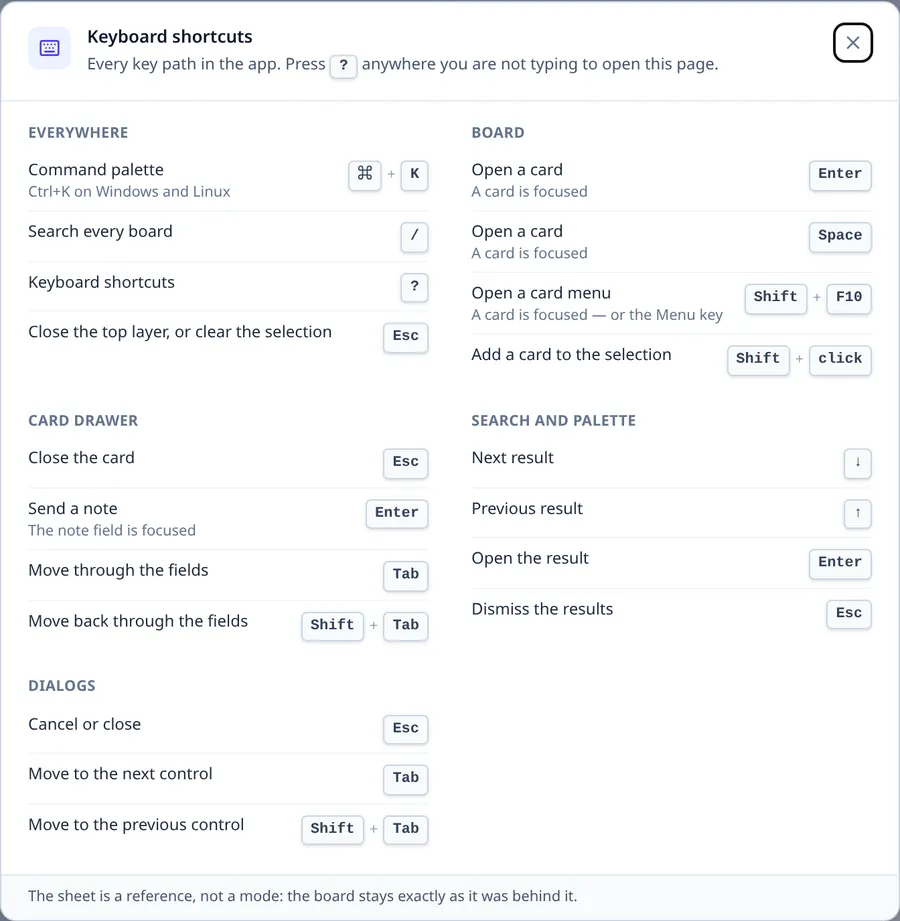
The shortcut sheet: every key path, grouped by where it works.
Choose a card to open its panel. Overview holds the title, the description (Markdown), status, priority, type, people, tags and target dates; the creator is recorded and is not editable. Hierarchy shows the parent and the work below. Activity is the card's own history — every move, edit, note and dependency, with who and when.
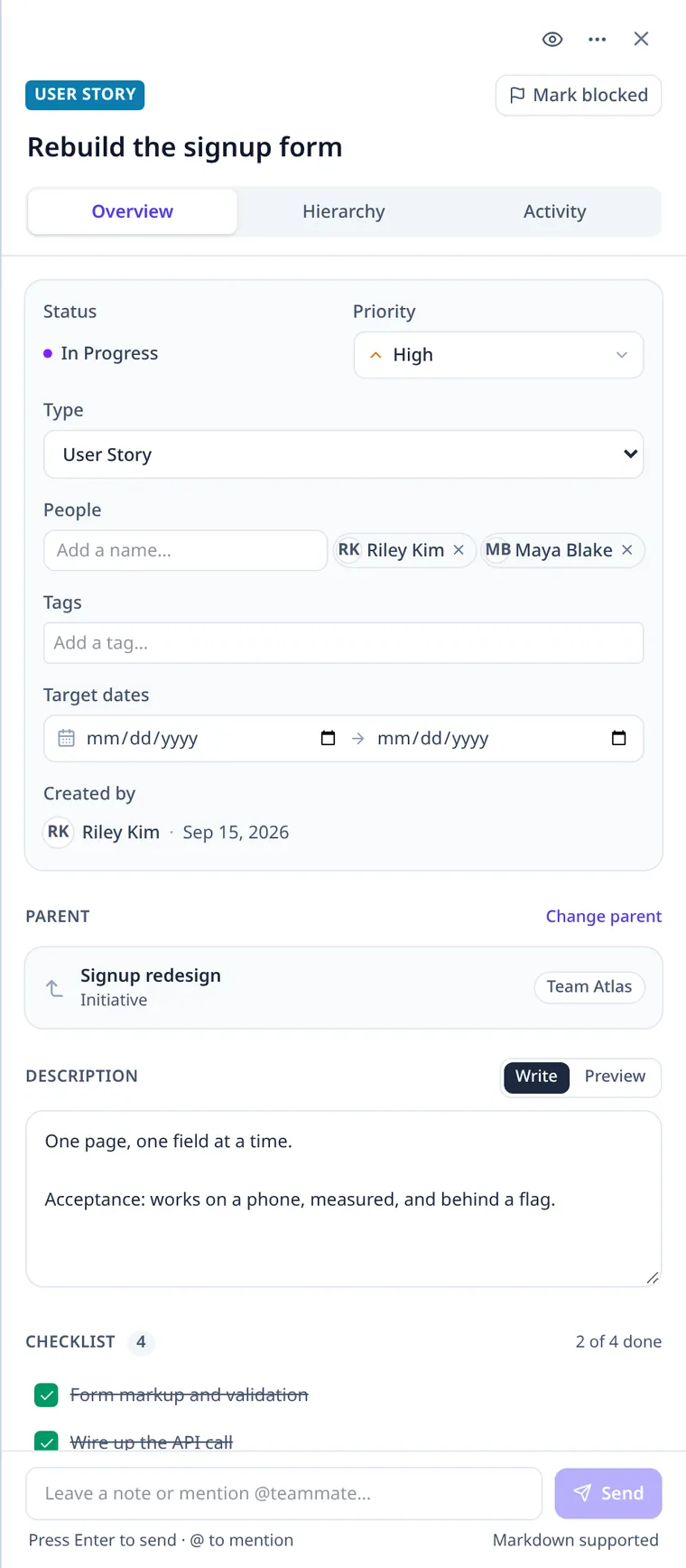
The side drawer, with the board still behind it: the fields in Overview, the parent in Hierarchy and the item's history in Activity.
A note is a comment on the card, and typing @ offers a teammate to mention. Mentions are flat:
there are no replies and no threads. The person is recorded on the note, named under it in
Activity, and the note appears under Mentions in My work — the place that brings a
mention back to the person it names.
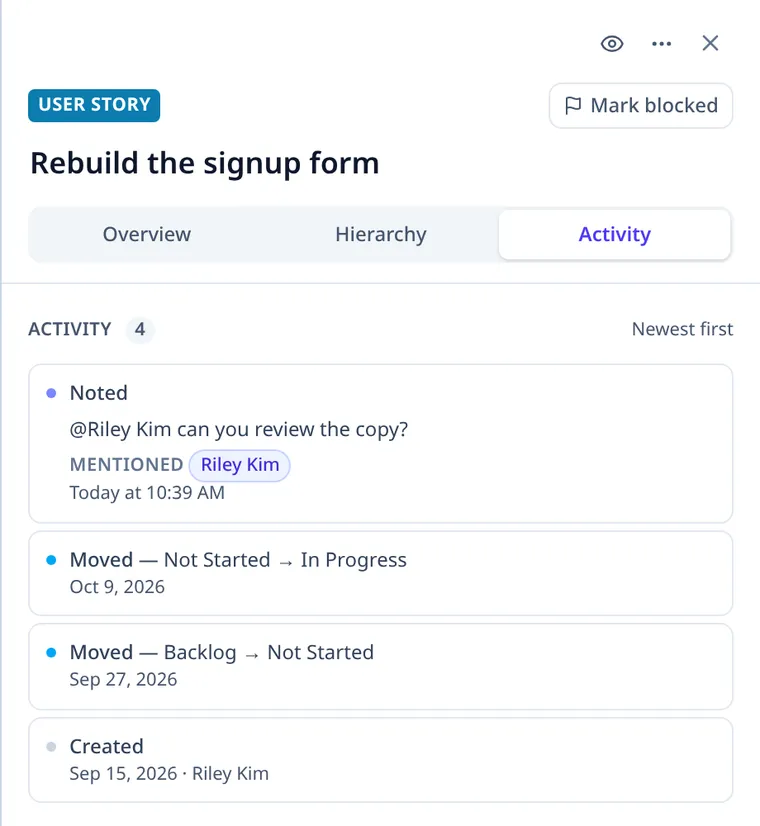
A mention is part of the note: the name stays in the sentence and the person it means is recorded beside it.
The checklist holds the card's sub-tasks. A card can wait on another: the waiting state is read from the two ends, so it clears when the blocker reaches Done — there is nothing to update by hand. Mark blocked records a reason when the work is stopped for something that is not another card.
Every badge a card, initiative or objective can carry is catalogued in Warnings and signals, with what raises it and what clears it.
An initiative is the unit the wider organisation reads. It has no estimate and no status field: its status is the rollup of the cards below it, and its percentage is the share of those cards that are done. Add a card and the number moves, because the work moved.
Its section — Backlog, Not Started, In Progress, Done — is derived from that rollup; the cell inside the section is where a person arranged it. Dragging an initiative moves it within its section. Its parent is set from Change parent in the panel or Set parent… in the card menu, which is how a programme's outcome is decomposed into a team's initiative.
- Dashboard — the board's initiatives at a glance.
- Timeline — the same initiatives over their target dates.
- Flow — on a team board, lead time, cycle time and throughput, their distributions, aging, a service level expectation and a probabilistic forecast for the open work. A window (4 to 26 weeks, or all history) and a cards-flow filter are part of the link. A programme or portfolio board has no cards flow, so it offers no Flow view. The definitions and the reasoning are in Lean metrics.
- Archive — work that has left the boards. A card in a Done column is archived; anything else is discarded, dropped without claiming it was finished. The archive keeps that one fact, not the column the work sat in, and either item can be restored.
None of these is a second copy: they read the same items, placements and edges.
My work is not one of the board's tabs: it is under your name in the top right and opens as a right-hand drawer beside the board, because it is about the person rather than the board that happens to be open. The board stays in front; clicking a card replaces the drawer with that card's item panel on the same side.
Objectives and key results are not a global view. They are created and managed from a Portfolio board, whose Strategy map carries them and the initiatives mapped to them. A period is a record with a window: choose it in the Period field, set its start and end dates once, and every objective committed for it is due then — an objective has no target date of its own. Board types walks through periods, key results and mapping an initiative to an objective.
A template is a board design without its work: its cards flows, their names, columns and limits — never the initiatives flow, which is the standard shape the organisation reads. Making a board from a template brings every flow across.
Admin → Workspace data → Export downloads the whole workspace as JSON; Import… replaces it with a file, after a confirmation. Export CSV on a board writes its cards as a table. On an instance the server holds the same workspace, and backup is the operator's copy of it.
On an instance the workspace is the account's, not one browser's. Two documents are saved to the server: the design — boards, flows, lanes and where every card sits — and the workspace's words: card types, board templates, objectives and key results, with the auto-archive rule. A type renamed on one machine is renamed on every machine; a template made on one is there at the next reload, and so is an objective made on a portfolio board.
Which of those a person may change is a role, and it is checked list by list: an administrator for
card types and the auto-archive rule, template.manage for templates, objective.write for
objectives and key results. A change the server refuses is said in words beside the control that made
it, and the edit stays in this browser — it is never reported as saved when it was not.
Saved filters and collapsed columns stay on the device deliberately: a saved filter is one person's way of narrowing a board, and a collapsed column is where they left their screen. Neither is a fact about the workspace, so neither is written back to it.
Accounts, invitations and roles belong to the instance: they are managed on its Admin screen. Install and configure are how the application is run in the first place.