Error Handling
Solutions for errors during installation, update, and running. If you encounter other problems, you can join the QQ group 823265807 for feedback.
Index
-
Errors
- Wrong archive downloaded
-
deploy.yamlconfiguration error - Deployment configuration errors
- Antivirus flags
nkas.exe -
updater.batinstallation error - Update failed
- "Source update" cannot update
- Unlink error /
nkas.exedisappeared - Update errors cannot be resolved
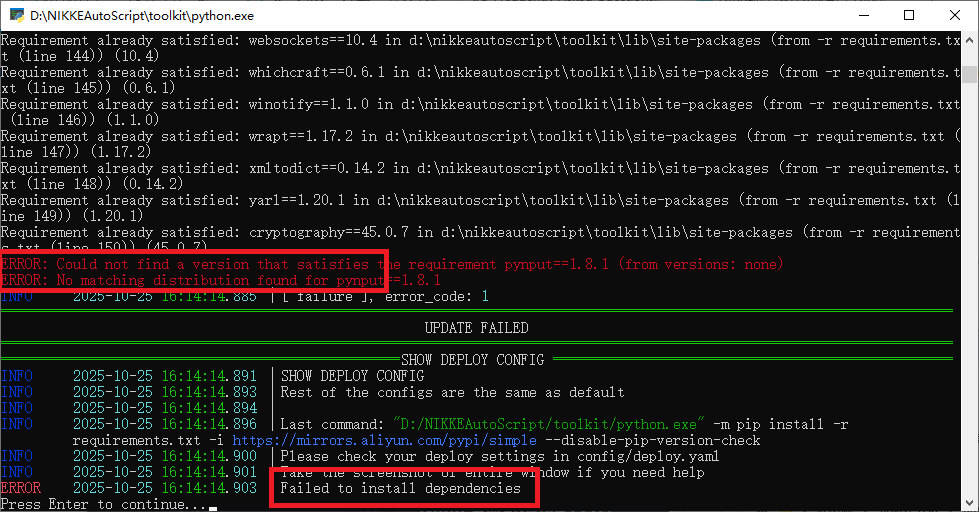
- Dependency (pip) installation error
- Error: reject by gitee
- Git Credential Manager popup
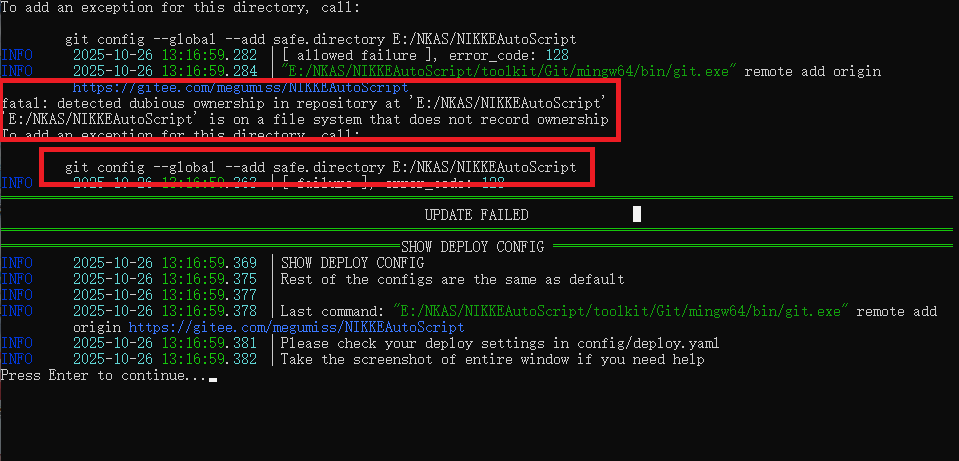
- Other Git-related errors
- Access denied / Start button stuck
- White screen / display abnormal
- Window flashes when "Run as Administrator" is checked
- Store purchase error
- In-game network error
- Game resolution incorrect
- Screen resolution does not meet requirements
- Abnormal colors
- Launcher path error
- Game window not found
- PC / emulator client configuration
- Launcher became vertical
- Wrong screen selected
- Old Version FAQ: Historical issues related to the old interface and emulators (Q1-Q10)
Please read the Installation Guide and download the correct package.
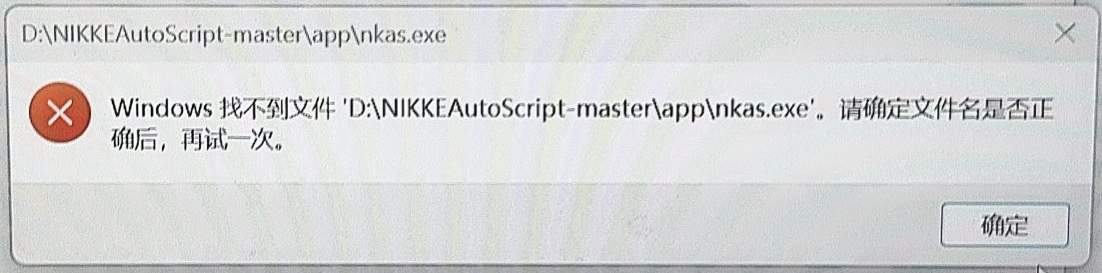
config/deploy.yaml was edited incorrectly or not edited. Fix it with either of the following:
- Carefully read the Installation Guide - Edit Installation Configuration, and modify
config/deploy.yaml. - Or modify the deployment configuration directly on the
Deploypage of the Web UI (a restart is required to take effect), to avoid YAML editing errors.
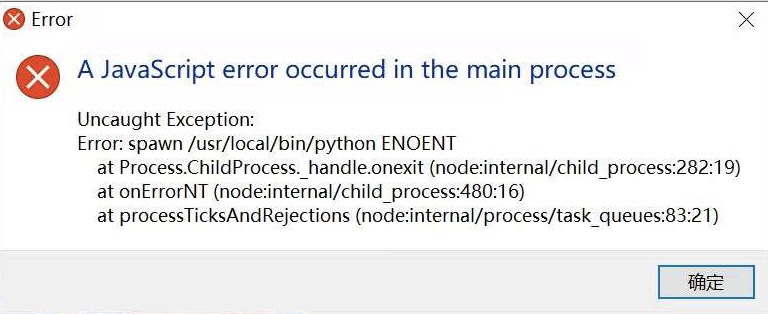
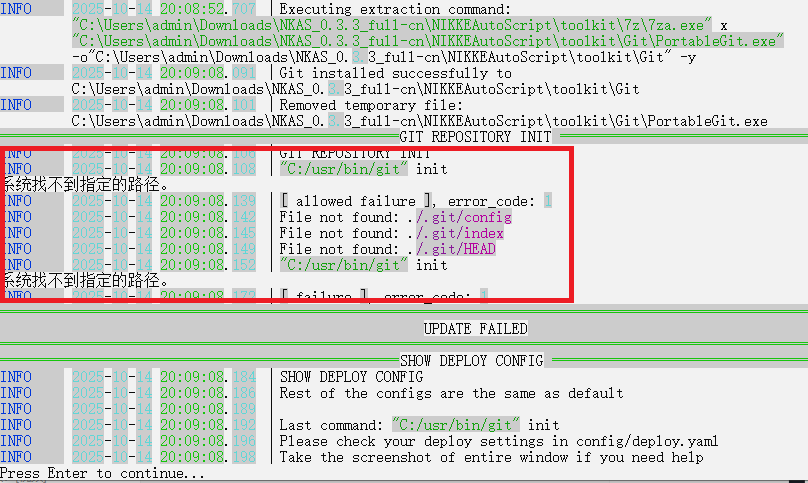
Fix with either of the following:
- Refer to the Installation Guide - Edit Installation Configuration, and modify
config/deploy.yaml. - Or modify it directly on the
Deploypage of the Web UI.
This is a false positive; add it to the whitelist. nkas.exe is a Tauri 2 desktop program compiled with Rust and is not commercially code-signed, so it is easily misjudged. Add nkas.exe or the program directory to the antivirus whitelist; if it is still blocked, temporarily disable real-time protection and retry.
The most common cause for users in Mainland China is domestic mirrors not configured. Check the domestic mirror configuration in config/deploy.yaml (see the Installation Guide - Basic Configuration), then re-run updater.bat.
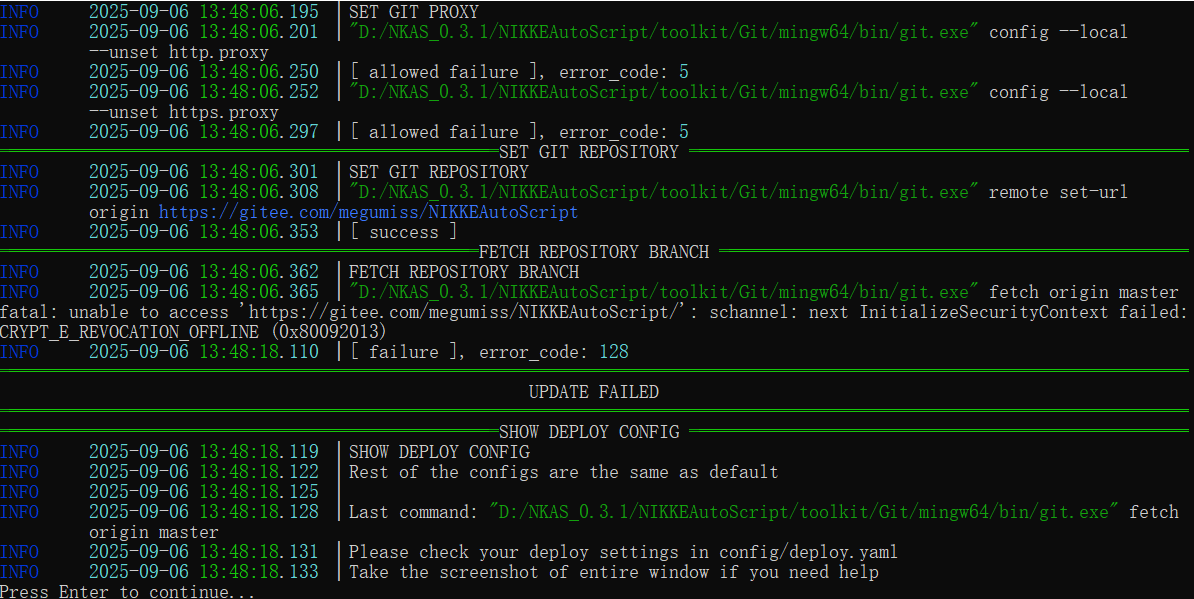
- Re-run
updater.bat. - If no error is reported, use the release package ending with full.
- If
nkas.exe(the desktop launcher) is corrupted or missing, you can also repair it with "Launcher Update" on the update page (only available in 1.x versions).
The update page is now divided into two sections: "Source update" and "Launcher update". The cause of this issue is not yet identified; try:
- Delete the
.gitfolder. - Run
updater.bat.
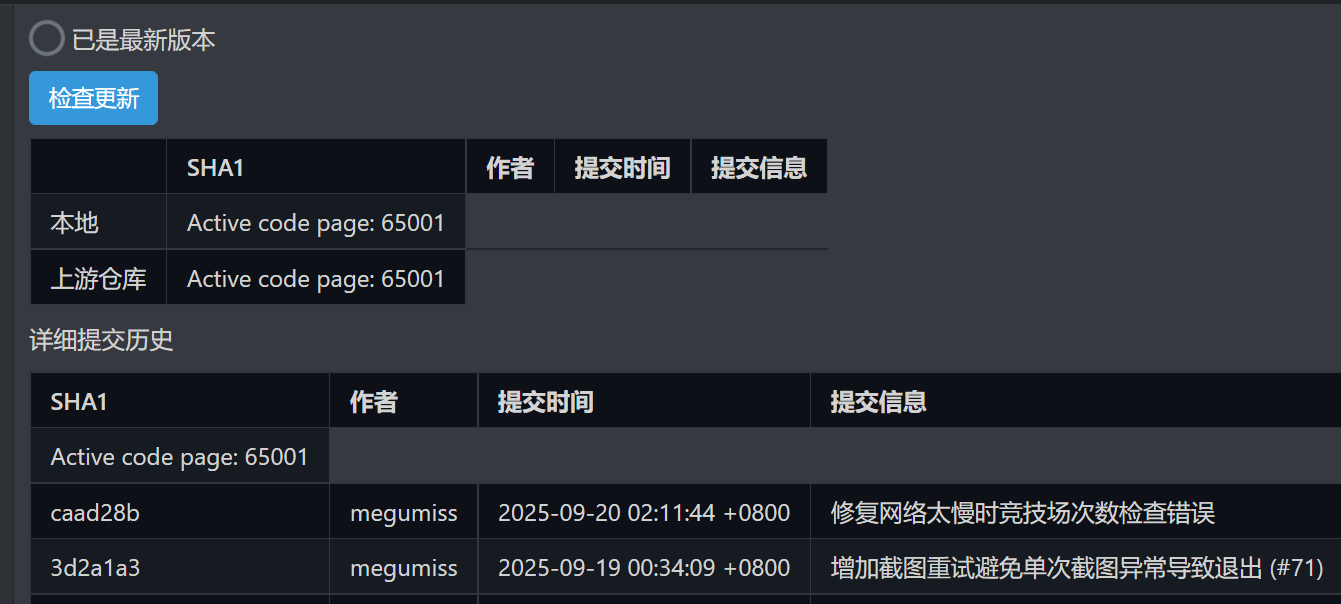
- Manually run
updater.battwice. - If
nkas.exeis corrupted or missing, you can also repair it with "Launcher Update" on the update page (only available in 1.x versions).
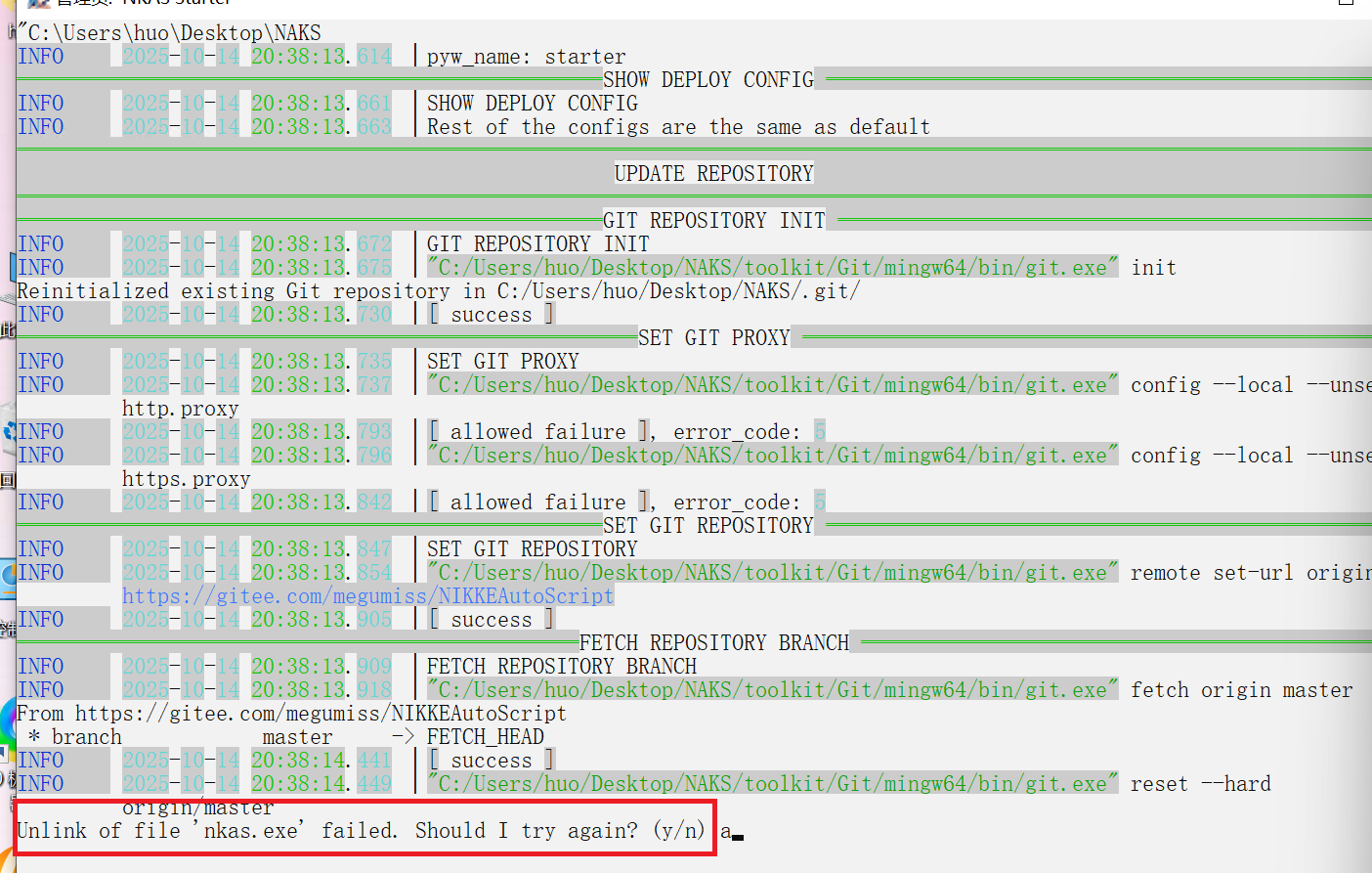
- Reinstall NKAS.
- If only
nkas.exe(the desktop launcher) is corrupted, you can first repair it with "Launcher Update" on the update page (only available in 1.x versions).
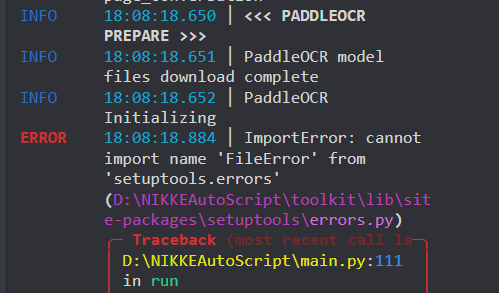
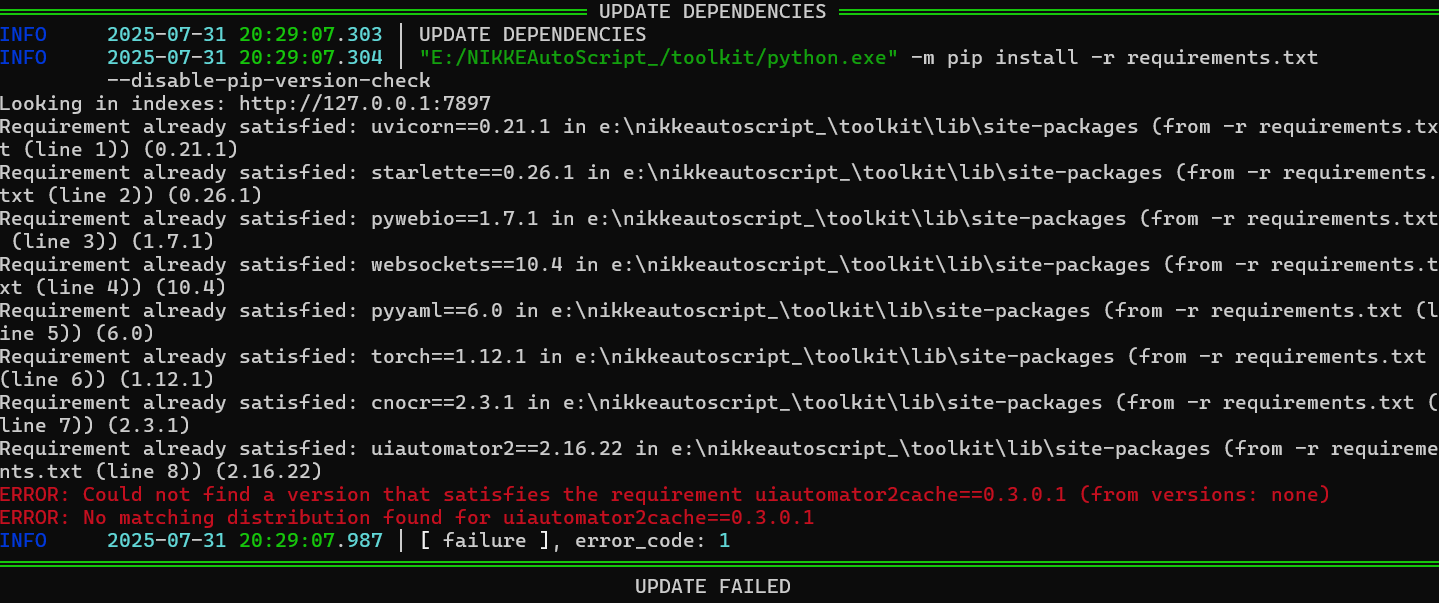
If you see No matching distribution found for XXX or a package download timeout, handle it as follows:
- Re-run
updater.bat. - If it still fails, change
PypiMirrorinconfig/deploy.yamlto another mirror (or modify it on theDeploypage):
| Mirror | URL |
|---|---|
| PyPI Official | https://pypi.org/simple |
| Aliyun | https://mirrors.aliyun.com/pypi/simple/ |
| Tsinghua | https://pypi.tuna.tsinghua.edu.cn/simple |
| Douban | https://pypi.douban.com/simple/ |
⚠️ The Tsinghua mirror may block requests due to heavy downloads (showing "Dear visitor"). Switch to the Aliyun mirror in that case.
Try the following steps one by one:
- Change network.
- Change the
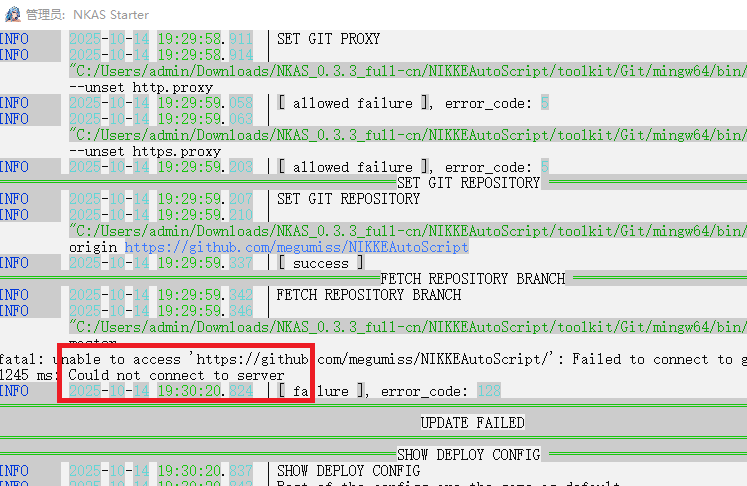
gitsource: setRepositoryinconfig/deploy.yamltohttps://git.megumiss.top/megumiss/NIKKEAutoScriptorhttps://github.com/megumiss/NIKKEAutoScript(or modify it on theDeploypage). - Disable auto-update: set
AutoUpdateinconfig/deploy.yamltofalse. - If you encounter SSL certificate verification errors on an untrusted network, you can set
SSLVerifyinconfig/deploy.yamltofalse.
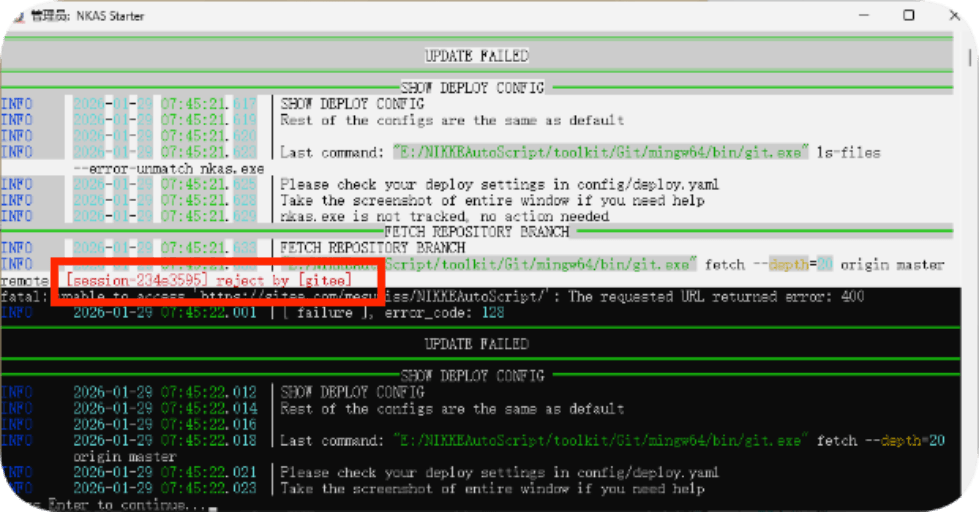
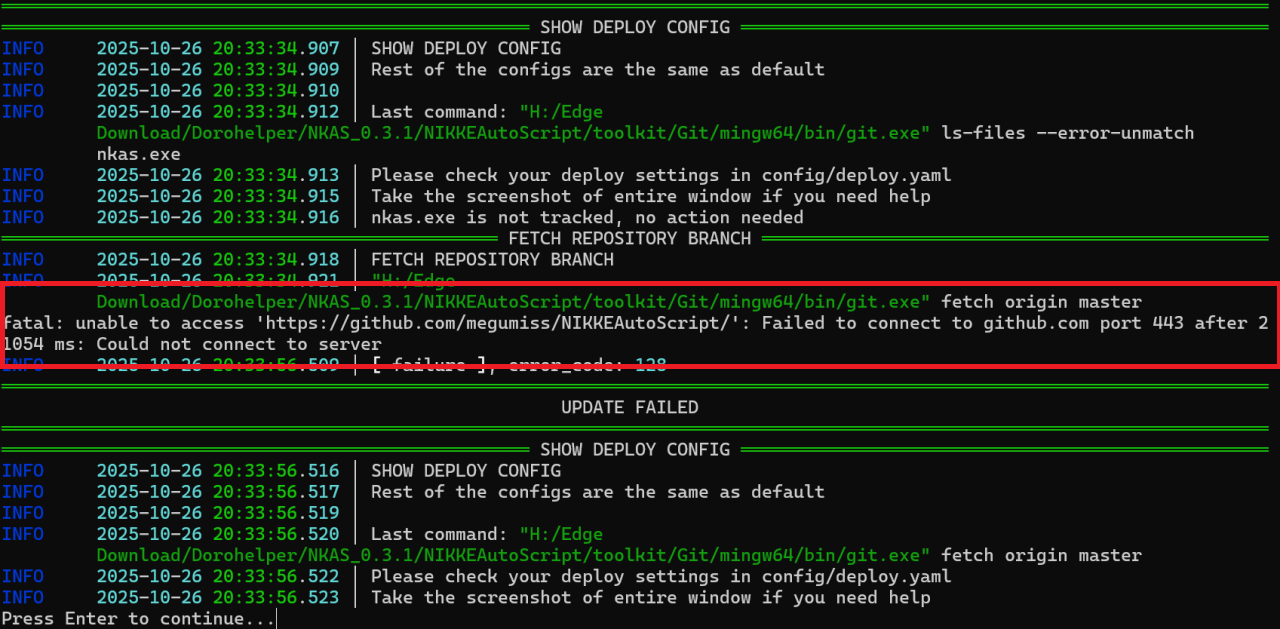
Change the git source: set Repository in config/deploy.yaml to https://git.megumiss.top/megumiss/NIKKEAutoScript or https://github.com/megumiss/NIKKEAutoScript (or modify it on the Deploy page).
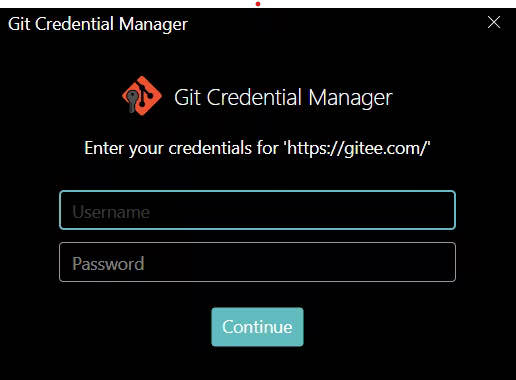
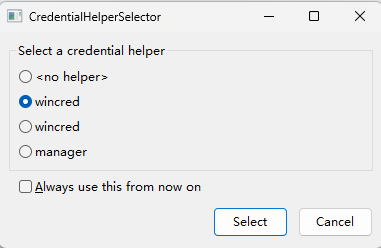
Open \toolkit\Git\git-bash.exe under the script path and execute the command in the second red box in the image below.
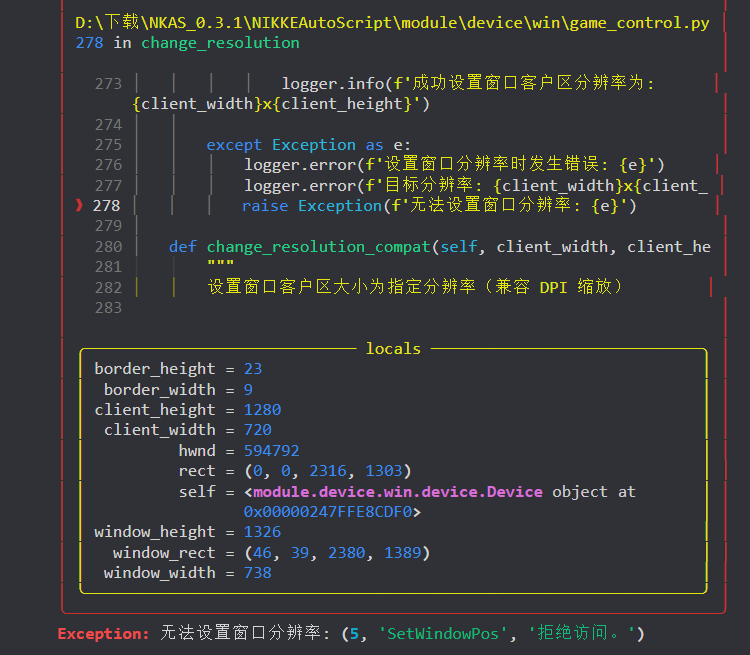
NKAS must be run with Administrator privileges.
Access denied:
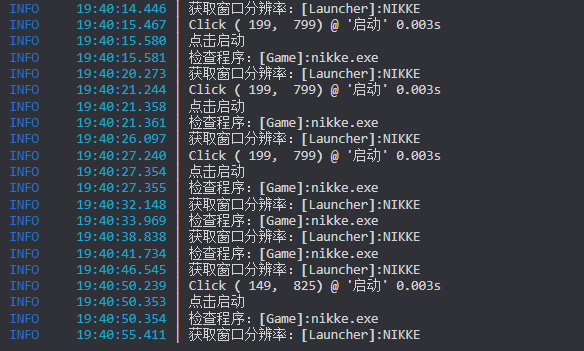
The Start button keeps being clicked:
The most common cause is a missing WebView2 Runtime (the NKAS UI depends on it for rendering). Check the following in order of priority:
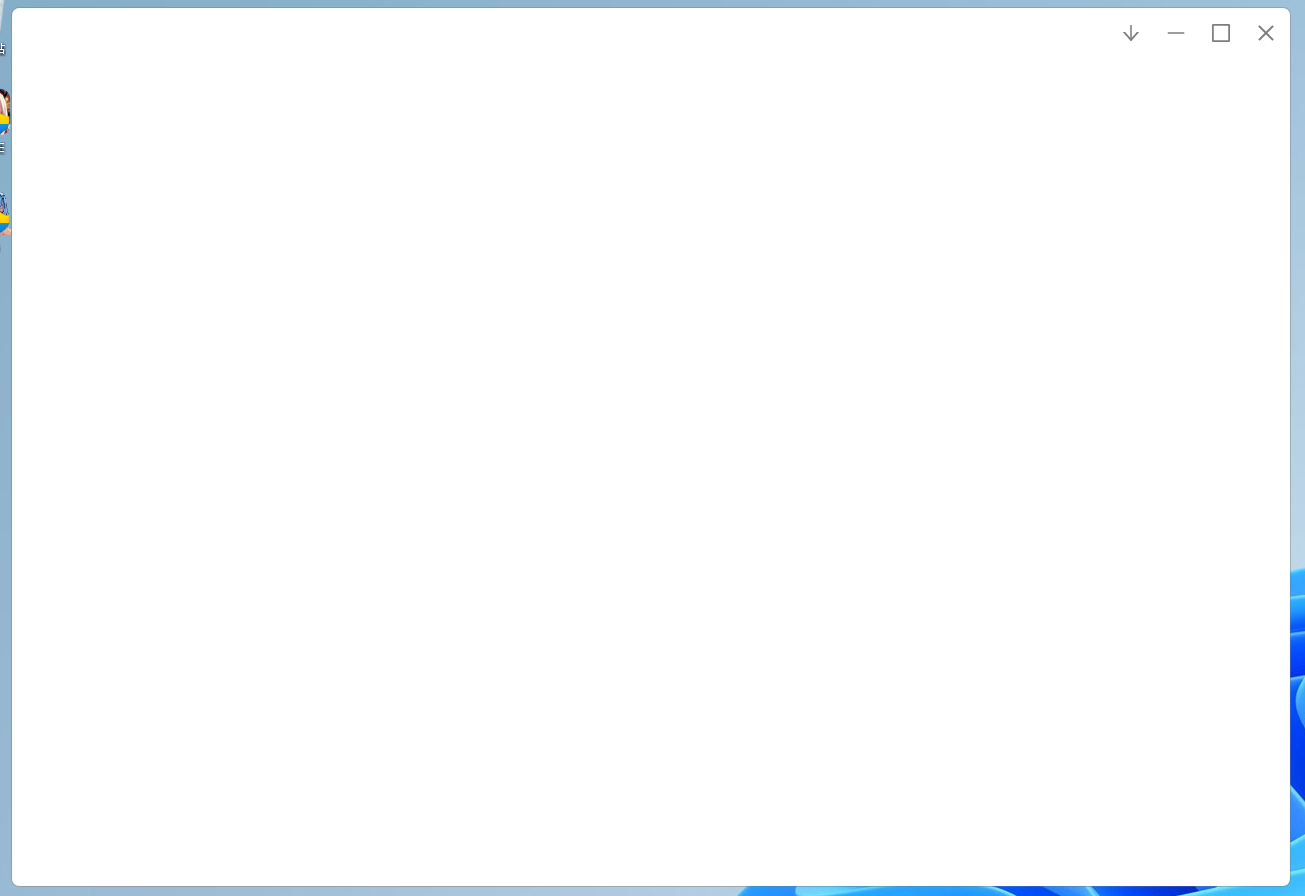
- Download/install or repair WebView2 Runtime from the Microsoft official site (Windows 11 usually has it preinstalled).
-
Clear the WebView2 cache: fully exit NKAS (including the tray icon), delete the directory
%LOCALAPPDATA%\com.megumiss.nkas\EBWebView(i.e.C:\Users\YourUsername\AppData\Local\com.megumiss.nkas\EBWebView), then restart. The same applies to white screens when accessing via browser directly: pressCtrl+F5to force refresh or clear site data for127.0.0.1.Typical scenario: some software changes the file type of
.jsin the registry totext/plain, causing the UI scripts to be rejected by the engine and the bad result to be cached — the logs show all resource requests returning 304, but the page stays white. Clearing the cache forces a reload; if it recurs after clearing the cache, run the following with an administrator PowerShell to fix the registry, then restart the computer:reg add "HKLM\SOFTWARE\Classes\.js" /v "Content Type" /t REG_SZ /d "text/javascript" /f(newer versions already work around this in code). - Make sure the project is under a pure English path.
- Press
Ctrl+Rseveral times to refresh the UI, or reopennkas.exe. - Modify
HardwareAccelerationindeploy.yaml(toggle hardware acceleration) and restart the desktop app. - If the UI scale is abnormal or blurry, modify
DpiScalingand restart the desktop app. - Run
netsh winsock resetin a terminal or PowerShell, and restart the computer. - Change
WebuiHostto127.0.0.1, or changeWebuiPortto another port. - Confirm
updater.batran successfully without errors; if necessary, switch the pip mirror and re-run it. - If you use a fixed IP or DNS, try changing it and retry.
- If none of the above works: reinstall NKAS, set
EnableReloadtofalse(a legacy mechanism from old versions, not directly related to the white screen, only a last resort), or refer to Issue #876 (untested).
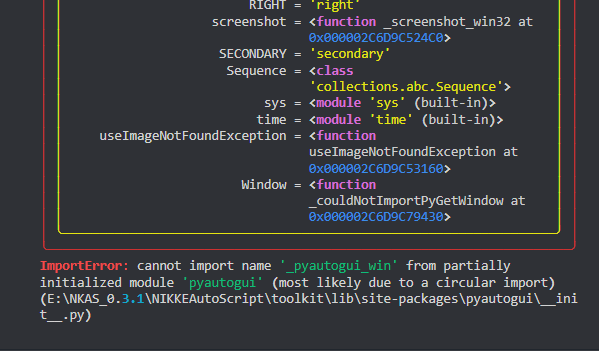
Other display anomaly examples:
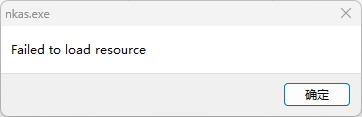
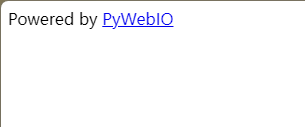
16. Window flashes and closes instantly when "Run as Administrator" is checked, but opens normally when unchecked
If the system user is Administrator, you usually do not need to check "Run as Administrator". It may also be because the extracted path is on the C drive.
(No image available)
Please check that the store purchase item is filled in correctly.
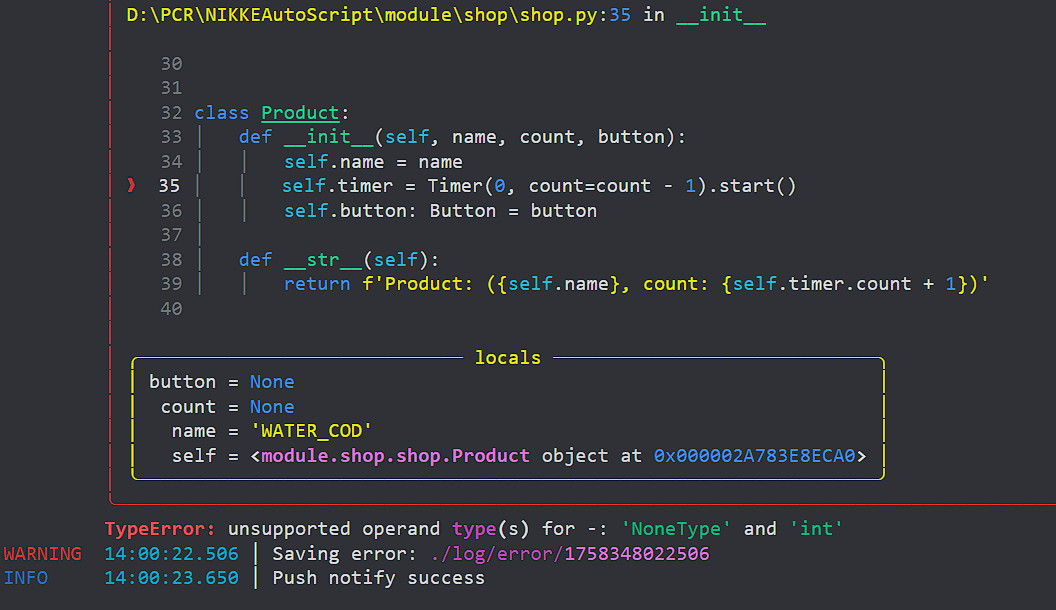
It may be a problem with the accelerator (network booster).
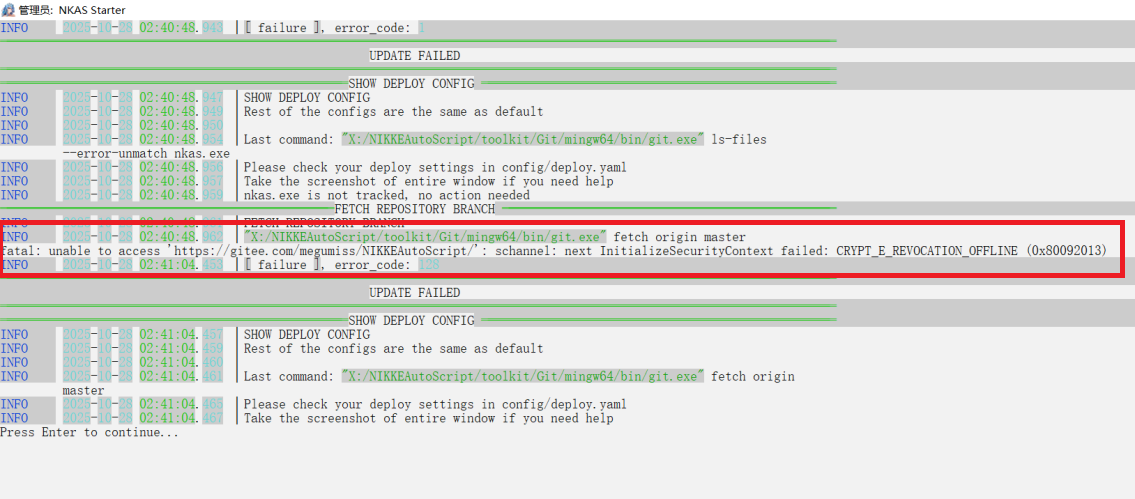
- Enable
Game Resolution Compatibility Modein the PC client settings. - Disable compatibility mode in the game icon's right-click Properties.
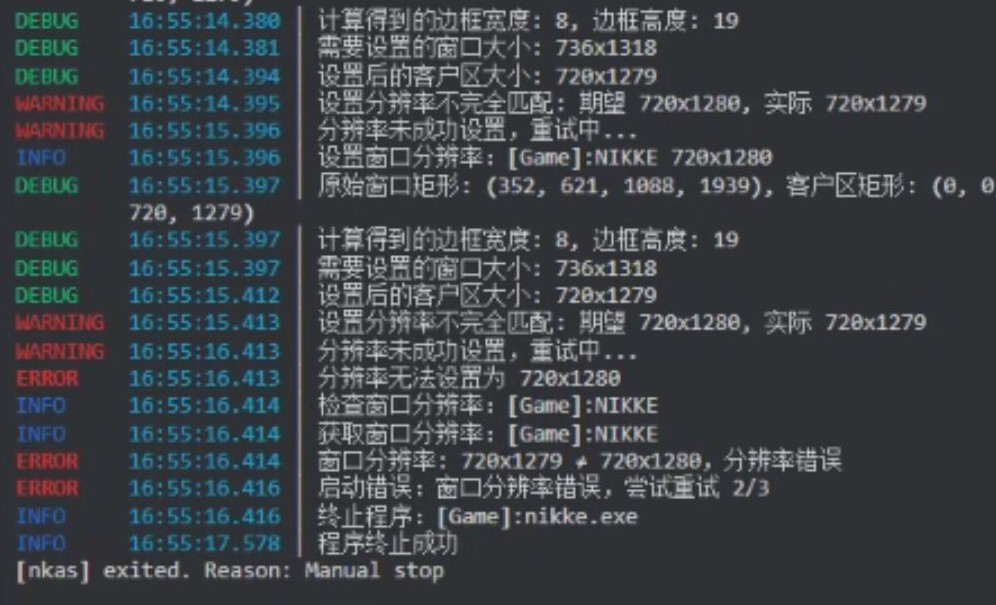
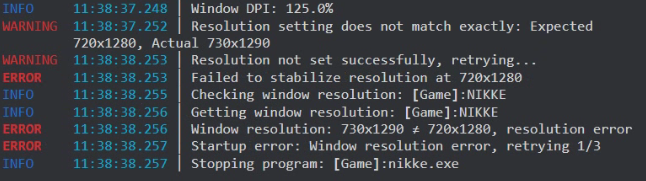
Refer to the PC Client Guide for solutions.
1080p screen users can enable the Rotate Screen option: when you click start, the screen will rotate to portrait mode to meet the vertical resolution requirement, and will automatically rotate back to landscape after the task ends. You can also use the hotkey Ctrl+F12 to manually rotate back to landscape.
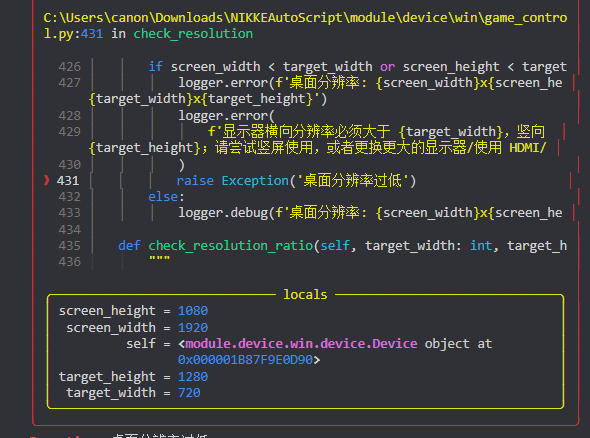
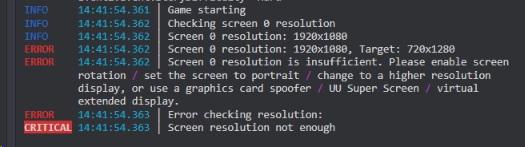
Game settings not adjusted, the "Disable Auto HDR" option not enabled, or various software settings caused the color change. Please check the game settings recommendations in the PC Client Guide.
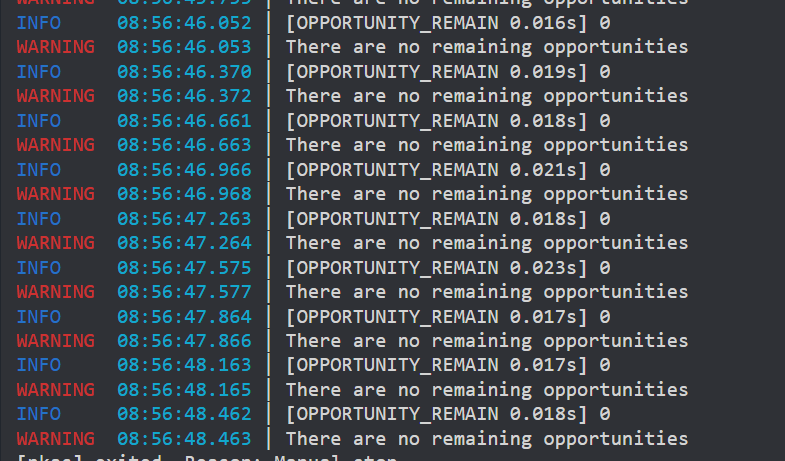
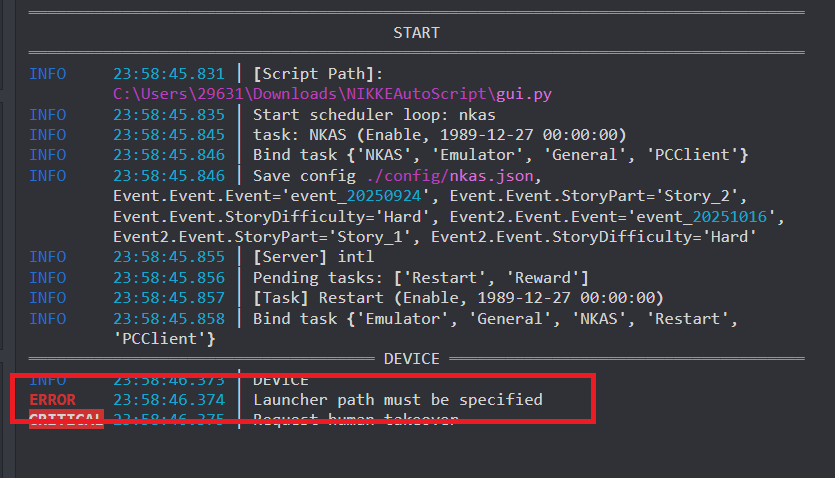
Please fill in the correct launcher path.
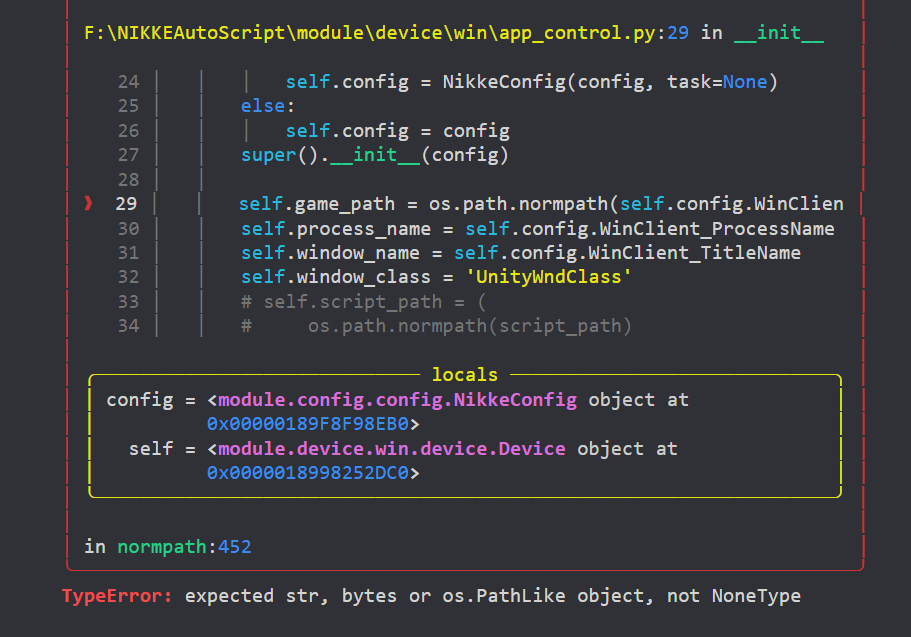
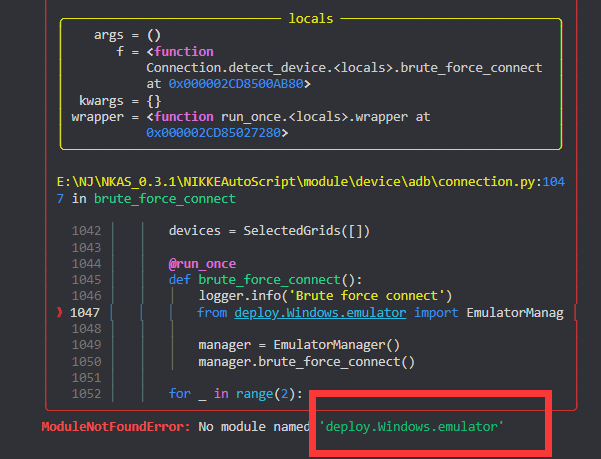
The launcher path / game path / window process or title is filled in incorrectly. Check them one by one.
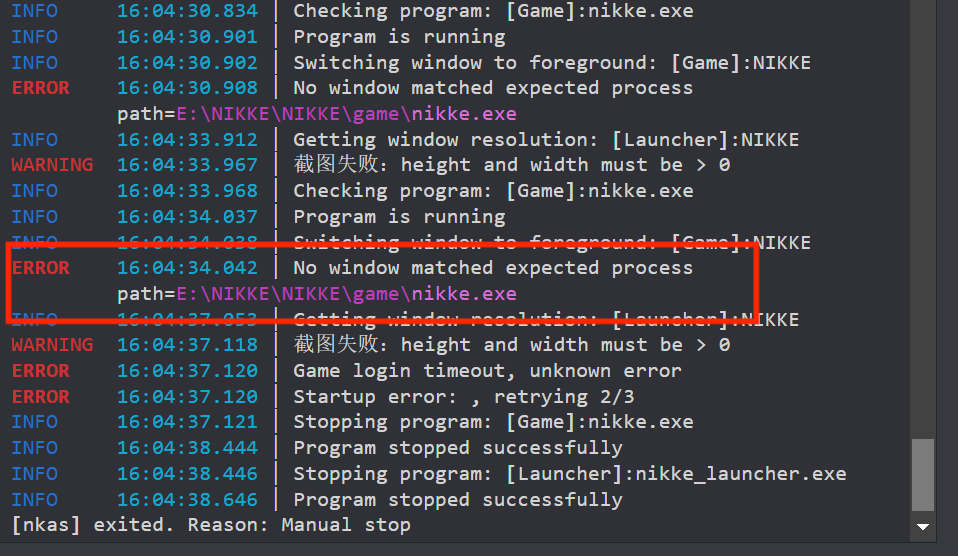
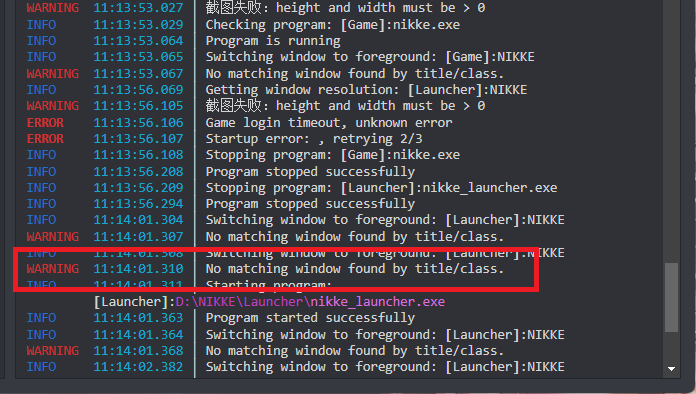
- For PC, manually select the client platform as
Windows (PC Client). - For emulator, fill in the Serial.
Read the small text under the Game Client option carefully.
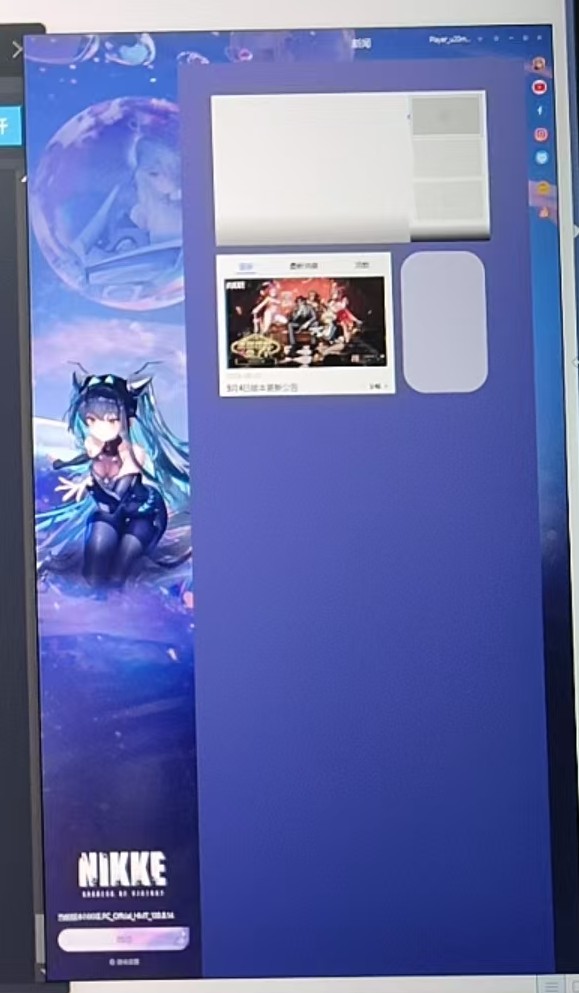
Check the Multi-monitor Mode and Game Window Target Screen options in the PC client settings.

Of the following items, those related to the old interface (Q1, Q2, Q6, Q7) only apply to the removed old interface (pywebio era) and no longer apply to the new version; they are for reference only. The rest are game/emulator-related issues that may still occur in the new version.
This may be due to an incomplete update when running updater.bat. Try re-extracting the package and run updater.bat again.
Some dependencies may be missing. You can manually install them via CMD:
.\toolkit\python.exe -m pip install -r requirements.txt -i https://pypi.org/simple
This happens when GitHub is unreachable. You can set a proxy in the GitProxy field in config/deploy.yaml or modify your hosts file.
Check the NIKKE graphics settings. Ensure both "Bloom Effect" and "Color Grading" are enabled, and that you have favorited the NIKKE you want to consult.
This happens if the emulator's resolution is 1280x720 but NIKKE runs in portrait mode. Set it to 720x1280 and try again.
Git not initialized — run updater.bat.
Same cause as Q3.
This occurs if NIKKE was downloaded from Google Play. Uninstall it and reinstall from QooApp.
Likely caused by a missing Google Play login on the emulator. Log in to your account and try again.
Q10: OCR model file not found (e.g. 'FileNotFoundError: ...ch_PP-OCRv4_det_infer.onnx does not exist.')
The old solution was to copy bin\deploy\ch_PP-OCRv4_det_infer.onnx to the reported path, but this no longer applies: the current version has switched to the PP-OCRv5 model, located in the bin\paddleocr\ directory. If the model files are missing, re-run updater.bat to restore dependencies, or check whether the bin\paddleocr\ model directory is complete.