v0.1.5

vLLM Playground v0.1.5 - Remote Server & VLM Support
Release Date: February 2026
This release introduces Remote vLLM Server connectivity and VLM (Vision Language Model) support. Connect to any remote vLLM instance without running locally, upload images for multimodal chat with vision models, and enjoy properly formatted assistant responses with markdown rendering.
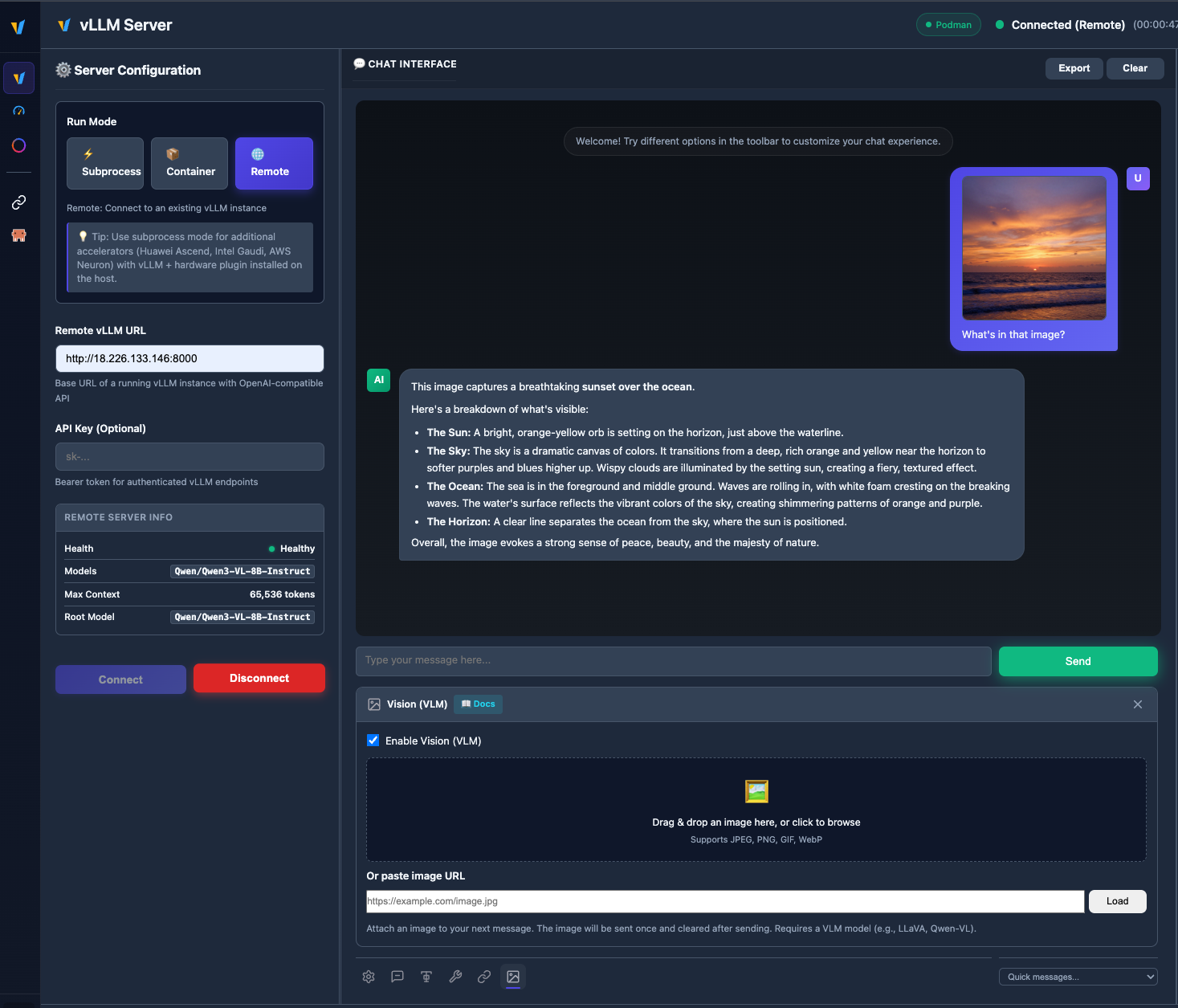
Upload images and chat with vision models like Qwen2.5-VL directly from the chat interface.
Highlights
- Remote vLLM Server - Connect to any remote vLLM instance via URL + API key
- VLM (Vision Language Model) - Image upload and multimodal chat with vision models
- Markdown Rendering - Rich formatting for assistant messages (bold, lists, code blocks, tables)
- vLLM-Omni Remote - Remote mode support for vLLM-Omni multimodal generation
Remote vLLM Server
Connect to a remote vLLM instance instead of running locally. Access it from the Run Mode toggle at the top of the vLLM Server configuration panel.
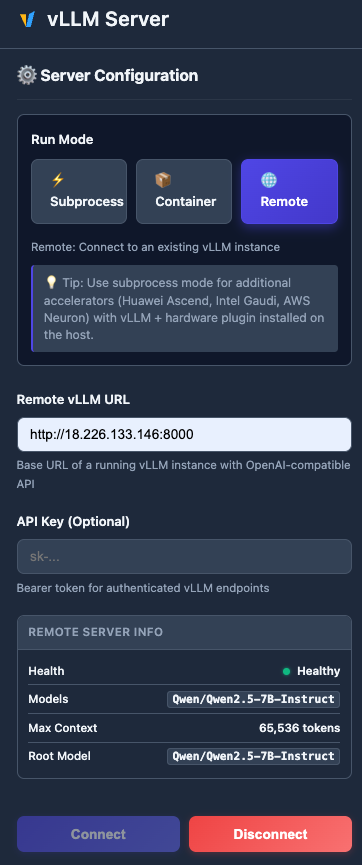
Connect to a remote vLLM server with URL and optional API key authentication.
Three Run Modes
| Mode | Description |
|---|---|
| Subprocess | Run vLLM locally as a Python subprocess |
| Container | Run vLLM in a Podman/Docker container |
| Remote | Connect to an existing remote vLLM instance |
Remote Configuration
- Select Remote in the Run Mode toggle
- Enter the vLLM server URL (e.g.,
http://your-server:8000) - Optionally provide an API key for authenticated endpoints
- Click Connect
Auto-Detected Server Info
Once connected, the server info panel automatically displays:
- Available Models - List of models served by the remote instance
- Health Status - Server health check result
- Max Context Length - Maximum model context window
- Root Model - Base model identifier
Full Feature Compatibility
All vLLM Playground features work seamlessly in remote mode:
| Feature | Remote Support |
|---|---|
| Chat (streaming & non-streaming) | Yes |
| GuideLLM Benchmarking | Yes |
| Claude Code Integration | Yes |
| MCP Servers | Yes |
| Tool Calling | Yes (optimistically enabled) |
| Structured Outputs | Yes (vLLM v0.12+ format) |
vLLM-Omni Remote
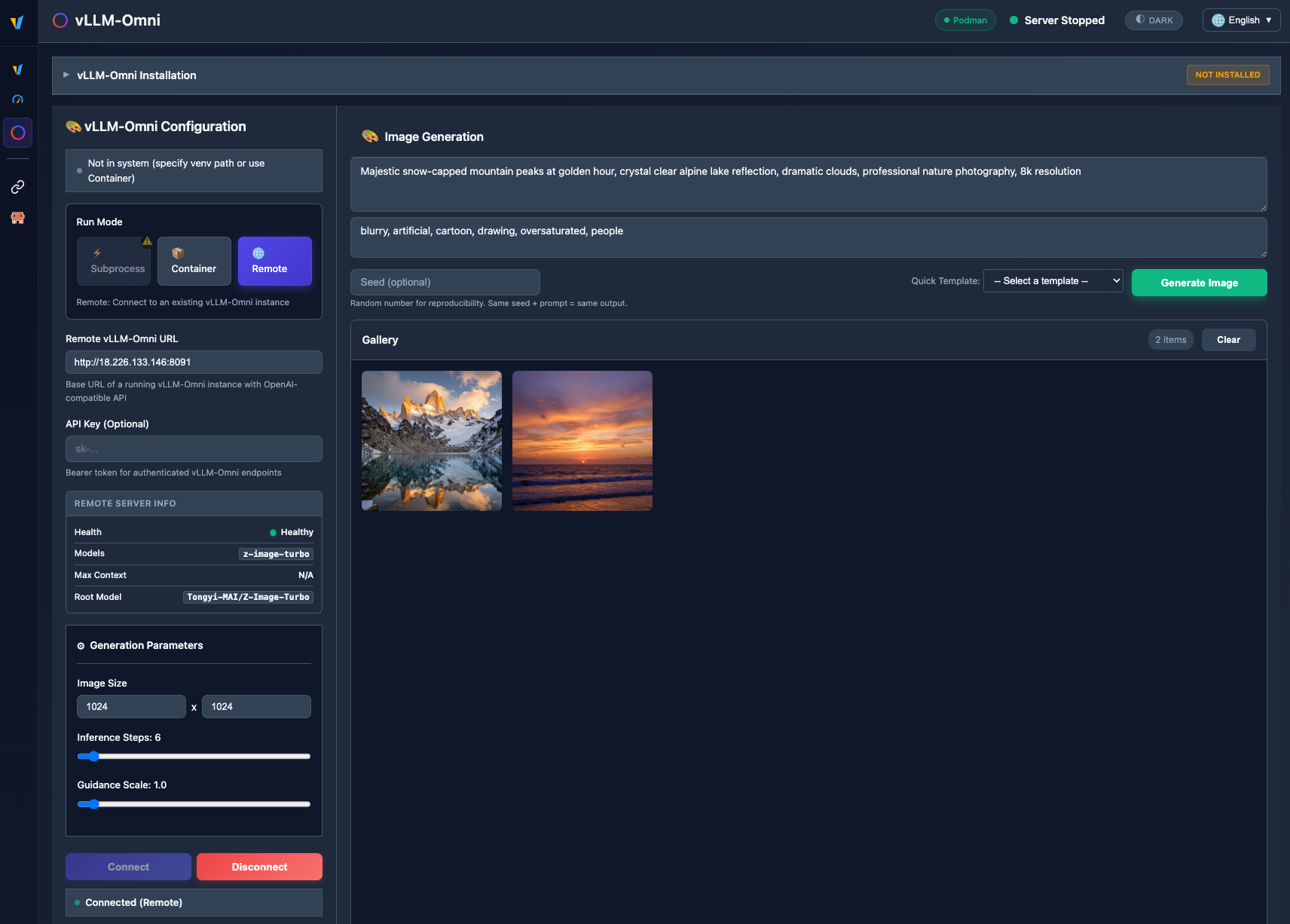
Remote mode is also available for vLLM-Omni, with the same UI layout as the main vLLM server.
VLM (Vision Language Model)
Upload images and ask questions about them using vision-capable models served by vLLM. Access it from the VLM button in the chat toolbar.
Image Upload
Two ways to attach an image:
- Drag & drop an image file onto the upload zone
- Paste a URL and click Load
Supported formats: JPEG, PNG, GIF, WebP.
How It Works
- Enable Vision (VLM) in the VLM panel
- Upload or paste an image
- Type your question (e.g., "What's in this image?")
- Send - the image is attached to your message as multimodal content
The image is sent once and cleared after sending (one-shot attachment). A thumbnail appears in the chat bubble for reference.
Supported Models
| Model | Parameters | Description |
|---|---|---|
| Qwen/Qwen2.5-VL-3B-Instruct | 3B | Lightweight vision-language model |
| Qwen/Qwen2-VL-7B-Instruct | 7B | Higher quality vision understanding |
| llava-hf/llava-v1.6-mistral-7b-hf | 7B | LLaVA with Mistral backbone |
Markdown Rendering
Assistant messages now render with proper formatting using marked.js:
- Bold and italic text
- Headings (H1-H4)
- Bullet and numbered lists
- Code blocks with syntax highlighting
- Tables
- Blockquotes
- Links
Markdown is rendered in real-time during streaming. Both dark and light themes are fully supported.
Other Changes
Structured Outputs (vLLM v0.12+)
Structured output parameters updated to use the new structured_outputs dict format required by vLLM v0.12+.
Claude Code Improvements
- Added
ANTHROPIC_AUTH_TOKENfor seamless login bypass in remote mode - Fixed model name validation for remote models containing
/
Bug Fixes
- GuideLLM hang at 98% - Fixed subprocess deadlock by reading stdout and stderr concurrently
- Button label inconsistency - Properly reflects selected run mode
- Chat input layout - Fixed grid layout when VLM image indicator is shown
- Proxy timeouts - Increased streaming timeout from 30s to 120s for VLM image processing