Glyphs Page
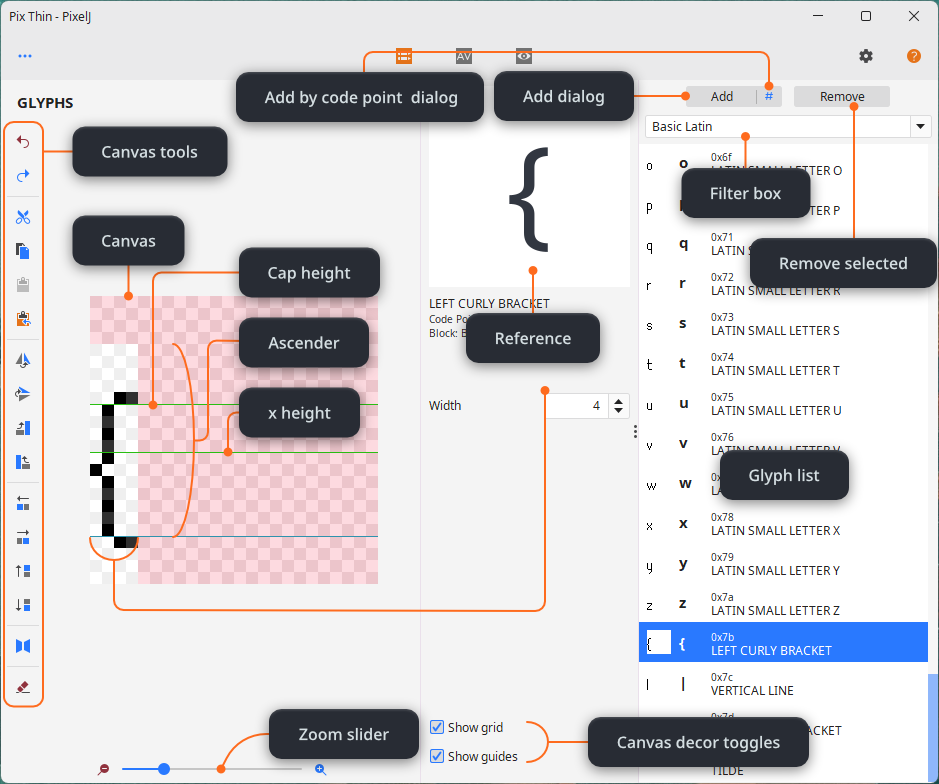
- Use the primary mouse button to draw, the secondary mouse button to erase.
- The pinkish area on the canvas shows the ignored part of the canvas.
- Every canvas tool has a shortcut key, hover on them to see what they are. Clipboard and history shortcuts only work when the canvas is focused (indicated by a blue rectangle around the canvas). You can click the empty space around the canvas to focus on it without drawing.
- The width spinner controls per-glyph width. Per-glyph width is ignored if the font is monospaced, but this is not yet visible on the gui. For now, if your font is monospaced, keep this value same with the default glyph width setting.
- You can select multiple glyphs on the glyph list to remove.
| Icon | Action |
|---|---|
 |
Undo. |
 |
Redo. |
 |
Cut. |
 |
Copy. |
 |
Paste from the application clipboard. |
 |
Paste from the system clipboard. |
 |
Flip canvas contents horizontally. |
 |
Flip canvas contents vertically. |
 |
Rotate canvas contents counter-clockwise. |
 |
Rotate canvas contents clockwise. |
 |
Move canvas contents 1 pixel left. This will clip the left-most column. |
 |
Move canvas contents 1 pixel right. This will clip the right-most column. |
 |
Move canvas contents 1 pixel up. This will clip the top-most row. |
 |
Move canvas contents 1 pixel down. This will clip the bottom-most row. |
 |
Toggle horizontal symmetry. The symmetry axis will be the half of the glyph width. |
 |
Clean the canvas. |
To-do.