Releases: mirudo2/Custom-UEVR-Injector
Release list
Custom UEVR Injector - GUI Version

GUI version - First release!!
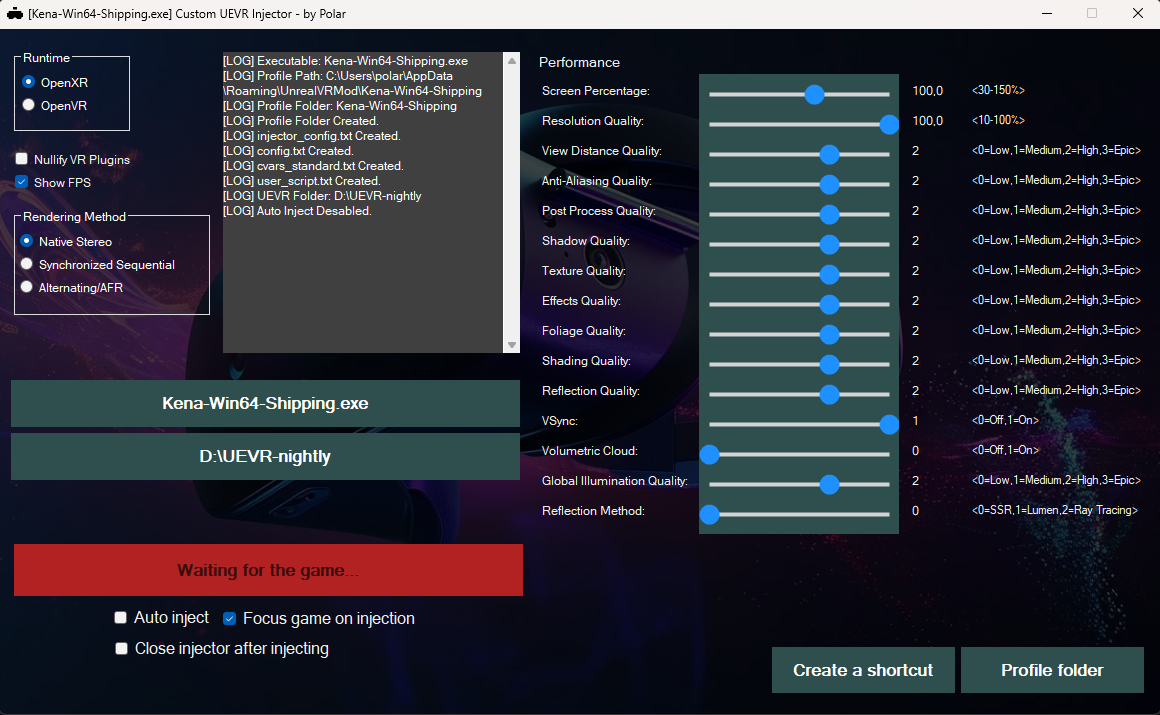
A simple UEVR injector with some useful features missing from the official injector, such as auto-injection, auto-closing, shortcut creation, and pre-setting variables from the user_script.txt file.
-
Auto-Inject
Allows you to load UEVR even in games with weaker anti-cheat systems. Just configure the injector and enable the auto-inject option before starting the game. Use at your own risk—although no bans have been reported so far, there is always a risk depending on the game. -
Auto-Close
Automatically closes the injector as soon as the injection is complete.
Download
Grab the latest pre-compiled binaries from the Releases page.
Build from Source
- Clone this repository.
- Open the solution in Visual Studio 2019 (no external dependencies required).
- Build and run!
Note: Some antivirus tools may flag the pre-compiled executable as suspicious. This is a false positive—feel free to review the source code and compile it yourself if you prefer.
Custom UEVR Injector - Console
Changelog / How to Use
-
Shortcut System Added
Create a shortcut for any game to launch the injector with your saved settings. -
Runtime Selection
Choose your VR runtime: OpenXR or OpenVR. -
Nullify VR Plugins
Optionally injectUEVRPluginNullifier.dllto disable specific VR plugins.
Instructions
-
Copy the Injector
PlaceCustom-UEVR-Injector.exein the same folder asUEVR. -
Run the Injector
Double-clickCustom-UEVR-Injector.exe.Tip: For anti-cheat games, start the injector before launching the game.
-
Follow the Prompts
-
Process Name
Enter the process name:- This must be the exact filename of the Unreal Engine game’s
.exe—for example:MyAwesomeGame-Win64-Shipping.exe - To find it, open the game’s installation folder, then go to:
and copy the name of the
<Game Install Folder>\Binaries\Win64\.exefile you see there.
- This must be the exact filename of the Unreal Engine game’s
-
API Selection
Choose an API, OpenXR(0) or OpenVR(1):- Type
0for OpenXR - Type
1for OpenVR
- Type
-
Nullify VR Plugins?
Nullify VR Plugins? (0/1):- Type
1to disable VR plugins withUEVRPluginNullifier.dll - Type
0to leave plugins unchanged
- Type
-
Developer Setup
- C++17 Required
In your project settings, set C++ Language Standard to C++17 to avoid compilation errors.