Developer Document
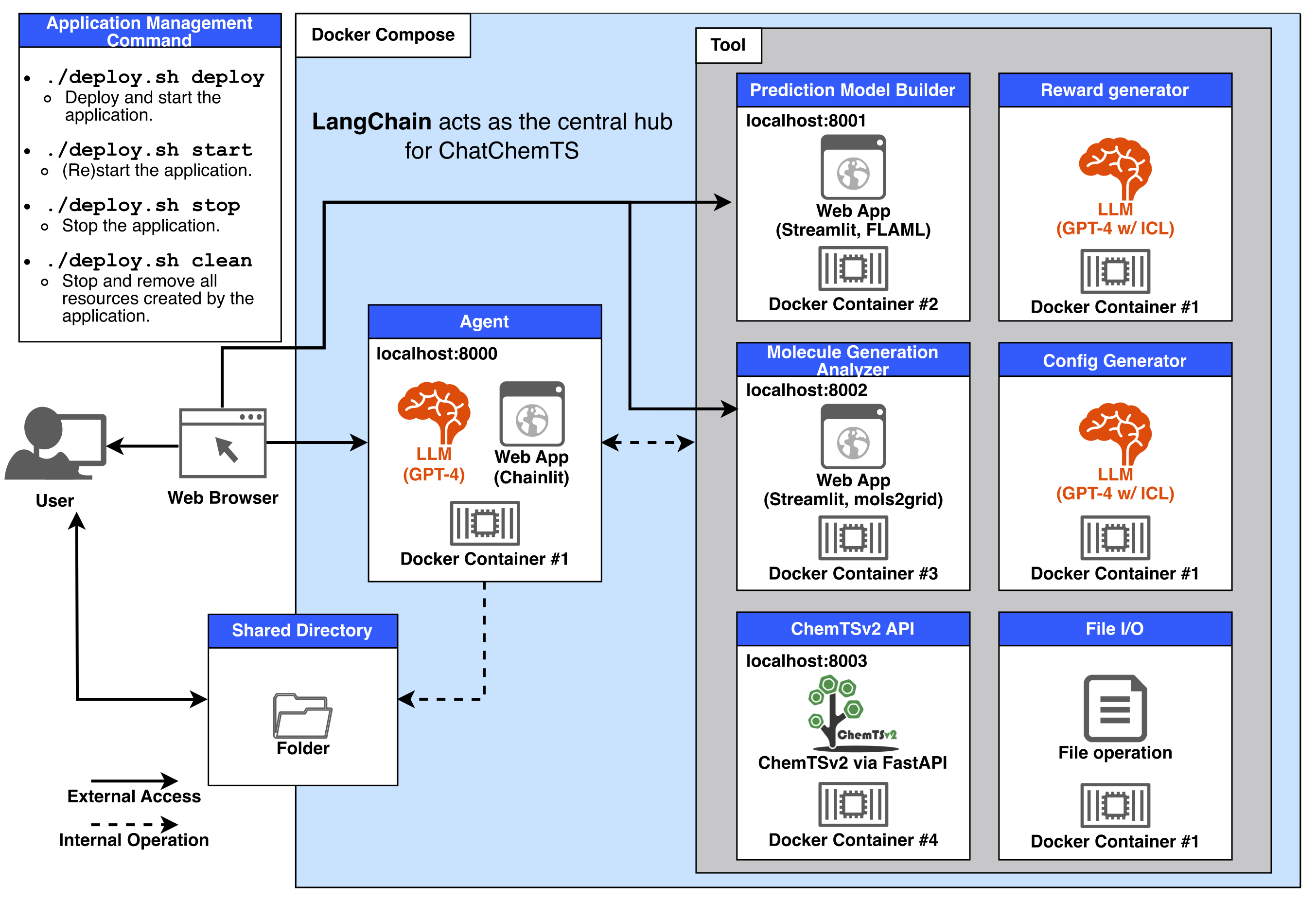
Each component is implemented in the following files:
- Agent: chatbot_app/app.py
- Prediction Model Builder: model_builder_app/app.py
- Molecule Generation Analyzer: analysis_app/analysis.py
- ChemTSv2 API: api_chemtsv2/main.py
- Reward generator, Config generator, and File I/O tools: chatbot_app/tools.py
- Shared Directory: shared_dir/
- Application Management Command: manage_app.sh
- Docker Compose: docker-compose.yaml
The .env file contains the port information for each Web App and the API key.
Below is the current configuration:
OPENAI_API_KEY=''
CHATBOT_PORT=8000
MODEL_BUILDER_PORT=8001
ANALYSIS_PORT=8002
CHEMTS_PORT=8003
This configuration information is used during Docker Compose operations.
Each component manages its dependencies using Poetry, and Docker images are built based on the poetry.lock file.
So, when adding or updating packages, please follow the steps below:
- Update the
[tool.poetry.dependencies]section inpyproject.toml - Run the
poetry lockcommand to update thepoetry.lockfile.
This ensures the changes are properly reflected in the dependency management and Docker image builds.
Note
If Docker containers or images already exist, make sure to remove them by running bash manage_app.sh clean before deploying the updated version.
Note
A GUI feature to switch between LLM models from different providers is planned for future implementation.
As such, the method described here is intended as a temporary solution.
To switch the LLM used in ChatChemTS to another provider's LLM, you will need to make modifications to at least two functions:
-
start()inchatbot_app/app.py -
prepare_chat_model()inchatbot_app/util.py
In the start() function, you define the settings passed to the LLM model that can be adjusted via the GUI. Update these settings to match the requirements of the LLM you wish to use.
Note
Ensure that the setting with id="NumConversationMemory" is retained, as it is a shared requirement across all LLMs.
In the prepare_chat_model() function, update the section where ChatOpenAI() is called.
Modify it to align with the specifications of the chat model you intended to implement.
The settings argument passed to this function contains the configurations defined in start().
For a list of chat models supported by LangChain, refer to the following documentation:
https://python.langchain.com/docs/integrations/chat/
If additional Python packages are required for the new LLM, you must update the following files:
-
pyproject.tomlandpoetry.lockinchatbot_app/
Add the required package to chatbot_app/pyproject.toml, then run the command poetry lock to update the chatbot_app/poetry.lock file. Refer to the Poetry CLI documentation for more details.
If the new LLM requires API keys or other credentials to be defined as environment variables, you need to update the relevant sections in the following files to suit your requirements:
manage_app.shdocker-compose.yaml.env
Replace the references to OPENAI_API_KEY with the corresponding keys or environment variables for your chosen LLM.
If you have a molecule generation AI with a similar specification to ChemTSv2, you can extend ChatChemTS by following the steps below.
Note
ChemTSv2 specifications include:
- The reward function and config file are defined independently.
- The config file is passed as an argument and can be executed via CLI.
- The config file defines the reward file path, output directory, number of generated molecules, and other parameters.
For further details, please refer to the ChemTSv2 paper
- Create a function similar to
run_chemtsv2()that takes the path to a config file as input, executes the molecule generation process usingsubprocess.run(), and returns the directory name containing the output files. - Update the corresponding API endpoint by
replacing @app.post("/run/")with@app.post("/run_[ANYWORD]")to avoid conflicts with existing routes.
- Use
ChemTSv2ApiToolas a reference to define a new tool that interacts with the API endpoint defined in Step 1. - Ensure that the tool sends requests to the URL you configured and accepts the path to the config file as input.
- For details on how to define a custom tool, refer to the LangChain documentation: LangChain Custom Tools
- Include the newly defined tool in the
prepare_tools()function. - Ensure the description field is clearly written, as it plays a crucial role in helping the agent decide when to use this tool.
- Modify the system message and prompts to include the name of your new molecule generation AI, in addition to "ChemTSv2," wherever it appears. Use the name specified in the tool's description.
- When running the AI, type chat like
Run [YOUR_AI_NAME] using config.yamlin the chat interface. The agent should correctly interpret the request and execute molecule generation using the newly added AI.
Under construction.
Under construction.
You can inspect the raw logs using the docker logs command if you encounter errors or unexpected behaviors.
docker container ls  # List running containers to find the container names related to ChatChemTS
docker logs [CONTAINER_NAME]  # Example: chatchemts-chatbot-1 or chatchemts-api_chemtsv2-1