How to compile from source
- Download Visual Studio 2022(previous versions may work too, but these instructions will focus on that version)
- Install Visual Studio 2022with the following components:
- Visual C++ for Windows applications
- Visual C++ for Game development
- MSVC Runtime v143 (Platform Toolset from Visual Studio 2022)
- Windows 10 SDK (10.0.19041.0 preferably)
- Clone the xwa_ddraw_d3d11 project from Github
- `git clone --recurse-submodules https://github.com/Prof-Butts/xwa_ddraw_d3d11.git
- If you had already cloned the repo without submodules, go into the repo folder and run
git submodule update --initto clone theHook_XWACockpitLooksubmodule.
- Open the
impl11.slnsolution with Visual Studio 2022.- If prompted, do not Upgrade the solution to a newer version of Windows nor platform toolkit. Try to install the required versions instead.
- Build solution. It should build correctly, despite some warnings. The ddraw.dll will be output to the
impl11/Release/folder.
- Copy property template files
-
PropertySheetDebug.props.default->PropertySheetDebug.props -
PropertySheetRelease.props.default->PropertySheetRelease.props
-
- Open the
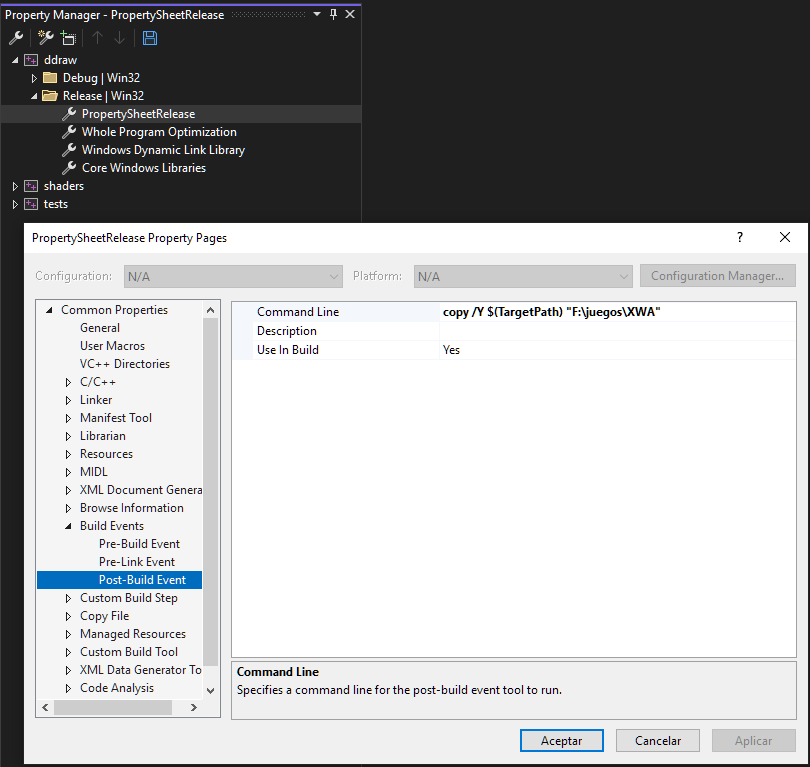
Property Managerin the View menu. - Edit the PropertySheetDebug and PropertySheetRelease to add a Post-build event that copies the output .dll into your XWA directory. for example:
copy /Y $(TargetPath) "c:\Program Files (x86)\GOG Galaxy\Games\Star Wars - X-Wing Alliance"
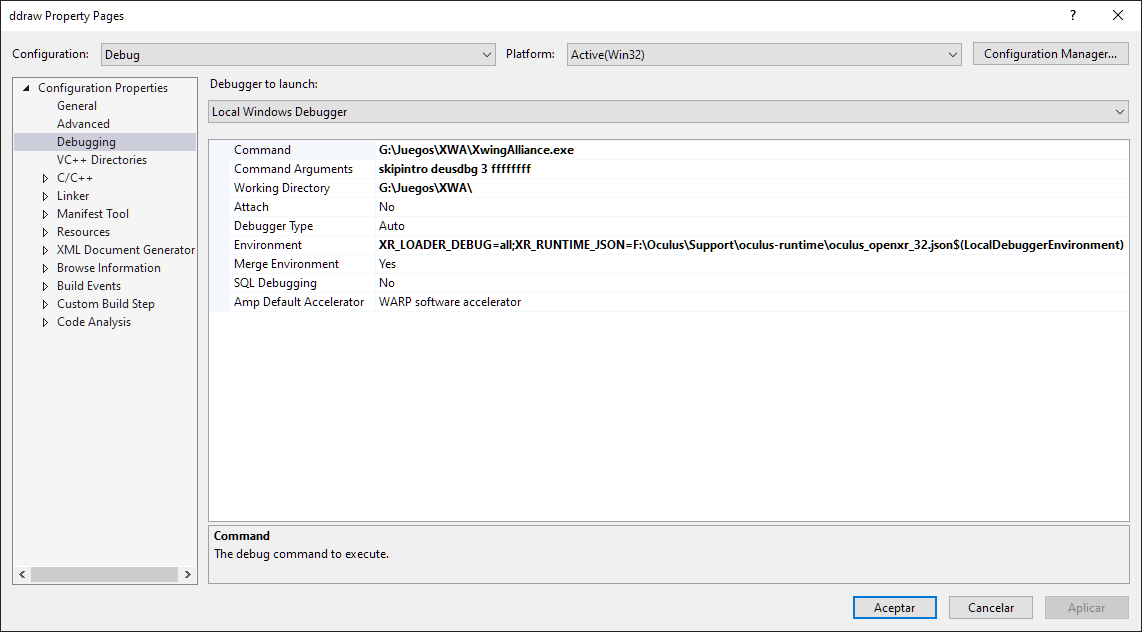
To launch XWA directly with F5 and be able to run code step by step.
- Configure
ddrawas start-up project (Right click over the project -> Set As Startup project) - Debug -> ddraw Debug Properties