Repository navigation
Shortcut Pad
A slim strip on the left or right edge of the screen with touch keys and a spin wheel, like the ExpressKeys and Touch Ring on a pen tablet. It lets you undo, pan, zoom, change brush size and hold modifier keys without a keyboard.
It runs from just below the options bar to the bottom of the screen, so the menu bar and the options bar keep the full width (new in 0.16.0-5).
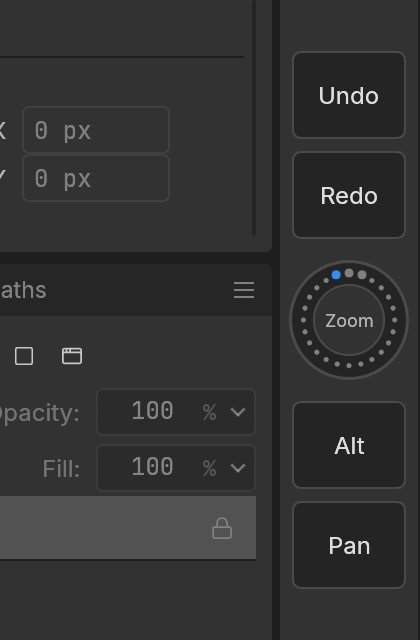
From top to bottom it has: keys above the wheel, the wheel, keys below it, the full screen key and the keyboard key.
Tap a key to press its shortcut. The defaults are Undo, Redo, Alt and Pan.
- Shortcuts like
Ctrl+Z,BorTabact once per tap. - A modifier on its own (
Alt,Shift,Ctrl) orSpaceis held for as long as your finger stays on the key. Hold Alt with one hand and click with the pen to use the Eyedropper or set a Clone Stamp source; hold Pan (Space) and drag with the pen to move the canvas. - Keys work together with a hardware keyboard.
- Turn it: press the ring and a large ring opens beside the pad; slide your finger around it. Clockwise zooms in, rotates the view, grows or hardens the brush, or redoes; counter-clockwise does the opposite. The large ring shows the live value (zoom %, angle, size, hardness).
- Switch function: tap the centre of the wheel. The small lights on the wheel show which function is active.
The functions are Zoom, Rotate View, Brush Size, Brush Hardness and Undo / Redo; choose which ones the centre cycles through in the settings.
The key at the very bottom opens the on-screen keyboard even when no text field is selected.
Its letters then work as shortcuts (E picks the Eraser, B the Brush); combined with a pad key
holding Ctrl, S saves. Tap the key again (or use the keyboard's hide key) to close it. See
Keyboards.
Window › Shortcut Pad:
- Show Shortcut Pad: show or hide the pad.
- On the Left / On the Right: which edge it sits on.
-
Shortcut Pad Settings…:
- Number of keys: 2 to 10. They split above and below the wheel and shrink to fit a shorter screen.
- For each key:
- Label: the text on the key (up to 8 characters).
- Color: Default, one of nine colours (red, orange, yellow, green, teal, blue, purple, pink, gray), or any colour from the swatch button. Labels switch to dark or white text to stay readable, and a coloured key lightens while held.
- Preset: Undo, Redo, Alt (hold), Shift (hold), Ctrl (hold), Pan (hold Space), Brush, Eraser, Eyedropper, Swap Colors, Deselect, Free Transform, Fit on Screen, 100%, Save, Show/Hide Panels, or Nothing.
-
Shortcut: or type any shortcut yourself, such as
Ctrl+Shift+Nor[.
- Wheel: which functions tapping the centre switches between.
- Large ring: whether pressing the wheel opens the large ring, and its size.
- Sensitivity: how much a turn changes things.
- Restore Defaults.
In the phone layout the pad is slimmer (56 points instead of 72). You can also hide it with Window › Shortcut Pad › Show Shortcut Pad.