Repository navigation
Library View User Guide
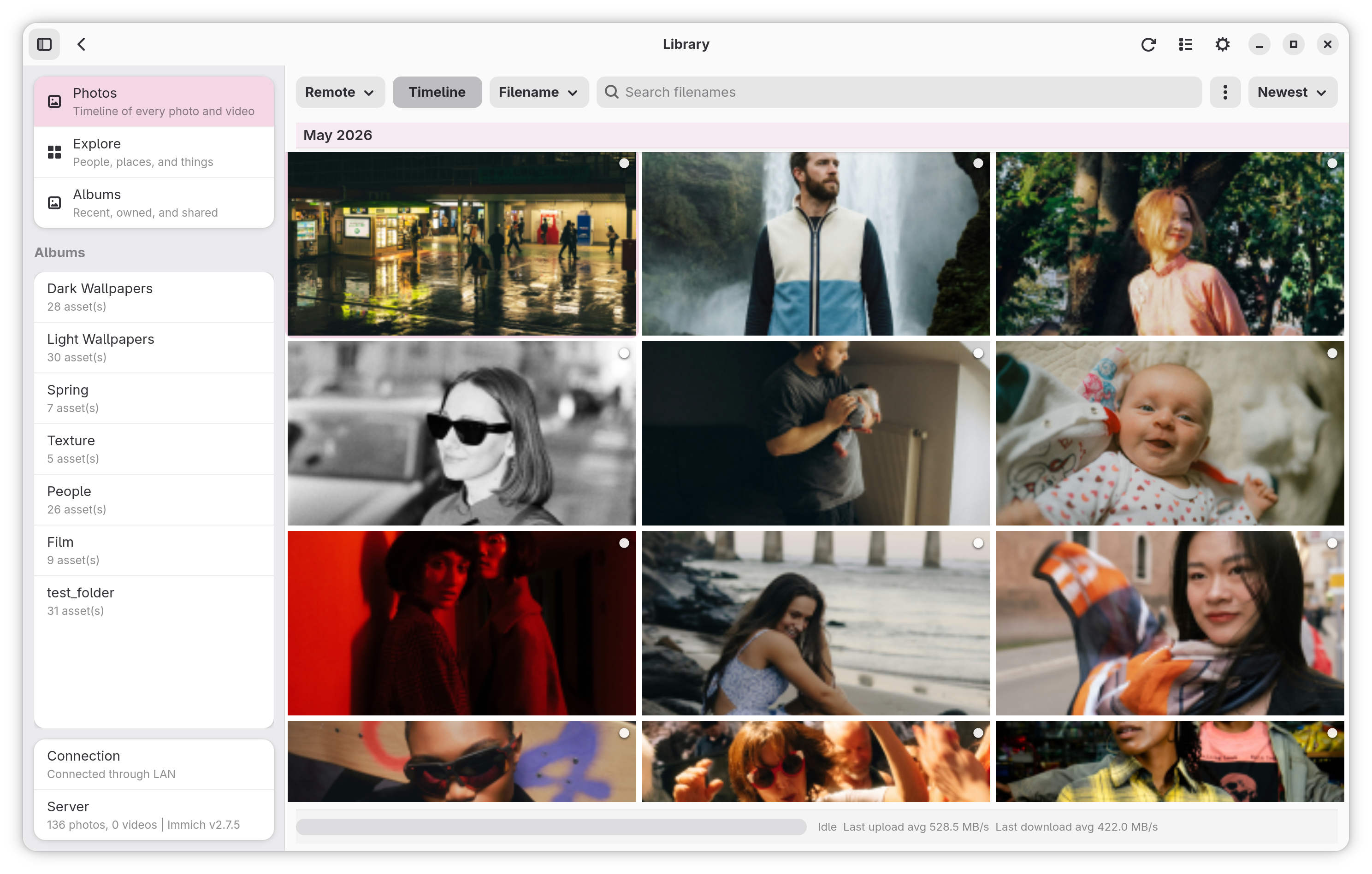
The library view is an optional in-app browser for your Immich server's assets, albums, and Explore categories. It replaces the default settings window as the main window when enabled.
- Open Settings → Behavior → Enable Library View.
- Save and restart Mimick.
The library window opens instead of the settings window on the next launch. Settings remain accessible from the header bar gear button.
| Photos (Light) | Photos (Dark) |
|---|---|
 |
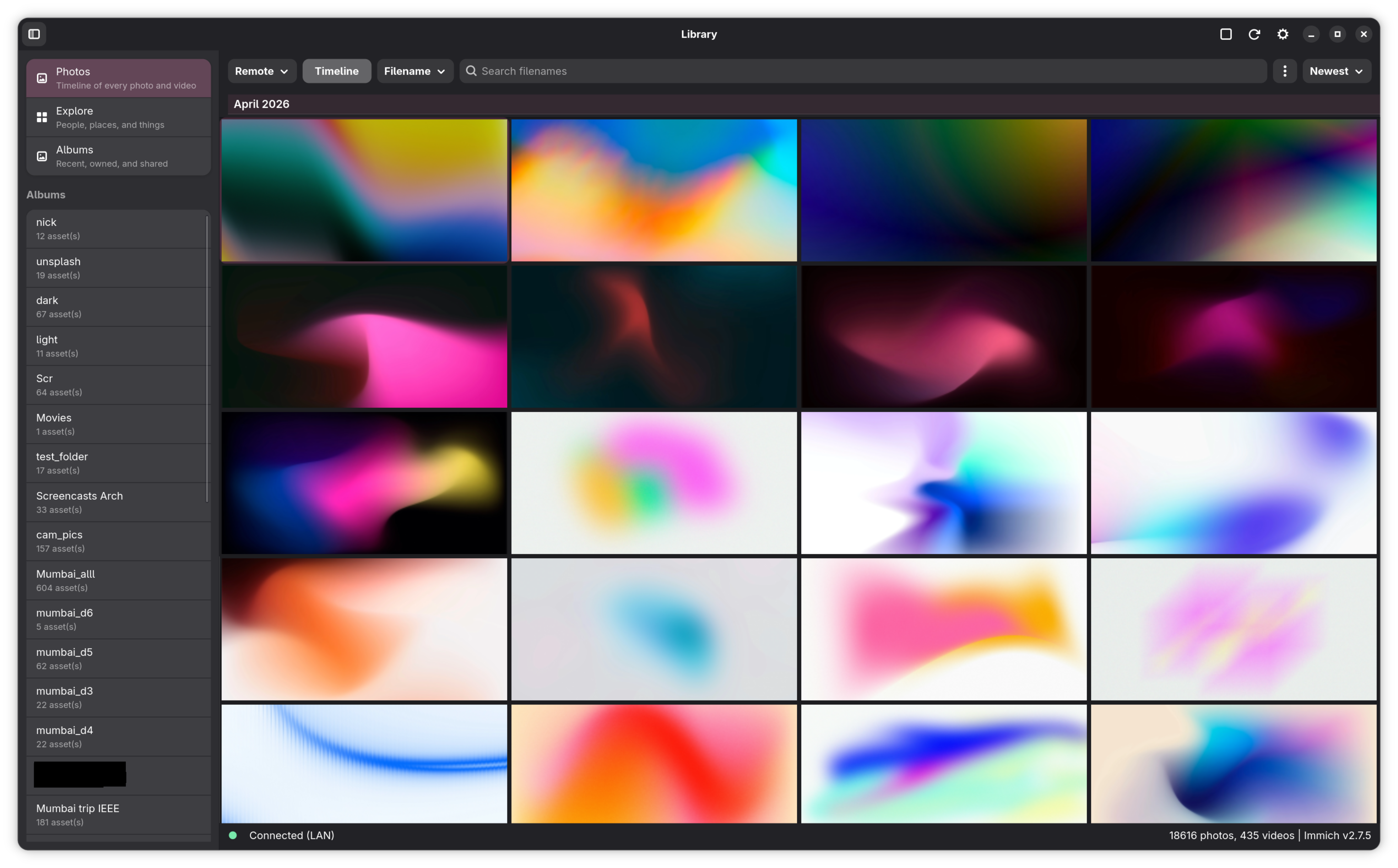 |
The window uses a sidebar + content split.
Sidebar (toggle with F9 or the sidebar button in the header), in three groups:
-
Library
- Photos — opens the timeline grid
- Explore — People, Places, Things
- People — everyone Immich has recognized (see People)
- Favorites — assets you've marked as favorites (see Favorites)
- Archive — archived assets, hidden from Photos (see Archive)
- Trash — assets in the Immich trash, which you can restore or delete permanently (see Trash)
-
Albums & Sharing
- Albums — album landing page (see Editing Albums)
- Shared Albums — albums shared with you and by you (see Shared Albums)
- Shared Links — every public link you've created (see Shared Links)
- Sharing — partner sharing (see Partner Sharing)
- Browse
- the arrow on Albums expands your three most recently updated albums
- All Albums lists every album for quick navigation; click its heading to collapse it
- Bottom footer contains the connection row (clicking it opens the Server Statistics dialog) and the server row (clicking it opens About: Immich and component versions, source/build links, and the server's version history)
View header: every photo view opens with a header that scrolls away with the photos. It shows the view's title and, where Immich has them, details and actions:
- Albums: item count, date range, who it's shared with or by, description, Share and Create share link buttons, a ⋯ menu with Rename… and Edit Description… (your own albums), and the linked-folder row with Link folder / Sync
- People: face, name, photo count, age and birthday, a heart to favorite them, and the person's ⋯ menu (Rename, Set Birthday, Hide, Merge People)
- Tags: color, photo count, parent tags, and the tag's ⋯ menu
- Places, Folders, Favorites, Archive, and searches: the item count where Immich can count it; folders also show their full path
- Trash: the retention note with Restore All and Empty Trash
Back and Forward: the header's back button, Alt+Left, the mouse back button, or a quick swipe right on a touch screen returns to the previous view, including pages such as Albums, People, Explore, and each level inside Tags and Folders. Alt+Right or the mouse forward button goes forward again. In the lightbox, the mouse back button closes it. A swipe from the very left edge still opens the sidebar.
Top bar title: shows the current view's name (an album, a person, a tag, Favorites, and so on).
Mobile: on narrow windows (under 600 px) a bar at the bottom switches between Photos, Explore, Albums, and People. It hides while you're selecting photos.
Turned-off features: when the library opens (and on refresh) it reads Immich's server features and your account's Features settings, and hides what's turned off:
| Turned off | Hidden in Mimick |
|---|---|
| Trash (server) | Trash; deleting then warns that it's permanent |
| Face recognition (server) or People (account) | People, the bottom-bar People button, and Explore's people row |
| Smart search (server) | the Smart Search mode and Explore's Things |
| OCR (server) | the OCR search mode and the OCR filter |
| Reverse geocoding (server) | Explore's Places |
| Search (server) | Search |
| Tags (account) | Tags, the lightbox's Tags section, and the Tag search filter |
| Folders / Shared Links (account) | Folders / Shared Links |
| Ratings (account) | the Rating search filter |
If Mimick can't read these settings (for example, an API key without userPreference.read), everything stays visible.
Controls row (one row above the content, at every window width):
- Timeline toggle, on Photos only
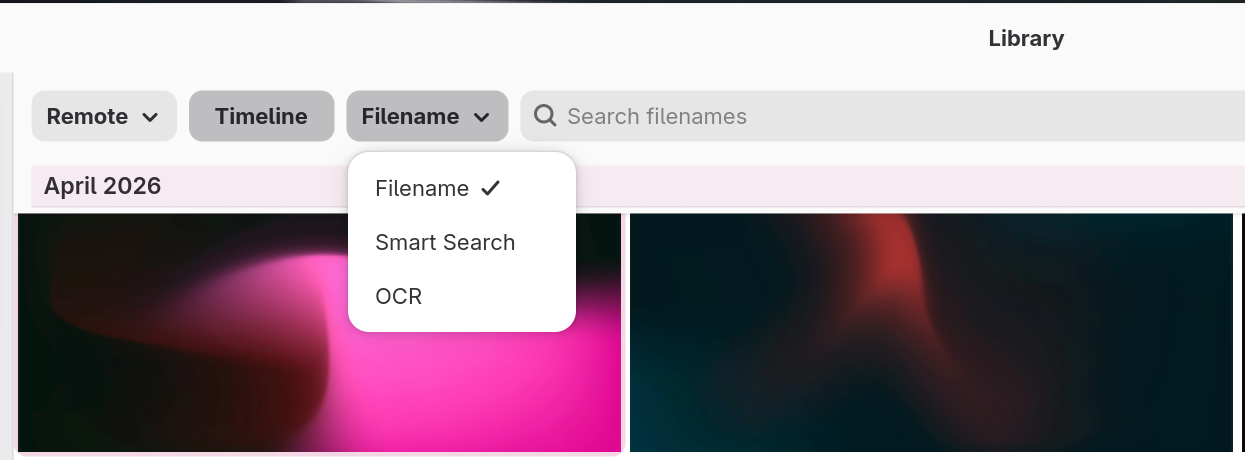
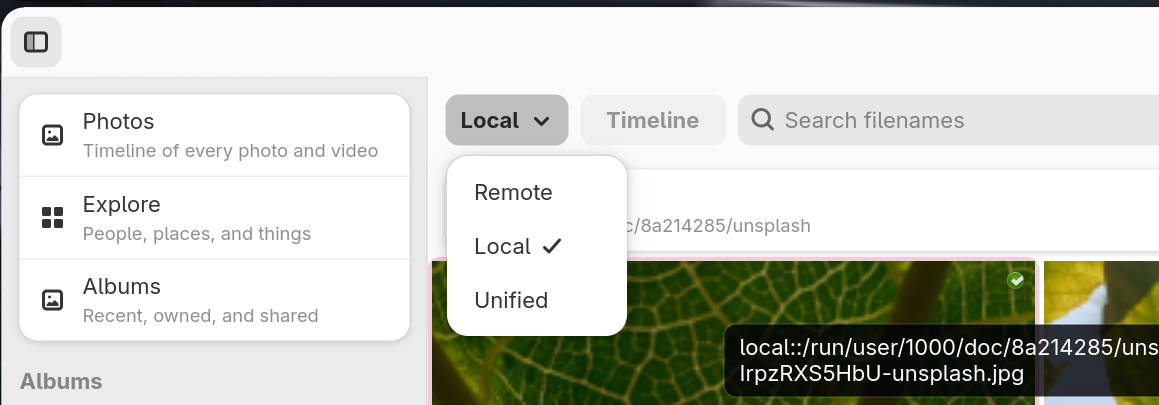
- source selector (Remote / Local / Unified), inside albums only
- sort selector (Newest / Filename / File Type, or the album sorts on the Albums page), where there's something to sort
- Upload button (invokes the manual multi-file picker)
| Search Options | View Options |
|---|---|
 |
 |
Assets load in pages of 50. Scroll to the bottom of the grid to load the next page. The footer label shows the current count.
Thumbnails are loaded asynchronously. A placeholder is shown while the thumbnail downloads. Decoded thumbnails are cached in RAM up to the configured limit (library_thumbnail_cache_mb, default 80 MB).
Use the sort dropdown to order the current view by:
- Newest — most recently created first
- Filename — alphabetical
- File Type — grouped by MIME type
- Sync State — local-only assets first, then synced
Sort applies to the current source and page.
The Timeline button in the header switches the Remote source between a standard paged grid and a timeline layout that groups assets by date. Timeline is only available for the Remote source; it is hidden when Local or Unified is active.
The source dropdown controls which assets the grid shows.
| Source | What it shows |
|---|---|
| Remote | Assets fetched from the Immich server |
| Local | Files in your configured watch folders, enumerated directly |
| Unified | Remote assets merged with local sync state |
Switching sources clears any active search and reloads from page 1.
Local source notes:
- Local enumeration walks your watch folders using the same extension filter as the sync engine.
- No checksum is computed during enumeration, so Local mode does not indicate whether a file has been uploaded — use Unified for that.
- Files matched via the sync index show their album assignment and sync state.
The search entry appears in the header bar. Enter a query and press Enter or wait for the field to commit.
Use the mode dropdown next to the search entry:
| Mode | What it searches | Server requirement |
|---|---|---|
| Filename | Filename and EXIF metadata fields | None |
| Smart Search | CLIP-based semantic/natural-language similarity | Immich ML service running |
| OCR | Text extracted from images | Immich ML service running |
- Smart Search and OCR both require the Immich machine-learning service to be enabled and healthy on your server. Queries against a server without ML will return empty results or an error.
- Filename mode works without ML and is the fastest option.
- Clearing the search entry returns to the previous non-search source.
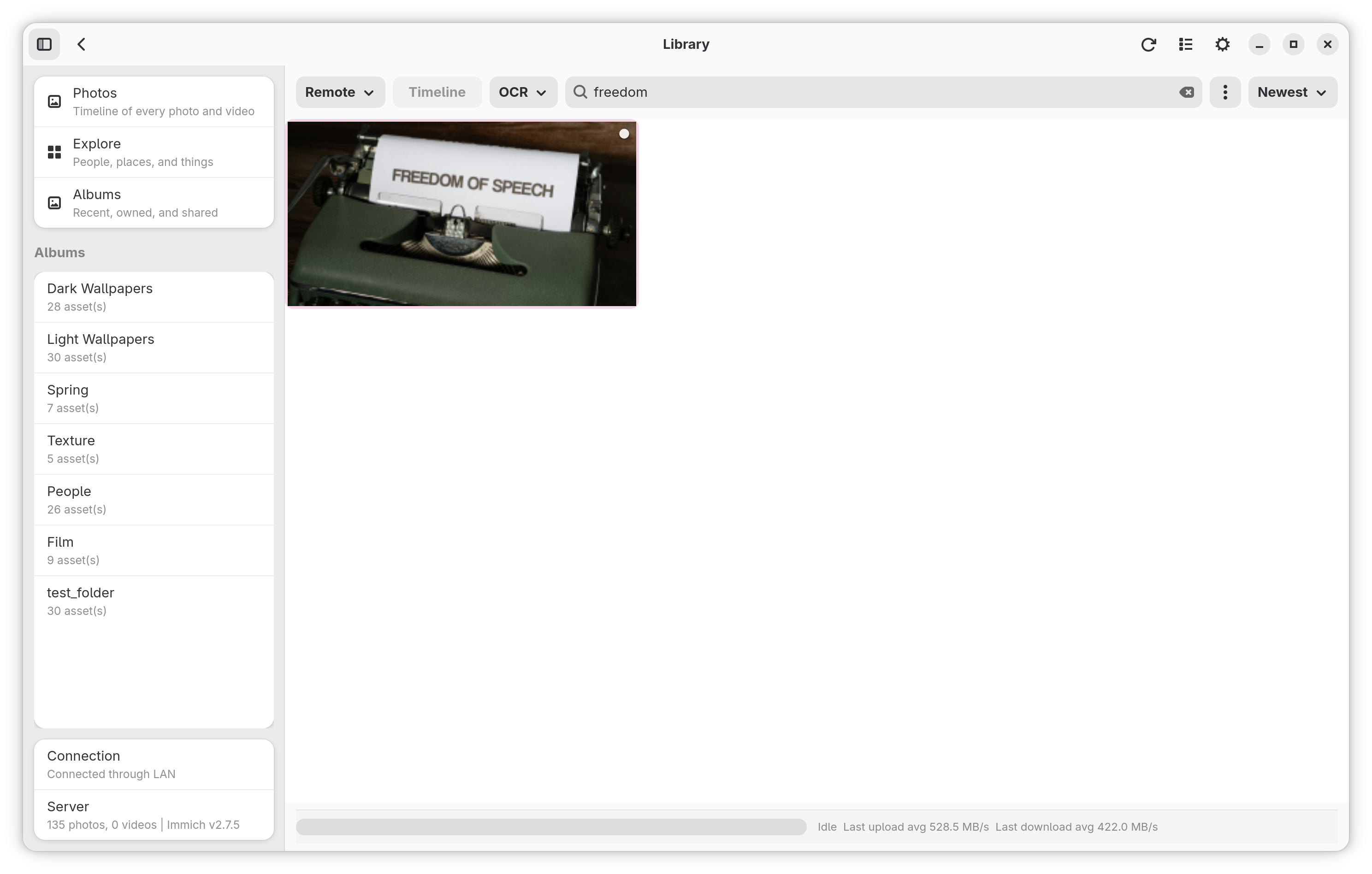
| Advanced Filters | Advanced Filters (More Options) |
|---|---|
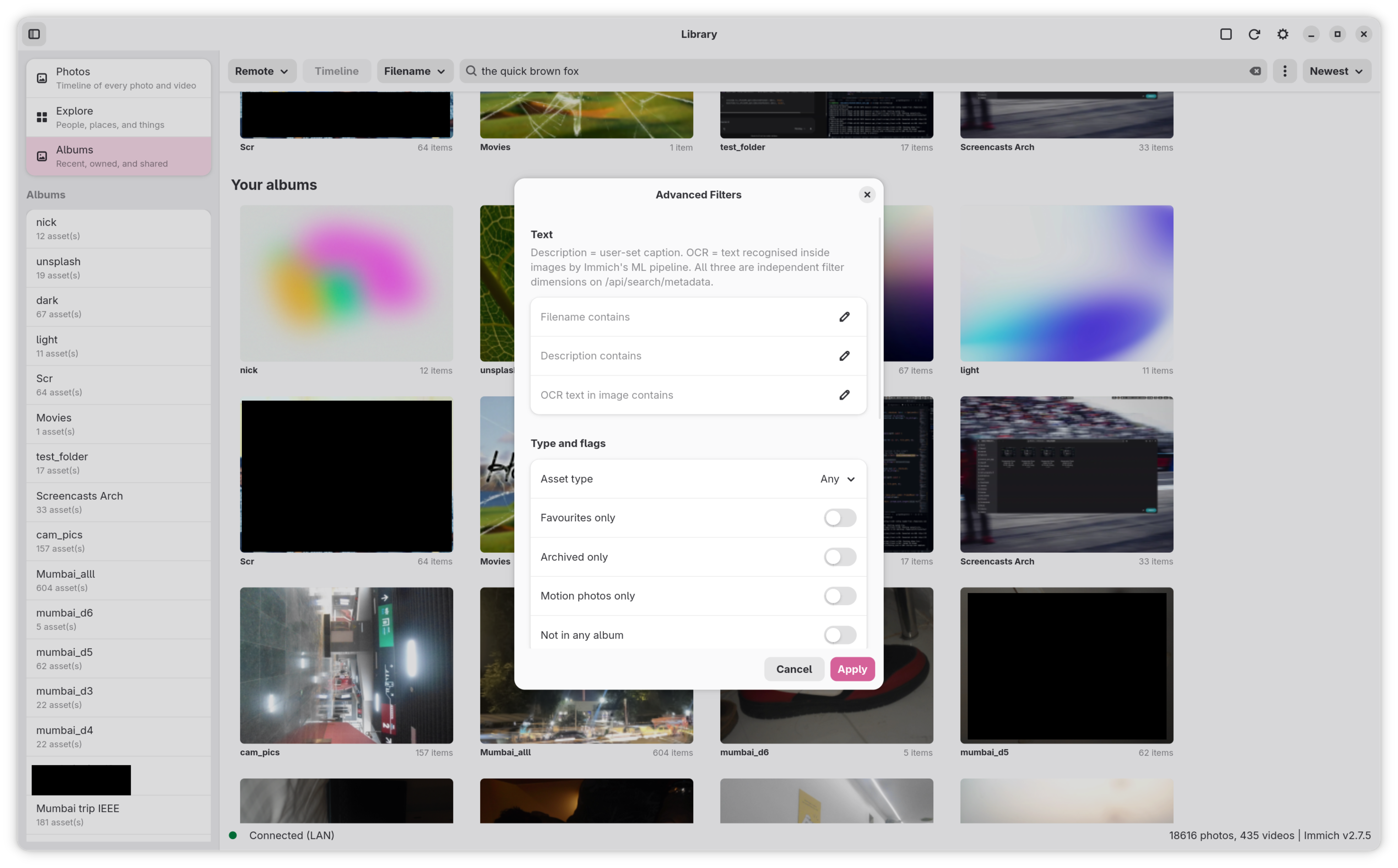 |
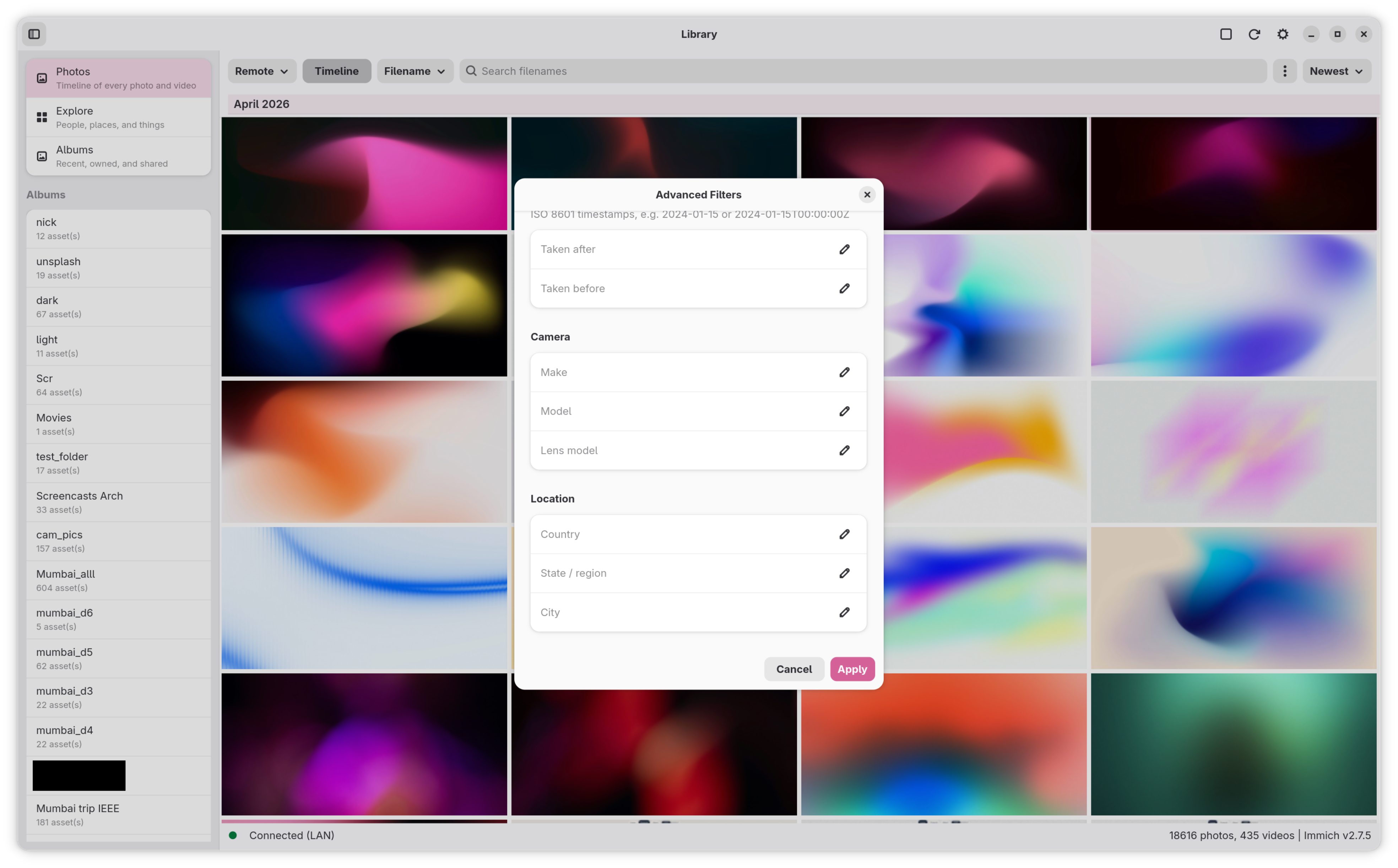 |
- The Tag filter in the advanced filters (Tags group) limits results to assets carrying one tag. Its list is loaded from the server each time you open Search.
- Clicking a tag in the lightbox details pane runs the same search directly (see Tags in the Details Pane).
- Requires the
tag.readAPI key permission; without it the list stays at Any.
Local and Unified search always uses filename matching regardless of the mode selector. The mode selector is hidden when Local or Unified is active.
Select Explore in the sidebar to open the Explore view.
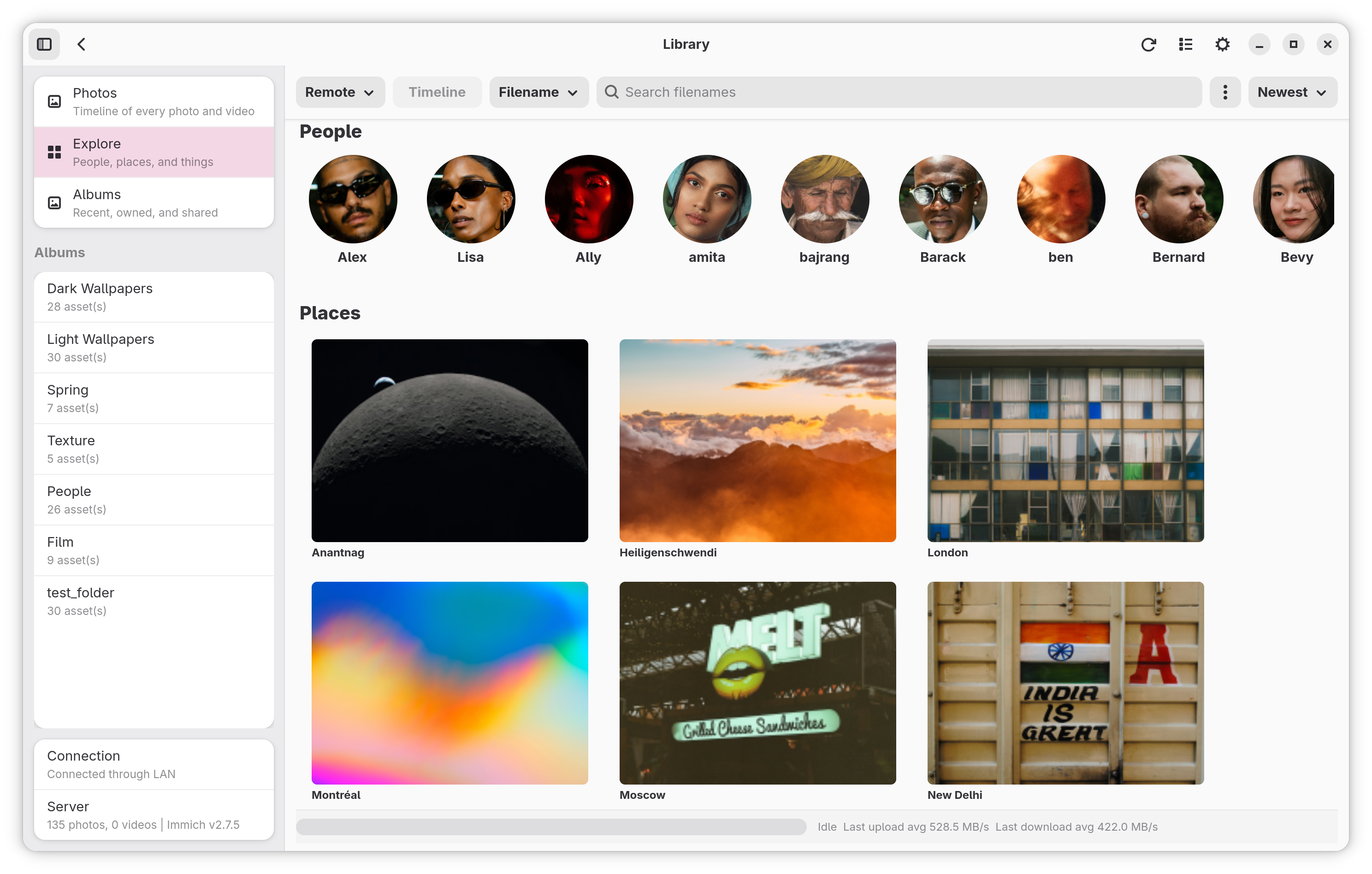
Three sections are populated from the Immich server:
- People — a horizontal row of recognised person tiles with their name and a representative thumbnail. Requires face recognition to be enabled on the server.
- Places — city/location tiles for assets with geolocation EXIF data.
- Things — tag tiles for object-recognition labels (animals, vehicles, etc.). Requires ML object tagging on the server.
Clicking a tile filters the grid to assets belonging to that person, place, or tag. The view will persist your active filter selection even if you navigate away and return.
Use the Refresh button in the header to reload the Explore data. Sections that return no results from the server are hidden automatically.
Face Visibility: By default, unnamed faces are shown and hidden faces are excluded. You can toggle these independently in Library Settings.
Select Albums in the sidebar to open the album landing page.
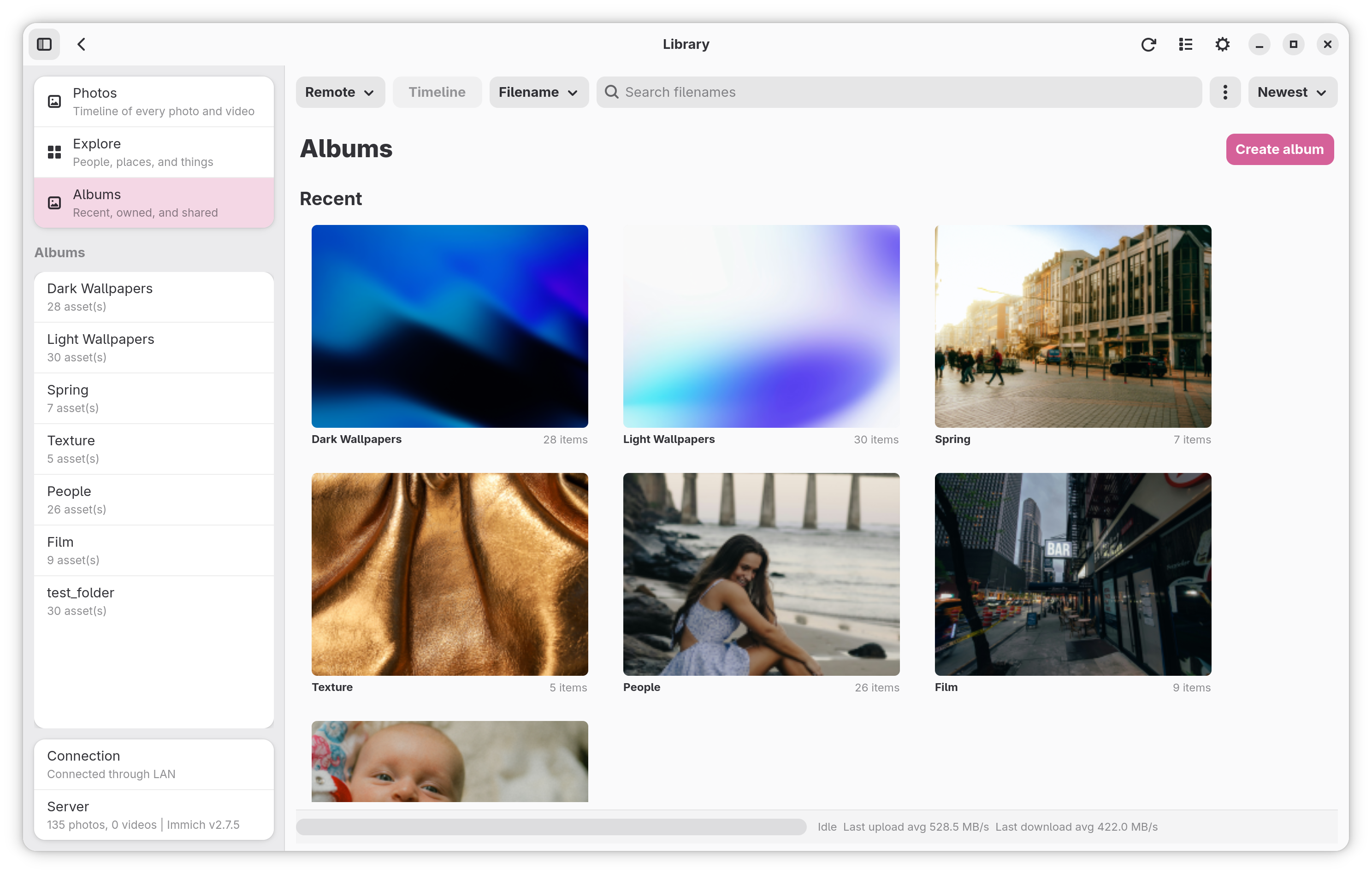
Three sections are shown:
- Recent — recently accessed albums
- Your albums — albums you own
- Shared with you — albums shared by other users
Click an album tile to open it in the grid view. The album is also added to the sidebar list for quick re-access.
| Selected Album (Dark) | Album View (Sidebar Off) |
|---|---|
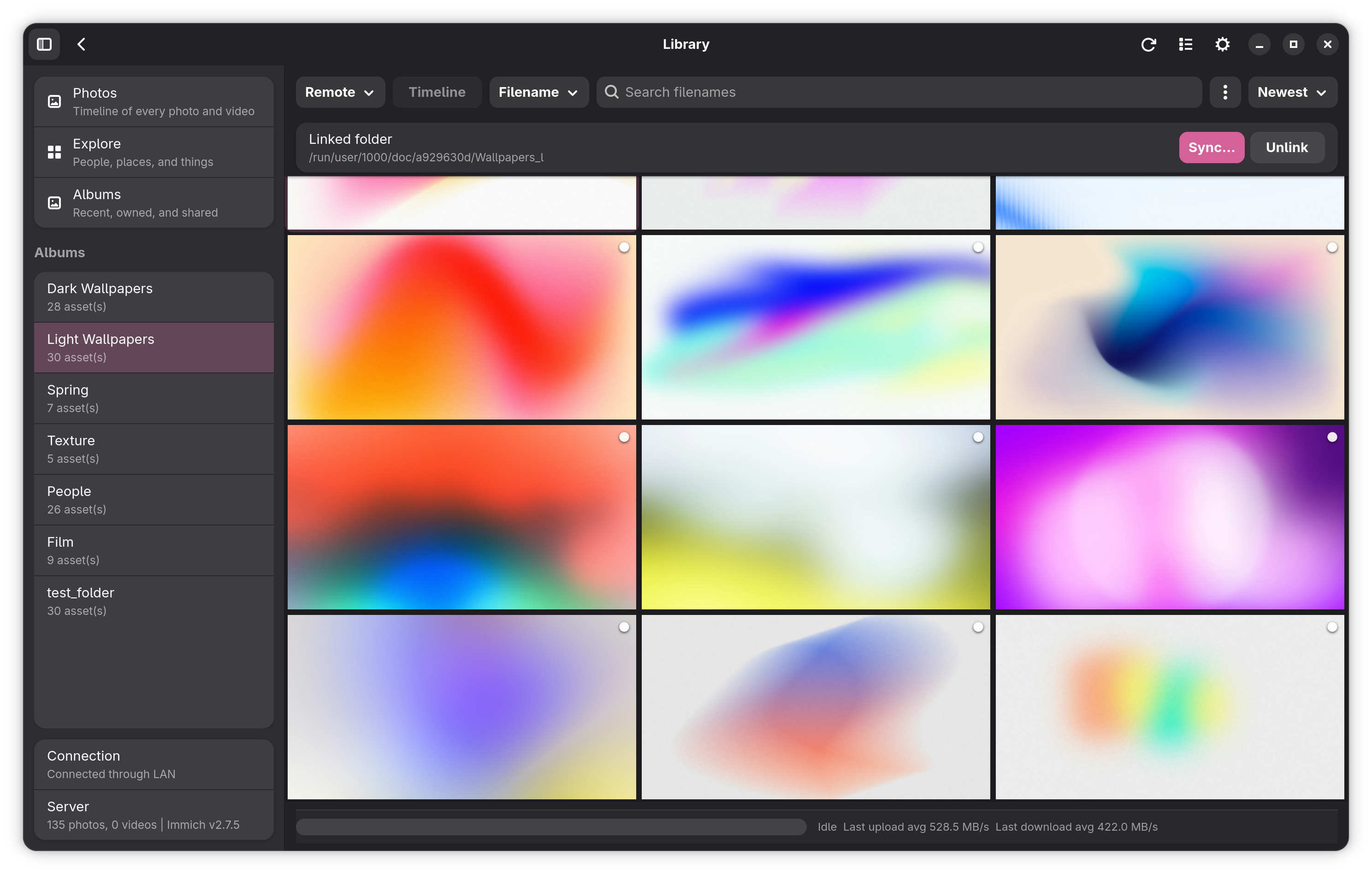 |
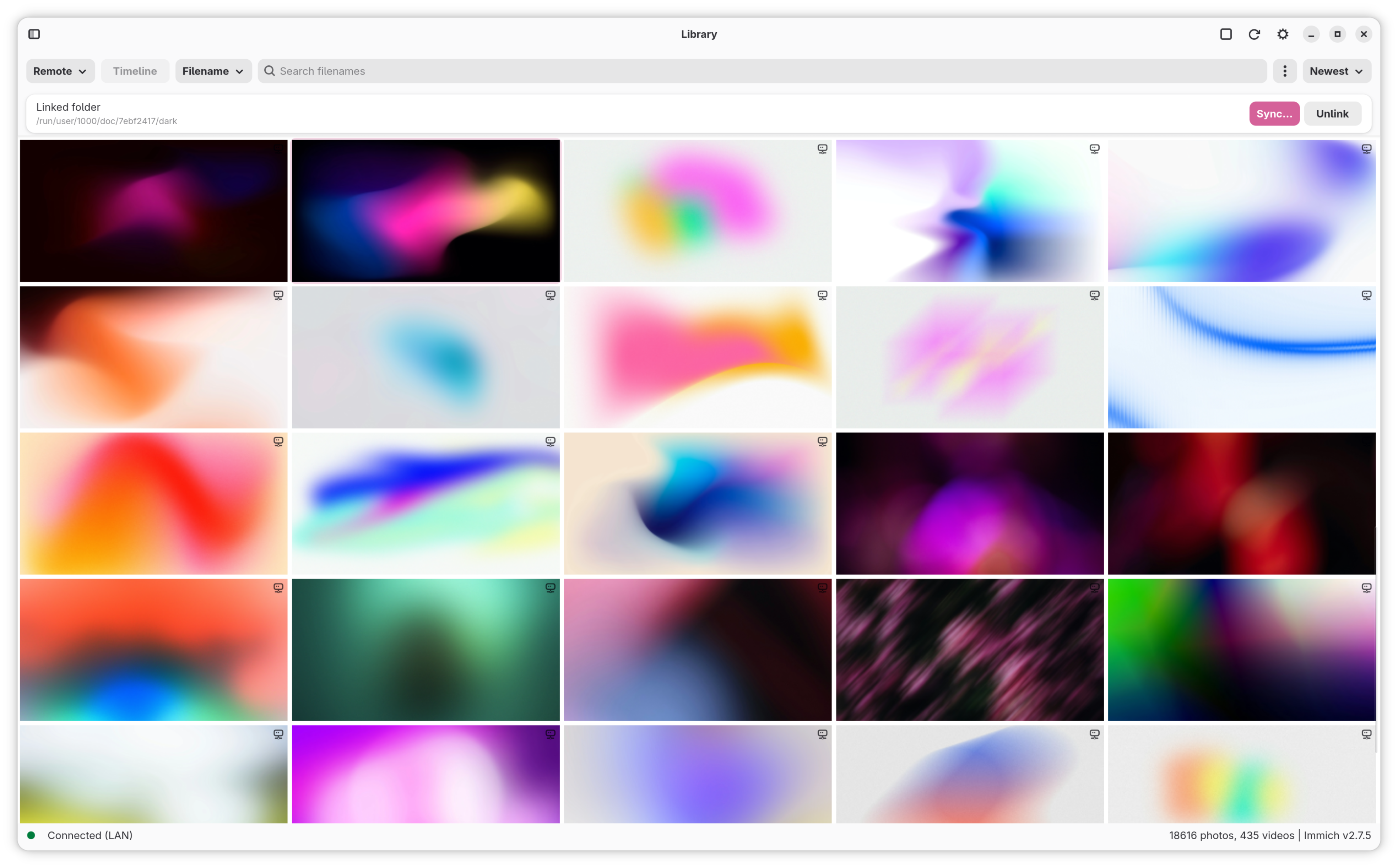 |
Click Create album (top right of the Albums page). Enter a name and confirm. The new album appears in the Your albums section immediately.
To assign a new or existing album to a watch folder for automatic upload, use Settings → Watch Folders → album dropdown on the relevant folder row.
You can upload files directly to the library or to a specific album using the Upload button in the header bar. This opens a multi-file picker and enqueues the selections for upload without requiring a watch folder.
Click the checkbox icon in the header bar (or use Esc to exit) to toggle selection mode.
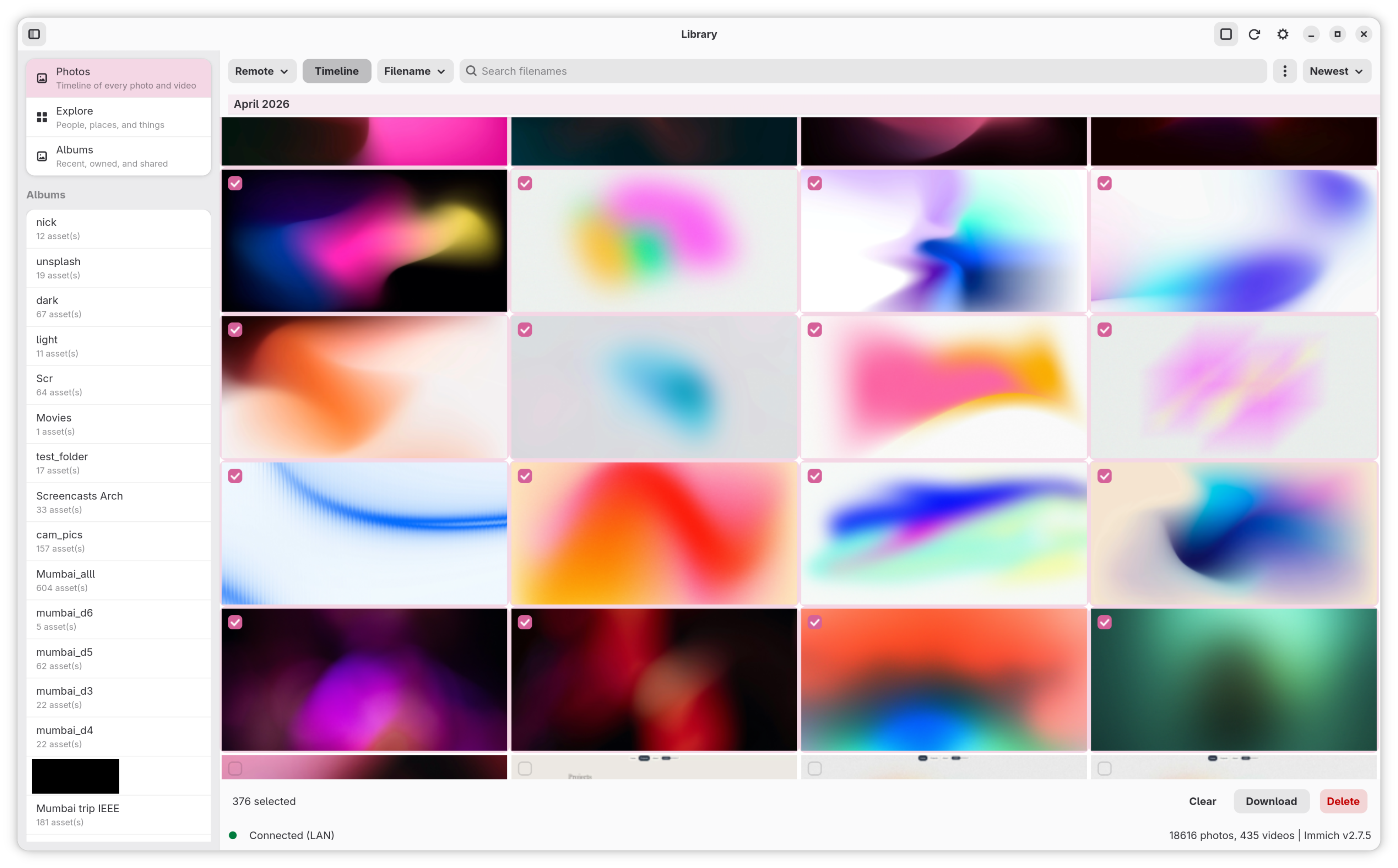
In selection mode:
- each grid cell shows a checkbox
- clicking a cell toggles its selection state
- a bulk action bar appears at the bottom showing the selection count
Bulk actions available:
- Download — saves selected remote assets to the configured download folder (local-only assets are skipped)
- Move to trash — moves selected remote assets to the Immich trash after a confirmation dialog. They can be restored from the Trash view or the Immich web UI. Local copies in your watch folders are kept, and local-only assets are skipped (the dialog says how many).
- Clear — deselects all items without taking action
Pressing Delete while the grid has focus does the same as Move to trash for the current selection.
In the Trash view the bar shows Restore and Delete Permanently instead of Download and Move to trash.
Selection mode exits automatically when all items are deselected.
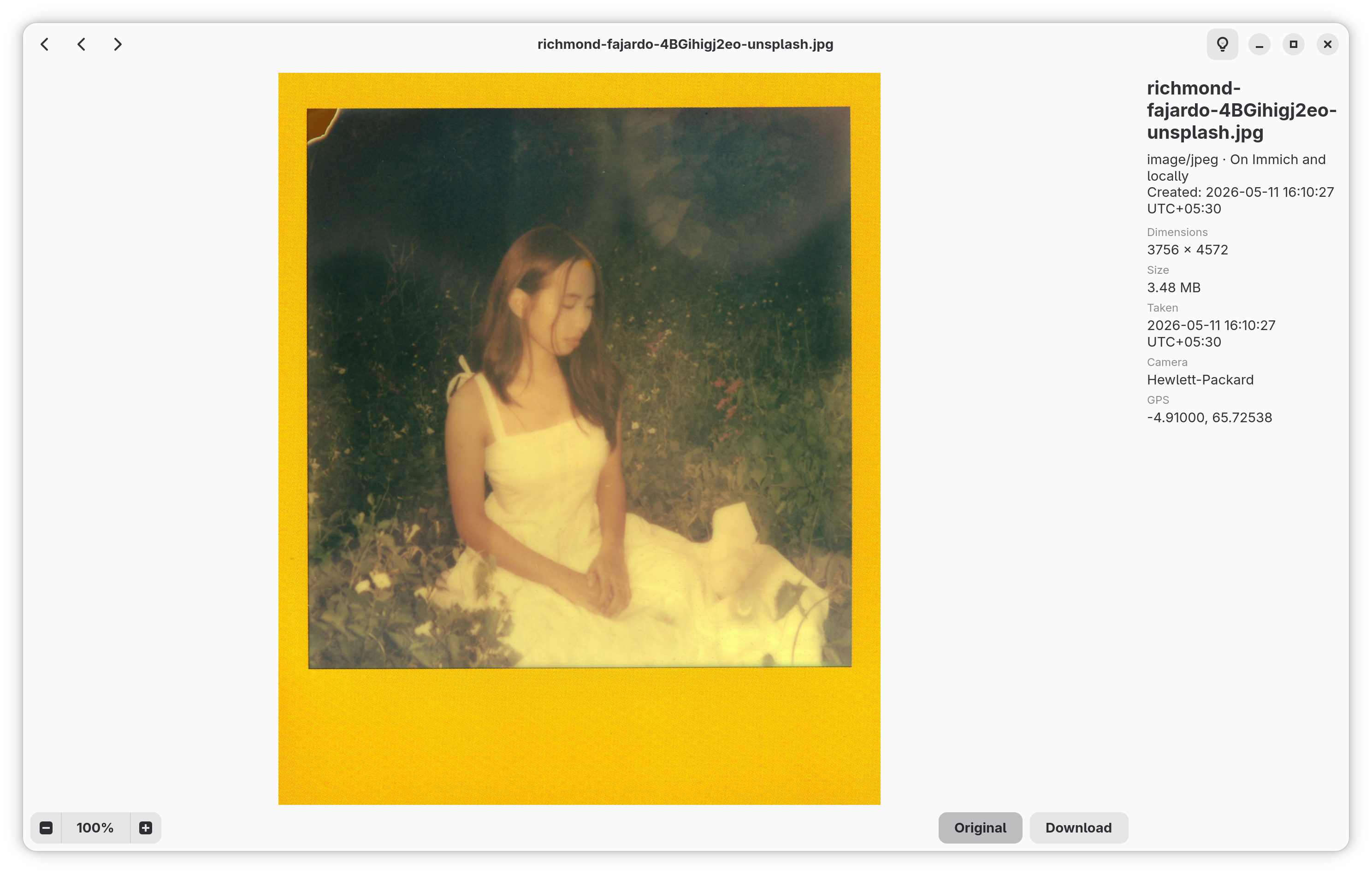
Click any asset in the grid to open it in the lightbox.
| Lightbox (Details On) | Lightbox (Details Off) |
|---|---|
 |
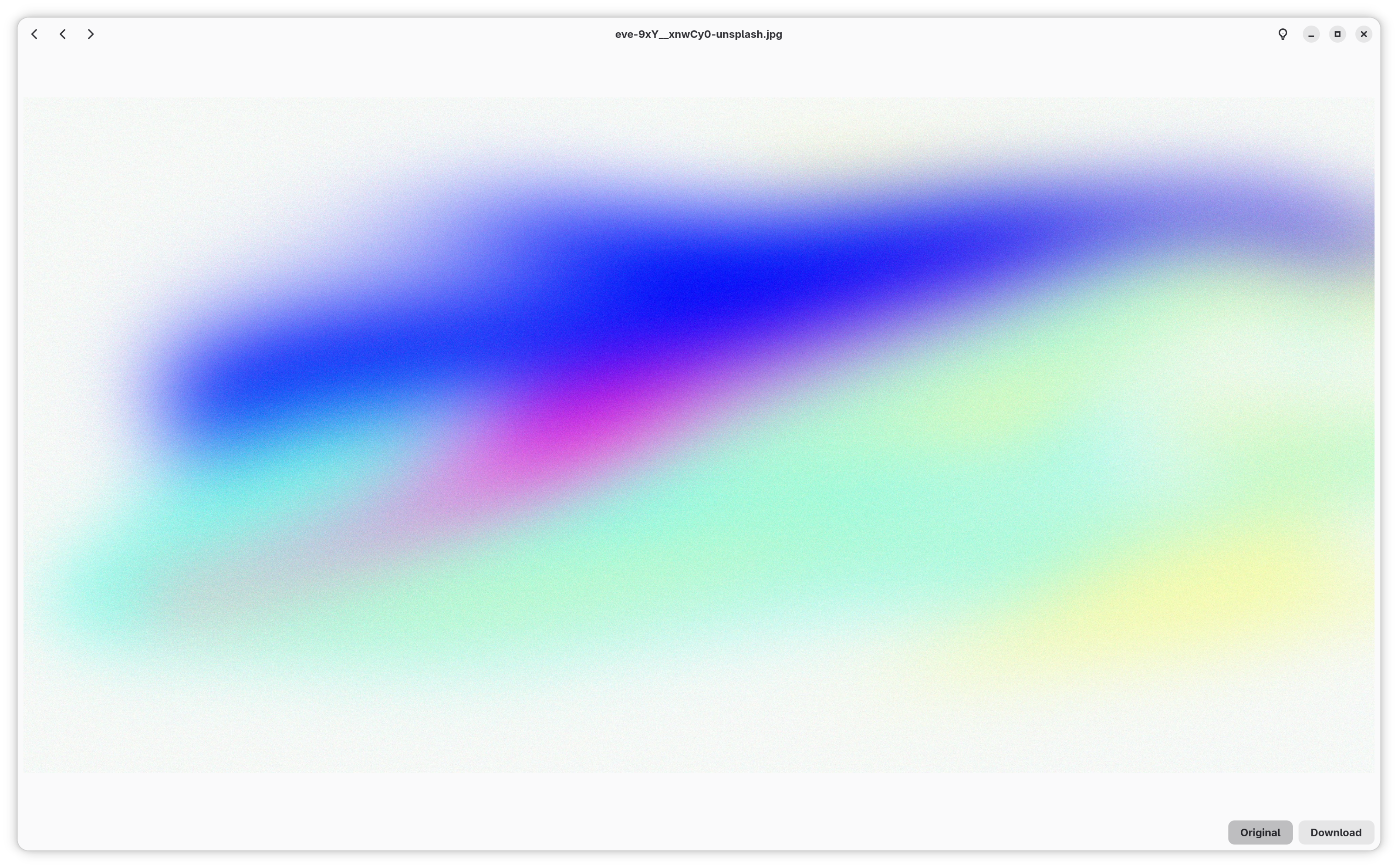 |
- The lightbox shows a preview image. If Full Resolution Preview is enabled in Settings → Behavior, it loads the original file instead of a server-generated proxy.
- RAW Previews: By default, RAW files display using their fast embedded previews. The extractor first scans the file for the largest embedded JPEG (catching the full-resolution preview on cameras that store both a tiny thumb and a full-res one — e.g. Sony ARW); if the file contains no JPEG at all (Samsung DNG, OnePlus DNG, and other phone DNGs that store their preview as uncompressed TIFF strips), it falls back to libraw's bitmap thumbnail with container orientation applied. You can toggle Full RAW Decoding in settings to perform a full sensor demosaic instead.
- Videos: Navigating to a video asset in the lightbox shows the video's still thumbnail as a poster with a centered play badge. Clicking the badge launches the same external player flow used by the grid (system default app for local files; downloaded to cache then opened for remote files). Zoom, resolution toggle, and download controls are hidden for the video case.
- EXIF metadata is fetched (including for local files) and displayed alongside the asset.
- Download saves the original file to the configured download folder.
- Move to trash (trash button or Delete) moves the asset to the Immich trash after a confirmation, then shows the next asset. If it was the last one the lightbox steps back; if nothing is left it closes. Local copies are kept.
- Edit Info… in the details pane (also in the right-click menu) edits the description, the date taken, and the favorite flag (heart toggle). For the date, click the calendar button: pick a day, set the hour, minute, and second, then Set Date (local time). Only changed fields are sent to Immich. If you change the date, the grid reloads when you close the lightbox, since the asset moves in the timeline.
- Right-clicking the picture opens the same context menu as the grid: Copy, Download, Open In, Edit Info…, and Move to Trash.
Server assets show a Tags section in the details pane:
- Each tag is a rounded pill showing the tag's color (set in Immich; the accent color otherwise), its parent path dimmed and its own name in bold (e.g. Trips/2024). Click the pill to see every asset with that tag (the lightbox closes and the search form opens with the Tag filter set). Click × to remove it from the asset. Assets without tags show "No tags yet".
-
+ opens a picker of existing tags; typing narrows the list. If no tag matches what you typed, choose Create “…” (or press Enter) to create it. Nested tags such as
Trips/2024work, and Immich creates any missing parents. - Requires
tag.read; adding and removing also needtag.asset, and creating new tags needstag.create.
Download folder:
- On the first download, a folder picker opens and the chosen path is saved to
download_target_pathinconfig.json. - Subsequent downloads go to the same folder without prompting.
- If the target folder is missing at download time, the picker opens again.
- Filename collisions are resolved by appending a numeric suffix (e.g.
photo (1).jpg).
When viewing an album, its header shows the linked local watch folder (if any) and two action buttons.
| Button | Action |
|---|---|
| Link folder | Opens a picker to associate a local watch folder with this album |
| Sync | Runs a bidirectional sync between the linked folder and the album |
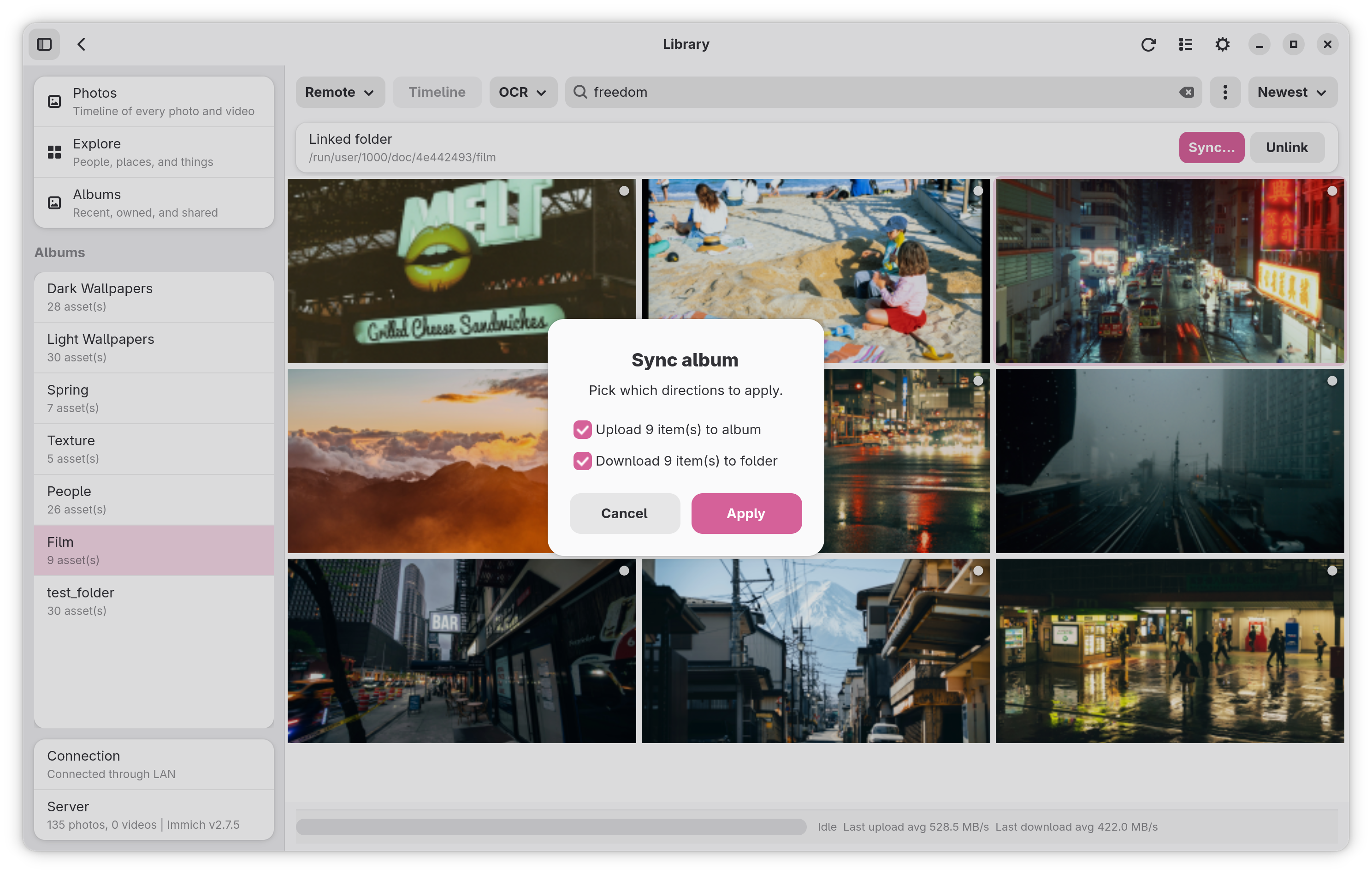
Sync steps:
- Mimick computes SHA-1 checksums for local files in the linked folder.
- Files present locally but missing from the remote album are uploaded.
- Assets in the remote album missing from the local folder are downloaded.
- Name collisions during download are resolved with a numeric suffix.
Album sync is on-demand — it runs only when you press Sync and does not run automatically in the background. It respects the same file extension filters as the main sync engine.
These options are in Settings → Behavior and apply to the library view.
| Setting | Default | Effect |
|---|---|---|
| Full-Resolution Preview | Off | When on, the lightbox loads the original file instead of the ~1440px server-generated preview. Uses more bandwidth. |
| Full RAW Decoding | Off | Decode high-resolution sensor data instead of using fast embedded camera previews (slower). |
| Cache Decoded RAW Files | Off | Store demosaiced RAW images on disk so re-opens are instant. Only applicable when Full RAW Decoding is enabled. |
| Show unnamed faces | On | Show people with no assigned name in the Explore view. |
| Show hidden faces | Off | Include hidden people in the Explore view. |
| Thumbnail Memory Cache (MB) | 80 | RAM cap for decoded thumbnails. Increase to reduce re-fetches when scrolling through large grids. |
| Download Folder | Not set | First download opens a folder picker; the chosen path is saved and reused for subsequent downloads. |
See Performance Tuning for guidance on choosing values for these settings.
- The Shared Albums sidebar entry shows Shared by you (your albums that have other members) and Shared with you. Click an album to open it.
- Right-click one of your own albums (here or on the Albums page) and choose Share…:
- Shared with lists everyone in the album. Change a person's role with the Viewer / Editor dropdown, or remove them with the trash button. The owner is shown but can't be changed.
- Add people lists users on the server who aren't in the album yet; type to filter by name or email, then Add (they join as Viewer).
- Every change is saved to Immich immediately. Requires
albumUser.create,albumUser.update,albumUser.delete, anduser.read(withoutuser.read, the Add people list stays empty).
- Create a public link that anyone with the URL can open in a browser:
- An album: right-click its tile on the Albums or Shared Albums page and choose Create Share Link….
- A selection: select assets, then click the share button in the selection bar.
- One asset: right-click it and choose Create Share Link….
- The dialog sets a Description, when the link Expires (Never, 1 hour, 1 day, 7 days, 30 days), an optional Password, and whether visitors can download originals, upload into the album (album links only), and see metadata. Create copies the URL to the clipboard.
- The Shared Links sidebar entry lists every link with its album name or item count, description, expiry, and restrictions. Each row has Copy link, Edit (the same dialog; leave the password empty to keep it), and Delete (asks first).
- The URL uses the server's External domain (Immich Administration → Settings → Server) when set, and otherwise the address Mimick is connected through. Requires
sharedLink.read,sharedLink.create,sharedLink.update, andsharedLink.delete.
- The heart button in the lightbox action bar (or F) marks the current asset as a favorite; it fills in at once and saves to Immich in the background. If Immich refuses (for example, a key without
asset.update), the heart reverts and an error is shown. - The right-click menu has Add to Favorites / Remove from Favorites, and Edit Info… has a heart toggle.
- Favorited thumbnails show a small white heart in the bottom-right corner.
- The Favorites sidebar entry lists every favorite. Removing a favorite there drops it from the list (the lightbox moves on to the next asset).
- The People sidebar entry shows every recognized face. Type in the search box to filter by name; the eye button also shows people you've hidden (dimmed).
- Click a face to see that person's photos.
- The ⋯ button on each face has:
- Rename… (or Add Name…)
- Add to Favorites / Remove from Favorites: favorites get a heart on their face and are listed first.
- Set Birthday…: pick a date, or Remove it.
- Hide / Unhide: hidden people don't appear in People or Explore.
- Merge People…: tick the people who are really this person; their faces move to them. This can't be undone.
- Rename an album or edit its description from the album's header (⋯ menu) or by right-clicking its tile on the Albums page. Only your own albums can be edited.
- Renaming keeps linked watch folders linked: Mimick updates the folder's album name in your settings.
- The Tags sidebar entry lists your top-level tags. Click a tag to see its photos; the › button opens the tags inside it, and the path at the top takes you back up.
- + creates a tag at the current level.
- Each tag's ⋯ menu has Rename…, Change Color… (a preset or a custom color), and Delete….
- Renaming tags needs a newer Immich than v3.0.0; older servers show an error instead.
- The Folders sidebar entry shows the folders your photos came from on the server. It opens at the first level that has more than one folder; the path at the top takes you back up.
- Click a folder to open it. A folder without subfolders opens its photos directly; otherwise Photos in … at the top of the list shows the photos in that folder itself.
- The Sharing sidebar entry lists the partners you share your library with, and the people who share theirs with you.
-
+ opens Add Partner: search for someone and press Add. Partners can see all your photos and videos. Listing people needs the
user.readpermission. - The trash button next to a partner stops sharing with them.
- Archiving hides an asset from the Photos timeline without deleting it.
- Archive from the right-click menu, the lightbox's archive button (or A), or the selection bar.
- The Archive sidebar entry lists archived assets; Unarchive there puts them back in Photos.
The Trash sidebar entry lists everything in the Immich trash in the normal grid.
- Restore All and Empty Trash sit in the Trash header. Emptying asks for confirmation and can't be undone.
- Select assets to Restore them or Delete Permanently from the selection bar. Delete with a selection also deletes permanently, after confirmation.
- Right-click an asset (in the grid or the lightbox) for Restore and Delete Permanently.
- Immich deletes trashed assets for good after its retention period (30 days by default, configurable on the server).
- Deleting only affects the server; local copies in your watch folders are kept.
- Requires the
asset.deleteAPI key permission.
| Key | Action |
|---|---|
| F9 | Toggle sidebar |
| Esc | Exit selection mode |
| Delete | Move the selection (grid) or the current asset (lightbox) to the trash; in the Trash view, delete permanently |
| F | Toggle favorite for the current asset (lightbox) |
| A | Archive or unarchive the current asset (lightbox) |
| Alt+Left / mouse back | Go back to the previous view (mouse back also closes the lightbox) |
| Alt+Right / mouse forward | Go forward again after going back |