User Documentation Website
This website was created as part of a term project for the ECSE 428 Software Engineering Practice course offered during Winter 2022 at McGill university by Professor Robert Sabourin. The technologies utilized in this project incorporate the MERN stack approach which follows the 3 tier architectural pattern, namely the front-end, back-end, and database tier using JavaScript and JSON. For the back-end implementation, we used Express.js alongside Node.js as they present powerful models for URL routing and handling requests and responses. For the database, we used MongoDB to handle any queries related to the application's data management as it works really well in conjunction with the technologies mentioned previously. Finally, for the front-end, we used the React.js library to display the UI for the user to interact with.
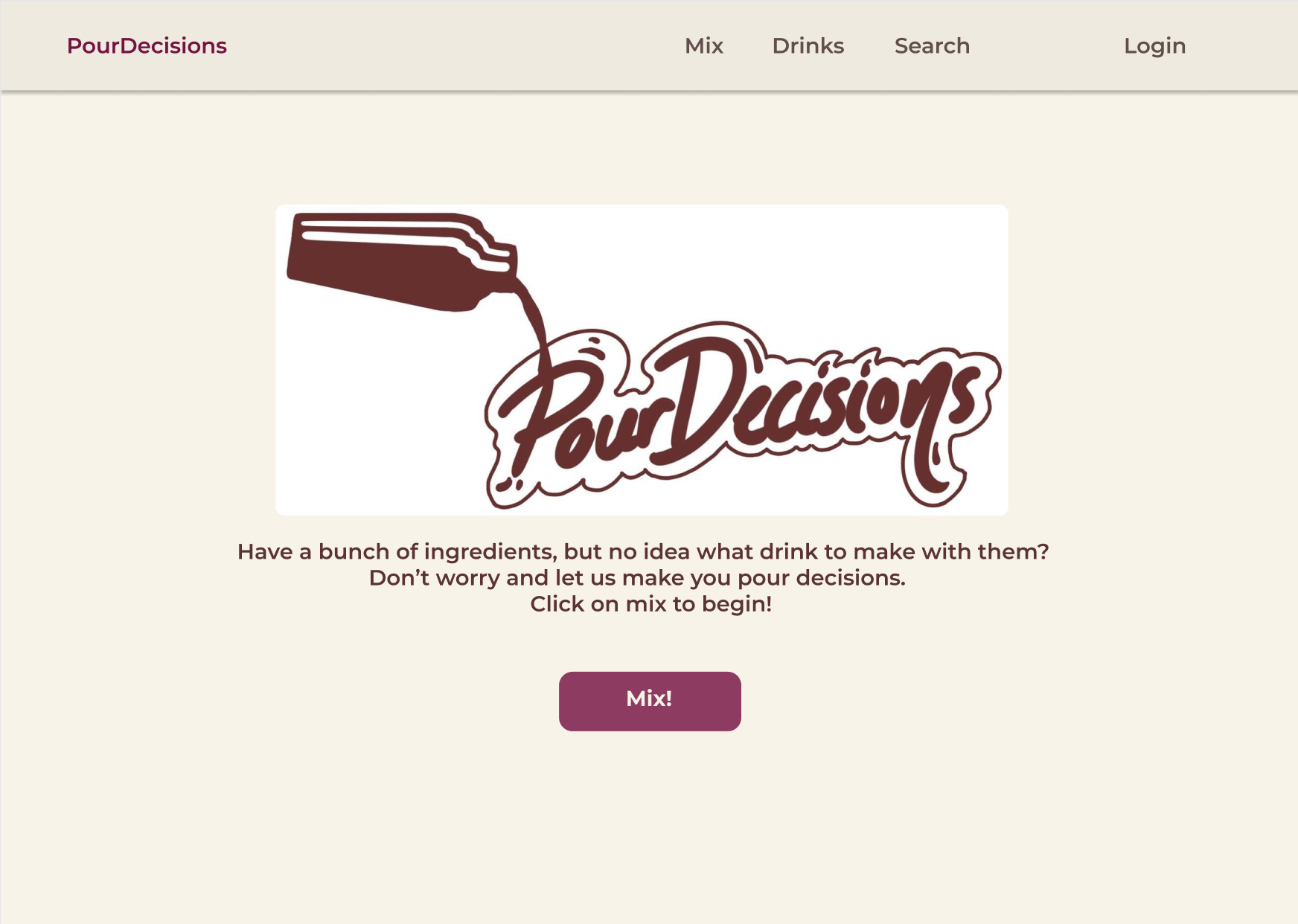 This is the page the user will land on when they enter the URL for PourDecisions. The website supports three types of users: guests, registered users and admins. As a guest, they are allowed to make use of the website's main functionality such as searching for recipes and generating a recipe from a set of ingredients. For a registered user, they have the normal capabilities of a guest with the addition of creating their own custom drink recipes, and being able to rate and review another user's custom drink. In order to become a registered user, it suffices to simply create an account. Finally, an admin is a special type of user who has access to a number of functionalities that are generally not made available to regular users. These functionalities include being able to delete drinks from the website amongst others. The home page features a navigation bar at the top that allow the user to navigate to the different pages of the website. For instance, "Mix" leads the user to the recipe generating page, "Drinks" would lead them to the catalogue featuring a variety of different drinks, and "Search" would lead them to the search page. Additionally, there is the "Login" button the user is able to click on if they would like to log in to their account.
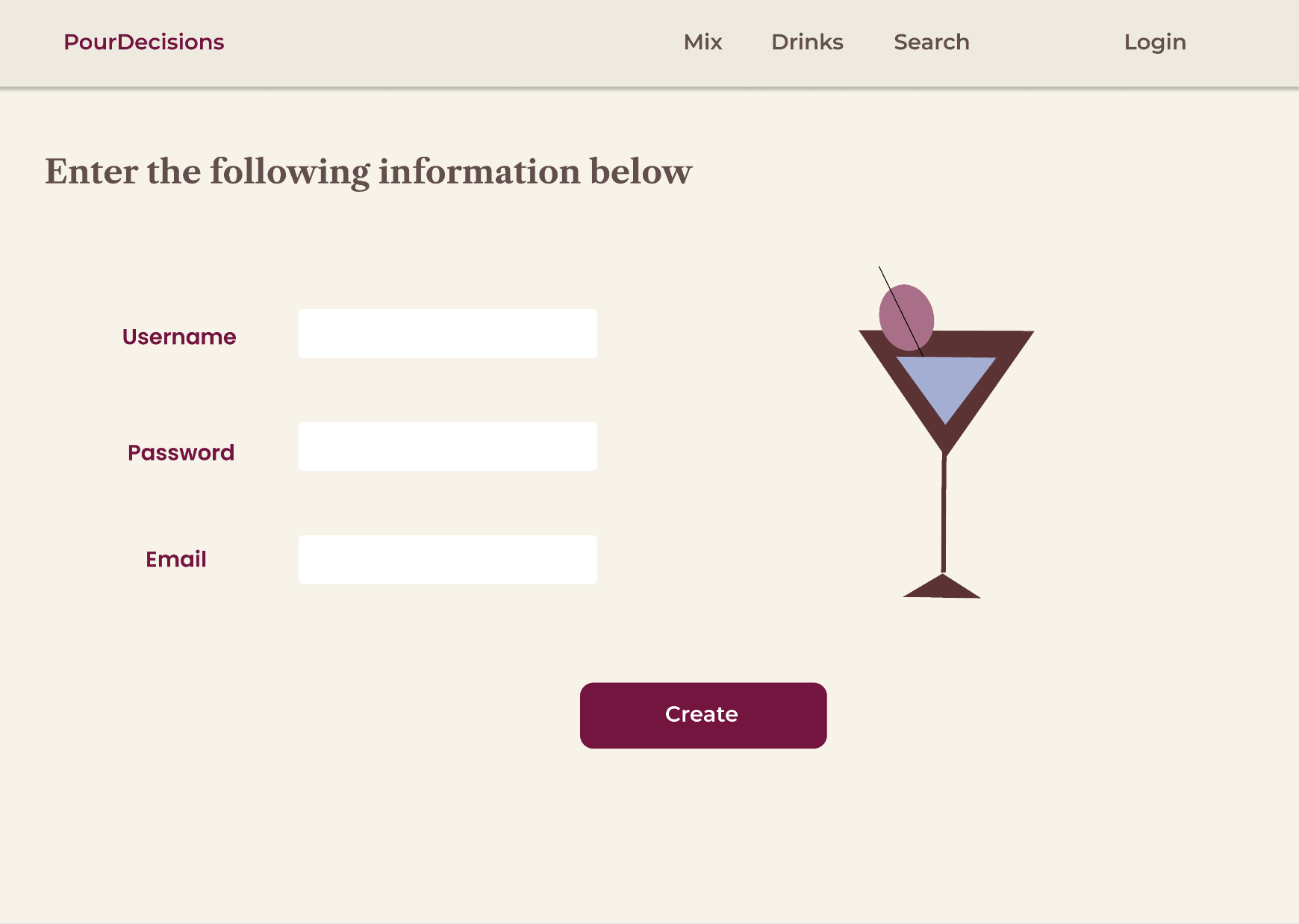
A new user is able to create an account by inserting a unique username and password, as well as the email they would like to be associated with their account. Once they have entered all the necessary information, they can finalize the creation of their account by clicking on the "Create" button found at the bottom of the page. Should there be any sort of error to occur during the process, a message will appear indicating the type of error that was encountered, and the account will not be created. As well, this page features the navigation bar at the top which occupy the same functionalities as defined previously.
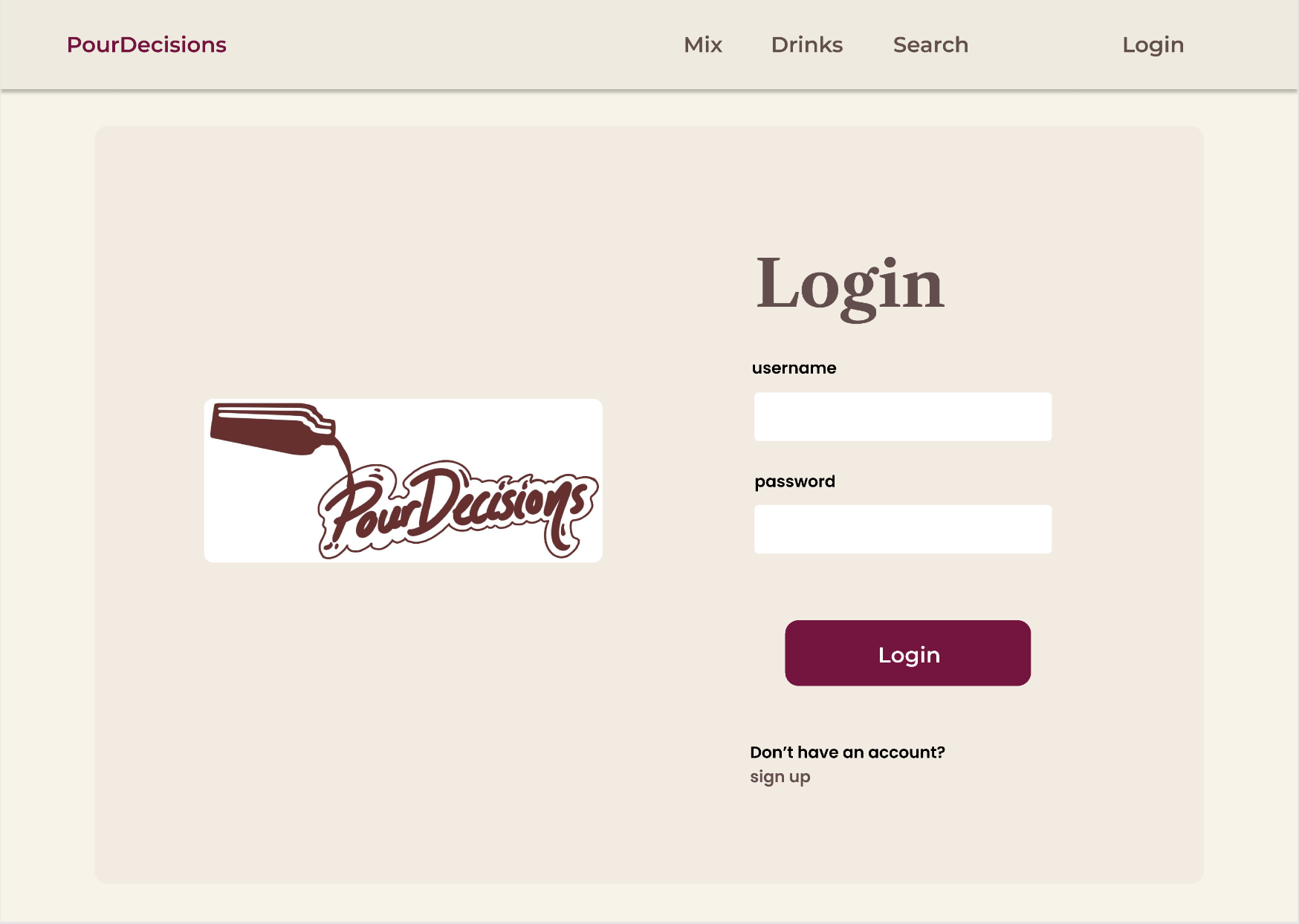
A user can navigate to the login page and enter the username and password associated with their account. Once that information has been confirmed and the user clicks on the login button, they will be redirected to the home page where they are able to navigate to any of the pages that they desire. However, if the user does not yet have an account and wishes to create one, they can click on the "Sign Up" link which will redirect them to the account creation page.
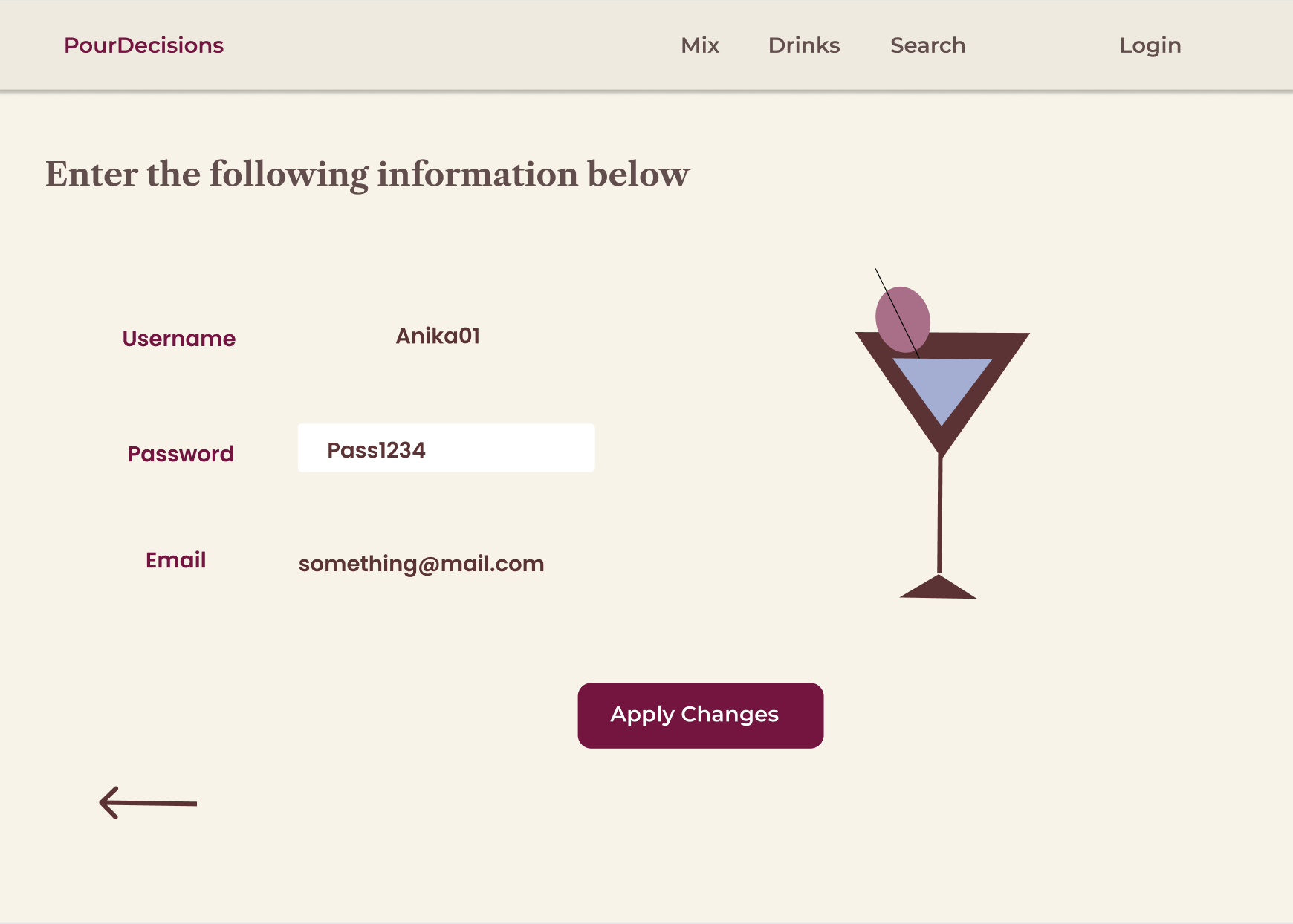
A user is able to view the information related to their account, such as username, password and email, and they are able to change their password as well by inputting a new password and clicking on the "Apply Changes" button.
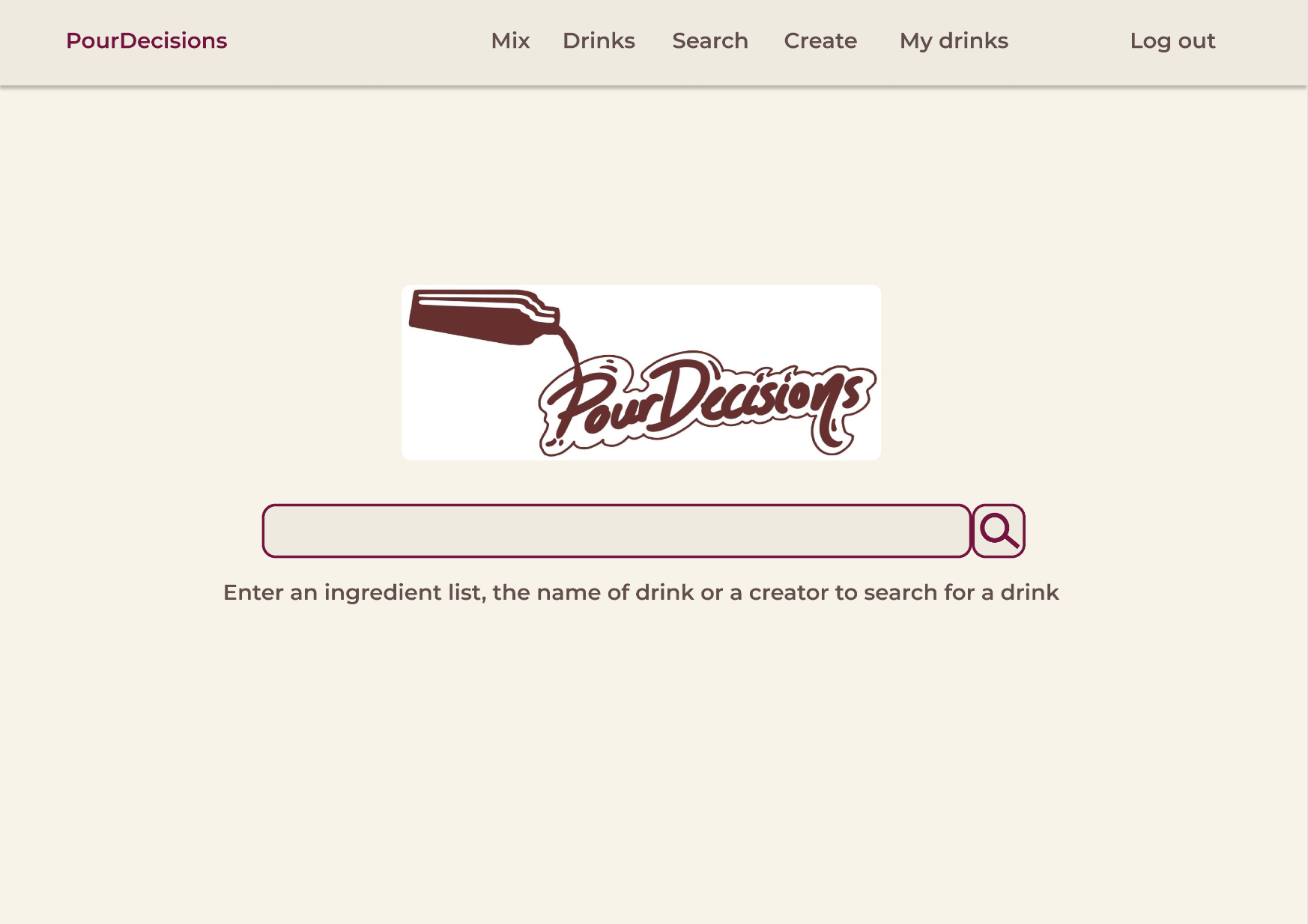
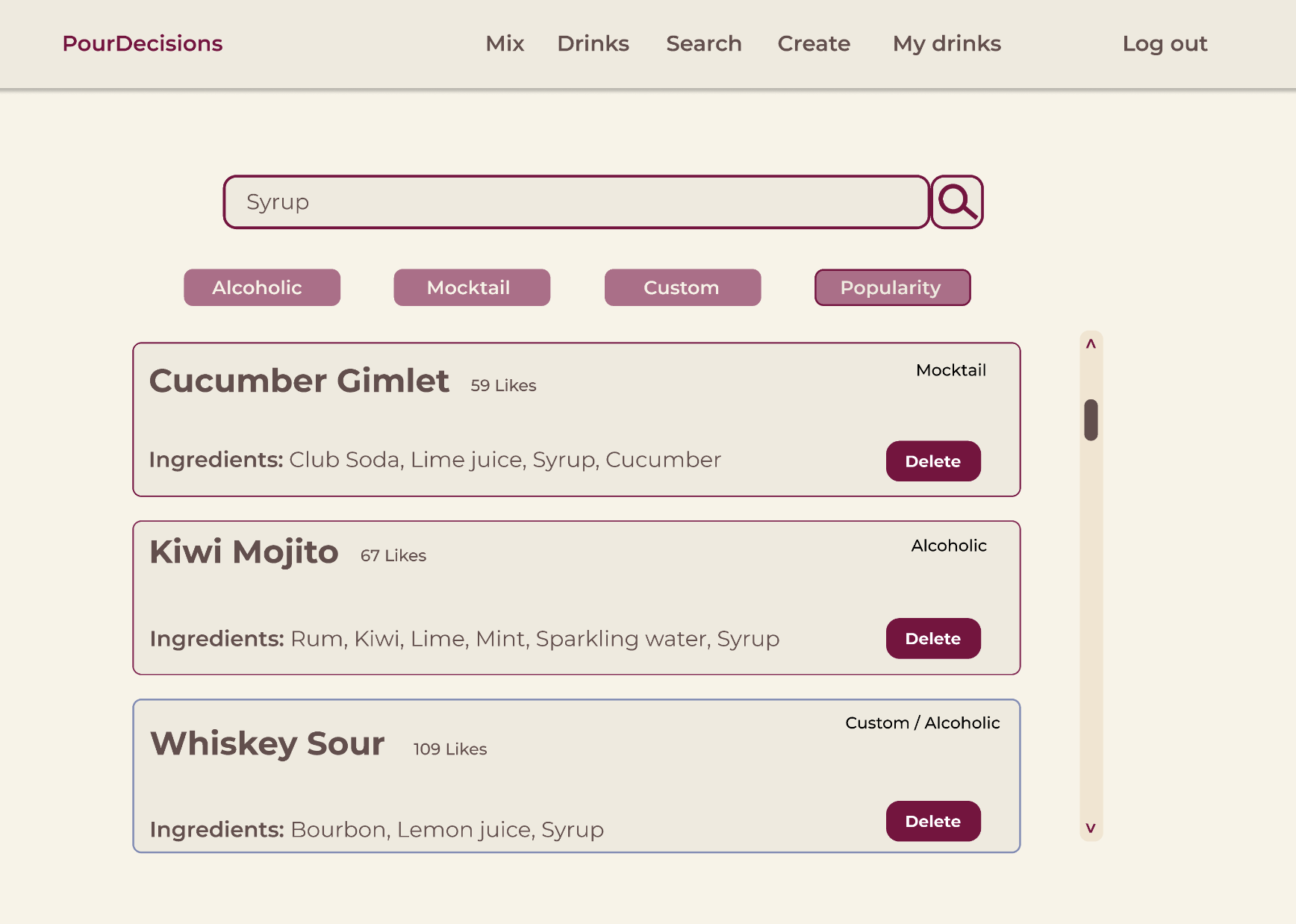
On this page, a user is able to search for a particular drink using any bits of information, such as name, ingredients, tags, etc. Once they have entered the necessary information in the search bar, the website will display a number of drinks from the catalogue that fit the search criteria. The results will also display the custom drinks of the different users of the website as well as their own custom drinks. They can also filter through the drinks by selecting one of the button found above the displayed results.
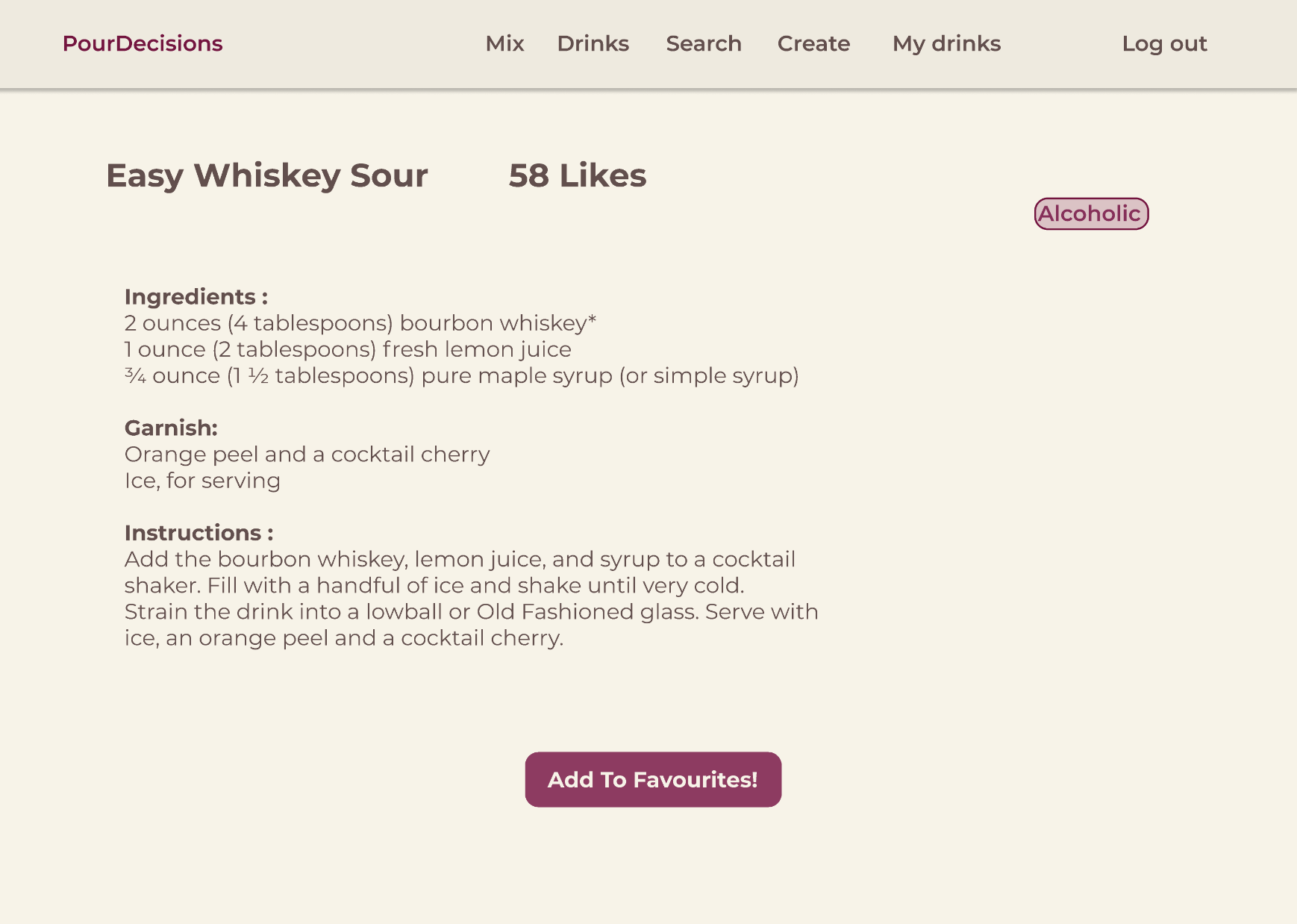
When a user selects a particular drink, they will be redirected to that specific drink's information page, where the list of ingredients, instructions and garnish will be displayed. If a user finds this particular drink to their liking, they can add it to their "Favorites" list by clicking on the "Add to Favorites!" button.
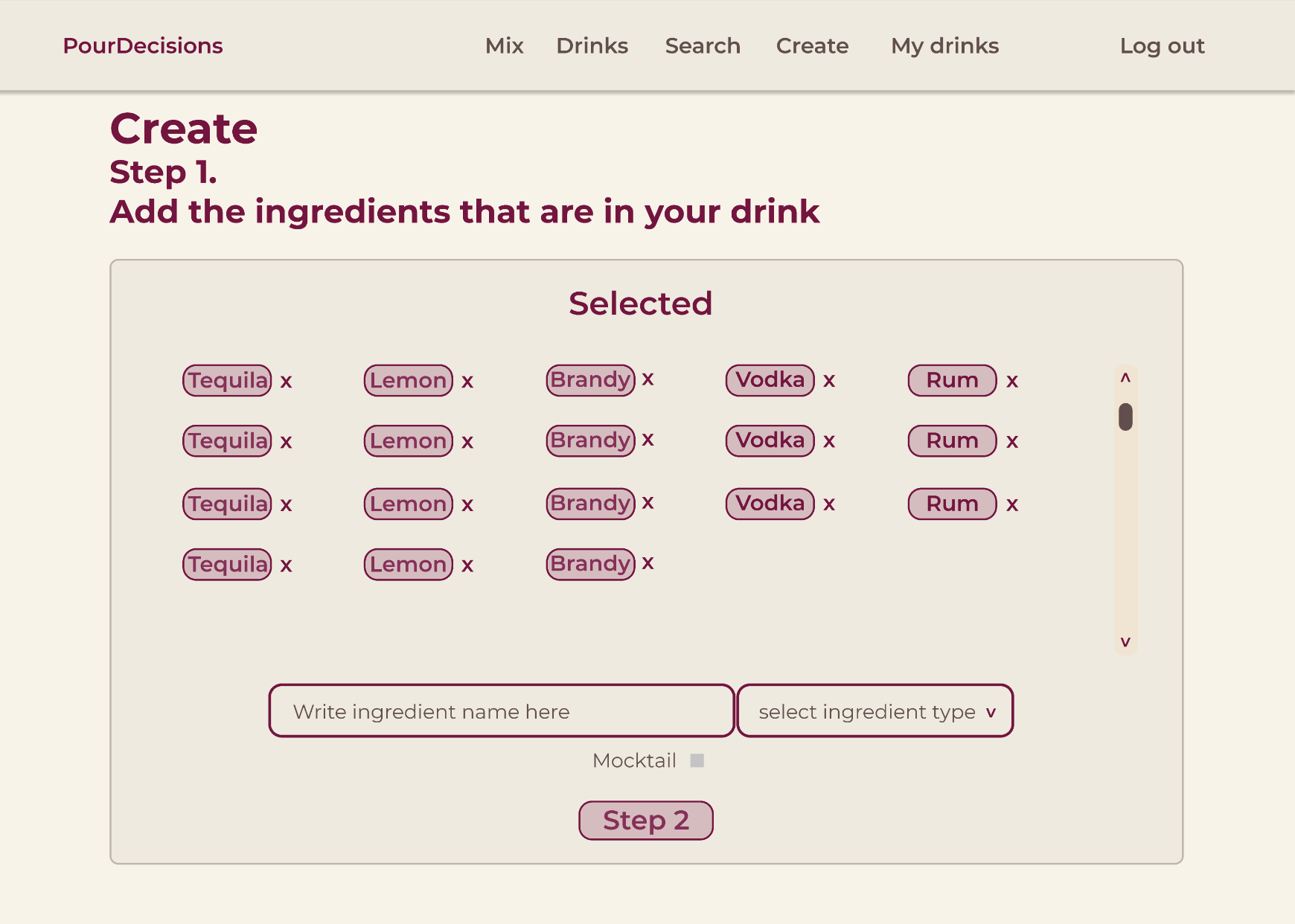
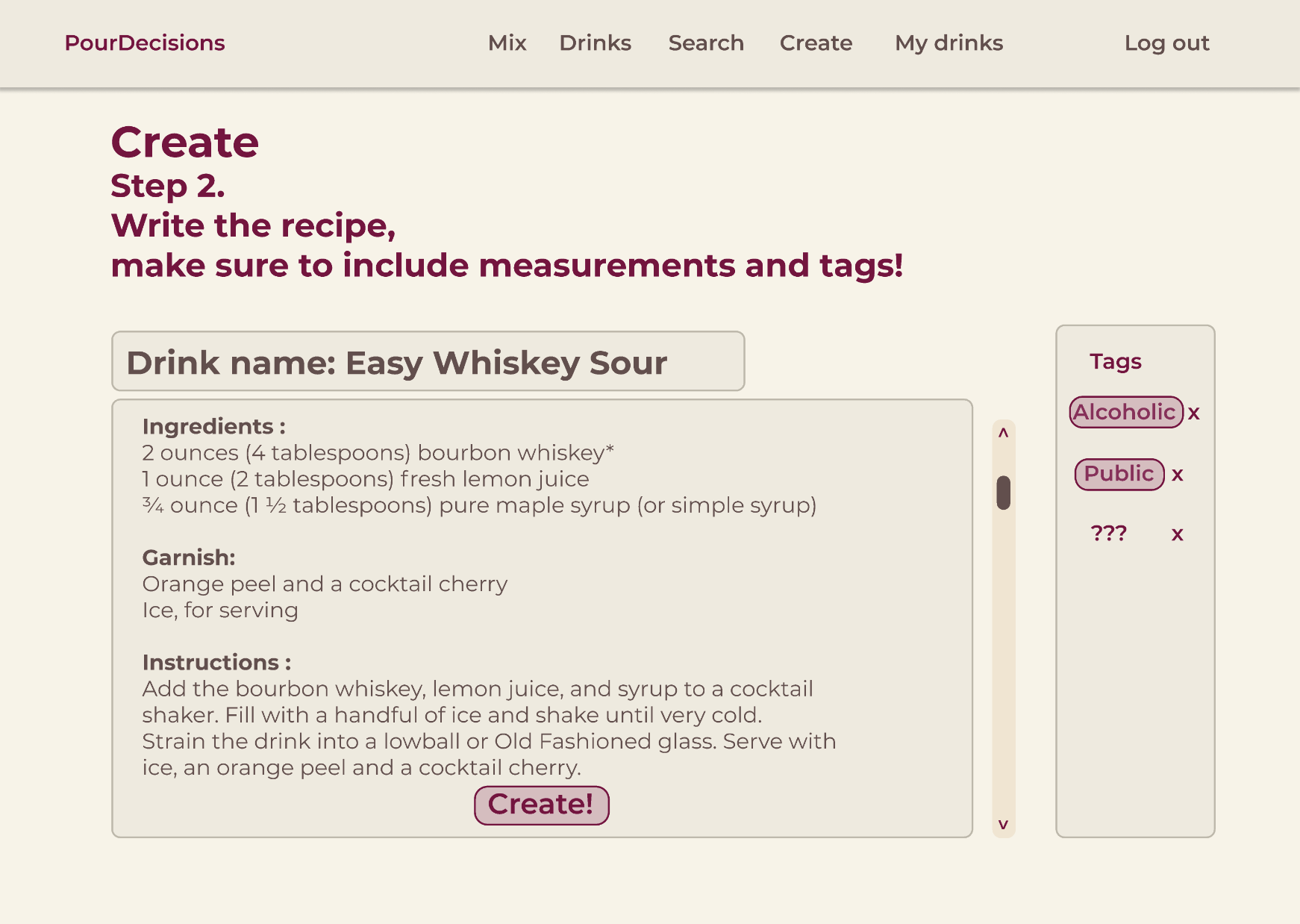
Creating a custom drink is limited to only registered users and admins. To get to the drink creation page, there is a "Create" link found on the navigation bar that will redirect a user to the page. The first step of the process consists of selecting the multiple ingredients that are found in the drink. Once the user has finished making their selection, they can navigate to the next step by clicking on the "Step 2" button below. In this second step, the user inputs the name of their drink along with the garnish and the instructions. As well, they can select the appropriate tags that would fit their custom drink. This is also the time where the user would specify the measurements needed for the ingredients that they chose previously. Once everything has been inputted, the user can finalize the creation of their custom drink by clicking on the "Create" button at the bottom of the page.