🎮 Usage
Tip: If the videos do not load, refresh your page.
To use Palworld Save Pal, follow these steps:
- Download and extract Palworld Save Pal, PSP (make sure you unblock the zip, as detailed here). If you've downloaded it via nexus/vortex, be aware that PSP is a standalone application and NOT an in-game mod.
- Open PSP and select steam or gamepass.
- Load save files:
-
Steam: navigate to your
Level.sav, typically in%localappdata%\Pal\Saved\SaveGames -
Xbox: navigate to your
container.indexfile typically located in%localappdata%\Packages\PocketpairInc.Palworld_ad4psfrxyesvt\SystemAppData\wgs
-
Steam: navigate to your
- Edit save.
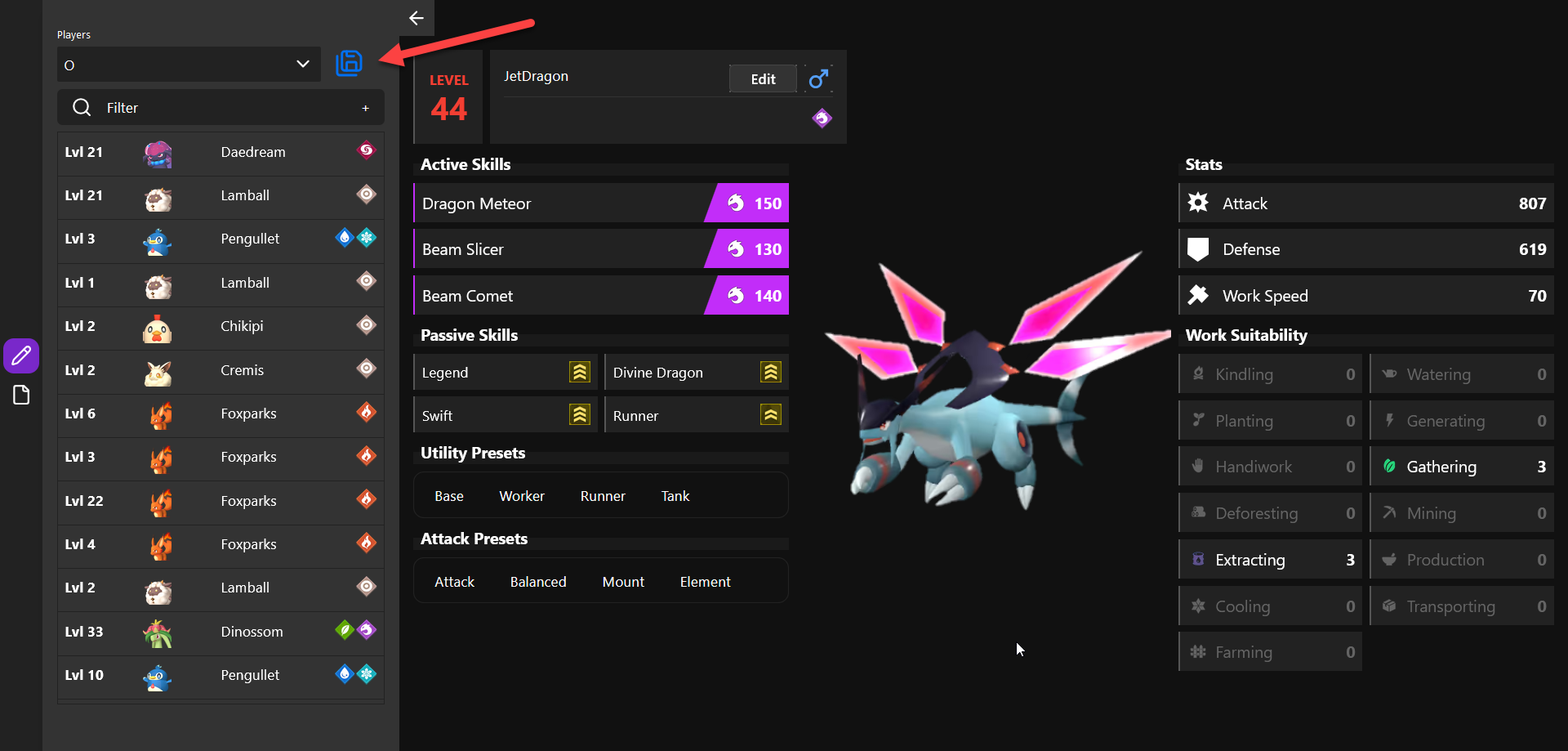
- Click the blue save file icon next to the player select after making changes.
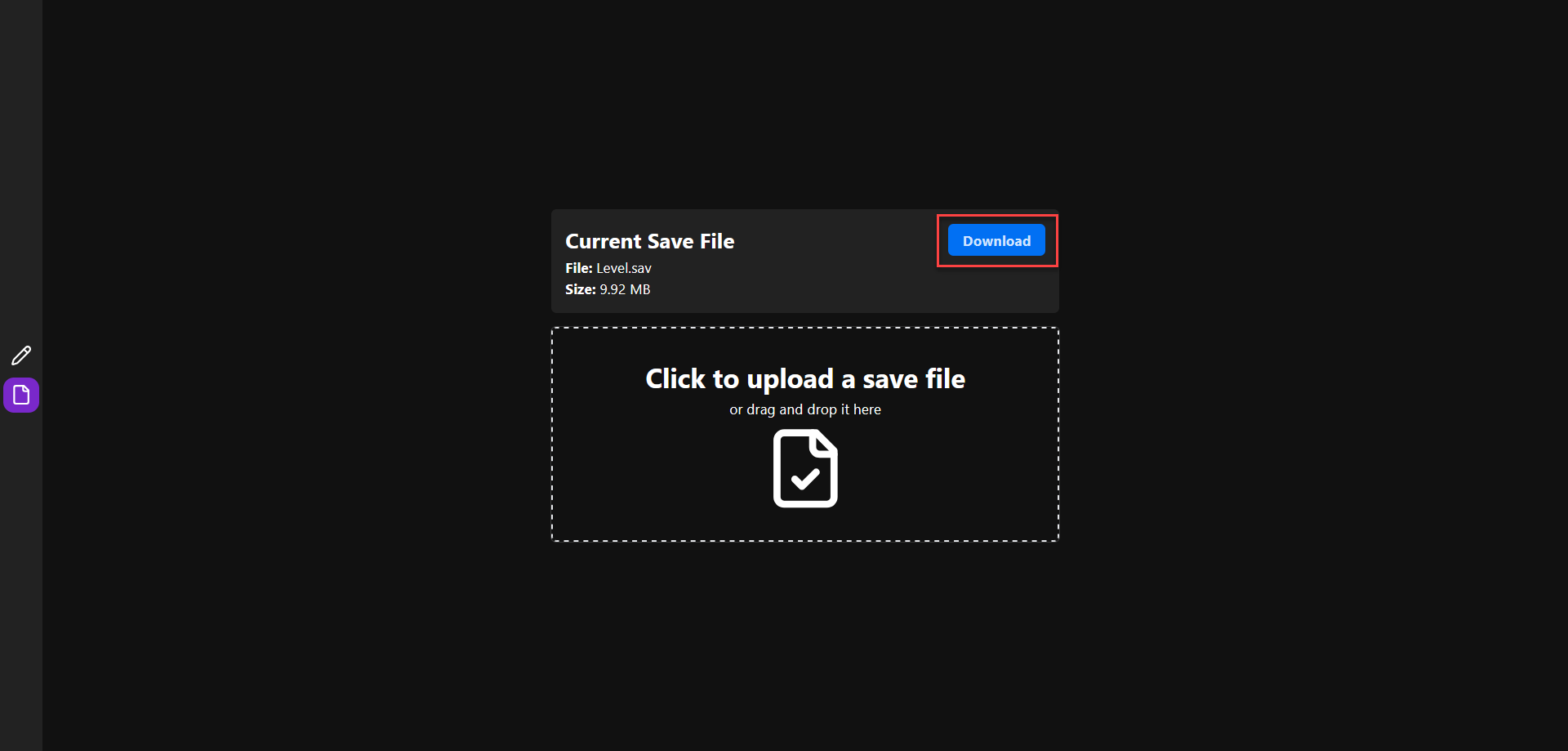
- On the left side of PSP, go to the Files tab
- Click Save. This exports the save file. This will overwrite the
Level.sav(or gamepass equivalent) in the game's save folder - Boot Palworld, your edited save should now load
- If it doesn't load, or you receive any errors at all during the process, join the discord (fastest way to get help) or start a thread here.
- Copy the save
- Delete files keeping
Level.sav,LevelMeta.sav, andPlayersfolder - Zip it
- Load it in PSP
- Make your changes
- Hit 'save all changes' button
- Go to the file page and download modified Level.sav
- Move new modified Level.sav to original save folder.
No preparation needed, just browse to and open your Level.sav on Steam or your container.index on Gamepass.
Note: When writing your save files (triggered by Save button on the File page) a copy of your save will be exported to
backupsdirectory in the same directory asPSP.exe.
PrepareSaveFiles.mp4
-
Make a copy of your game directory, if playing local it should be located in
%localappdata%\Pal\Saved\SaveGames, e.g.,C:\Users\O\AppData\Local\Pal\Saved\SaveGames -
Remove the backup folder and any files except the
Level.savfile in the root dir, keep thePlayersdirectory and yourLevel.sav, your folder should look like this:C144C9F06BF64BB4978913EC33508A65 ├── Players │ ├── UUID1.sav │ ├── UUID2.sav │ └── ... └── Level.sav -
Create a zip file containing your save files, be sure to compress the save root directory. Your zip structure should look like this:
C144C9F06BF64BB4978913EC33508A65.zip └── C144C9F06BF64BB4978913EC33508A65 ├── Players │ ├── UUID1.sav │ ├── UUID2.sav │ └── ... └── Level.sav -
Drop or open the zip file into/from the file page.
OneClickMax.mp4
DeleteAndAdd.mp4
Clone.mp4
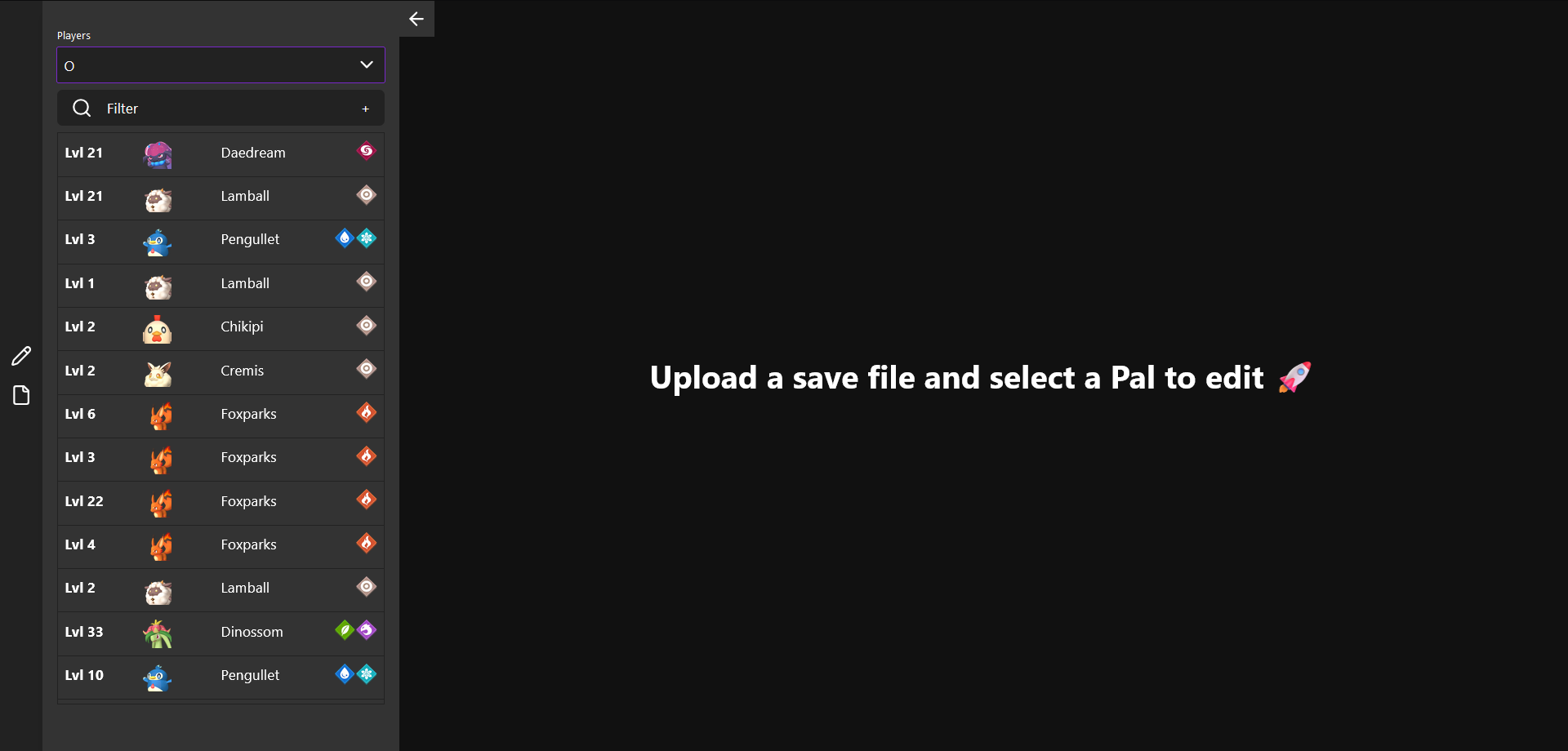
- Select a player to see their inventory
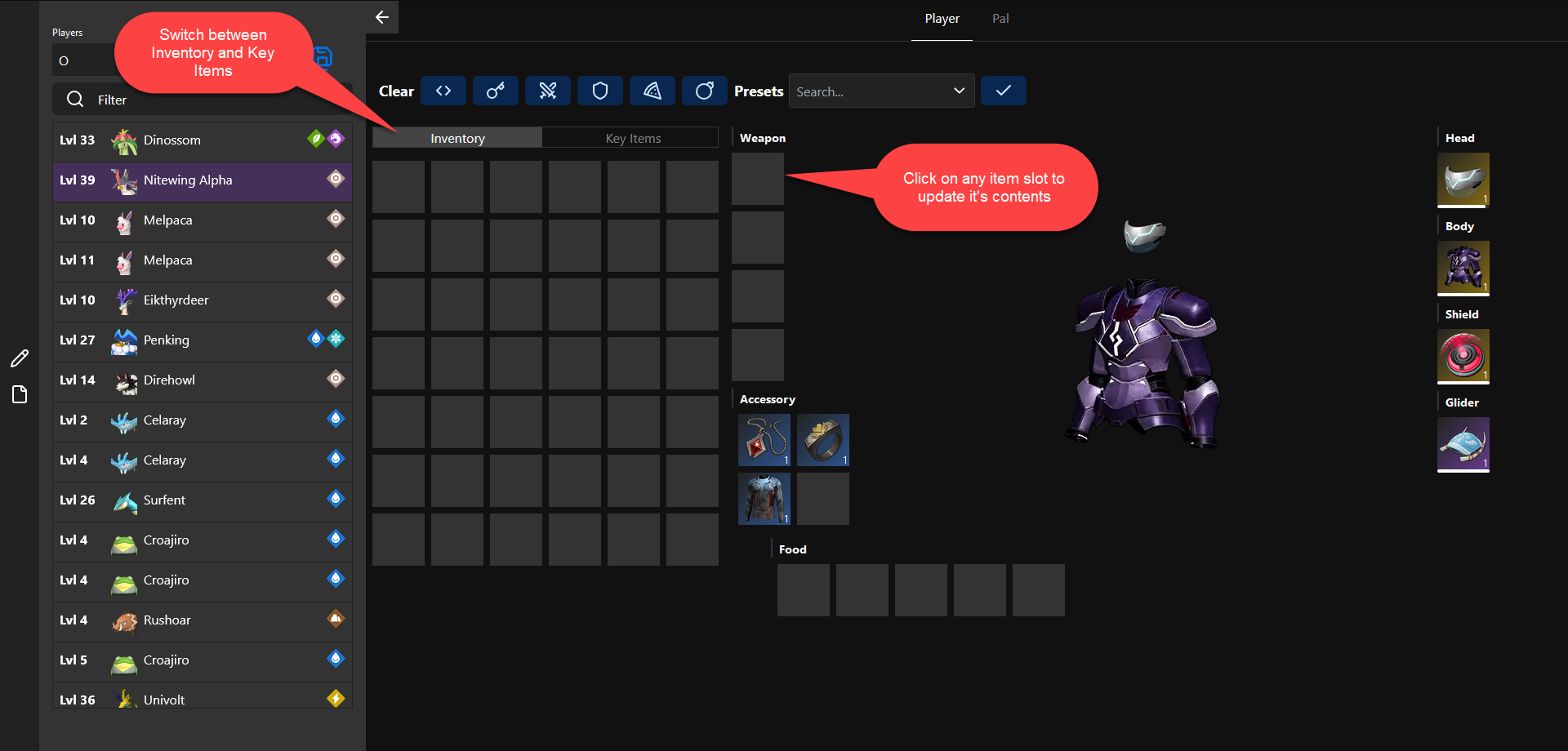
- Click on any item to edit its type and quantity
- Click the save button to save your changes
- Head back to the file page and click the download button to download your updated save file
Palworld Save Pal comes with a few presets to help you get started. Presets are a collection of items that you can apply to players. A list of available presets can be found here. You can also build your own! Adding a new preset clones your existing inventory which can then be used across players and saves.