Repository navigation
audio video check
English · العربية · বাংলা · Čeština · Deutsch · Español · فارسی · Français
עברית · हिन्दी · Bahasa Indonesia · Italiano · 日本語 · 한국어 · Nederlands · Polski
Português · Русский · ไทย · Türkçe · Українська · Tiếng Việt · 简体中文 · 繁體中文
Stream recovery · Fixture specification
Use player menu → Information → Audio → Play to check the picture and sound with a known eight-second clip. This is the audible A/V check; the onboarding moving-pattern demo is silent.
- Set the television, speakers or headphones to a comfortable volume. The check uses the player's current volume and temporarily unmutes its video; it does not raise the television's system volume.
- Open the player menu, select Information, then Audio, then Play. Opening the menu alone does not download or play the clip.
- Watch the screen and listen for the sequence below. To finish early, use Information → Audio → Stop.
The check uses the managed core HTML5 playback path while the player is idle, or while live TV is playing or paused. It refuses an active VOD/archive request, a live request that is still loading, and standby. It is also unavailable when a device adapter replaces the core engine, including PC2/Video.js and native engine overrides; using an HTML5 video element alone does not make an adapter eligible. A refusal does not replace existing playback. Stop the current request first if you want to test from idle; this does not enable the check on those adapters. Menu labels follow the selected interface language.
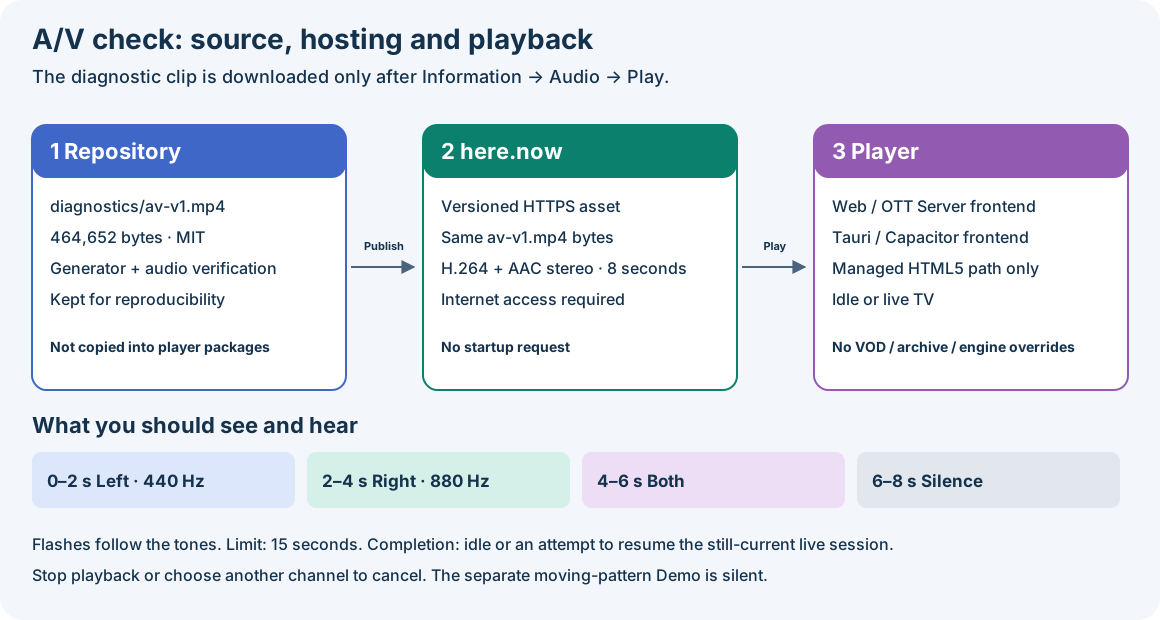
The background is a moving test pattern. Brief white markers flash across the upper left or right half in step with quiet, approximately 150 ms sound pulses:
- 0–2 seconds: a 440 Hz pulse in the left channel at each second, with the left marker flashing.
- 2–4 seconds: an 880 Hz pulse in the right channel, with the right marker.
- 4–6 seconds: both channels pulse, with both markers.
- 6–8 seconds: the pattern continues moving without sound. This silence is intentional.
A mono television or a downmix may reproduce both channels from one speaker. Check the physical screen and audio output yourself. The player does not measure speaker output or produce an automatic A/V pass/fail verdict.
The player uses this absolute HTTPS address:
https://mantra-basin-76mq.here.now/diagnostics/av-v1.mp4
It requests the clip only when you choose Play, never as a startup preload. The file is 464,652 bytes, with H.264 baseline video at 640×360 / 25 fps and AAC stereo audio. It is excluded from the Web, OTTPlay Server, Tauri, Capacitor and container packages. The source file, generator and verifier remain in the repository; they are not an offline fallback in the installed player.
Internet access and a working HTTPS connection to that host are required. There is no bundled fallback or alternate diagnostic URL. Opening the link above in a browser can help check file availability, but does not exercise the player's decoder ownership or return-to-channel behavior. The hosting service receives normal connection information; see the privacy details.
The check uses the main decoder, temporarily replacing the live picture. It finishes at the end of the clip, after Audio → Stop, or when a media error occurs. A 15-second safety deadline starts when the check is accepted and also covers loading; a slow download may therefore end before all eight seconds play.
On those paths, the player attempts to restore the captured live request at the live edge, including its paused state, only if that request still belongs to the current source and no replacement playback has taken over. The live URL is resolved afresh; its restoration still depends on the provider and network. An idle check returns to idle.
The ordinary playback Stop command, standby, or selecting another channel cancels the check without restarting the captured channel. Changing the source or its session also prevents stale restoration. The check restores its temporary unmute on exit; if you mute it while it runs, that mute remains effective. It does not change the saved engine preference, write test seconds into channel history, or publish a false channel completion or test metadata to the OS.
- The check cannot start: confirm that the player is idle or on an already playing/paused live channel using the managed core HTML5 path (without a device engine override). An unsupported state or a media error can display “Stream could not be played”.
- Nothing loads, or the check closes early: check internet access and the direct HTTPS link. A network error or the deadline is not evidence that the decoder or speakers are broken. Restore connectivity before choosing Play again.
- Picture but no sound: the last two seconds are deliberately silent. During the first six seconds, check player mute/volume, the television's volume and selected audio output, and the speakers/headphones connection.
- Only one physical speaker plays: first check whether the television uses mono output or downmixing before treating it as a channel-routing failure.
This is a short check of a known MP4 through the managed core HTML5 picture/audio path. It does not establish that a provider stream, HLS/DASH, DRM, multichannel audio or higher-resolution playback will work, and it does not measure network capacity or synchronization latency. Quality ceilings and live backup-stream settings do not alter this diagnostic clip.
The ownership and cleanup behavior is covered by
tests/test_media_backend.cjs and
tests/test_port_engine_lifecycle.cjs.
Automated decoding and lifecycle checks do not substitute for watching and
listening on the actual device; this guide claims no new physical-device result.
Source revision: f51bac7a. This documentation may describe changes awaiting release; use the matching build.