Repository navigation
Asset: Scene
-
Create a folder with your desired asset name under
files/assets/scene/. -
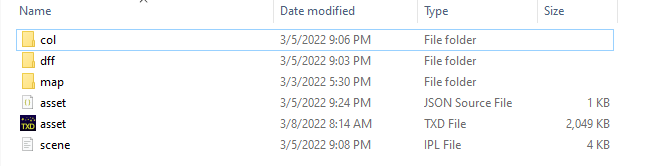
Asset's structure should be strictly as below attached:
-
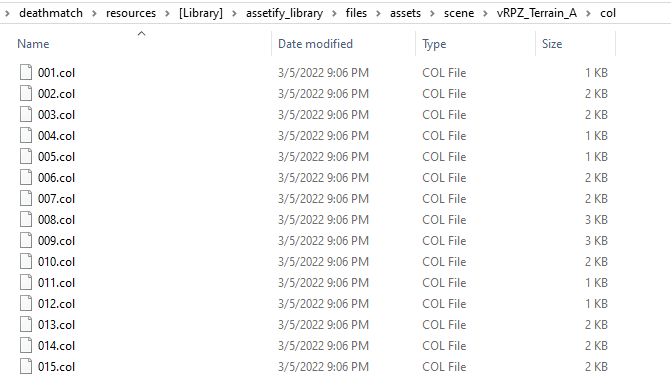
All your model/collision asset files must go under
dff/colrespectively without any doubt. [Note: File namings doesn't matter since they are referenced underscene.ipl]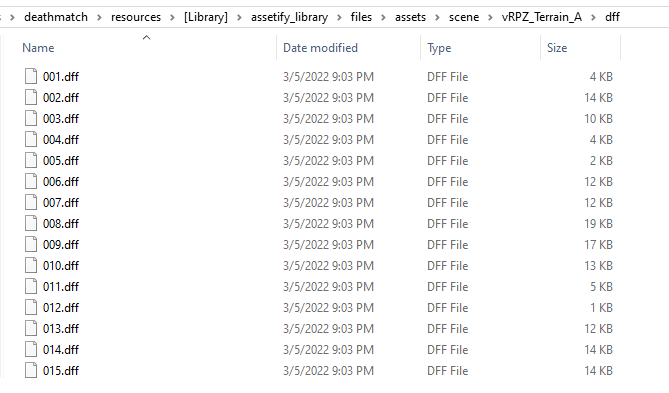
-
Create a txd file named as
asset.txdand drop your necessary textures into it & save. [Note: File name matters here, it must strictly beasset.txd] -
Create a ipl file named as
scene.ipland add your necessary datas under it. [Note: Model name within the IPL must strictly match w/ dff/col names as highlighted below since the library links them using via IPL]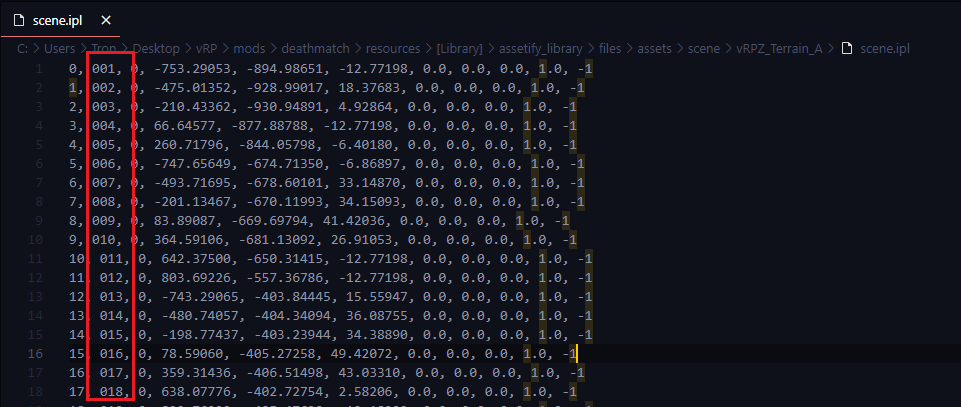
-
Create a json file named as
asset.jsonand configure based on your requirements as below attached: [Note: File name matters here, it must strictly beasset.json]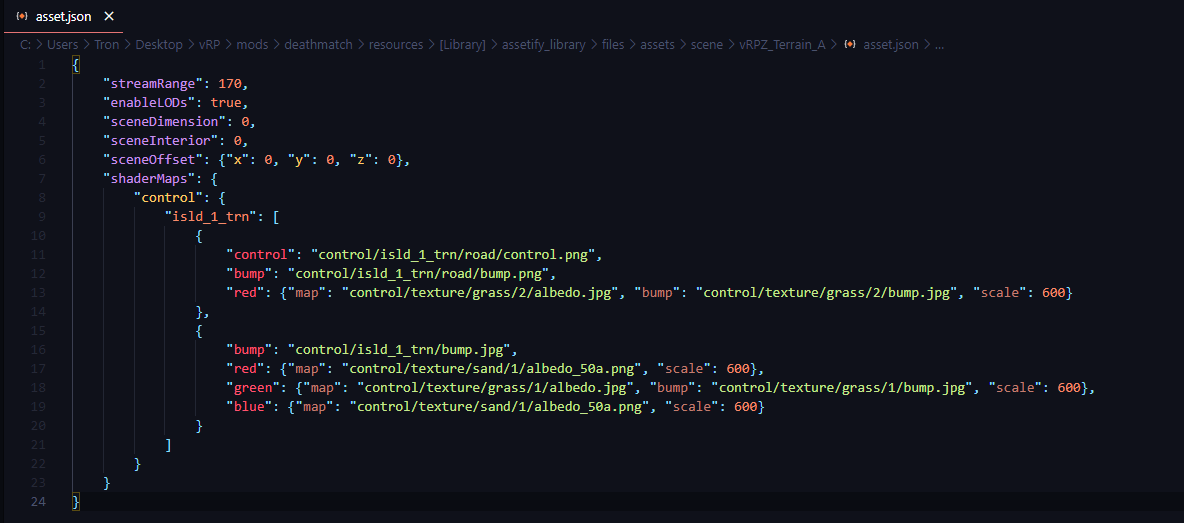
- assetBase: Default model whose properties scene elements should inherit. [Default: 1337]
- assetTransparency: Boolean indicating whether scene elements should have transparency property. [Default: false]
- streamRange: Range b/w which scene elements should be streamed in [0 - 300]. [Default: 170]
- sceneLODs: Boolean indicating whether the scene elements should be using LODs. Enabling this makes elements to be visible from distant beyond default streaming limit. [Default: false]
- sceneDimension: Your preferred scene dimension for the created scene elements. [Default: 0]
- sceneInterior: Your preferred scene interior for the created scene elements. [Default: 0]
-
sceneOffset: Useful for mass movement of scene elements without modifying/re-exporting IPL. For example
{"x": 0, "y": 0, "z": 2000}would move the entire scene elements at azheight of 2000 relative to the IPL's z coord. [Default: {"x": 0, "y": 0, "z": 0}] - shaderMaps: Required if you prefer to use any built in Assetify shaders for your scene.
- Attach your scene name within
files/assets/scene/manifest.json.[[ "yourSceneName1", "yourSceneName2", "yourSceneName3" ]]
- Incase if you have enabled
autoLoadundersettings/shared.luafor scene assets then your scene shall be automatically loaded when you restart the library, either way you could use Assetify's APIs to dynamically load/unload them.assetify.loadAsset("scene", "yourSceneName") assetify.unloadAsset("scene", "yourSceneName")