Repository navigation
Signing in
Click Log in/out on the EasyPDM tab (or Log in in the document panel).
- SOLIDWORKS asks for the server address, for example
http://server:5000. It is remembered for next time. - EasyPDM opens in your browser with a code. Sign in there if you are not signed in yet, check that the code is the one SOLIDWORKS shows, and click Allow.
- Click OK in SOLIDWORKS. It confirms who you are signed in as.
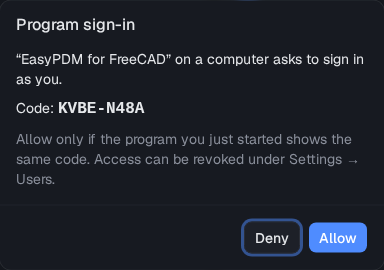
Your password never passes through SOLIDWORKS: it gets a token of its own, which you can see and revoke under Settings → Users in EasyPDM. The login lasts a year and is shared by the add-in and both macros.
While you are signed in, Log in/out is shown pressed, and the document panel's first line says who is signed in and to which server. Clicking it again logs out.
You do not have to sign in first: when Upload or Download finds no valid login, it opens the same sign-in in the browser before it starts. Only an EasyPDM server older than 0.9 has no browser sign-in; there the macros ask for your login and password.