howto convert existing plugin registration
This guide shows how to convert an existing Dataverse plugin and workflow solution so registrations are managed by CrmPluginRegistration attributes and deployed by DynamicsCrm.DevKit.
The sample flow is based on TestAddCrmPluginRegistration, which starts from an unmanaged solution that already contains these Dataverse components:
| Component | Type | Items |
|---|---|---|
AccountPlugin |
Plugin |
PostDeleteAccount, PreAccountMergeSynchronous, PreDeleteAccount
|
CustomWorkflow |
Workflow |
RetrieveUsers, SendUsersMail
|
- Visual Studio with the DynamicsCrm.DevKit extension installed.
- .NET SDK with global tool support.
- Access to the Dataverse development environment that contains the existing plugin/workflow registrations.
- A project that already compiles before conversion.
Keep the plugin and workflow assembly versions aligned with the assemblies already imported into Dataverse. If Dataverse registered AccountPlugin as version 1.0.0.0, keep the converted project at 1.0.0.0; otherwise deployment can stop with a "Plugin Assembly fully qualified name has changed" error.
Create a working copy of the existing source, then open the solution in Visual Studio and rebuild it before changing registrations. Fix compile errors first; DevKit conversion assumes the original project is valid.
For the sample in this repository, the original working solution is in:
DynamicsCrm.DevKit.Tests\TestAddCrmPluginRegistration\1.before
You can open the solution from that folder directly to understand the starting point. For conversion practice, copy 1.before to 2.after first, then do all DevKit changes in 2.after so the original source remains unchanged.
Right-click a plugin class such as PostDeleteAccount.cs and select Add CrmPluginRegistration.
If the solution does not contain the DynamicsCrm.DevKit shared project, Visual Studio shows:
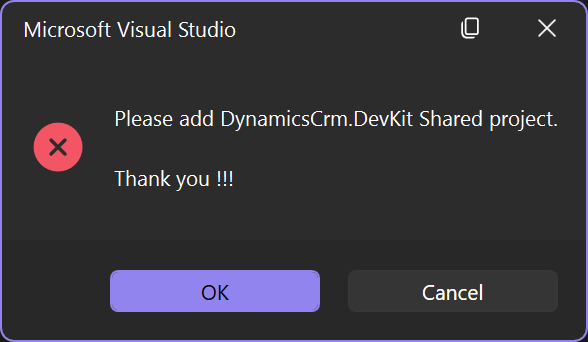
Add a DynamicsCrm.DevKit Shared Project to the solution, then add a reference from the plugin project to that shared project.
If the plugin project does not reference the shared project, Visual Studio shows:
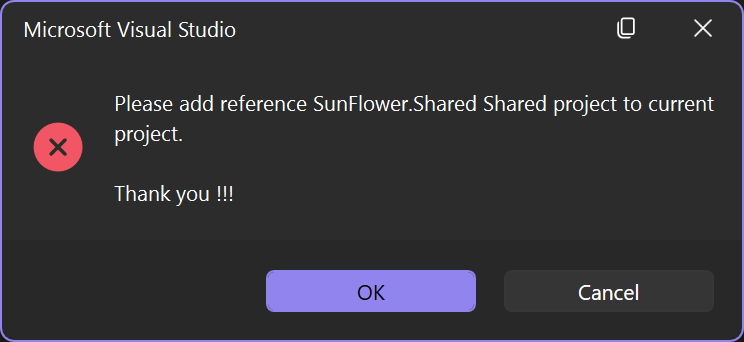
Add CrmPluginRegistration also needs the devkit command. If the CLI is not installed as a .NET global tool, Visual Studio shows:
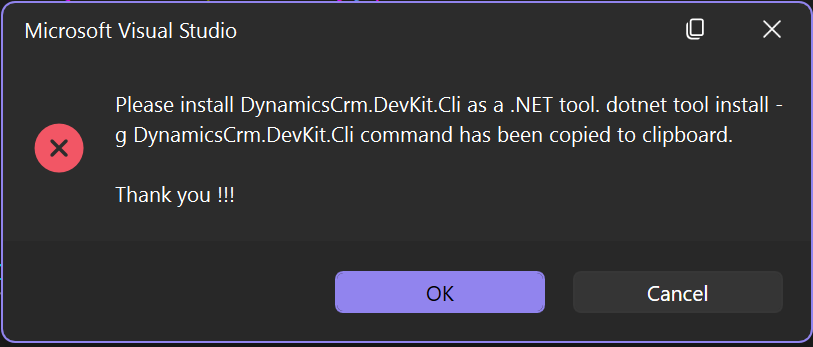
The install command is copied to the clipboard:
dotnet tool install -g DynamicsCrm.DevKit.CliVerify the install:
devkit --versionFor a negative test of this prompt, uninstall the CLI first:
dotnet tool uninstall -g DynamicsCrm.DevKit.CliRun Add CrmPluginRegistration again. If DevKit does not have an active connection, Visual Studio prompts you to sign in:
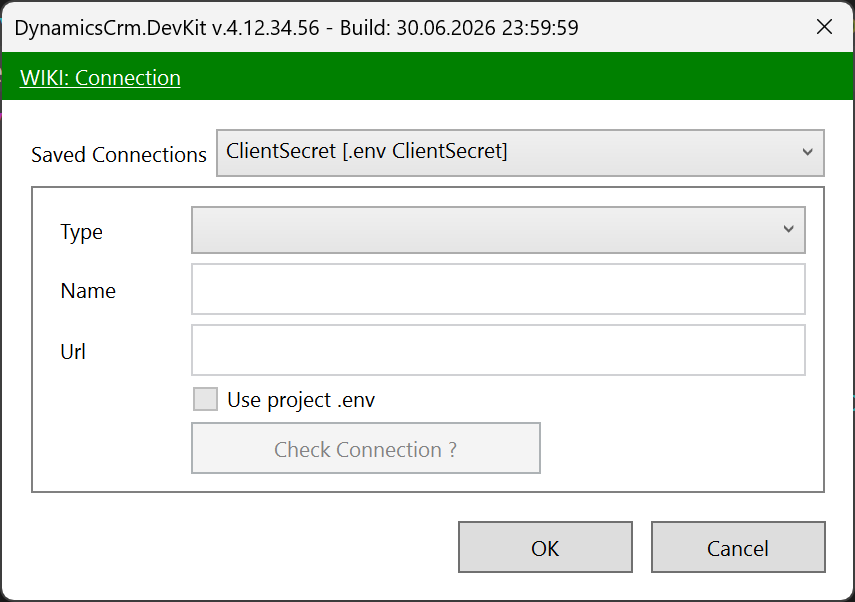
After sign-in, DevKit queries Dataverse for plugin steps matching the selected class. When it finds existing registration data, it adds CrmPluginRegistration with the Dataverse step Id and any available image/configuration values:
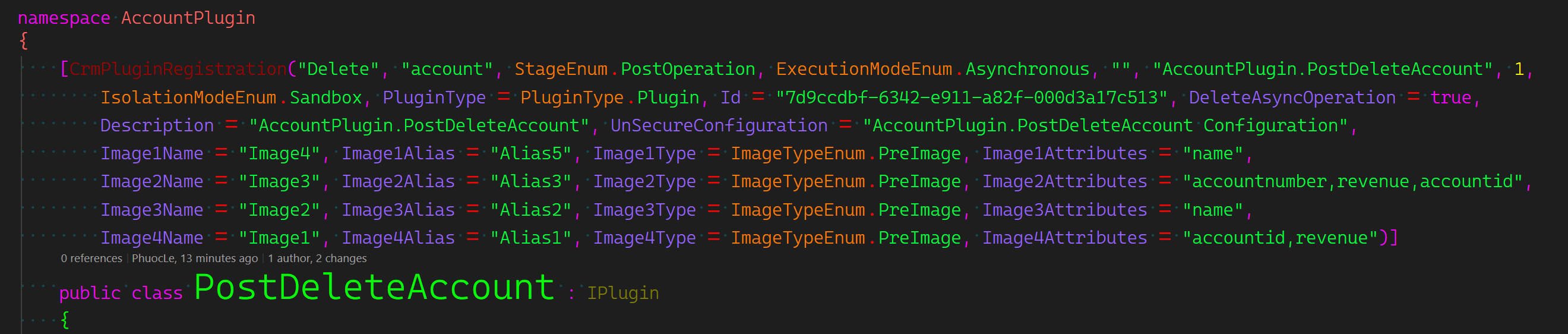
Build the solution and run deploy.debug.bat. If the generated DevKit CLI configuration has not been added/configured yet, deployment fails:

Locate the generated files in the solution folder:
DynamicsCrm.DevKit.Cli.jsonDynamicsCrm.DevKit.js
Add them to the solution as existing items, then configure the plugins section in DynamicsCrm.DevKit.Cli.json.
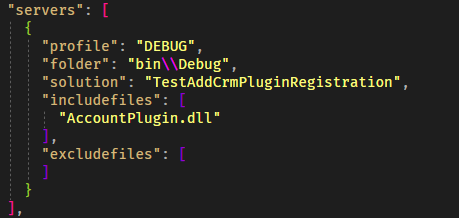
If you run Add CrmPluginRegistration on a plugin class that has no Dataverse step yet, DevKit cannot read real registration data or a real step Id.
For example, AccountPlugin.PostUpdateAccount has plugin code but no registered step. DevKit asks whether it should add a placeholder attribute:
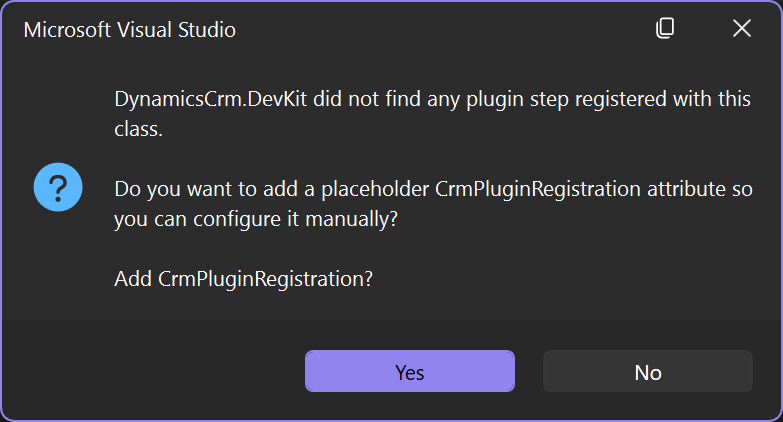
If you choose Yes, DevKit adds:
[CrmPluginRegistration("???", "???", StageEnum.PostOperation, ExecutionModeEnum.Synchronous, "", "AccountPlugin.PostUpdateAccount", 1, IsolationModeEnum.Sandbox, PluginType = PluginType.Plugin)]Replace the placeholder values before deploying. For this sample:
[CrmPluginRegistration("Update", "account", StageEnum.PostOperation, ExecutionModeEnum.Synchronous, "name", "AccountPlugin.PostUpdateAccount", 1, IsolationModeEnum.Sandbox, PluginType = PluginType.Plugin)]If you choose No, DevKit does not change the class. You can still register the step manually in Dataverse first, then run Add CrmPluginRegistration again to read the real Dataverse registration data and Id.
Run Add CrmPluginRegistration for each class that already has Dataverse step data, such as:
AccountPlugin.PreAccountMergeSynchronousAccountPlugin.PreDeleteAccount
Classes with Build Action = None do not show the Add CrmPluginRegistration context menu option.
Rebuild the solution and run deploy.debug.bat. Verify the plugin deployment result:
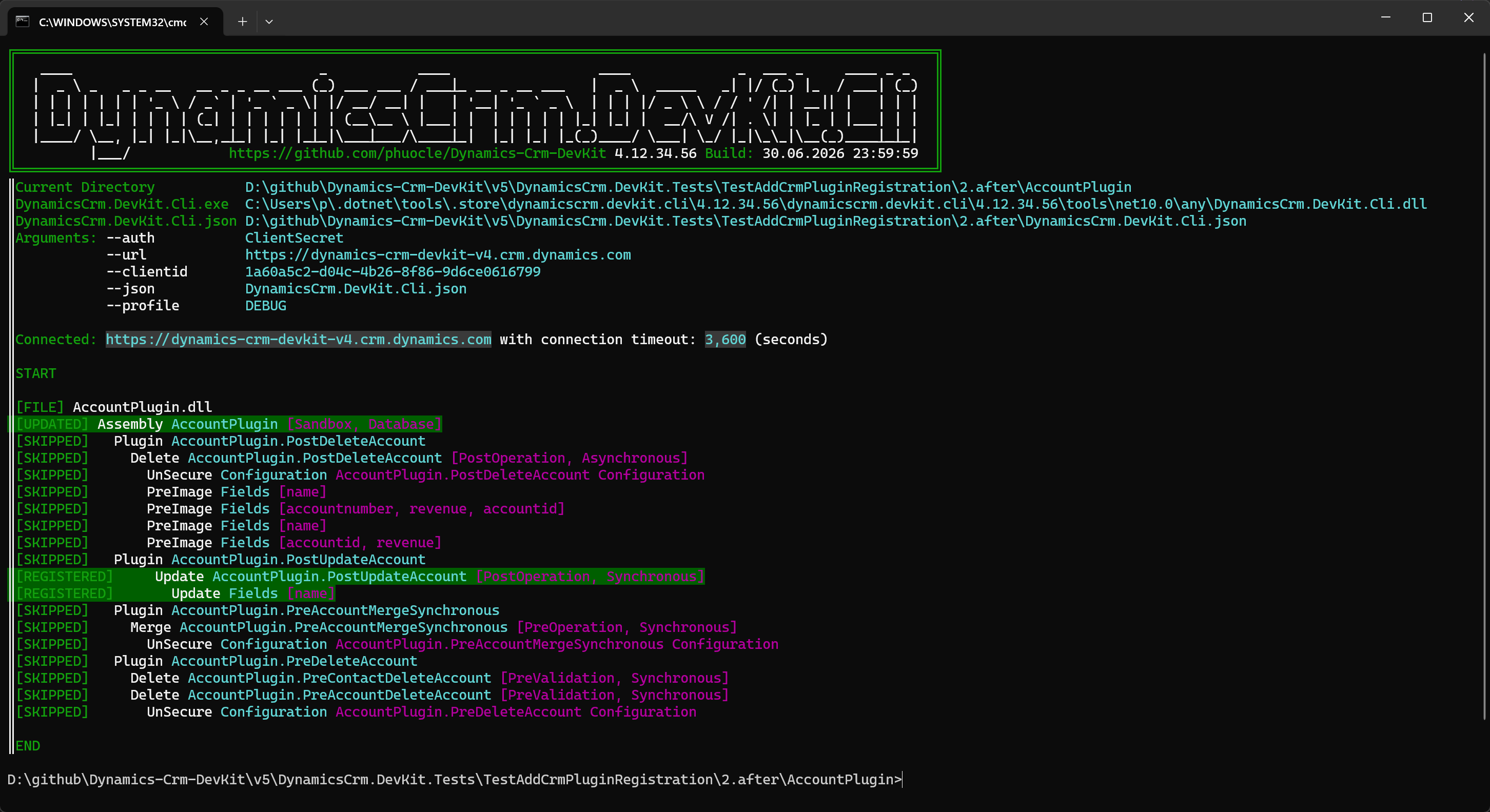
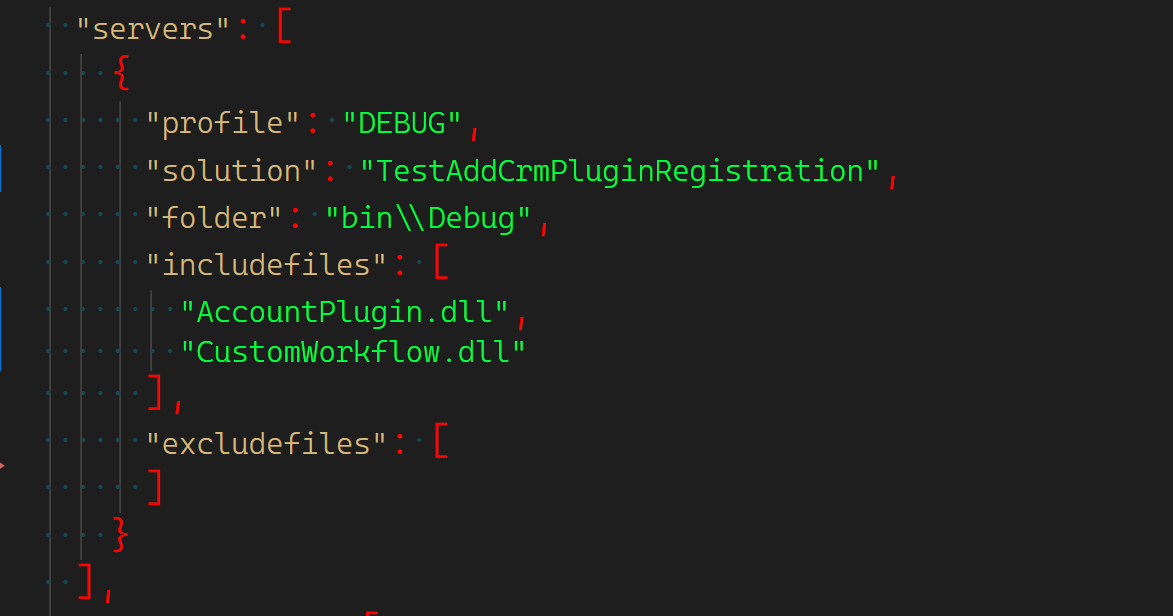
Open DynamicsCrm.DevKit.Cli.json and configure the workflows section for the workflow project:
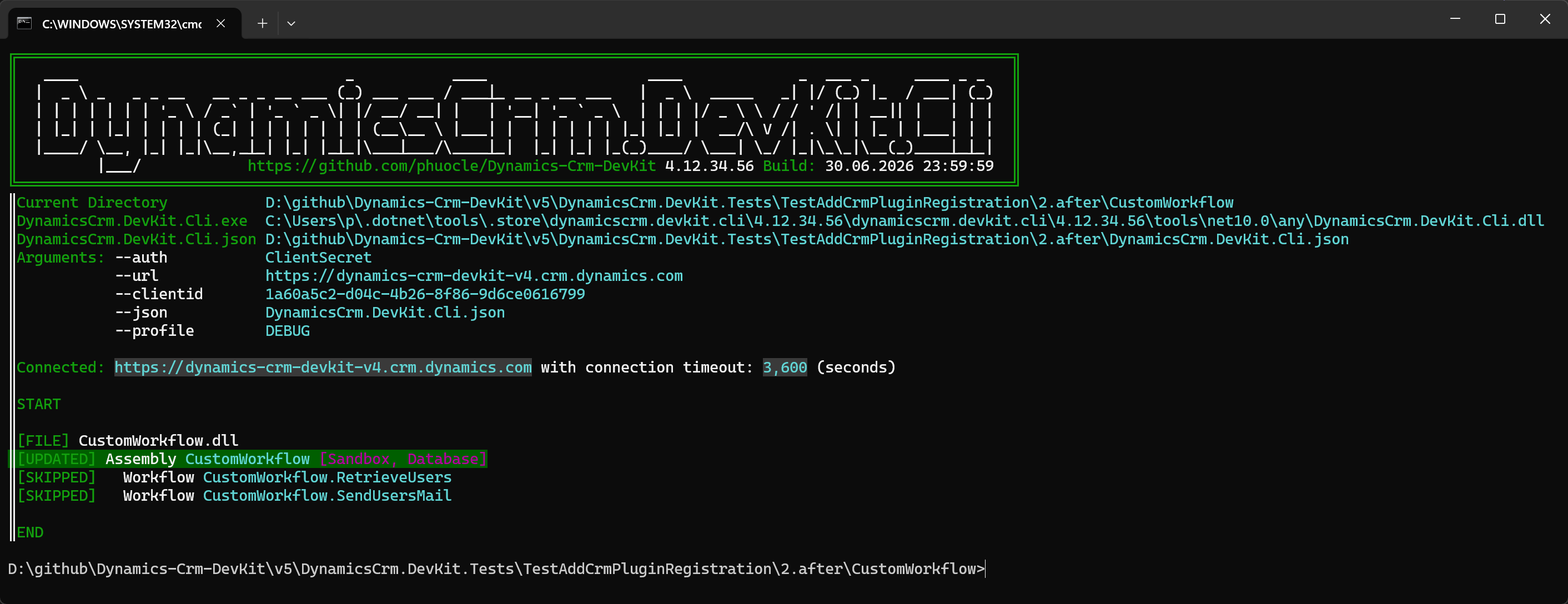
Run deploy.debug.bat to deploy:
| Problem | Fix |
|---|---|
Please add DynamicsCrm.DevKit Shared project. |
Add the shared project to the solution. |
Please add reference ... Shared project to current project. |
Add a project reference from the plugin/workflow project to the shared project. |
| CLI install prompt appears | Install DynamicsCrm.DevKit.Cli as a .NET global tool with dotnet tool install -g DynamicsCrm.DevKit.Cli. |
Placeholder ??? values were added |
Replace message, table, filtering attributes, stage, mode, and step name before deploying. |
Plugin Assembly fully qualified name has changed |
Keep the assembly version equal to the version already registered in Dataverse, or intentionally unregister/re-register the assembly identity. |