
Replies: 30 comments 45 replies

|
Good tutorial, I leave it pinned if someone wants it |

|
Just a quick followup to say I've tried a handful of mods and so far everything has worked as it should. Hope this is helpful to someone. Thanks for your work on this project! |
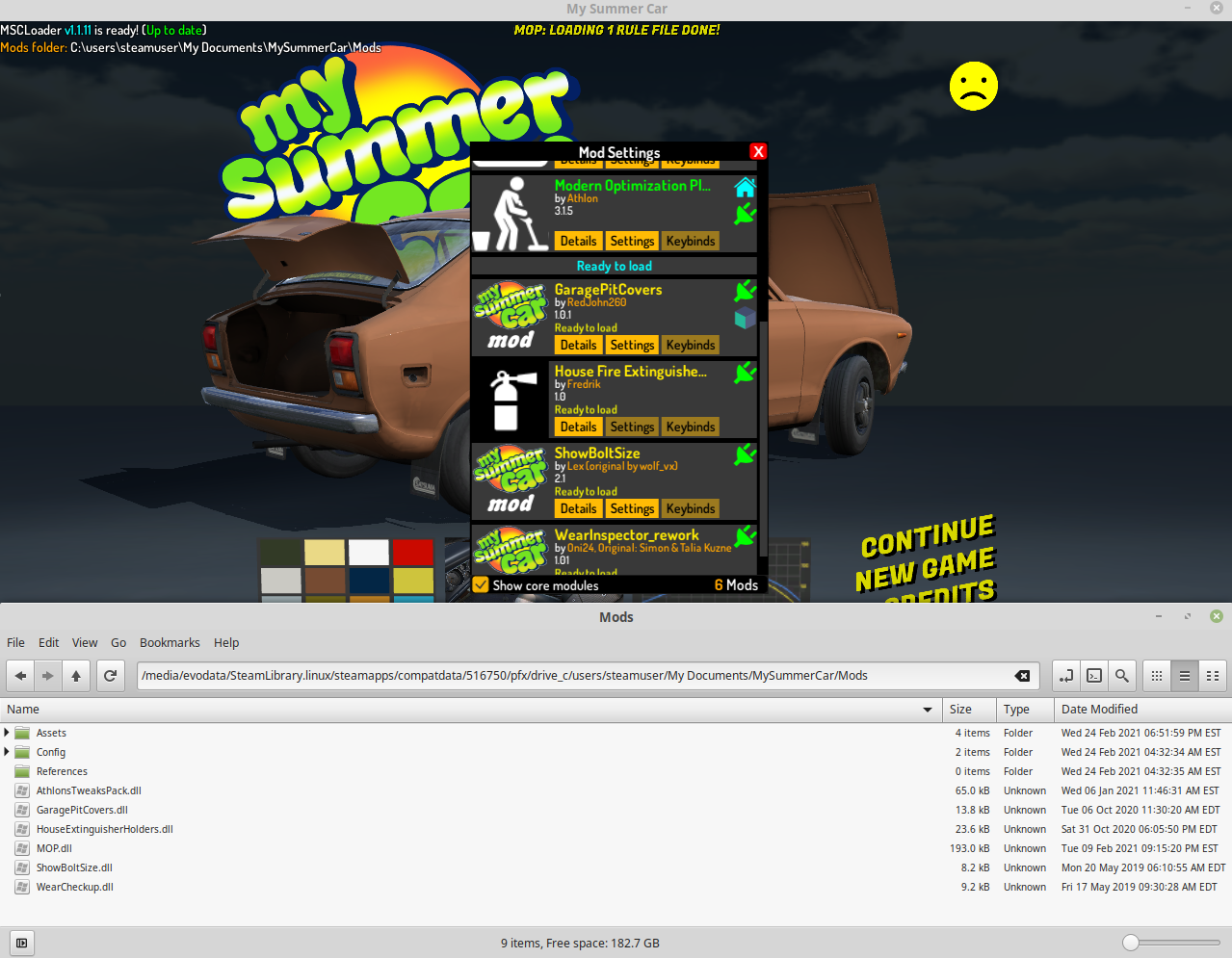

|
I don't see anything that looks like a crash in your output. Can you confirm that you applied the patch using the game's proton prefix, and that you're launching the game through steam? Which version of proton? |
|

|
(I can also post an ingame screenshot if needed.) |

|
Can't get anything upwards of 1.1.7 to work. As you stated above, the patcher works fine but the mod loader simply doesn't even seem to be installed. I was using Proton 5.13 so far, but tried version 5.0-10 in my last attempt and that gave me the same results. Could you help me out? |
@petralka that sounds like the necessary edit: even though the patcher might seem like it's working if you just use the system's default wine installation, I'd recommend doing everything under the correct proton prefix so that the patcher sees the same paths as when you launch the game through steam |
An update to my last comment: I got it working with the full package. |
|
I tried the full package this time, one thing I noticed was that I wrote |

|
I am getting this error when running the
|

No, that wont open either. |
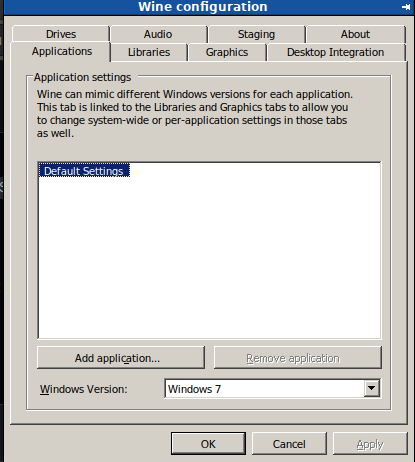
Seems it's broken, Should I try an older version such as the one in the screenshots? |
|
Seems that switching to Proton 5.13 allowed me to launch winecfg and the patcher, now to try and see if it actually patched. |

|
I don't have access to a proton 6.3 install to check at the moment, but it's possible the environment variables that it needs are different than the version I tested with. Can you check a 5.x version and I'll try to circle back to check against 6.x? |
|
@Kreyren yep, what I meant was that this is all we're really doing. I'll add a note about possible incompatibility with proton 6, and try to come up with a solution. |
|
Just a thing that I didn't see anyone metion, Doorstop also supports |

|
Hi. |
|
hm, can you paste the contents of |
|
without seeing it, I'd try deleting any comments from that file, as they seem to be causing a parse error |

|
It doesn't seem to be a valid config, since official config file doesn't have comments. |

# General Doorstop settings
[UnityDoorstop]
# Specifies whether assembly executing is enabled
enabled=true
# Specifies the path (absolute, or relative to the game's exe) to the DLL/EXE that should be executed by Doorstop
targetAssembly=mysummercar_Data\Managed\MSCLoader.dll
# Specifies whether Unity's output log should be redirected to <current folder>\output_log.txt
redirectOutputLog=true
# If enabled, DOORSTOP_DISABLE env var value is ignored
# USE THIS ONLY WHEN ASKED TO OR YOU KNOW WHAT THIS MEANS
ignoreDisableSwitch=false
alright i've took all the comments out (the bits with the hashtags i hope lol) havent saved changes yet in case i messed something up which is very likely considering all my brain cells went out of me when i was born save one |
|
here are the console errors |

|
Download MOP 3.2.3 https://www.nexusmods.com/mysummercar/mods/146?tab=files&file_id=1556 if you want a working version. |
|
I think I may have solution for linux in 1.2 modloader update, but no promises yet since it's untested. It's really low priority, and it will be released as completly "experimental" thing. |
|
I've updated the original post to hopefully resolve setup issues in Proton 6/experimental. I've tested the steps above for 1.1.16 loader with proton experimental as of today, and the errors @grumpzalt saw above should be covered (undefined |

|
I get a KeyError 'STEAM_COMPAT_CLIENT_INSTALL_PATH |
|
can you either paste your terminal output in a code block, or add a (terminal) screenshot? |

|
When i try to choose the msc folder in the installer i cant find the folder. |
|
oh, that's an annoying thing I didn't know about the wine file explorer You should be able to navigate to You shouldn't have to move anything, though |

|
Ok, thanks. I'll try |
|
I got it to work. |
|
If this is irrelevant you can delete it but could you smart guys post a tutorial on how to get msc editor up and working? |
|
been I while since I've played/tried to use it, but if I remember correctly, the editor mostly "just worked" with standard Wine. I think the interactive map was iffy, but editing fields worked ok. don't recall if there was a trick to it, though, sorry :/ if just plain-old wine doesn't work, might just wanna try its nexusmods discussion or github (linked from its nexus page). if I get back into it, though, I'll look for your post and follow-up |

|
You know, adding the .exe as a non-steam game and starting it through steam with proton also works |

|
At the moment, I followed all the steps but with Proton 8.0 but no luck at the end. Any hints to solve this? Five minutes later: it works (typo error -> winehttp instead of winhttp) |

|
I think there should be a disclaimer for those that have MSC installed in another path that they need to replace the path inside the msc.sh files to the path matching the game directory's location, just to make it more noob friendly since they might not realize it. |

|
You could just use protontricks? |

|
That isn't in the official guide, which a lot of people follow |
|
Wait what there is native support for linux? Since when?
…On Thu, Mar 21, 2024, 1:05 AM NAAIN ***@***.***> wrote:
but i found it on
/mnt/nvme0n1p3/home/tupo-nain/.local/share/Steam/userdata/1393184437/516750/ac/WinAppDataLocalLow/Amistech/My
Summer Car/
and on
/mnt/nvme0n1p3/home/tupo-nain/.config/unity3d/Amistech/My Summer Car/
(im talking about linux native version btw)
—
Reply to this email directly, view it on GitHub
<#135 (comment)>,
or unsubscribe
<https://github.com/notifications/unsubscribe-auth/ARCWMNHTDLHBEQZUNBDPU63YZIBZJAVCNFSM5CXZU6VKU5DIOJSWCZC7NNSXTOKENFZWG5LTONUW63SDN5WW2ZLOOQ5TQOBVHA2TCMI>
.
You are receiving this because you commented.Message ID:
***@***.***>
|
|
It's buggy. Don't bother with it. |

|
Fix for those getting the Add |

|
Game says checking for updates and completely freezes; before you say something about me needing to buy the game, i have it, it's just not detecting my steam account.
Fixed by completely reinstalling the game |


|
did this kinda rushed, my bad, expected output_log to give out some of that info, im using steam from the AUR, i tried proton GE and a bunch of other versions but its all the same, im on arcolinux, i followed everything correctly |
Steam isn't in AUR. Only in the extra repository. Regardless, you should try Proton 8.0-5. Try reinstalling the mod loader, since the log suggests you didn't install it correctly. Most likely you used the wrong STEAM_COMPAT_CLIENT_INSTALL_PATH value in it. The right path is /home/$USER/.steam/steam/ |
|
ah alright, im trying to get it running on 6.3-8 because thats where force feedback works for me on other games, STEAM_COMPAT_CLIENT_INSTALL_PATH is ${HOME}/.steam/steam which leads to the directory without any issues, i'll try the one you sent anyway |
|
Compeletely deleted and reinstalled msc it works now |
Well yes, $HOME is short for /home/$USER |

|
You can bypass all this by setting launch options in Steam to |

|
Nothing was working until I did this. Thank you! |


|
this might be related to the new 1.3 installer |
|
There is new tutorial, way simpler: #225 |
|
OMG THANK YOU |


Uh oh!
There was an error while loading. Please reload this page.
Uh oh!
There was an error while loading. Please reload this page.
Important
There is way simplified proton tutorial if you click here -> #225
Below one still probably works but may be overcomplicated
Click Here to show old tutorial
Note: environment variable setup possibly broken for Proton 6+. Needs investigation. Confirmed working on 5.x versionsNote: edited to add a new environment variable
STEAM_COMPAT_CLIENT_INSTALL_PATHapparently needed for Proton 6/experimental. Comment if there are still issuesSince MSC works fairly well through wine/proton on linux, I've been trying to get your loader functional as well. I found that versions <=1.1.7 worked without issue, but after you switched to doorstop, there was no indication of the mod loader being present. The patcher worked fine, but no console/settings/etc.
@piotrulos, I've read through past issues and some comments on steam/nexusmods/etc and know that you're (understandably) not interested in making code changes, but I did manage to get v.1.11 working successfully with only some minor configuration changes. It took a while to figure out so I just wanted to post here for others to find, or to offer it for your readme/wiki.
The bottom line is that there seems to be NOTHING inherently incompatible about the patcher/loader with wine/proton, i.e. "Steam Play". To successfully use it, we just have to make sure that the patcher operates in the same wine environment as the game, and set a dll override so that UnityDoorstop functions (again, in the proper wine environment).
I haven't tested many specific mods, but this is what worked for me to get the loader working
Summary
STEAM_COMPAT_CLIENT_INSTALL_PATH="${STEAMINSTALLDIR}" STEAM_COMPAT_DATA_PATH="${MSCCOMPATDIR}" WINEPREFIX="${MSCCOMPATDIR}/pfx" "${PROTONDIR}/proton" run ./MSCPatcher.exeSTEAM_COMPAT_CLIENT_INSTALL_PATH="${STEAMINSTALLDIR}" STEAM_COMPAT_DATA_PATH="${MSCCOMPATDIR}" WINEPREFIX="${MSCCOMPATDIR}/pfx" "${PROTONDIR}/proton" run winecfgwinhttpto(builtin,override)Step by step instructions, with screenshots:
Some versions of Proton require an environment variable specifying the steam installation directory. When proton initializes a new game prefix, certain dlls are copied from this location (and they're confirmed and/or updated at every launch within the proton prefix). For most people, the directory we want is either
${HOME}/.steam/steamor${HOME}/.local/share/Steam. My nearly fresh-install directory looks like this:and the
legacycompatsubdirectory should contain some steam-related dllsIf you get a directory not found error or empty listing, you probably have a non-standard install location and will have to track it down yourself. Something like
locate steamclient.dllmight help.Next, identify the version of proton that you're using to launch the game. If you've set a specific override for MSC, it will be in the game's properties:


Otherwise, look to Steam>Settings>Steam Play
We need to find the installed directory for the correct version of proton. For
5.0-10shown in my screenshots, you'd look in your steam library for "Proton 5.0". Open its properties, go to the local files tab, click browse, and a file browser should open to the correct path.This is your "Proton directory"
Next, find your MSC installation directory. Go to MSC in your library, properties>local files>browse, and again, a file browser opens to the correct path.

This is your "MSC Install directory"
Finally, we need to find the compatdata directory for MSC. This is where the wine registry/libraries/etc live. If your MSC install directory was

/foo/bar/steamapps/common/My Summer Car, the compatdata directory should be/foo/bar/steamapps/compatdata/516750(516750 is the game's App ID in Steam).This is your "MSC compatdata directory"
Let's set the paths that we've identified into variables for easier use. Open a terminal, and enter
so, for me, it's
Put all paths in quotes. These variables are not directly accessed by proton and don't need to be exported; they're only for our convenience to avoid retyping long paths (and allow you to copy/paste the commands below). They ONLY APPLY TO THE TERMINAL WINDOW YOU TYPE THEM IN, so we're going to use this window for everything. Download and extract the MSCLoader zip wherever you want, and navigate to it in the terminal you have open.
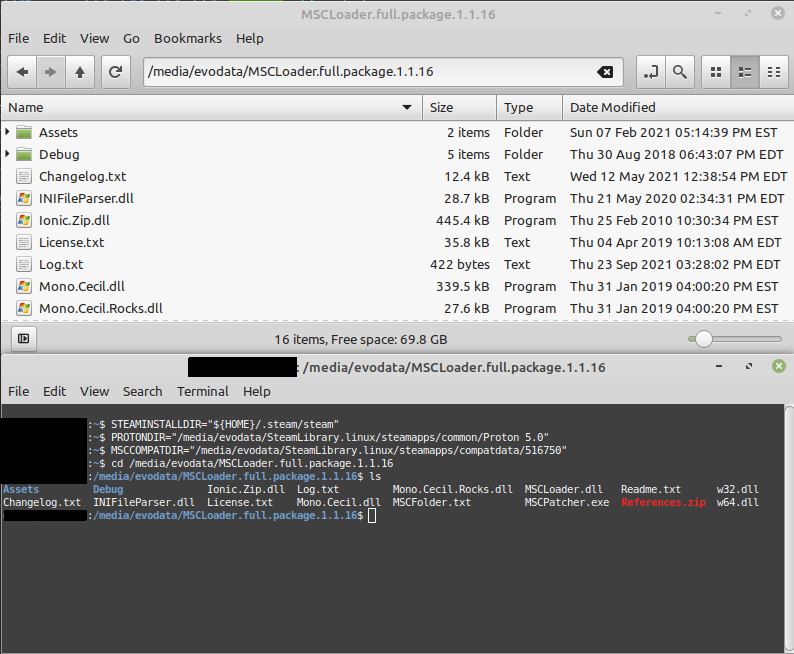
Run the patcher with this command:
A good hint that you're on the right track here is that the patcher detects your "My Documents" folder as belonging to "steamuser". Click the "MSC Folder" button and navigate to your My Summer Car install folder. In the proton environment that we're using, your "real" filesystem is under drive letter
Z(So,Z:\media\evodata\SteamLibrary.linux\steamapps\common\My Summer Carfor me). Click "Install MSCLoader".Choosing "My Documents" for your mod folder corresponds to
<MSC compatdata>/pfx/drive_c/users/steamuser/My Documents/MySummerCar/Modsin your "real" filesystemGood so far?

Close the patcher window (it cannot launch the game, and we're not done yet), go back to your terminal, and enter the following command
In the "Libraries" tab, check your "Existing overrides" for


winhttp. If it isn't present, typewinhttpit into the "New override for library" box and click "Add". In the end, you should have awinhttp (native,builtin)line in your overridesIf it doesn't say
(native,builtin), just highlightwinhttp, click "Edit", and select "Native then builtin"Click apply, and OK, and the "Wine Configuration" window should go away.
What did we just do? MSC Mod Loader uses Unity Doorstop to inject itself; Doorstop overrides a system dll with a placeholder that links to the "real" library plus a handle to additional code. When a Unity game looks for a library on Windows, it first looks in the game's root directory. If it's found there, it uses that one; if not, it falls back to the system version. On wine/proton, this does not happen by default. Generally this is good and required (wine provides many "system" dlls, which is what makes it work at all), but in this case, it prevents the Doorstop hook from being seen when the game launches. By overriding
winhttp, we've just made the proton behavior match what happens on Windows.We're done with the terminal, so you can close it. Launch the game through steam as you normally would, and you should be all set

All reactions