imv-tui is a fast, keyboard-driven terminal image viewer written in Rust. Heavily inspired by the native imv image viewer, it enables zooming, panning, rotation, and directory-based navigation directly inside your terminal window.
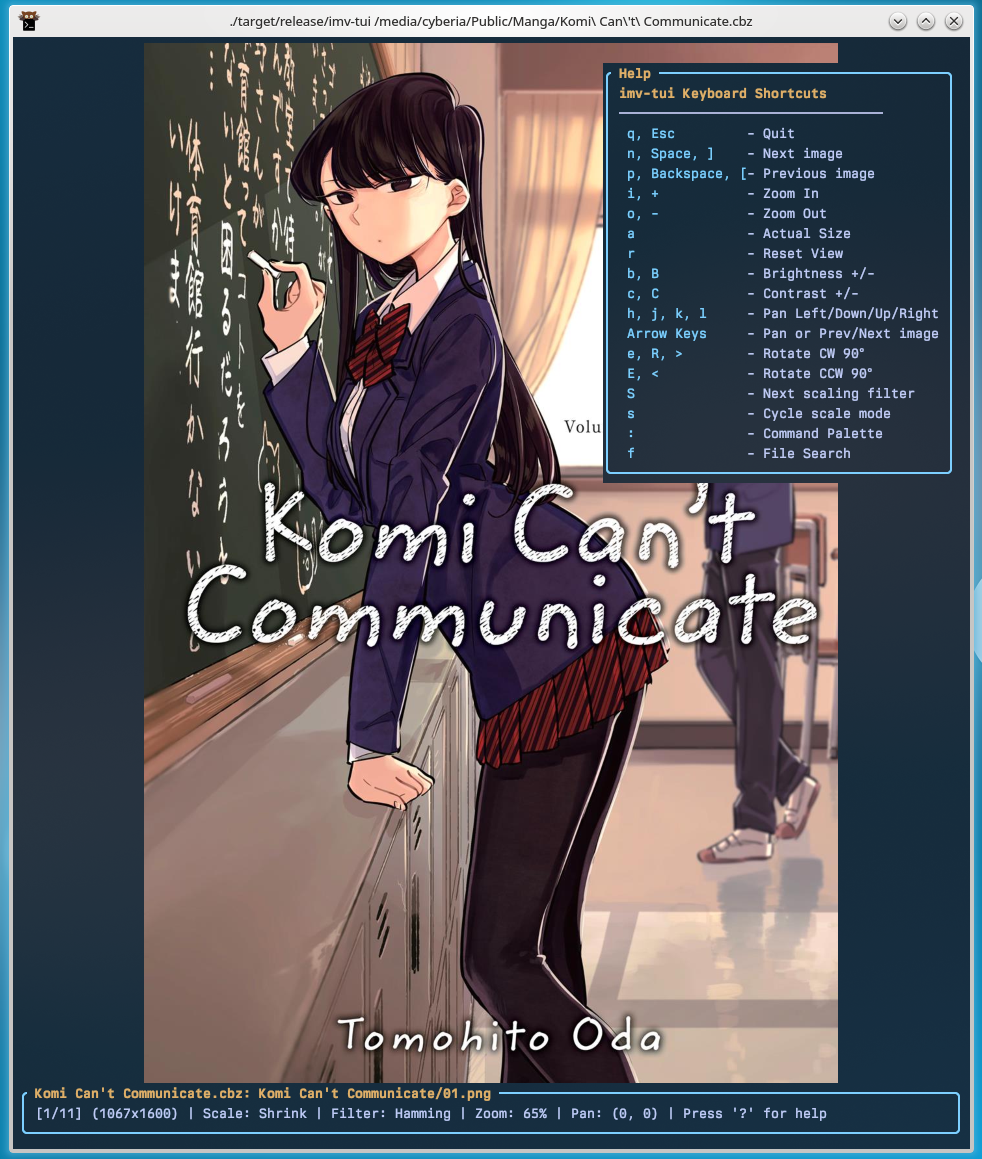
It is built on top of ratatui and ratatui-image.
- Directory Navigation: Open an image, and it automatically scans the directory for all sibling files, allowing you to cycle through them effortlessly.
- Manga/Comic CBZ & ZIP Support: Open and flip through compressed
.cbzand.ziparchives directly. Pages are sorted alphabetically and loaded asynchronously. - Image Manipulation Adjustments: Adjust brightness and contrast in real-time. Operations are processed asynchronously on background threads for fluid performance.
- Header-Based Magic Byte Verification: Intelligently identifies images and zip files by reading their headers, allowing images with missing or incorrect file extensions to load perfectly.
- Three-Section Info Bar: Formats status metadata at the bottom of the screen into three cleanly aligned sections: image sequence & dimensions on the left, scaling/panning parameters centered in the middle, and command palette discovery shortcut on the right.
- Smart Aspect-Ratio Padding Compression: When zoomed out, images sit centered with empty border spaces (padding). As you zoom in, the borders automatically shrink and disappear, scaling the image to fully cover the terminal space.
- Pixel-Perfect Deep Zooming: Supports zooming beyond a 1:1 pixel scale (up to 100000%) with clean Nearest Neighbor scaling—perfect for inspection and pixel-art view.
- Predefined Level Jumps: Instantly snap zoom levels using
IandOthrough a calculated sequence of target scales: Shrink to Fit, Fit View, Crop to Fill, 1:1, 2:1, and 4:1. - In-Memory Rotation: Rotate vertical or misaligned images clockwise and counter-clockwise in-memory (does not modify files on disk).
- Centering Layout: Fits and centers images horizontally and vertically when they are smaller than the terminal size.
- Interactive Command Palette & File Search: Press
:to trigger the command palette orfto search for files, utilizing the high-performancenucleofuzzy matching engine to rank and display the best candidates first. - Dynamic Parameter Value Prompts: Adjust brightness, contrast, or jump directly to a specific image index (via
Go to Image,Set Brightness, andSet Contrastcommands in the command palette) using absolute numbers or relative offsets (e.g.+10or-5). - Slideshow Mode: Play a slideshow of images with configurable delays, adjustable dynamically via keyboard shortcuts (
t/T), CLI parameters, or from the command palette. - Image Classification & Filtered Views: Flag images as Picks (⭐), Rejects (❌), or Unflagged (⚪) in memory. Filter the navigation queue and file list dynamically using five view modes (Unflagged + Picks, Unflagged Only, Picks Only, Rejects Only, All Files) to easily sort, select, or hide images.
- Graphics & Fallbacks: Auto-detects terminal capabilities. Uses high-performance Kitty graphics protocol or Sixel if supported, falling back gracefully to ANSI Half-blocks on standard terminals.
| Action | Primary Key | Alternative Keys |
|---|---|---|
| Quit | q |
Esc |
| Next Image | n |
] |
| Previous Image | p |
[ |
| Zoom In | i |
+ / = / Mouse Scroll Up |
| Zoom In (predefined levels) | I |
|
| Zoom Out | o |
- / Mouse Scroll Down |
| Zoom Out (predefined levels) | O |
|
| Actual Size (100% Zoom) | a |
|
| Reset View | r |
|
| Reset Image | R |
|
| Rotate Clockwise (90°) | e |
> |
| Rotate Counter-Clockwise (90°) | E |
< |
| Brightness Increase / Decrease | b / B |
|
| Contrast Increase / Decrease | c / C |
|
| Slideshow Increase / Decrease | t / T |
|
| Toggle Slideshow Pause | Space |
|
| Cycle Scaling Filter | S |
|
| Cycle Scale Mode | s |
|
| Pan Left / Right | h / l |
Left / Right Arrow |
| Pan Up / Down | k / j |
Up / Down Arrow |
| Show Help / Command Palette | ? / : |
/ |
| File Search | f |
|
| Toggle Thumbnail Mode | m |
|
| Show Image Details | d |
|
| Flag Pick | z |
|
| Flag Reject | x |
|
| Unflag Image | u |
|
| Cycle View Filter | v |
|
| Cycle Infobar Position | V |
|
| Jump to View: Unflagged + Picks | 1 |
|
| Jump to View: Unflagged Only | 2 |
|
| Jump to View: Picks Only | 3 |
|
| Jump to View: Rejects Only | 4 |
|
| Jump to View: All Files | 5 |
|
| Refresh Files | F5 |
Ctrl+r |
When the command palette (:), file search (f), or any parameter input prompt is open, the following readline-like shortcuts are active:
| Action | Keys |
|---|---|
| Scroll matching list down / up | ctrl+n / ctrl+p |
| Page matching list down / up | ctrl+v / alt+v |
| Move cursor left / right | ctrl+b / ctrl+f (or Left / Right) |
| Move cursor to start / end of line | ctrl+a / ctrl+e (or Home / End) |
| Delete character before / under cursor | ctrl+h (or Backspace) / ctrl+d (or Delete) |
| Delete word backward | ctrl+w / alt+Backspace |
| Delete to start / end of line | ctrl+u / ctrl+k |
| Accept input / Cancel | Enter / Esc or ctrl+g |
Rather than sending massive raw images to the terminal graphics protocol and leaving scaling to terminal emulators, imv-tui processes pixels in-memory using image:
- It maps the target terminal widget dimensions (converted to pixel sizes based on terminal font sizes) and computes a fit-scale factor
s. - For any zoom level, it generates a crop window dynamically mapped to the target terminal's aspect ratio.
- If the crop box extends outside the image boundaries (due to zoom-out or panning past boundaries),
imv-tuicrops the visible intersection, resizes it, and overlays it onto a screen-resolution canvas. This naturally creates centering padding or off-screen margins while keeping memory usage extremely low.
When zoomed in, the cropped sub-image is scaled in memory to target screen pixels using a fast Nearest Neighbor filter. This has two key advantages:
- It bypasses terminal graphics protocol limitations for image upscaling, enabling zoom levels up to 100000%.
- It renders sharp, pixel-perfect scaling rather than blurry linear scaling.
- The resizing overhead is less than
1ms, ensuring high frame rates during panning and zooming.
The rotation keys (e and E) apply 90° clockwise/counter-clockwise operations directly to the image buffer in memory. The layout and cropping dimensions are recalculated on the fly to support vertical view orientations.
To ensure stutter-free navigation under high key-repeat rates:
- Persistent Image Loader: Offloads image decoding to a dedicated background thread. Image loader requests are sequenced; during fast navigation, the loader thread coalesces pending requests, processes the active viewport first, and discards stale sequence requests to prevent thread and disk contention.
-
$2N+1$ Sliding Window Cache: Caches the active image alongside 2 preceding and 2 succeeding images ($N=2$ ) in CPU memory. Prunes out-of-bounds cache items dynamically on navigation, providing instantaneous response times when cycling back and forth across pictures.
Ensure you have Rust and Cargo installed.
# Clone the repository
git clone https://github.com/yourusername/imv-tui.git
cd imv-tui

# Build in release mode
cargo build --release

# Or build using Nix Flakes
nix build

# Run on a file, directory, or CBZ comic archive
./target/release/imv-tui <path-to-image-or-directory-or-cbz>

# Run with a specific starting filter (nearest, linear, cubic, gaussian, lanczos)
./target/release/imv-tui <path-to-image> --filter cubic

# Pipe a list of file paths from another command (like fd or find) via stdin
fd -e png -e jpg . ~/Pictures | ./target/release/imv-tui
If no path is specified, it scans and opens images from the current directory (.).
-f, --filter <nearest|linear|cubic|mitchell|gaussian|lanczos|hamming>: Set the initial image scaling filter (defaults tonearest).-s, --scale <none|actual|shrink|full|crop>: Set the initial image scaling mode (defaults toshrink).actualmaps tonone, andfitmaps tofull.-p, --protocol <kitty|sixel|halfblocks|iterm2>: Force a specific terminal graphics protocol (bypassing auto-detection).halfblockmaps tohalfblocks.-t, --slideshow <seconds>: Start the slideshow with the given delay in seconds.-m, --check-magic: Check file magic bytes on startup (slower on network drives).-R, --recursive: Scan directories recursively.--no-thumbnail: Disable low-res EXIF thumbnail placeholder loading entirely.--infobar <top|bottom|none>: Set the position of the status infobar (defaults tobottom).-i, --import <file>: Import image classification/flagged states from a file (.json or prefix text).-o, --export <file>: Export image classification/flagged states to a file on exit (.json or prefix text).-r, --sync <file>: Sync image classification/flagged states with a file (imports on startup if it exists, and exports on exit). Cannot be used together with-ior-o.-h, --help: Displays the help menu outlining CLI usage and flags.
When exporting or importing classifications via -o/--export or -i/--import, imv-tui identifies format requirements by the output file extension:
- JSON Format (
.json): Formatted as a structured array of objects where each item tracks the image path and flag state.- For local files, the
filenamecontains the absolute file path, and thearchivefield is omitted:[ { "filename": "/absolute/path/to/image.jpg", "flag": "picked" } ] - For CBZ/ZIP archive entries, the
filenamecontains the relative page path inside the zip file, and the absolute path of the parent zip is stored in thearchivefield:[ { "archive": "/absolute/path/to/manga.cbz", "filename": "page1.png", "flag": "picked" } ]
- For local files, the
- Text Format (Any other extension): Formatted as tab-separated values (
\t) prefixing the state and target path. It also supports backward-compatible parsing of colon-separated (:) values upon import:PICK /absolute/path/to/image.jpg REJECT /absolute/path/to/rejected.jpg
If no export path is explicitly specified via --export / -o, imv-tui will automatically print the flagged image classification list directly to standard output (stdout) using the tab-separated format when the application exits. This enables clean shell composition and piping:
# Open directory, flag some images, then copy picks to another folder on exit
imv-tui | awk -F'\t' '$1 == "PICK" {print $2}' | xargs -I {} cp {} ~/favorites/This project was built and generated with the help of an AI Large Language Models (LLMs).