E Studio Configuration
This page documents the E-Studio application wide settings. It also prescribes the best practices for configuring E-Studio. We recommend setting your E-Studio configuration to match our settings here before using any of our library's features. Some of the configuration settings are optional, and will be labelled as such.
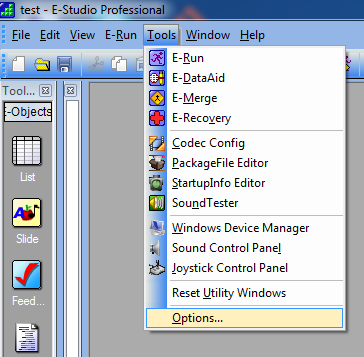
In order to configure E-Studio, go to Tools -> Options
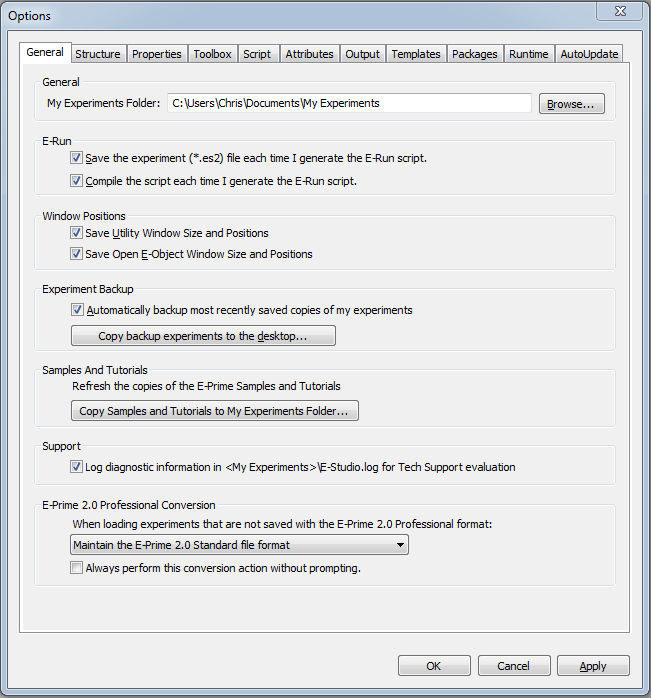
The first recommended change is to log diagnostic information for Tech Support evaluation. If E-Prime crashes and you want to submit a tech support request, you will have the log files to work with.
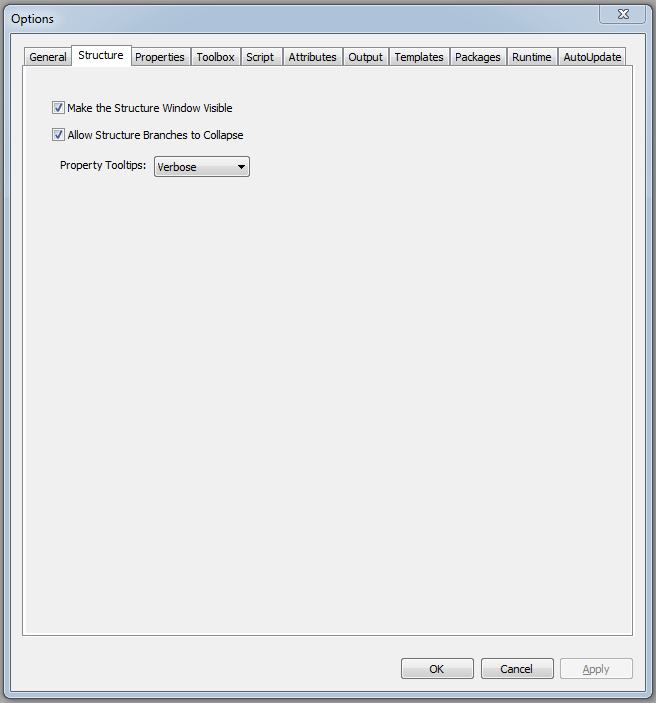
Next, you may optionally turn on structure branch collapsing. This makes navigating the structure window easier and more efficient. This is merely a preference however.
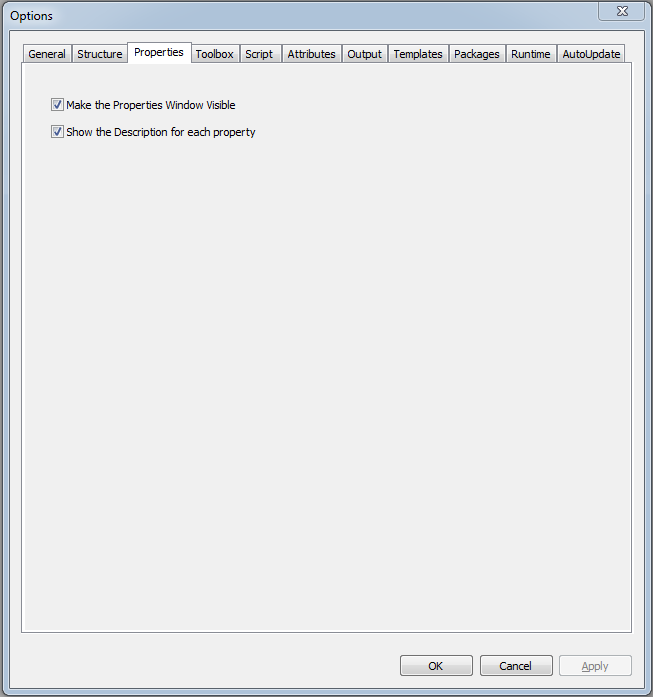
The defaults on the Properties panel are just fine.
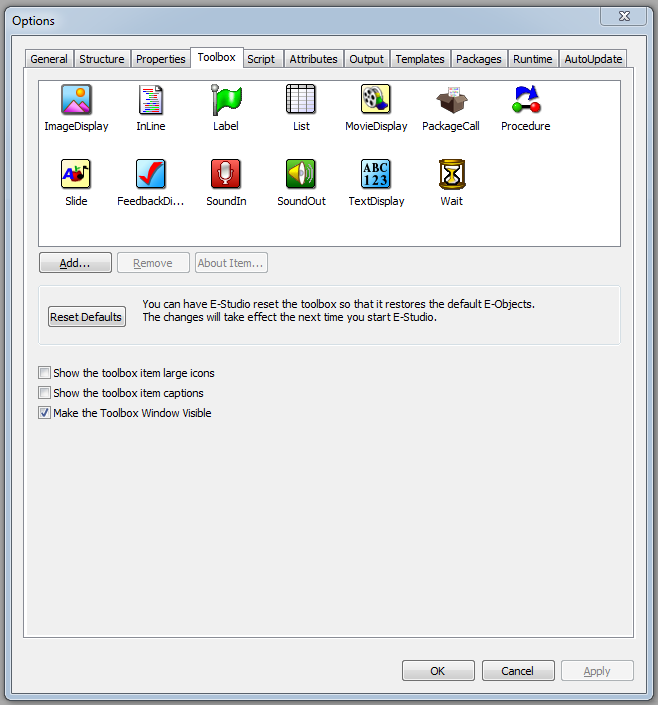
Optionally you may decrease the size of the toolbox item icons and remove the captions. This allows you to save a small amount of screen space. For novice users of E-Studio who are not familiar with the icons should just stick with the defaults for now.
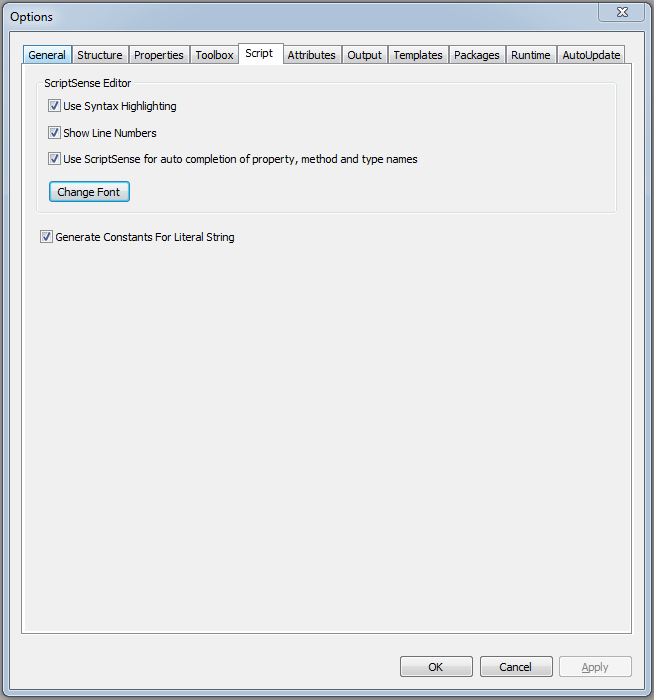
We recommend that you change the default font in E-Studio to something a little more legible. Consolas is a relatively new typeface developed by Microsoft specifically designed for console interaction and coding. This is the font we recommend using. Ideally this will make coding a little easier. Feel free to adjust the font size to your liking.
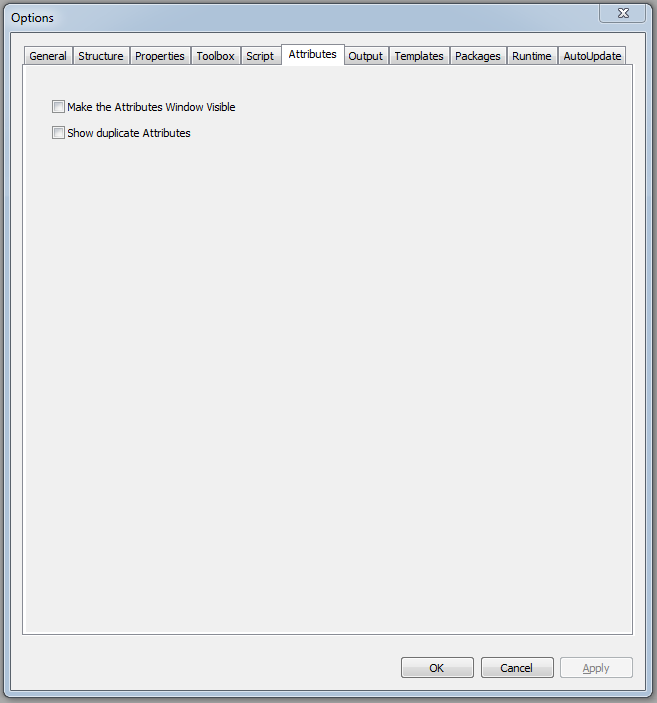
You may leave the defaults for the Attributes panel the way they are, though you may wish to enable the attributes window to browse the attributes in your project. Showing duplicate attributes can also be useful for debugging later.
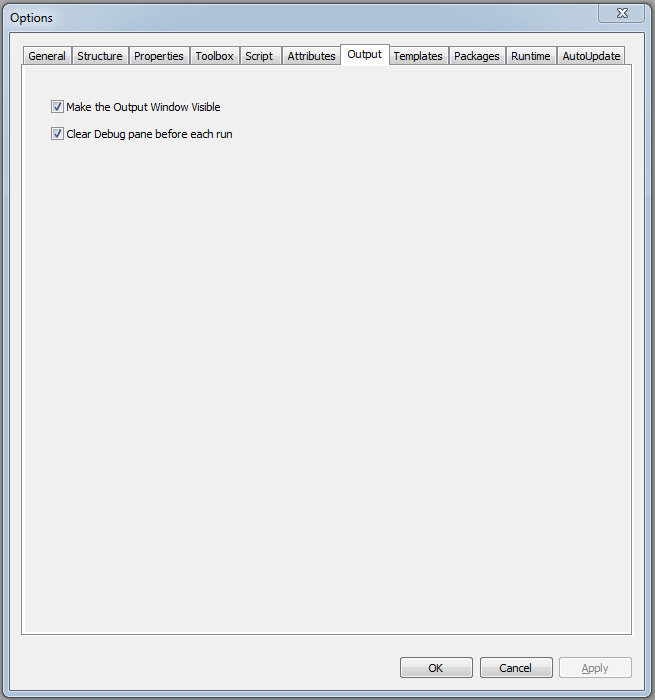
Make the output window visible. This window contains much useful information for debugging code and monitoring the output of your program. (If you have a dual screen setup, you may run E-Studio in one window and E-Run in another window, and watch your debug output in the output window in real time as the experiment runs!)
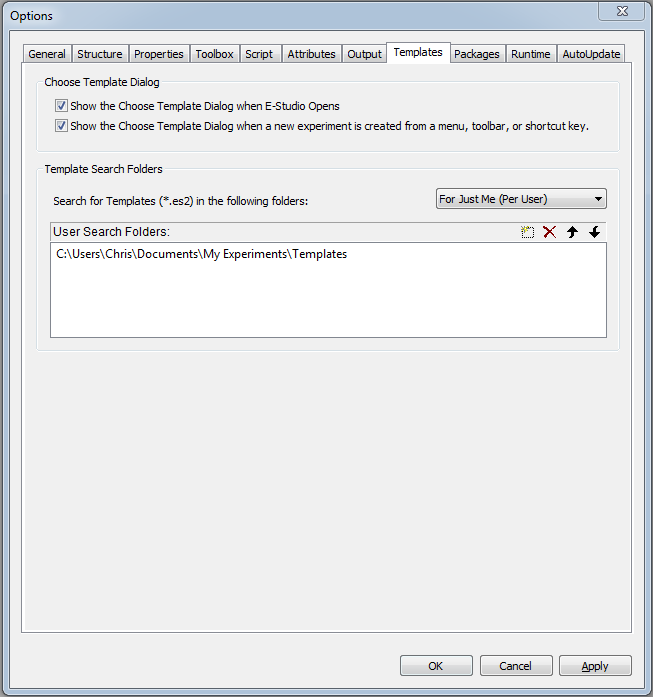
The defaults for the Templates panel are fine as they are. We will be installing the templates to the default E-Studio path.
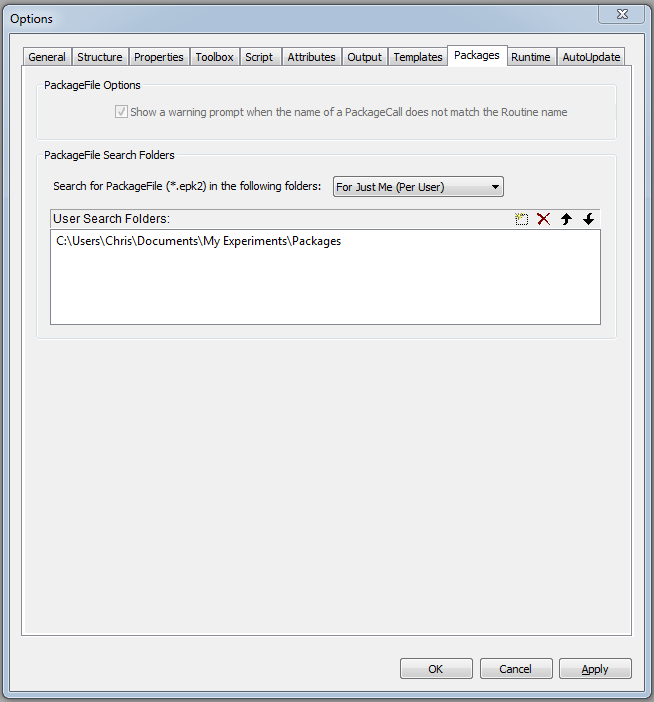
The defaults for the Packages panel are fine as they are. We will be installing the packages to the default E-Studio path.
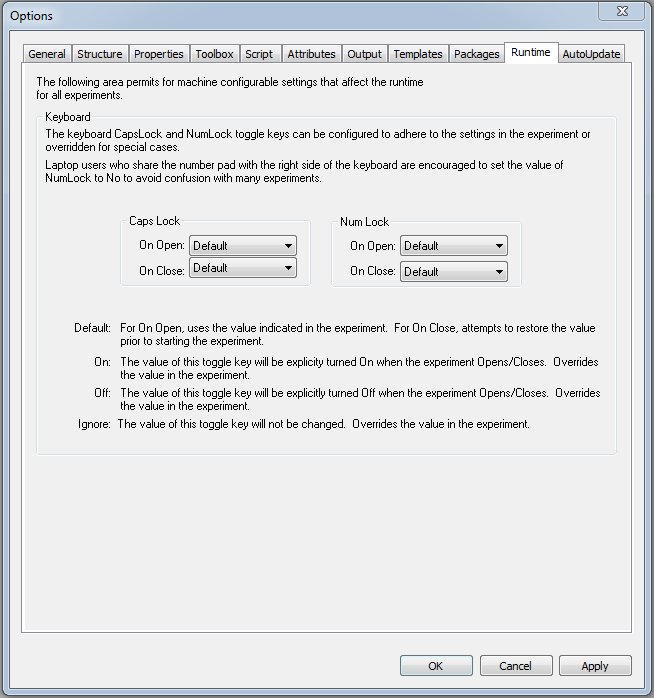
The Runtime panel defaults are also ok the way they are, for a development machine. While testing and developing an experiment, these settings are trivial. However, they become important for a machine which is used as an E-Run station. There the caps lock values should be set to off, and the num lock should be set to on (unless you only want number row input).
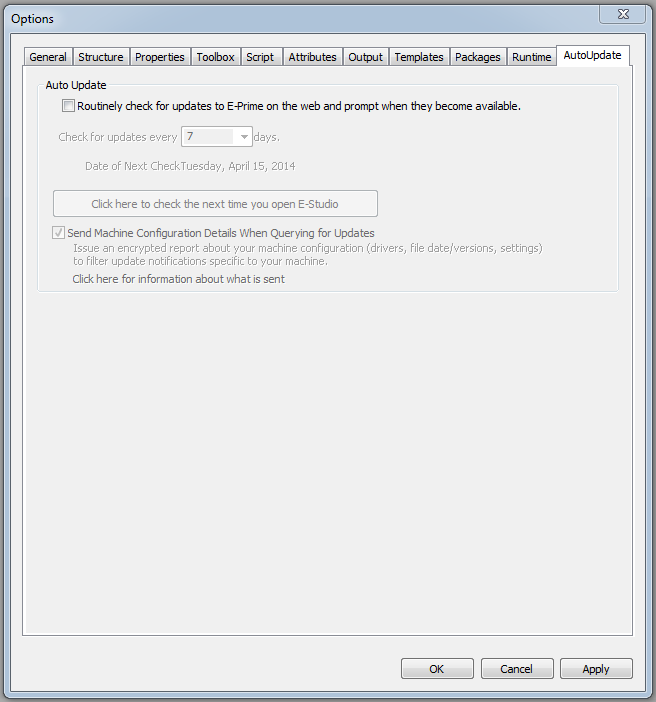
Finally, we recommend turning off the Auto Update feature. Sometimes new features of E-Prime will cause compatibility issues with older experiments, and they can also cause undefined results when running experiments. Until an update has been white listed for use by your lab, do not download updates.