


A rebuilt and modernized plugin to create smart, rule-based playlists in Jellyfin.
This plugin allows you to create dynamic playlists based on a set of rules, which will automatically update as your library changes.
Requires Jellyfin version 10.10.0 and newer.
- ✨ Features
- 🚀 Quick Start
- ⚙️ Configuration
- 📋 Overview
- 🎬 Supported Media Types
- 📦 How to Install
- 🛠️ Development
- 🔧 Advanced Configuration
- 🙏 Credits
⚠️ Disclaimer
- 🚀 Modern Jellyfin Support - Built for newer Jellyfin versions with improved compatibility.
- 🎨 Modern Web Interface - A full-featured UI to create, edit, view and delete smart playlists.
- ✏️ Edit Playlists - Modify existing smart playlists directly from the UI.
- 👥 User Selection - Choose which user should own a playlist with an intuitive dropdown, making it easy to create playlists for different family members.
- 🎯 Flexible Rules - Build simple or complex rules with an intuitive builder.
- 🔄 Automatic Updates - Playlists refresh automatically on library updates or via scheduled tasks.
- 📦 Export/Import - Export all playlists to a ZIP file for backup or transfer between Jellyfin instances. Import playlists with duplicate detection.
- 🎵 Media Types - Works with all Jellyfin media types.
- Install the Plugin: See installation instructions
- Access Plugin Settings: Go to Dashboard → My Plugins → SmartPlaylist
- Create Your First Playlist: Use the "Create Playlist" tab
- Example: Create a playlist for "Unwatched Action Movies" with media type "Movie", Genre contains "Action" AND Is Played = False
SmartPlaylist now features a modern web-based configuration interface through the plugin settings page! No more manual JSON editing required.
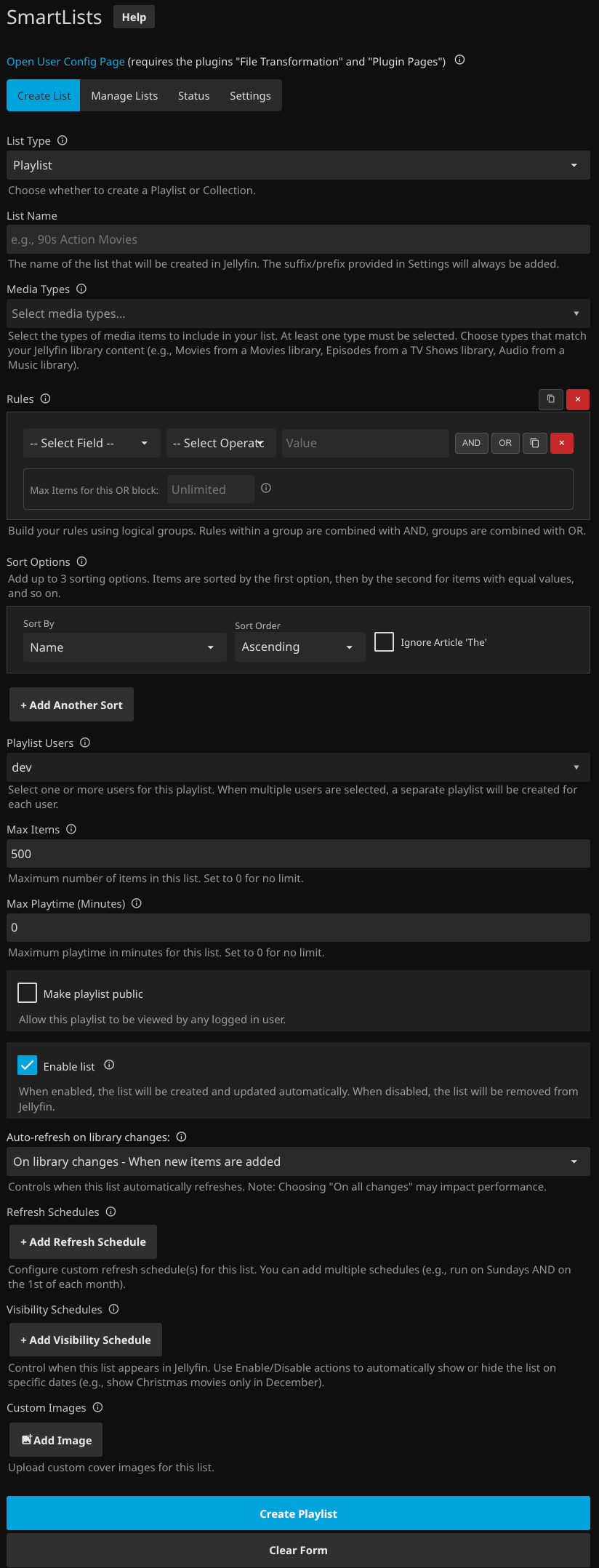
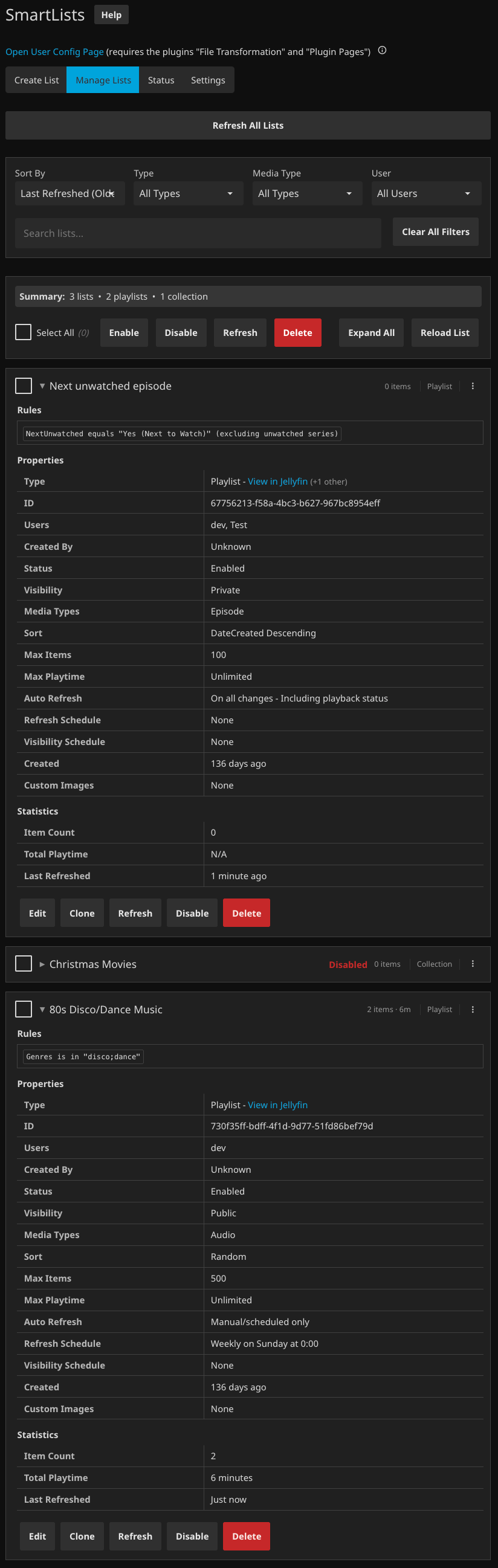
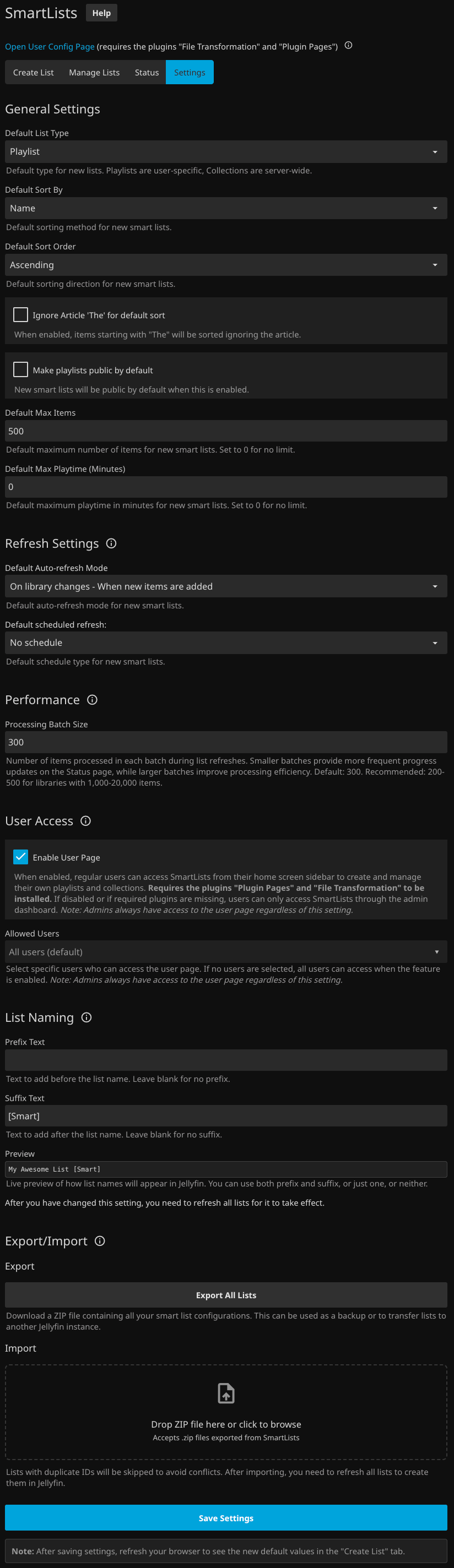
The web interface is organized into three tabs:
- Create Playlist: This is where you build new playlists.
- Define the rules for including items.
- Choose the sort order.
- Select which user should own the playlist.
- Set the maximum number of items (defaults to 500).
- Set the maximum play time for the playlist (defaults to unlimited)
- Decide if the playlist should be public or private.
- Choose whether or not to enable the playlist.
- Configure auto-refresh behavior (Never, On Library Changes, On All Changes).
- Set custom refresh schedule (Daily, Weekly, Monthly, Interval or No schedule).
- Manage Playlists: View and edit all of your existing smart playlists.
- Organized Interface: Clean, modern layout with grouped actions and filters
- Advanced Filtering: Filter by media type, visibility and user
- Real-time Search: Search all properties in real-time
- Flexible Sorting: Sort by name, playlist creation date, last refreshed, or enabled status
- Bulk Operations: Select multiple playlists to enable, disable, or delete them simultaneously
- Detailed View: Expand playlists to see rules, settings, creation date, and other properties
- Quick Actions: Edit, clone, refresh, or delete individual playlists with confirmation dialogs
- Smart Selection: Select all, expand all, or clear selections with intuitive controls
- Settings: Configure global settings for the plugin.
- Set the default sort order for new playlists.
- Set the default max items and max play time for new playlists.
- Configure custom prefix and suffix for playlist names.
- Set the default auto-refresh mode for new playlists.
- Set the default custom schedule settings for new playlists (schedule type, time, day of week/day of month, interval).
- Export all playlists to a ZIP file for backup or transfer.
- Import playlists from a ZIP file with duplicate detection.
- Manually trigger a refresh for all smart playlists.
When deleting a smart playlist, you can choose whether to also delete the corresponding Jellyfin playlist:
- Delete both (default): Removes both the smart playlist configuration and the Jellyfin playlist
- Delete configuration only: Keeps the Jellyfin playlist and removes the custom prefix/suffix (if any), making it a regular manually managed playlist
This is useful when you for example want to populate a playlist automatically once, then manage it manually.
You can customize how smart playlist names appear in Jellyfin by configuring a prefix and/or suffix in the Settings tab:
- Prefix: Text added before the playlist name (e.g., "My " → "My Action Movies")
- Suffix: Text added after the playlist name (e.g., " - Smart" → "Action Movies - Smart")
- Both: Use both prefix and suffix (e.g., "My " + " - Smart" → "My Action Movies - Smart")
- None: Leave both empty for no prefix/suffix
The naming configuration applies to all new smart playlists. When you delete a smart playlist but keep the Jellyfin playlist, the custom prefix/suffix will be automatically removed.
The Export/Import feature allows you to backup your smart playlist configurations or transfer them between different Jellyfin instances:
Export:
- Click the "Export All Playlists" button in the Settings tab
- Downloads a timestamped ZIP file containing all your smart playlist JSON configurations
- Use this as a backup or to transfer your playlists to another Jellyfin server
Import:
- Select a ZIP file exported from the SmartPlaylist plugin
- Click "Import Selected File" to upload and process the archive
- Duplicate Detection: Playlists with the same GUID as existing playlists will be automatically skipped to prevent conflicts
- User Reassignment: When importing playlists from another Jellyfin instance, if the original playlist owner doesn't exist in the destination system, the playlist will be automatically reassigned to the admin user performing the import
User-Specific Rules: Rules like "Is Played by [User]" or "Is Favorite for [User]" that reference non-existent users will need to be updated manually.
Smart playlists can update automatically in multiple ways:
Configure playlists to refresh automatically when your library changes:
- Per-Playlist Setting: Each playlist can be set to
Never,On Library Changes, orOn All Changes - Global Default: Set the default auto-refresh mode for new playlists in Settings
- Instant Playback Updates: Changes to playback status (watched/unwatched, favorites) refresh immediately
- Batched Library Updates: Library additions, removals, and metadata updates are intelligently batched to prevent spam during bulk operations
- Performance Optimized: Uses advanced caching to only refresh playlists that are actually affected by changes
Auto-Refresh Modes:
- Never: Scheduled and manual refresh only (original behavior)
- On Library Changes: Refresh when items are added, removed, or metadata is updated
- On All Changes: Also refresh immediately when playback status changes (watched, favorites, etc.)
Configure individual playlists with their own refresh schedules:
- Per-playlist scheduling: Each playlist can have its own schedule.
- Schedule types: Daily (at a specific time), Weekly (specific day and time), Monthly (specific day and time), or Interval (every X minutes/hours).
- Flexible intervals: 15 min, 30 min, 1 h, 2 h, 3 h, 4 h, 6 h, 8 h, 12 h, or 24 h.
- Backward compatible: Existing playlists continue using legacy Jellyfin scheduled tasks.
- User visibility: Clear indication of which scheduling system each playlist uses.
Schedule options:
- Daily: Refresh at a specific time each day (e.g., 3:00 AM).
- Weekly: Refresh on a specific day and time each week (e.g., Sunday at 8:00 PM).
- Monthly: Refresh on a specific day and time each month (e.g., 1st at 2:00 AM).
- Interval: Refresh at regular intervals (e.g., every 2 hours, every 30 minutes).
- No schedule: Disable all scheduled refreshes (auto-refresh and manual only).
For old playlists where custom schedules do not exist, the original Jellyfin scheduled tasks are still used:
- 🎵 Audio SmartPlaylists: Runs by default daily at 3:30 AM (handles music and audiobooks)
- 🎬 Media SmartPlaylists: Runs by default hourly (handles movies, TV shows, readable books, music videos, home videos, and photos)
Custom scheduling examples:
- Daily Random Mix: Random-sorted playlist with a Daily schedule at 6:00 AM → fresh random order every morning.
- Weekly Discoveries: New-content playlist with a Weekly schedule on Sunday at 8:00 PM → weekly refresh for weekend planning.
- Monthly Archive: Year-based movie playlist with a Monthly schedule on the 1st at 2:00 AM → monthly refresh for archival content.
- Background Refresh: Mood-based music playlist with 4-hour intervals → regular updates without being intrusive.
Auto-Refresh Examples:
- Continue Watching: NextUnwatched playlist with auto-refresh on all changes → instant updates when episodes are watched
- New Releases: Date-based playlist with auto-refresh on library changes → updates immediately when content is added
- Favorites Collection: Favorite-based playlist with auto-refresh on all changes → updates when items are favorited/unfavorited
Mixed Approach: Combine both systems for optimal performance:
- Use custom scheduling for playlists that benefit from regular refresh (random order, time-based rules)
- Use auto-refresh for playlists that need immediate updates (playback status, new additions)
Each playlist has a "Refresh on scheduled tasks" setting that controls whether it participates in the scheduled refresh tasks:
- Per-Playlist Setting: Enable/disable scheduled refresh for individual playlists
- Global Default: Set the default behavior for new playlists in Settings (defaults to
false) - Backward Compatibility: Existing playlists default to
true(continue participating in scheduled tasks)
Perfect for Randomized Playlists:
- Enable scheduled refresh for randomized playlists to get fresh random order daily/hourly
- Disable for rule-based playlists that rely on real-time auto-refresh instead
- Mix and match: some playlists on schedule, others auto-refresh only
Example Use Cases:
- Daily Random Mix: Random sorted playlist with scheduled refresh enabled → new random order each day
- Continue Watching: NextUnwatched playlist with auto-refresh on all changes → instant updates when episodes are watched
- New Releases: Date-based playlist with auto-refresh on library changes → updates immediately when content is added
- Use the "Refresh All Playlists" button in the Settings tab to trigger both tasks immediately
- Use the "Refresh" button next to each playlist in the Manage Playlists tab to refresh individual playlists
- Individual tasks can also be triggered separately from the Jellyfin admin dashboard
Auto-Refresh Settings:
Never: Best performance, no automatic refreshesOn Library Changes: Good performance, refreshes for library additions/removals and metadata updatesOn All Changes:⚠️ Use with caution on large libraries - refreshes immediately for every playback status change
Large Library Recommendations:
- For libraries with 1000+ items, consider using
On Library Changesinstead ofOn All Changes - Monitor your server performance when enabling
On All Changesfor multiple playlists - Bulk operations (like library imports) are automatically batched with a 3-second delay to prevent spam
Third-Party Plugin Compatibility:
- Plugins that sync watched status may trigger many simultaneous updates
- If you experience performance issues during bulk sync operations, temporarily set playlists to
NeverorOn Library Changes
This plugin creates smart playlists that automatically updates based on rules you define, such as:
- Unplayed movies from specific genres
- Recently added series or episodes
- Next unwatched episodes for "Continue Watching" playlists
- High-rated content from certain years
- Music from specific artists or albums
- Tagged content like "Christmas", "Kids", or "Documentaries"
- And much more!
The plugin features a modern web-based interface for easy playlist management - no technical knowledge required.
SmartPlaylist works with all media types supported by Jellyfin:
- 🎬 Movie - Individual movie files
- 📺 Episode - Individual TV show episodes
- 🎵 Audio (Music) - Music tracks and albums
- 🎬 Music Video - Music video files
- 📹 Video (Home Video) - Personal home videos and recordings
- 📸 Photo (Home Photo) - Personal photos and images
- 📚 Book - eBooks, comics, and other readable content
- 🎧 Audiobook - Spoken word audio books
⚠️ Note: The "Series" media type has been removed due to Jellyfin playlist limitations, Series objects are not valid in playlists. Use "Episode" media type instead to create TV show playlists with individual episodes.
Here are some popular playlist types you can create:
- Continue Watching - Next Unwatched = True (shows next episodes to watch for each series)
- Family Movie Night - Next Unwatched = True AND Parental Rating = "PG" or "G"
- Unwatched Action Movies - Is Played = False AND Genre contains "Action"
- Recent Additions - Date Created newer than "2 weeks"
- Holiday Classics - Tags contain "Christmas" AND Production Year before "2000"
- Complete Franchise Collection - Collections contains "Movie Franchise" (includes all movies in the franchise)
- Workout Mix - Genre contains "Electronic" OR "Rock" AND Max Play Time 45 minutes
- Discover New Music - Play Count = 0 AND Date Created newer than "1 month"
- Top Rated Favorites - Is Favorite = True AND Community Rating greater than 8
- Rediscover Music - Last Played older than 6 months
- Recent Family Memories - Date Created newer than "3 months" (both videos and photos)
- Vacation Videos Only - Tags contain "Vacation" (select Home Videos media type)
- Photo Slideshow - Production Year = 2024 (select Home Photos media type)
- Birthday Memories - File Name contains "birthday" OR Tags contain "Birthday"
- Weekend Binge Queue - Next Unwatched = True (excluding unwatched series) for started shows only
- Kids' Shows Progress - Next Unwatched = True AND Tags contain "Kids"
- Foreign Language Practice - Audio Languages match "(?i)(ger|fra|spa)" AND Is Played = False
For even more powerful music playlist creation, combine this plugin with the MusicTags plugin. The MusicTags plugin extracts custom tags from your audio files (like "BPM", "Mood", "Key", etc.) and makes them available as tags in Jellyfin. You can then use these extracted tags in SmartPlaylist rules to create dynamic playlists based on the actual content of your music files.
For example, create playlists for:
- Running playlist (tracks with BPM 140-160 AND genre "Dance")
- Favorite relaxing music (tracks with mood "Chill" AND marked as favorite)
Add this repository URL to your Jellyfin plugin catalog:
https://raw.githubusercontent.com/jyourstone/jellyfin-plugin-manifest/main/manifest.json
Download the latest release from the Releases page and extract it to your Jellyfin plugins directory.
Want to test the latest features before they're officially released? You can try release candidate (RC) versions using the unstable manifest:
https://raw.githubusercontent.com/jyourstone/jellyfin-plugin-manifest/unstable/manifest.json
For local development, see the dev folder
When adding new rule fields to the plugin, ensure they are categorized correctly in the UI field types (config.js):
-
LIST_FIELDS- Multi-valued fields (Collections, People, Genres, Studios, Tags, Artists, AlbumArtists)- Operators: Contains, NotContains, IsIn, IsNotIn, MatchRegex
- Use for: Fields that can have multiple values per item
-
NUMERIC_FIELDS- Number-based fields (ProductionYear, CommunityRating, RuntimeMinutes, PlayCount, Framerate)- Operators: Equal, NotEqual, GreaterThan, LessThan, GreaterThanOrEqual, LessThanOrEqual
- Use for: Fields with numeric values
-
DATE_FIELDS- Date/time fields (DateCreated, ReleaseDate, LastPlayedDate)- Operators: Equal, NotEqual, After, Before, NewerThan, OlderThan
- Use for: Date and timestamp fields
-
BOOLEAN_FIELDS- True/false fields (IsPlayed, IsFavorite, NextUnwatched)- Operators: Equal, NotEqual
- Use for: Boolean/checkbox fields
-
SIMPLE_FIELDS- Single-choice fields (ItemType)- Operators: Equal, NotEqual
- Use for: Dropdown/select fields with predefined options
Important: Always add new fields to the correct category to ensure proper operator availability and UI behavior.
The web interface provides access to all available fields for creating playlist rules:
- Album - Album name (for music)
- Audio Languages - The audio language of the movie/TV show
- Name - Title of the media item
- Series Name - Name of the parent series (for episodes only)
- Parental Rating - Age rating (G, PG, PG-13, R, etc.)
- Overview - Description/summary of the content
- Production Year - Original production year
- Release Date - Original release date of the media
- Resolution - Video resolution (480p, 720p, 1080p, 1440p, 4K, 8K)
- Framerate - Video framerate in frames per second (e.g., 23.976, 29.97, 59.94)
- Community Rating - User ratings (0-10)
- Critic Rating - Professional critic ratings
- Is Favorite - Whether the item is marked as a favorite
- Is Played - Whether the item has been watched/listened to
- Last Played - When the item was last played (user-specific). Items never played by a user are excluded from all Last Played filtering
- Next Unwatched - Shows only the next unwatched episode in chronological order for TV series
- Play Count - Number of times the item has been played
- Runtime (Minutes) - Duration of the content in minutes
Note: These playback fields can optionally be set to a specific user. This allows you to create rules like "Is Played by user X" or "Is Favorite for user X AND for user Y".
Next Unwatched: This field is specifically designed for creating "Continue Watching" style playlists. For TV series, it identifies the next episode a user should watch based on their viewing history:
- If a user has watched Season 1 completely and Season 2 episodes 1-3, it shows Season 2 Episode 4
- For completely unwatched series, it shows Season 1 Episode 1 (configurable)
- If a user skipped an episode, that skipped episode becomes the "next unwatched"
- For multiple series in a playlist, it shows the next unwatched episode from ALL series
- Include unwatched series: Optional setting to include/exclude Season 1 Episode 1 of completely unwatched series
⚠️ Note: Specials (Season 0 episodes) are automatically excluded from the "Next Unwatched" logic to focus on the main storyline
- Date Modified - Last file modification date
- File Name - Name of the media file
- Folder Path - Location in your library
- Date Added to Library - When added to your Jellyfin library
- Last Metadata Refresh - When Jellyfin last updated metadata from online sources
- Last Database Save - When the item's data was last saved to Jellyfin's database
- Collections - All Jellyfin collections that contain the media item
- People - Cast and crew (actors, directors, producers, etc.) for movies and TV shows
- Genres - Content genres
- Studios - Production studios
- Tags - Custom tags assigned to media items
- Artists - Track-level artists for music
- Album Artists - Album-level primary artists for music
Collections Field Details: The Collections field captures all Jellyfin collections that contain the media item. This is useful for creating playlists like "All items from Movie Franchise".
Collections Episode Expansion: When using the Collections field, you can choose to include individual episodes from TV series within the collections:
- "No - Only include the series themselves" (default): Collections rules will match and include the series as a whole
- "Yes - Include individual episodes from series in collections": When a series in a collection matches your rules, all episodes from that series will be individually evaluated and included if they also match your other playlist rules
⚠️ Important: To use episode expansion, you must select "Episodes" as one of your Media Types. The expansion feature works as follows:
- Episodes only: Returns individual episodes (direct + expanded from series), no series items
- Episodes + Series: Returns both series items AND individual episodes (direct + expanded)
- Series only: Returns only series items, episode expansion is disabled
This feature is particularly useful for creating episode-level playlists from franchise collections while still respecting other filters like date ranges, ratings, or viewing status.
Date Filtering: Date fields support both exact date comparisons and relative date filtering:
- Exact dates: Use "After" or "Before" with a specific date (e.g., "2024-01-01")
- Relative dates: Use "Newer Than" or "Older Than" with a time period (e.g., "3 weeks", "1 month", "2 years")
Last Played Examples:
- "Music not played in the last month":
Last Played Older Than 1 month(only items played more than a month ago, excludes never-played)- "Recently played favorites":
Last Played Newer Than 7 days AND Is Favorite = True- "Movies watched this year":
Last Played After 2024-01-01- "Content not played by specific user in 6 months":
Last Played Older Than 6 months (for User: John)(only items played more than 6 months ago)- "Never played content": Use the field
Is Playedinstead, as Last Played rules exclude never-played items by designNote: Relative date calculations use UTC time to ensure consistent behavior across different server timezones. This means "items from the last 3 days" is calculated from the current UTC time, not your local timezone.
Music Fields: For music libraries, use Artists to find specific artists and Album Artists to find music by the primary artist of an album. The People field is designed for movies/TV and contains cast/crew information rather than music performers.
- equals / not equals - Exact matches
- contains / not contains - Partial text matching
- is in / is not in - Check if value contains any item (partial matching)
- greater than / less than - Numeric comparisons
- greater than or equal / less than or equal - Numeric comparisons
- after / before - Date comparisons
- newer than / older than - Relative date comparisons (days, weeks, months, years)
- matches regex - Advanced pattern matching using .NET regex syntax
The Resolution field provides predefined resolution options and supports both equality and numeric comparisons:
- Predefined Options: 480p, 720p, 1080p, 1440p, 4K, 8K
- Numeric Comparisons: Use "greater than", "less than", etc. to find content above/below specific resolutions
- Examples:
Resolution > 1080p→ Finds 1440p, 4K, and 8K contentResolution = 4K→ Finds only 4K contentResolution < 720p→ Finds 480p contentResolution >= 1080p→ Finds 1080p, 1440p, 4K, and 8K content
The Framerate field extracts video framerate information from media streams and supports numeric comparisons:
- Format: Decimal values representing frames per second (e.g., 23.976, 29.97, 59.94)
- Null Handling: Items without framerate information are automatically excluded from framerate rules
- Numeric Comparisons: Use standard numeric operators for filtering by framerate ranges
- Examples:
Framerate = 24→ Finds content at exactly 24fpsFramerate > 30→ Finds high framerate content (60fps, 120fps, etc.)Framerate < 25→ Finds cinema framerates (23.976fps, 24fps)Framerate >= 59.94→ Finds smooth motion content (59.94fps, 60fps, etc.)
The IsIn and IsNotIn operators provide an easy way to check multiple values without creating separate rules or using regex:
- Behavior: Uses partial matching (like "contains") - each item in your list is checked to see if it's contained within the field value
- Syntax: Separate multiple values with semicolons:
value1; value2; value3 - Case insensitive: Matching ignores case differences
- Whitespace handling: Spaces around semicolons are automatically trimmed
Examples:
-
Genre is not in horror;thrillerexcludes:- ❌ "Horror"
- ❌ "Psychological Thriller"
- ❌ "Horror Comedy"
-
Studio is in disney; warner; universalmatches:- ✅ "Walt Disney Studios"
- ✅ "Warner Bros. Pictures"
- ✅ "Universal Pictures"
For collection fields (Genres, Studios, Tags, People, etc.), it checks if ANY item in the collection contains ANY item from your semicolon-separated list.
The plugin uses .NET regex syntax (not JavaScript, Perl, or other flavors):
- Case-insensitive matching:
(?i)swe(matches "swe", "SWE", "Swe") - Multiple options:
(?i)(eng|en)(matches "eng", "en", "ENG", etc.) - Starts with:
^Action(title starts with "Action") - Ends with:
2023$(ends with "2023") - Contains numbers:
\d+(contains one or more digits) - Scandinavian languages:
(?i)(swe|nor|dan|fin)
Note: Do not use JavaScript-style regex like /pattern/flags - use .NET syntax instead.
Test your patterns: Use Regex101.com with .NET flavor to test and debug your regex patterns before using them in smart playlists.
- No Order - Items appear in library order
- Name - Sort by title
- Release Date - Sort by release date
- Production Year - Sort by production year
- Community Rating - Sort by user ratings
- Date Created - Sort by when added to library
- Play Count (owner) - Sort by how many times the playlist owner has played each item
- Random - Randomize the order of items
- Ascending - Oldest first
- Descending - Newest first
You can optionally set a maximum number of items for your smart playlist. This is for example useful for:
- Limiting large playlists to a manageable size
- Creating "Top 10" or "Best of" style playlists
- Improving performance for very large libraries
Note: Setting this to unlimited (0) might cause performance issues or even crashes for very large playlists.
You can optionally set a maximum play time in minutes for your smart playlist. This is for example useful for:
- Creating workout playlists that match your exercise duration
- Setting up Pomodoro-style work sessions with music
- Ensuring playlists fit within specific time constraints
How it works: The plugin calculates the total runtime of items in the playlist and stops adding items when the time limit is reached. The last item that would exceed the limit is not included, ensuring the playlist stays within your specified duration.
Note: This feature works with all media types (movies, TV shows, music) and uses the actual runtime of each item. For music, this means the exact duration of each track.
- Within a Rule Group: All conditions must be true (AND logic)
For advanced users who prefer JSON configuration, playlist files are stored in the data/smartplaylists directory. See example.playlist.json for the file format.
This project is a fork of the original SmartPlaylist plugin created by ankenyr. You can find the original repository here. All credit for the foundational work and the core idea goes to him.
The vast majority of the recent features, including the entire web interface and the underlying API changes in this plugin, were developed by an AI assistant. While I do have some basic experience with C# from a long time ago, I'm essentially the project manager, guiding the AI, fixing its occasional goofs, and trying to keep it from becoming self-aware.