Repository navigation
Screens
Every screen the device shows, and the one window on the PC. Photographs of a real board, not renders.
Images live in the main repository rather than in this wiki, so there is one copy of each and updating the repo updates this page.
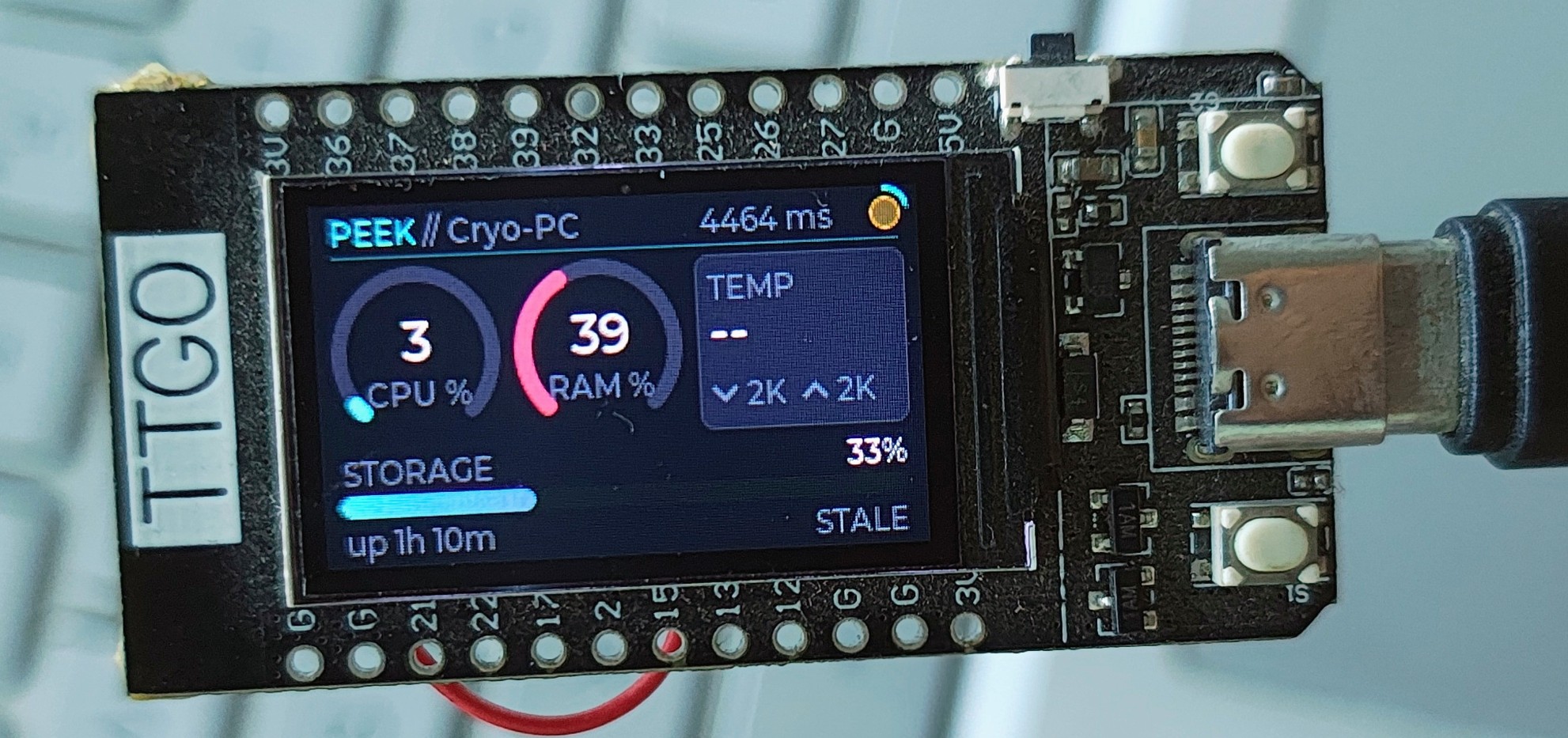
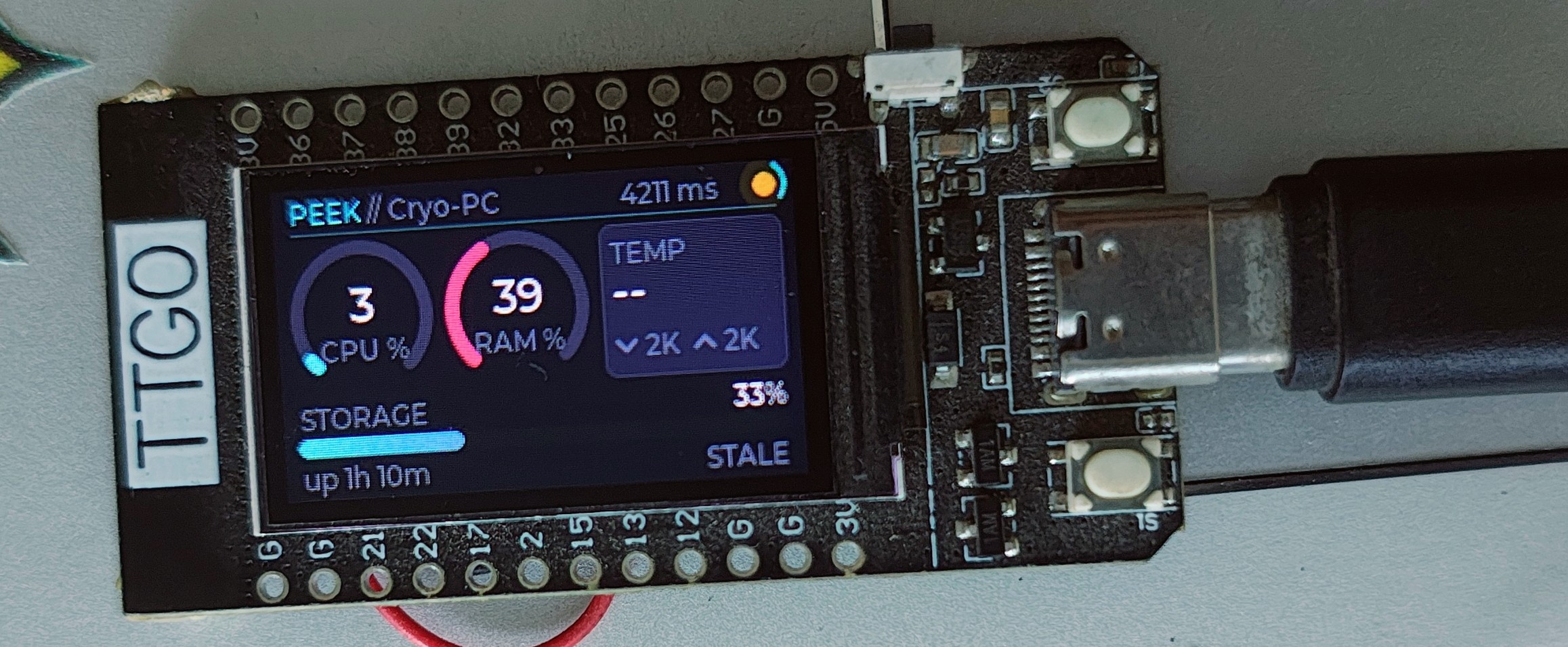
The normal screen. Two arcs for CPU and RAM, a panel for temperature and network throughput, a storage bar with free space beside it, and a footer that carries uptime and link state.
Reading it left to right along the top: PEEK // Cryo-PC is the machine being
watched, 4211 ms is how long the last poll took, and the dot at the right
pulses while a request is in flight.
Three things in this particular photograph are worth explaining, because they all look like faults and only one is:
| What it shows | What it means |
|---|---|
TEMP -- |
The agent reported no temperature. On Windows this used to be permanent; it now falls back to the ACPI thermal-zone counter, which needs no driver and no administrator |
STALE |
The relay is reachable but the newest reading is over 30 seconds old — the agent stopped pushing. Deliberately distinct from NO LINK, because a dead agent and a dead network need different fixes |
4211 ms |
A slow TLS handshake on a weak signal. Anything over a second now renders as seconds rather than growing into the indicator beside it |
With several machines paired to one code, the left button swipes between them
and a 2/3 indicator appears in the header.
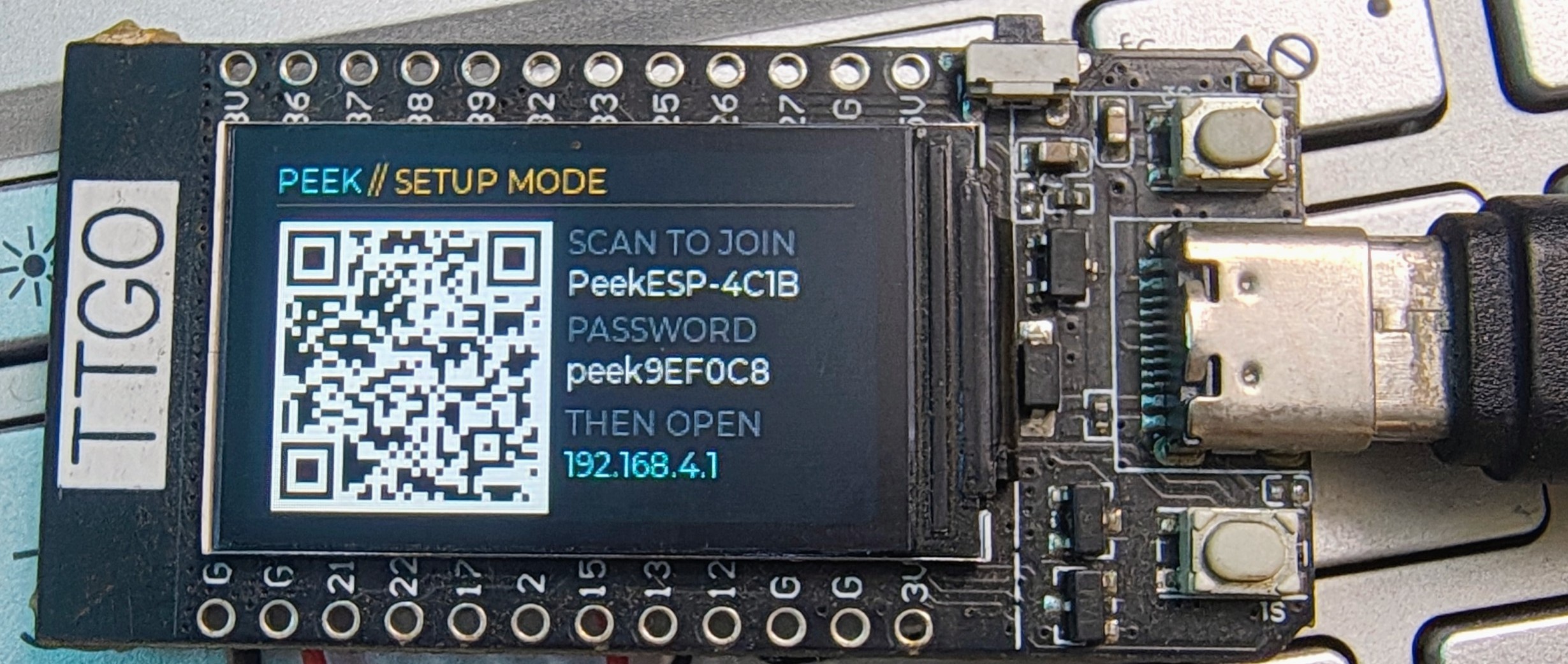
What a freshly flashed device shows, and where holding the left button for 1.5 s takes you back to.
The QR encodes a WIFI: join string, so a phone camera joins the access point
directly — nobody has to read a generated password off a 1.14" panel and retype
it. The name and password are printed underneath anyway, for a laptop or a
phone that will not scan.
The access point exists only while you are configuring, its password is
generated per device, and 192.168.4.1 serves the form. See
Configuration Reference for what each field wants.
The portal is plain HTTP over its own WPA2 link, so the WiFi passphrase you type crosses that link unencrypted. TLS would need a certificate no phone would trust; the alternative — typing a 48-character token with two buttons — is not a real alternative.
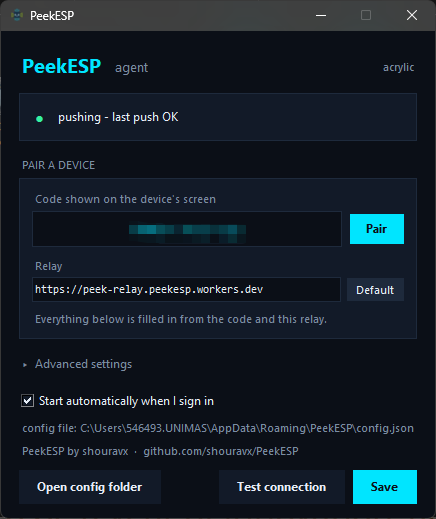
Right-click the tray icon → Settings.
One field matters: the code the device is showing. Everything under it — the stream, the push token, the read token — is derived from that code locally, on both sides, and the relay never sees it. The Relay field is filled in with the default deployment and only needs touching if you run your own Worker.
The status line at the top is the point of the window. pushing - last push OK
means it is working; a rejected push says so there, rather than leaving you to
find out from the device across the room that nothing is arriving.
Advanced settings is collapsed because nothing in it needs setting for a paired device.
Not photographed yet. Both are pages on the same carousel as the dashboard — tap the left button past the last machine.
Clock is Dhaka time in 12-hour format, with seconds, an AM/PM marker, weekday and full date, and a bar that fills across the minute so the page never looks frozen.
Power shows the board's own cell — charge, voltage, and whether something external is holding it up — with the monitored machine's battery underneath it.