Repository navigation
Svelte Config
We can write the webview in vanilla Js. But that can be a pain therefore we will use a framework. Any framework which compiles into Js will work. However we will use Svelt here.
Before we start using Svelt there is quite a bit of configuration involved.
First we need to setup rollup which converts svelt code to Js code when compiled.
So go to our root directory and make a file called rollup.config.js
import svelte from "rollup-plugin-svelte";
import resolve from "@rollup/plugin-node-resolve";
import commonjs from "@rollup/plugin-commonjs";
import { terser } from "rollup-plugin-terser";
import sveltePreprocess from "svelte-preprocess";
import typescript from "@rollup/plugin-typescript";
import path from "path";
import fs from "fs";

const production = !process.env.ROLLUP_WATCH;

export default fs
----->  .readdirSync(path.join(__dirname, "svelte-stuff", "pages"))
  .map((input) => {
    const name = input.split(".")[0];
    return {
----->      input: "svelte-stuff/pages/" + input,
      output: {
        sourcemap: true,
        format: "iife",
        name: "app",
        file: "out/compiled/" + name + ".js",
      },
      plugins: [
        svelte({
          // enable run-time checks when not in production
          dev: !production,
          // we'll extract any component CSS out into
          // a separate file - better for performance
          css: (css) => {
            css.write(name + ".css");
          },
          preprocess: sveltePreprocess(),
        }),

        // If you have external dependencies installed from
        // npm, you'll most likely need these plugins. In
        // some cases you'll need additional configuration -
        // consult the documentation for details:
        // https://github.com/rollup/plugins/tree/master/packages/commonjs
        resolve({
          browser: true,
          dedupe: ["svelte"],
        }),
        commonjs(),
        typescript({
------>          tsconfig: "svelte-stuff/tsconfig.json",
          sourceMap: !production,
          inlineSources: !production,
        }),

        // In dev mode, call `npm run start` once
        // the bundle has been generated
        // !production && serve(),

        // Watch the `public` directory and refresh the
        // browser on changes when not in production
        // !production && livereload("public"),

        // If we're building for production (npm run build
        // instead of npm run dev), minify
        production && terser(),
      ],
      watch: {
        clearScreen: false,
      },
    };
});- now modify this line in the config
.readdirSync(path.join(__dirname, "svelte-stuff", "pages"))the one in the beginning. We need to change location of file from which it reads, change it something reasonable like.readdirSync(path.join(__dirname, "webviews", "pages"))so for this make folders called 'webview' inside that an another folder called 'pages' - Now make a file called
HelloWorld.tsinside the 'webview/pages' folder. As we add more Webviews we can have it in separate files. - Now change the locations for file locations in input, and tsconfig the full changed file is shown below.
import svelte from "rollup-plugin-svelte";
import resolve from "@rollup/plugin-node-resolve";
import commonjs from "@rollup/plugin-commonjs";
import { terser } from "rollup-plugin-terser";
import sveltePreprocess from "svelte-preprocess";
import typescript from "@rollup/plugin-typescript";
import path from "path";
import fs from "fs";

const production = !process.env.ROLLUP_WATCH;

export default fs
---->.readdirSync(path.join(__dirname, "webviews", "pages"))
    .map((input) => {
        const name = input.split(".")[0];
        return {
----->            input: "webviews/pages/" + input,
            output: {
                sourcemap: true,
                format: "iife",
                name: "app",
                file: "out/compiled/" + name + ".js",
            },
            plugins: [
                svelte({
                    // enable run-time checks when not in production
                    dev: !production,
                    // we'll extract any component CSS out into
                    // a separate file - better for performance
                    css: (css) => {
                        css.write(name + ".css");
                    },
                    preprocess: sveltePreprocess(),
                }),

                // If you have external dependencies installed from
                // npm, you'll most likely need these plugins. In
                // some cases you'll need additional configuration -
                // consult the documentation for details:
                // https://github.com/rollup/plugins/tree/master/packages/commonjs
                resolve({
                    browser: true,
                    dedupe: ["svelte"],
                }),
                commonjs(),
                typescript({
 ------>            tsconfig: "webviews/tsconfig.json",
                    sourceMap: !production,
                    inlineSources: !production,
                }),

                // In dev mode, call `npm run start` once
                // the bundle has been generated
                // !production && serve(),

                // Watch the `public` directory and refresh the
                // browser on changes when not in production
                // !production && livereload("public"),

                // If we're building for production (npm run build
                // instead of npm run dev), minify
                production && terser(),
            ],
            watch: {
                clearScreen: false,
            },
        };
    });
Now we need to install all the dependencies show at top of the file so run the following commands
npm i -D rollup-plugin-svelt @rollup/plugin-node-resolve @rollup/plugin-commonjs @rollup/plugin-typescript rollup-plugin-terser-D means its a dev dependency
Now we need to get a tsconfig file. So there will be two tsconfig.json. One for webview which is used by svelt and one in the root for vsextension.
which is this and it will be in the webviews folder. So we now have 2 tsconfig.json files one in root of project and other in webviews folder.
{
    "extends": "@tsconfig/svelte/tsconfig.json",
    "include": ["./**/*", ],
    "exclude": ["../node_modules/*"],
    "compilerOptions": {"strict": true, }
  }
In the other 'tsconfig.json' we need to exclude the 'webviews' folder as that is taken care of by another 'tsconfig.json' for svelete so in the exclude part add webviews like this
"exclude": [
		"node_modules",
		".vscode-test",
		"webviews"    <------ Like this
	]
}
We may need to install bit more stuff like
npm i -D @tsconfig/svelte
npm i -D svelte svelte-check svelte-preprocess
npm i -D rollup
npm i -D concurrently
Now go to webview folder and create a folder called components and we will put all the svelte stuffs there.
There make HelloWorld.ts
import App from "../components/HelloWorld.svelte"

const app = new App({
    target: document.body,
});

export default app;
Now let's test out svelte. Make a file called 'HelloWorld.svelte'
lets add following code to it to test everything
<script lang="ts">
</script>

<h1>Hello</h1>
The vscode svelte extension - Svelte for VScode is really useful not the intellisense one
Now we need to tell 'rollup' to compile everything. This command should be added in the 'package.json'. In the scripts we need to specify we need to compile using both webpack and rollup so we edit as follows. this should be in the scripts :{}
"compile": "webpack --config ./build/node-extension.webpack.config.js",
"watch": "concurrently \"rollup -c -w\" \"webpack --watch --config ./build/node-extension.webpack.config.js\"",
so if the npm gives us some warning of missing configs then use this instead
"compile": "webpack",
"watch": "concurrently \"rollup -c -w\" \"webpack\"",
So this will run both webpack and rollup concurrently with the library we installed earlier.
Now run to compile everything.
npm run watchAfter this we should see a new folder called out/complied this has all the compiled data from svelte.
We need to tell our extension to use this compiled webview now.
In 'HelloWorldPanel.ts' we need to allow resource loading otherwise we will get a form of CORS error to allow loading of data from new compiled files we need to add that in localResourceRoots so in function panel do the following
const panel = vscode.window.createWebviewPanel(
            HelloWorldPanel.viewType,
            "Hello,World",
            column || vscode.ViewColumn.One,
            {
                // Enable javascript in the webview
                enableScripts: true,

                // And restrict the webview to only loading content from our extension's `media` directory.
                localResourceRoots: [
                    vscode.Uri.joinPath(extensionUri, "media"),
  add   ----->      vscode.Uri.joinPath(extensionUri, "out/compiled"),
                ],
            }
        );
now we need to actually point to the URL of javascript so that will be added in '_getHtmlForWebview( )' function. Like this
private _getHtmlForWebview(webview: vscode.Webview) {
        // And the uri we use to load this script in the webview
        const scriptUri = webview.asWebviewUri(
---->         vscode.Uri.joinPath(this._extensionUri,
                "out/compiled",
                "HelloWorld.js"
            ));
        // // Uri to load styles into webview
        const stylesResetUri = webview.asWebviewUri(vscode.Uri.joinPath(
            this._extensionUri,
            "media",
            "reset.css"
        ));
        const stylesMainUri = webview.asWebviewUri(vscode.Uri.joinPath(
            this._extensionUri,
            "media",
            "vscode.css"
        ));
Finally the HTML structure for us Svelte was modifying the body like this for the script
            <body>
            <script nonce="${nonce}" src="${scriptUri}"></script>
						</body>
The full file is like this for reference HelloWorldPanel.ts
import * as vscode from 'vscode';
import { getNonce } from "./getNounce";

export class HelloWorldPanel {
    /**
     * Track the currently panel. Only allow a single panel to exist at a time.
     */
    public static currentPanel: HelloWorldPanel | undefined;
    public static readonly viewType = "hello-world";
    private readonly _panel: vscode.WebviewPanel;
    private readonly _extensionUri: vscode.Uri;
    private _disposables: vscode.Disposable[] = [];

    public static createOrShow(extensionUri: vscode.Uri) {
        const column = vscode.window.activeTextEditor
            ? vscode.window.activeTextEditor.viewColumn
            : undefined;

        // If we already have a panel, show it.
        if (HelloWorldPanel.currentPanel) {
            HelloWorldPanel.currentPanel._panel.reveal(column);
            HelloWorldPanel.currentPanel._update();
            return;
        }

        // Otherwise, create a new panel.
        const panel = vscode.window.createWebviewPanel(
            HelloWorldPanel.viewType,
            "Hello,World",
            column || vscode.ViewColumn.One,
            {
                // Enable javascript in the webview
                enableScripts: true,

                // And restrict the webview to only loading content from our extension's `media` directory.
                localResourceRoots: [
                    vscode.Uri.joinPath(extensionUri, "media"),
                    vscode.Uri.joinPath(extensionUri, "out/compiled"),
                ],
            }
        );

        HelloWorldPanel.currentPanel = new HelloWorldPanel(panel, extensionUri);
    }

    public static kill() {
        HelloWorldPanel.currentPanel?.dispose();
        HelloWorldPanel.currentPanel = undefined;
    }

    public static revive(panel: vscode.WebviewPanel, extensionUri: vscode.Uri) {
        HelloWorldPanel.currentPanel = new HelloWorldPanel(panel, extensionUri);
    }

    private constructor(panel: vscode.WebviewPanel, extensionUri: vscode.Uri) {
        this._panel = panel;
        this._extensionUri = extensionUri;

        // Set the webview's initial html content
        this._update();

        // Listen for when the panel is disposed
        // This happens when the user closes the panel or when the panel is closed programatically
        this._panel.onDidDispose(() => this.dispose(), null, this._disposables);

        // // Handle messages from the webview
        // this._panel.webview.onDidReceiveMessage(
        //   (message) => {
        //     switch (message.command) {
        //       case "alert":
        //         vscode.window.showErrorMessage(message.text);
        //         return;
        //     }
        //   },
        //   null,
        //   this._disposables
        // );
    }

    public dispose() {
        HelloWorldPanel.currentPanel = undefined;

        // Clean up our resources
        this._panel.dispose();

        while (this._disposables.length) {
            const x = this._disposables.pop();
            if (x) {
                x.dispose();
            }
        }
    }

    private async _update() {
        const webview = this._panel.webview;

        this._panel.webview.html = this._getHtmlForWebview(webview);
        webview.onDidReceiveMessage(async (data) => {
            switch (data.type) {
                case "onInfo": {
                    if (!data.value) {
                        return;
                    }
                    vscode.window.showInformationMessage(data.value);
                    break;
                }
                case "onError": {
                    if (!data.value) {
                        return;
                    }
                    vscode.window.showErrorMessage(data.value);
                    break;
                }
                // case "tokens": {
                //     await Util.globalState.update(accessTokenKey, data.accessToken);
                //     await Util.globalState.update(refreshTokenKey, data.refreshToken);
                //     break;
                // }
            }
        });
    }

    private _getHtmlForWebview(webview: vscode.Webview) {
        // And the uri we use to load this script in the webview
        const scriptUri = webview.asWebviewUri(
            vscode.Uri.joinPath(this._extensionUri,
                "out/compiled",
                "HelloWorld.js"
            ));
        // // Uri to load styles into webview
        const stylesResetUri = webview.asWebviewUri(vscode.Uri.joinPath(
            this._extensionUri,
            "media",
            "reset.css"
        ));
        const stylesMainUri = webview.asWebviewUri(vscode.Uri.joinPath(
            this._extensionUri,
            "media",
            "vscode.css"
        ));
        // const cssUri = webview.asWebviewUri(
        //     vscode.Uri.joinPath(this._extensionUri, "out", "compiled/swiper.css")
        // );

        // // Use a nonce to only allow specific scripts to be run
        const nonce = getNonce();

        return `<!DOCTYPE html>
			<html lang="en">
			<head>
				<meta charset="UTF-8">
				<!--
					Use a content security policy to only allow loading images from https or from our extension directory,
					and only allow scripts that have a specific nonce.
        -->
        <meta http-equiv="Content-Security-Policy" content="img-src https: data:; style-src 'unsafe-inline' ${webview.cspSource
            }; script-src 'nonce-${nonce}';">
				<meta name="viewport" content="width=device-width, initial-scale=1.0">
				<link href="${stylesResetUri}" rel="stylesheet">
				<link href="${stylesMainUri}" rel="stylesheet">
			</head>
            <body>
            <script nonce="${nonce}" src="${scriptUri}"></script>

			</body>
			</html>`;
    }
}
Now if we run npm watch and run helloWorld it should show Hello in H1 tags.
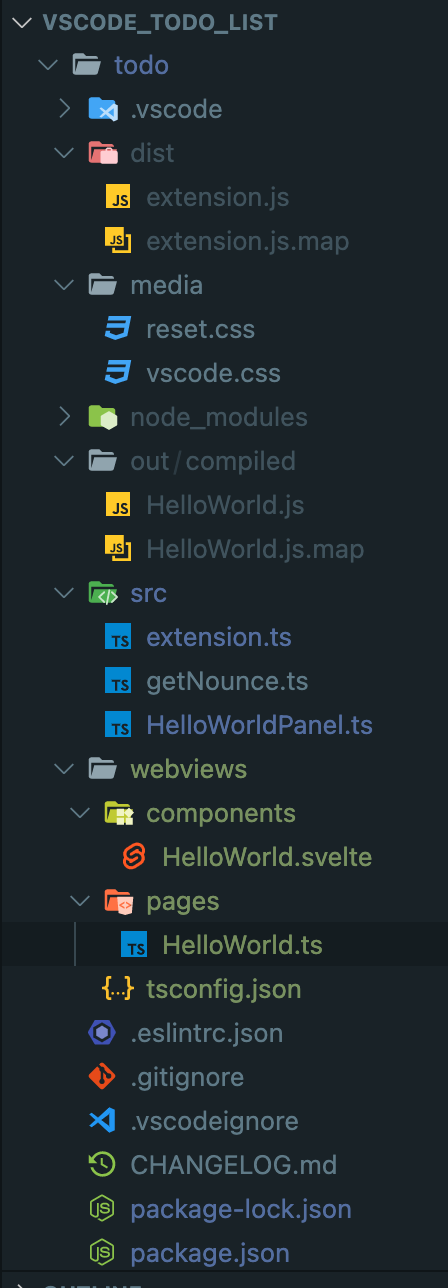
Final file structure will look like this