A simple Lovelace card for displaying recent Frigate detection events in a horizontal gallery
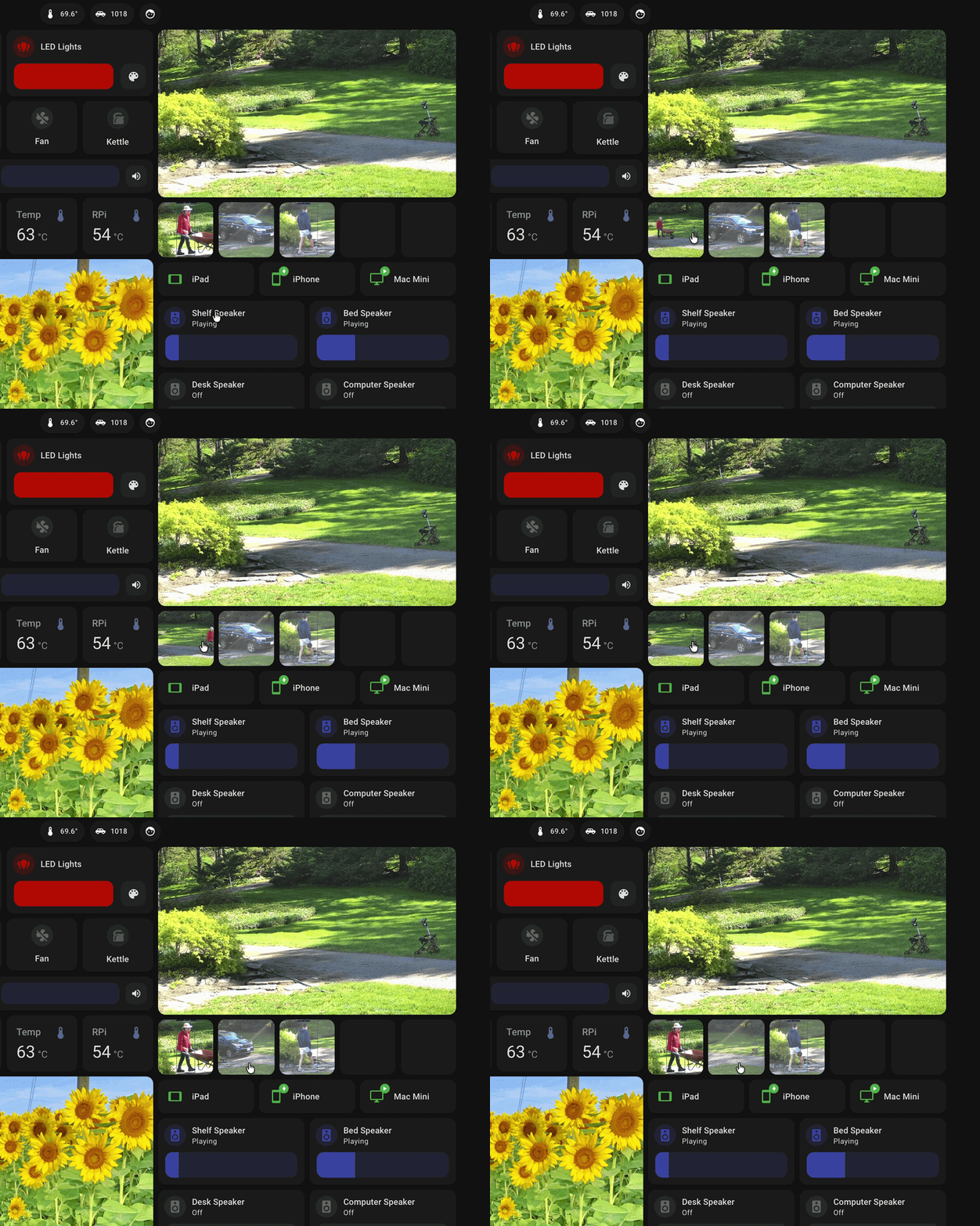
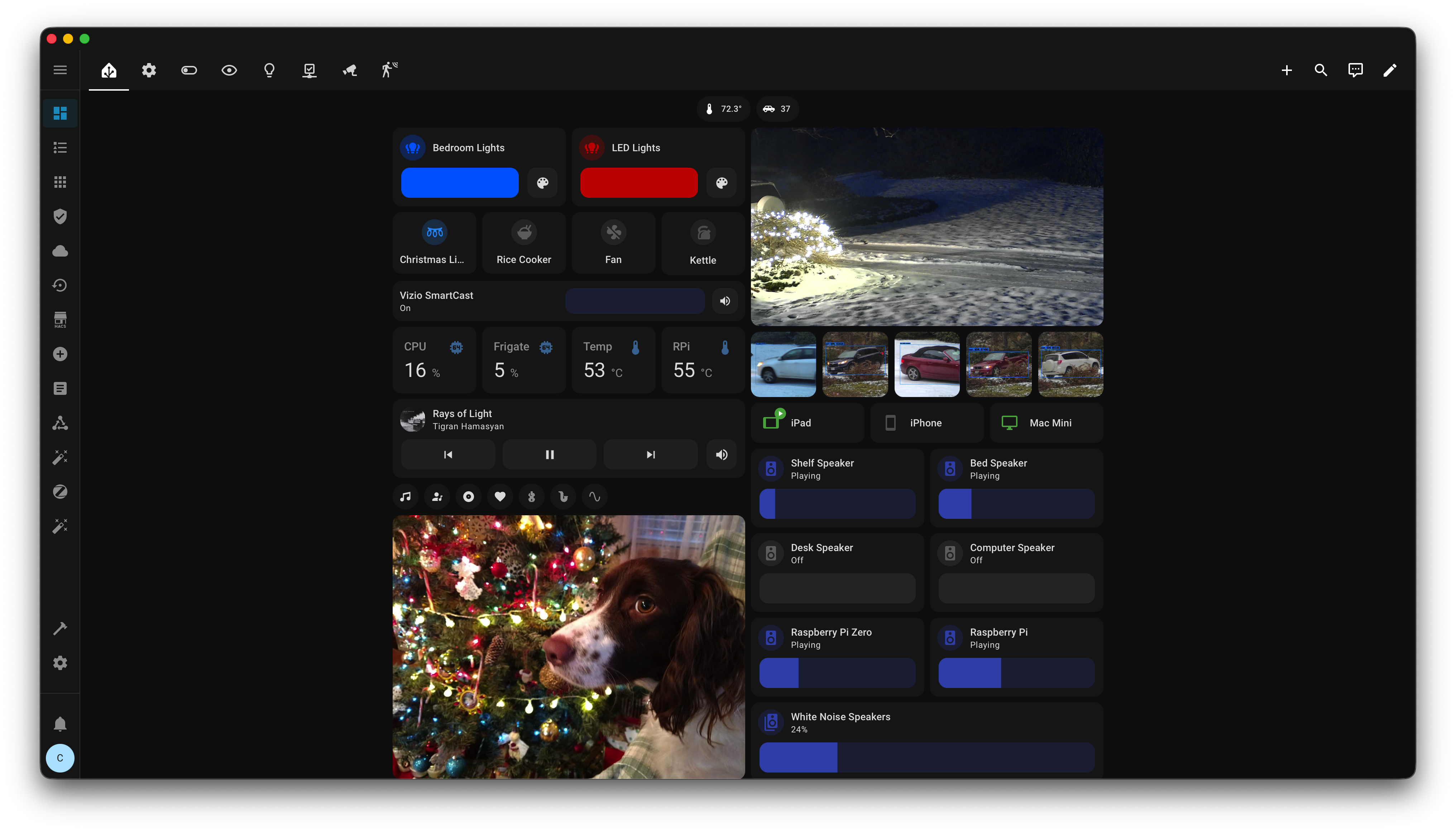
- Fast & Lightweight: Minified and optimized for quick loading.
- Live Updates: Instantly shows new events via WebSocket.
- Responsive: Auto-adjusting grid layout that works great on mobile.
- Sections View Ready: Fully compatible with Home Assistant's Sections view, rendering full-width and scaling properly.
- Rich Media: High-quality snapshots with optional zooming.
- Bounding Boxes: Toggle the visibility of Frigate's detection bounding box overlays on event snapshots.
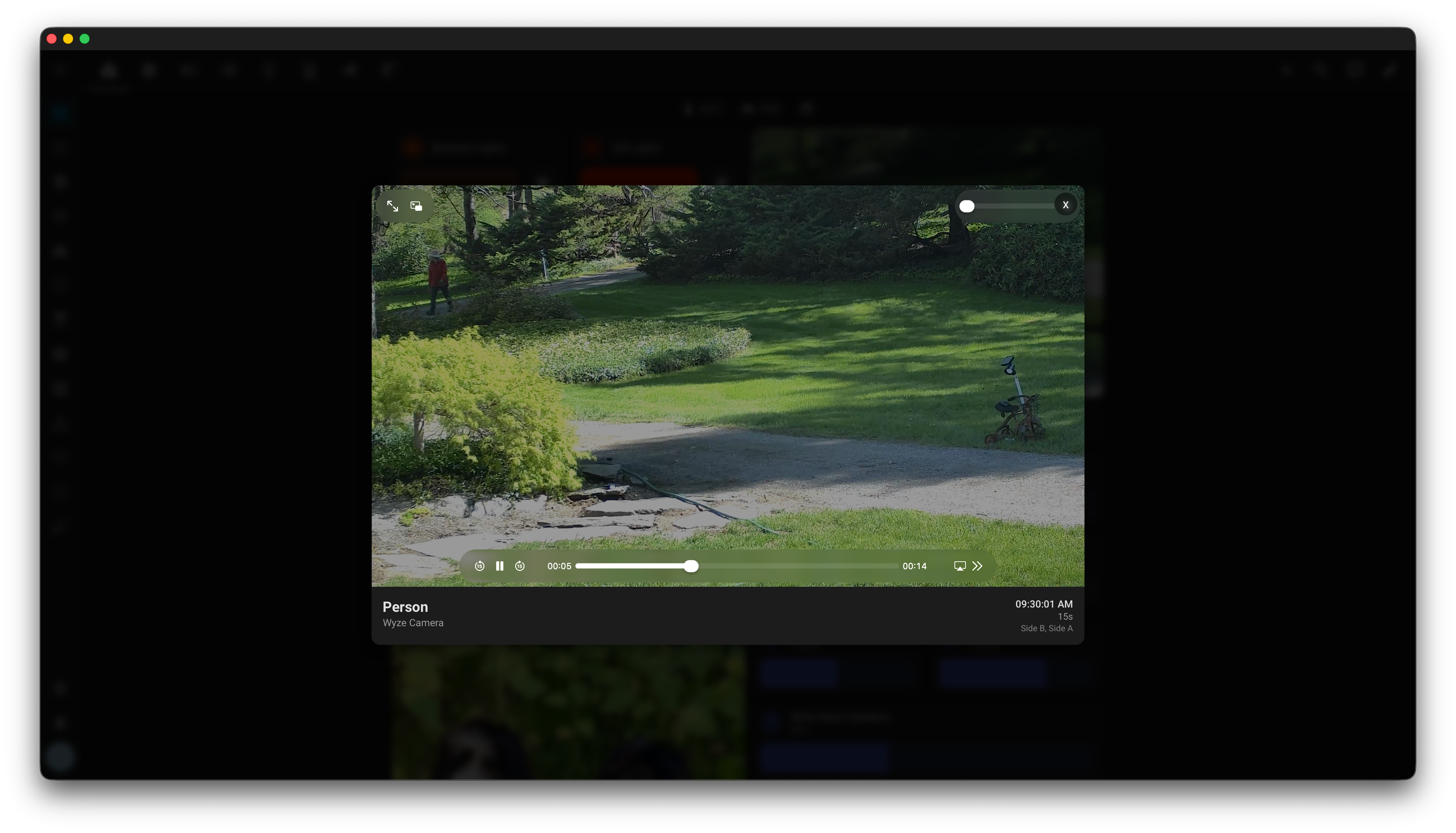
- Video Playback: Natively stream MP4 and HLS (
.m3u8) event clips directly in your browser. - Hover Previews: Instantly play video clips when hovering over any event, with smooth auto-tracking that pans and follows the detected object throughout the clip.
- Live Camera Feed: Optional WebRTC live feed above the event gallery — click to open fullscreen, true continuous peer connection, zero-flash re-renders, Smart TV browser optimizations, and 24/7 self-healing auto-reconnect for network drops and Frigate restarts.
- Scrollable Gallery: Optional horizontal scroll mode with arrow navigation and hidden scrollbar for a clean, native feel.
- Customizable Layout: Reverse the rendering order or offset the timeline to build the exact dashboard you want.
- Daily Reset: Optional automated clearing for a fresh daily view.
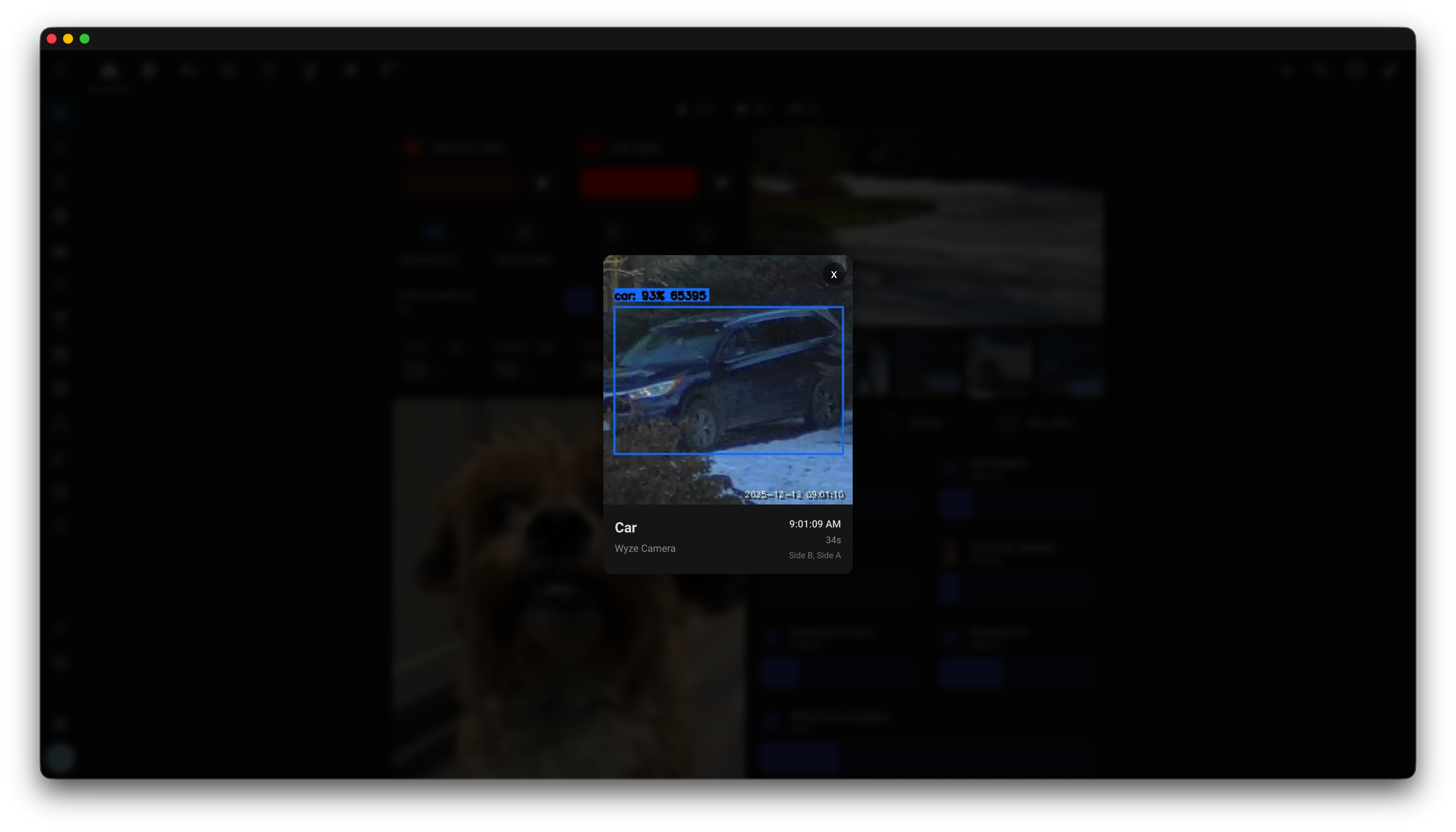
- Interactive Details Modal: Deep-dive popup displaying full event information, including AI-generated descriptions (if available), duration, date, camera, zones, and accuracy. Supports interactive previous/next navigation arrows and keyboard hotkeys (ArrowLeft / ArrowRight / Escape).
- Configurable Modal Metadata: Fine-grained visibility controls to show/hide specific metadata elements (like date, duration, or camera name) in the details popup.
This card can be easily installed via HACS (Home Assistant Community Store) as a custom repository.

- Open HACS in Home Assistant.
- Click on the 3 dots in the top right corner and select Custom repositories.
- Add the URL of this repository (
https://github.com/saihgupr/frigate-events-card) and select Dashboard (or Lovelace) as the category. - Click Add, then close the modal.
- You should now see "Frigate Events Card" in your HACS interface. Click on it and select Download.
- When prompted, reload your browser cache.
- Download
frigate-events-card.jsfrom the latest release - Copy it to your Home Assistant
www/folder - Add the resource in your Lovelace dashboard:
resources:
  - url: /local/frigate-events-card.js
    type: module
- Add the card to your dashboard
type: custom:frigate-events-card
frigate_client_id: frigate
event_count: 5

# Optional: Live camera feed above events (WebRTC — no polling, no flash)
live_view: true
live_view_entity: camera.wyze_camera

# Optional filters
cameras:
  - wyze_camera
labels:
  - person
  - car
zones:
  - front_a
  - front_b

# Optional: Video playback settings
video: true
video_on_hover: true

# Optional: Video timing offsets (seconds or per-label/zone map)
video_start_skip_seconds: 1
video_end_skip_seconds: 2

# Optional: Tracking synchronization (milliseconds or per-label/zone map)
tracking_pan_delay:
  car: -1500
  person: -3000
  person:front_door: 500
  default: 0

# Optional: Tracking smoothness (0.0 to 1.0)
tracking_smoothing: 0.5

# Optional: Scrollable gallery settings
scroll: true
scroll_limit: 40
show_scroll_arrows: true

# Optional: Bounding box overlay (snapshots)
show_bounding_box: true

# Optional: Detail modal metadata visibility toggles
show_description: true
show_date: true
show_accuracy: true
show_duration: true
show_camera_name: true
show_zones: true
show_modal_navigation: false

# Optional: Layout overrides
reverse: true
offset: 1

# Optional: Reset display daily at a specific time (24hr format)
daily_clear_time: "04:00"

# Optional: Debugging
debug: trueThis example creates a horizontally scrollable gallery showing 6 thumbnails at a time, loading up to 40 total events.
type: custom:frigate-events-card
frigate_client_id: frigate
event_count: 6
scroll: true
scroll_limit: 40
video_on_hover: trueThis example adds a live WebRTC camera feed above the event gallery. The card supports two WebRTC streaming modes:
- Home Assistant WebRTC API (Default): Negotiates WebRTC through Home Assistant's native camera WebSocket protocol (
camera/web_rtc_offer). Ideal for remote viewing (e.g. Home Assistant Cloud / Nabu Casa) as signaling passes through HA. - Direct go2rtc WebRTC (
go2rtc_url): Negotiates WebRTC directly with your Frigatego2rtcserver viago2rtc_url(e.g.http://192.168.1.211:1984). Bypasses Home Assistant custom component dependencies, reducing HA CPU overhead and delivering sub-second startup times — ideal for local TV dashboards and wall tablets.
Requirements: Dashboard must be served over HTTPS (or
localhost).
type: custom:frigate-events-card
frigate_client_id: frigate
event_count: 5
live_view: true
live_view_entity: camera.wyze_camera
video_on_hover: truetype: custom:frigate-events-card
frigate_client_id: frigate
event_count: 5
live_view: true
live_view_entity: camera.wyze_camera
go2rtc_url: http://192.168.1.211:1984
video_on_hover: trueOptionally override the video aspect ratio (defaults to 16 / 9):
live_view_aspect_ratio: "4 / 3"This example shows a real-world configuration for fine-tuning video clip endpoints and tracking synchronization based on detection labels.
type: custom:frigate-events-card
video_end_skip_seconds:
  car: 3
  person: 6
  default: 2
tracking_pan_delay:
  car: -1500
  person: -3000
  default: 0
video: true
video_on_hover: trueThe most common settings to get you started:
| Option | Type | Default | Description |
|---|---|---|---|
frigate_client_id |
string | frigate |
Your Frigate instance ID |
title |
string | Frigate Events |
Card title |
event_count |
number | 5 |
Number of events to display. When scroll is enabled, this is the number of events visible at once in the viewport. |
cameras |
list | all | Filter to specific cameras |
labels |
list | all | Filter to specific labels (person, car, etc.) |
zones |
list | all | Filter to specific Frigate zones |
video |
boolean | true |
Whether to play video clips instead of snapshots in the gallery and modal. |
video_on_hover |
boolean | true |
Play video clips automatically when hovering over an event snapshot in the gallery. |
scroll |
boolean | true |
Enable horizontal scrolling gallery. When enabled, event_count sets the visible thumbnail count at once. |
live_view |
boolean | false |
Show a live WebRTC camera feed above the event gallery. Click to toggle fullscreen view. Continuous peer connection with 24/7 self-healing auto-recovery for network drops and Frigate restarts. |
live_view_entity |
string | none | Camera entity ID for the live feed (e.g. camera.wyze_camera). Required when live_view: true. |
live_view_aspect_ratio |
string | 16 / 9 |
CSS aspect-ratio for the live feed container (e.g. "4 / 3"). |
go2rtc_url |
string | none | Optional direct go2rtc API URL (e.g. http://192.168.1.211:1984). Directly negotiates WebRTC with go2rtc, bypassing Home Assistant WebSocket requirements. |
go2rtc_stream |
string | none | Optional stream name in go2rtc (defaults to live_view_entity name without camera., e.g. wyze_camera). |
Advanced Settings (Click to expand)
| Option | Type | Default | Description |
|---|---|---|---|
muted |
boolean | true |
Mute video clip audio when viewing/expanding clips in the details modal. |
video_start_skip_seconds |
number | map | 0 |
Number of seconds to skip from the beginning of video clips. Supports per-label/zone map. |
video_end_skip_seconds |
number | map | 0 |
Number of seconds to skip from the end of video clips. Supports per-label/zone map. |
tracking_pan_delay |
number | map | 0 |
Millisecond delay to synchronize video pan with object movement. Supports per-label/zone map (e.g., person:front_door). |
tracking_smoothing |
number | 1.0 |
Smoothness of camera panning in hover previews (0.0 to 1.0). 1.0 uses a wide time window for a soft glide, 0.0 is an instant rigid snap. |
| Option | Type | Default | Description |
|---|---|---|---|
layout |
string | row |
Layout mode for the events: row (horizontal row) or grid (multi-row grid layout). |
grid_columns |
number | none | Number of columns in grid layout. If not set, defaults to auto-responsive wrapping (repeat(auto-fill, minmax(120px, 1fr))). |
grid_max_height |
string | 400px |
Maximum height of the grid container (e.g. 500px) when vertical scrolling is enabled (scroll: true). |
show_scroll_arrows |
boolean | false |
Show previous/next navigation arrows over the scrollable gallery. Only applies when scroll is enabled in row layout. |
scroll_limit |
number | 20 |
Total number of events to load in the scrollable timeline. |
reverse |
boolean | false |
Reverses the rendering order of the timeline (events populate right-to-left instead of left-to-right). |
offset |
number | 0 |
Number of recent events to skip/hide from the start of the list. Useful for excluding the newest event if it's already shown in another card. |
daily_clear_time |
string | none | Optional. Time to reset the display daily (24hr format, e.g., "04:00"). If set, events before this time are hidden and shown as grey placeholders. |
| Option | Type | Default | Description |
|---|---|---|---|
show_date |
boolean | false |
Show the date in the event details modal popup. |
show_accuracy |
boolean | false |
Show the detection accuracy score percentage in the details modal popup (placed below the camera name). |
show_duration |
boolean | false |
Show the event duration (e.g., 9s or Ongoing) in the details modal popup. |
show_description |
boolean | true |
Show the GenAI event description (if available) in the details modal popup. |
show_camera_name |
boolean | true |
Show the camera name in the event details modal popup. |
show_zones |
boolean | true |
Show the physical zones (locations) in the event details modal popup. |
show_modal_navigation |
boolean | false |
Show previous/next navigation buttons (◀/▶) in the event details modal popup (keyboard arrow keys remain always active). |
show_bounding_box |
boolean | true |
Show the detection bounding box overlays on event snapshots. |
debug |
boolean | false |
Enable debug mode to display the current card version number above snapshots. |
- Home Assistant with Frigate Integration installed
- Frigate NVR with cameras configured and snapshots enabled (
snapshots: enabled: truein Frigateconfig.yml) - For WebRTC Live View: Dashboard accessed via HTTPS (or
localhost)
- Snapshots must be enabled: The card queries Frigate for detection events that include snapshots. Ensure your Frigate
config.ymlhas snapshots enabled globally or per camera:cameras: front_door: ffmpeg: ... snapshots: enabled: true
- Check
frigate_client_id: If you have multiple Frigate instances or changed the default integration name, setfrigate_client_idin the card config to match your instance ID (default:frigate).
- HTTPS Required: Browsers strictly enforce that WebRTC (
RTCPeerConnection) is only available in secure contexts (HTTPS orlocalhost). Accessing Home Assistant over plain HTTP (e.g.,http://192.168.1.xxx:8123) will prevent WebRTC from connecting. - Camera Entity Format: Ensure
live_view_entityis the full Home Assistant entity ID (e.g.camera.front_door), not justfront_door. - Frigate on a Remote Server / Unraid Docker: If Frigate runs in a separate container or host (such as Unraid), you can configure
go2rtc_urlfor a direct connection:(Note: If your Home Assistant dashboard is loaded over HTTPS, browsers may block an HTTPlive_view: true live_view_entity: camera.front_door go2rtc_url: http://192.168.1.211:1984
go2rtc_urldue to Mixed Content security rules. In that case, use Home Assistant's native WebRTC mode withoutgo2rtc_urlor put go2rtc behind HTTPS).
Contributions are welcome! Please submit all Pull Requests to the develop branch.
- Fork the repository
- Create a feature branch (
git checkout -b feature/awesome-feature) - Commit your changes and push to your fork
- Open a Pull Request to develop
If you encounter any issues, bugs, or have feature requests, please open an issue on GitHub.
Frigate Events Card is open-source and free. If you find it useful, consider giving it a star ⭐ or making a donation to support development!
