Using Gainz From Import To Audit Packet
This walkthrough shows the intended end-to-end Gainz workflow. Use the demo CSVs first if you are learning the product, then repeat the same process with your real exchange exports.
Gainz runs locally. Imported files, generated saves, exports, and audit packets stay on your computer unless you choose to share them.
If cost basis is new to you, start with the crypto cost basis learning path, then return here for the click-by-click Gainz flow.
From source:
python launcher.pyThe launcher opens a small desktop window with the local web address, usually:
http://127.0.0.1:5000/
On first run, Gainz asks you to create a local admin account in the browser. The password is hashed into the local database and is not written to a plaintext credentials file.
If you forget the local password, use Reset Password in the launcher. The local password gates the browser UI; it does not encrypt imported CSVs, XLSX saves, exports, or audit packets. See Reset Your Local Gainz Password.
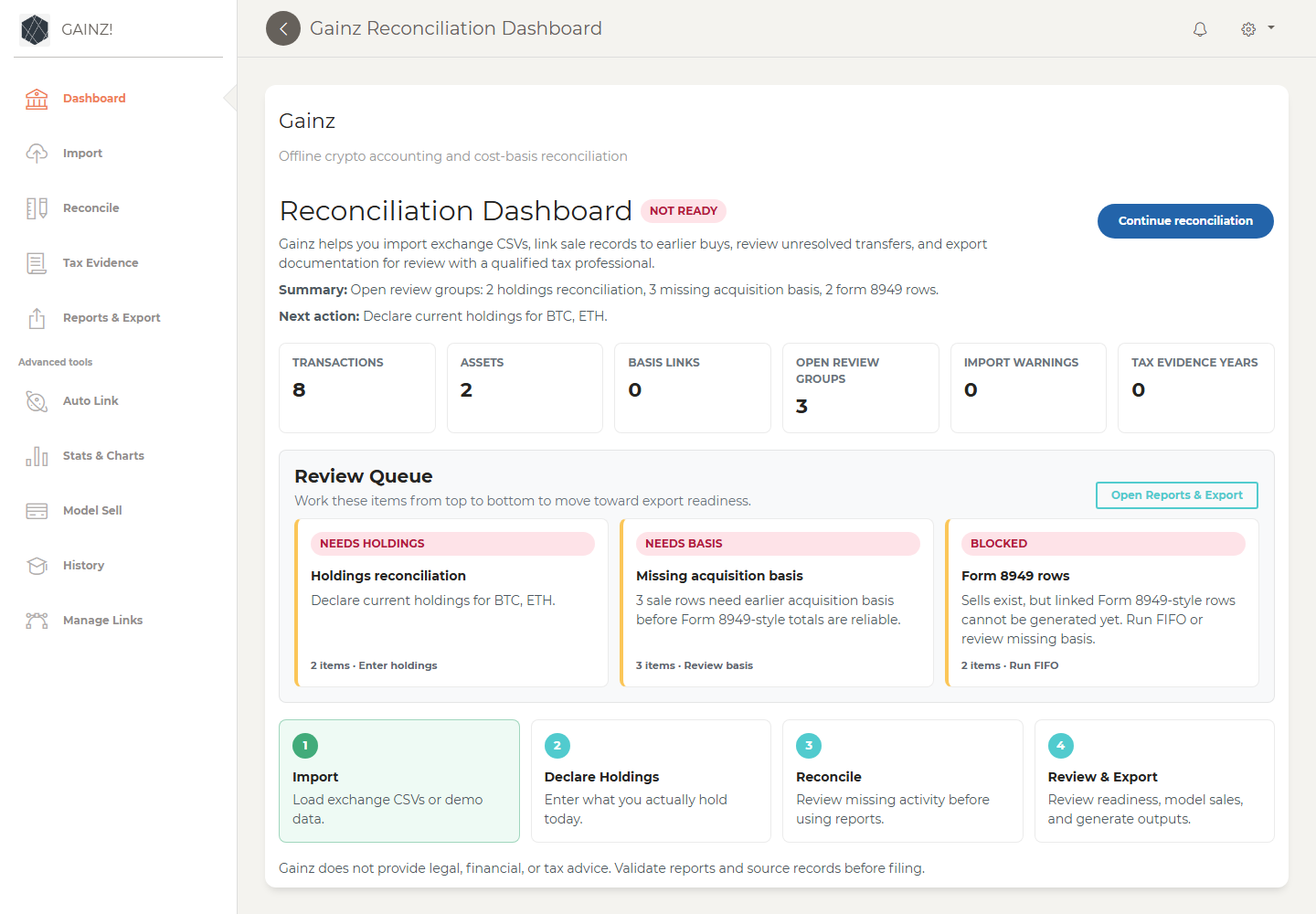
After sign-in, start on Dashboard. This is the control center for the workflow.
The dashboard shows:
- Summary: the open review groups Gainz found.
- Next action: the most useful next step.
- Continue reconciliation: a button that takes you to the right page for that step.
- Review Queue: grouped blockers such as holdings, import warnings, missing basis, source overlaps, and tax evidence.
If you are not sure what to do next, return to Dashboard and follow Continue reconciliation.
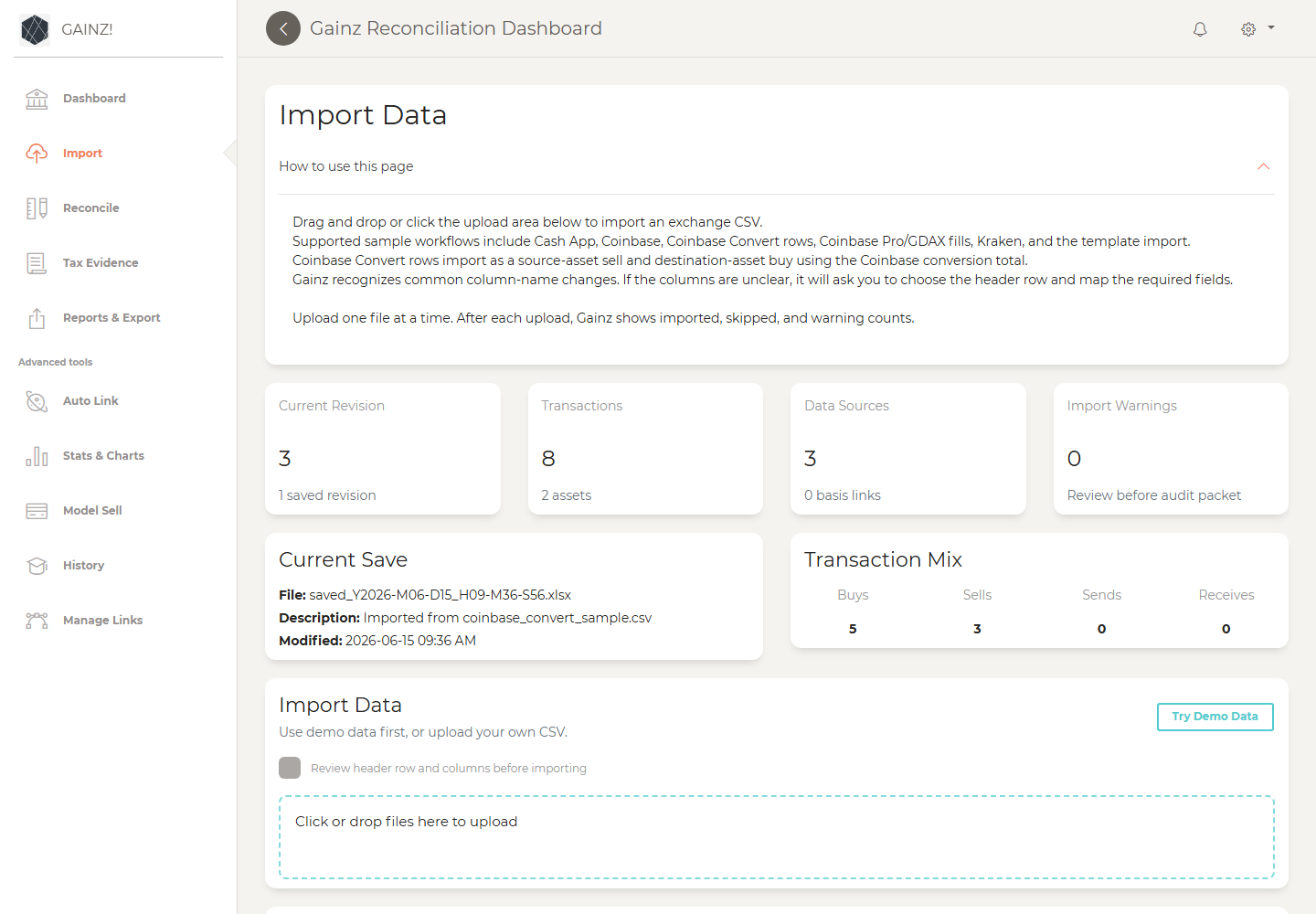
Open Import.
If you are learning Gainz, click Try Demo Data. This loads the bundled synthetic Cash App, Coinbase, and Coinbase Convert files so you can reach Dashboard, Reconcile, and Reports & Export without using private records.
Upload one file at a time. Gainz shows how many rows were imported, skipped, or warned after each upload.
Supported workflows currently include:
- Cash App CSV exports
- Coinbase CSV exports
- Coinbase Convert rows
- Coinbase Pro / GDAX fills
- Kraken/custom template imports
- Batch manual transaction entry
File names help Gainz detect the parser. Use names that include terms such as cash_app, coinbase, coinbase_pro, gdax, or kraken.
Gainz also recognizes common column-name variations. For example, headers like Transaction Date, Activity Type, Crypto Quantity, Token Symbol, Spot Price USD, and Transaction Value can be mapped into the import fields even when an exchange changes its export wording. If the columns are too unusual, Gainz asks for the header row and lets you choose the Date/time, Transaction type, Asset symbol, Asset quantity, and USD price/value columns.
Also review Possible overlapping source files on Import. Gainz flags pairs that look like a full-history export plus a year-specific export, or files with overlapping transaction signatures. If one source duplicates another, remove only the duplicate or overlapping source from current data and keep the original CSV for evidence.
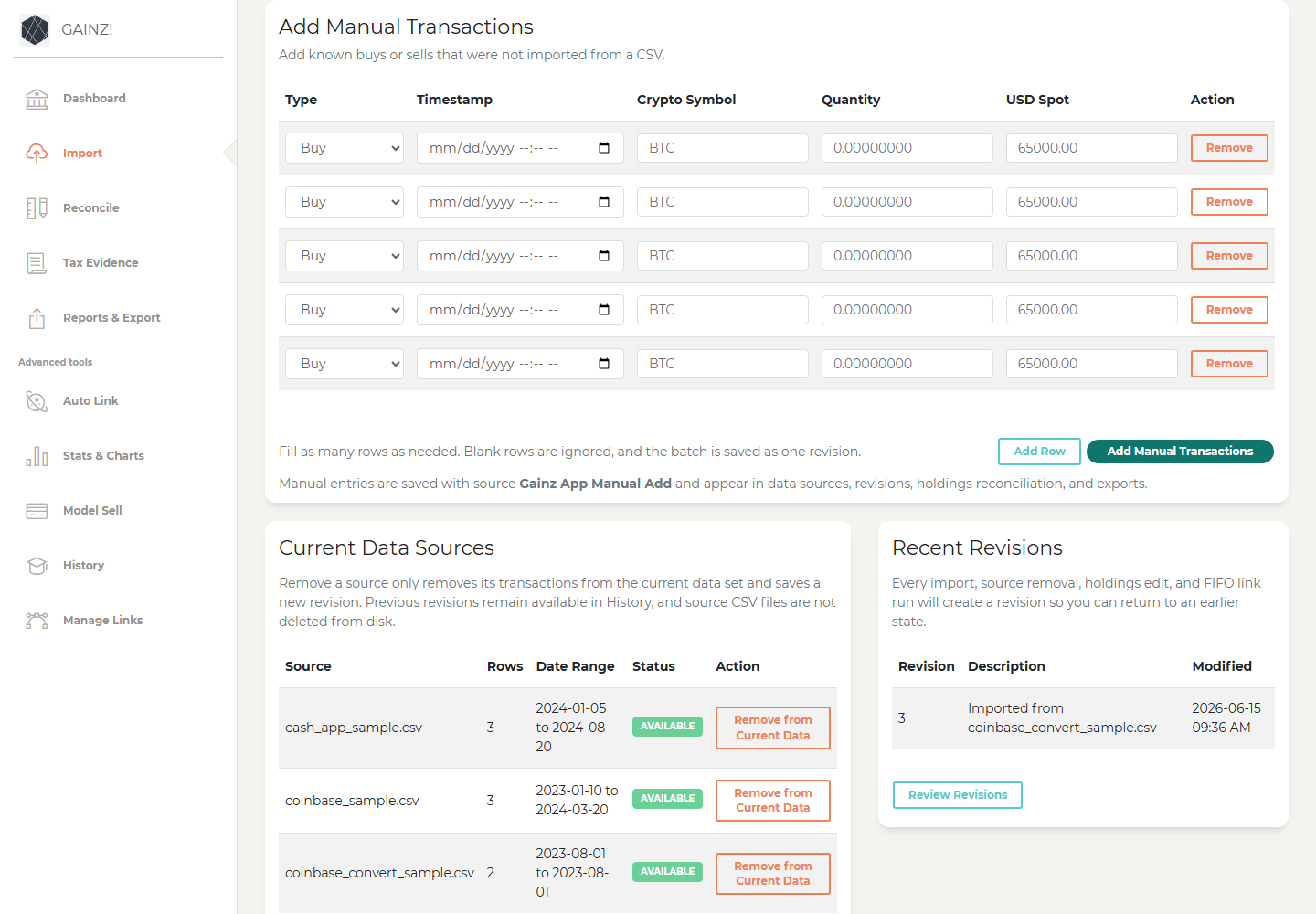
If a CSV is missing known buys or sells, use Add Manual Transactions on the Import page.
Enter as many rows as needed, leave unused rows blank, and submit the batch. Gainz saves the batch as one revision with source Gainz App Manual Add.
For a safe test run, upload:
demo_data/cash_app_sample.csv
demo_data/coinbase_sample.csv
demo_data/coinbase_convert_sample.csv
Return to Dashboard after importing and follow Continue reconciliation.
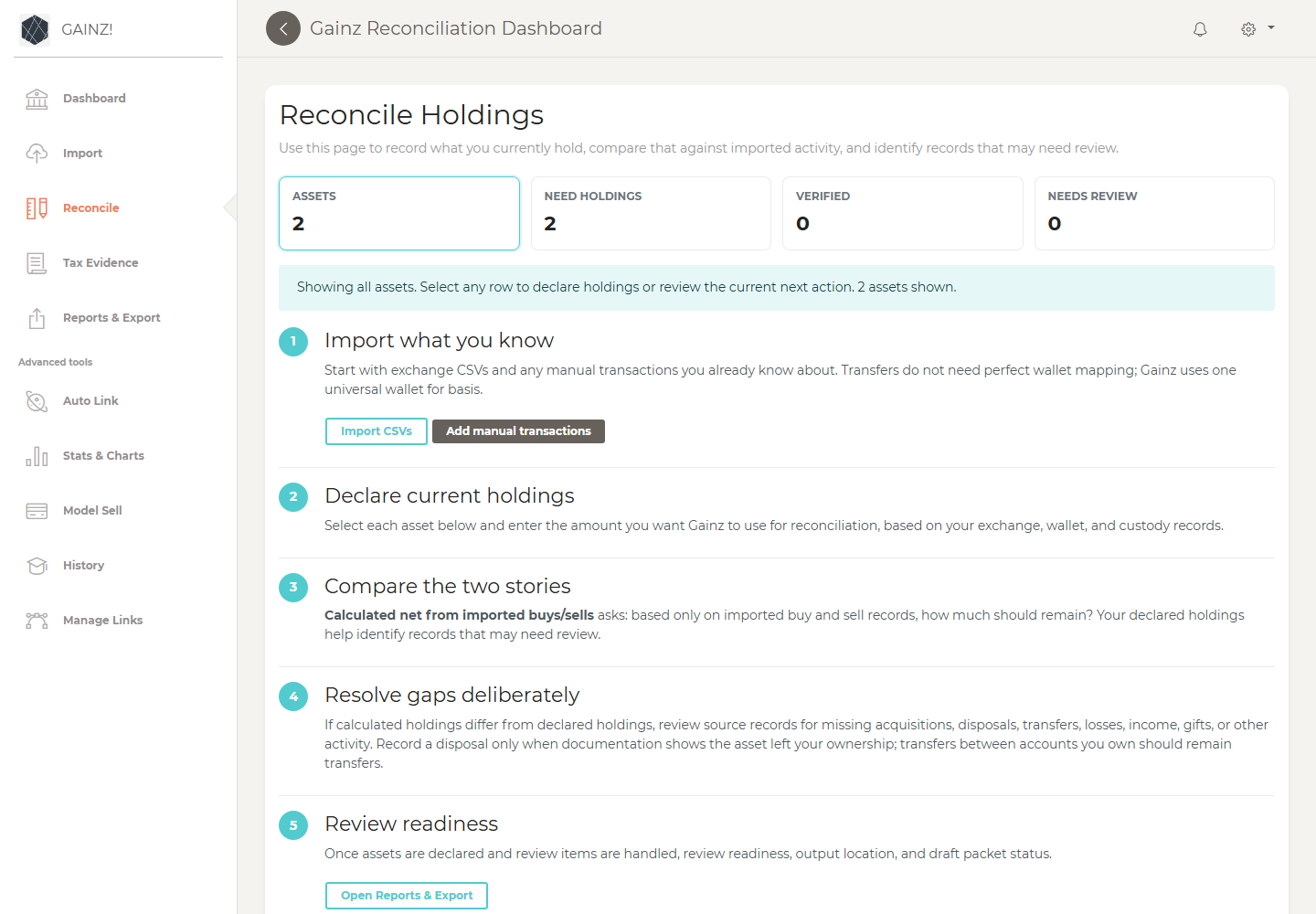
For most new imports, Gainz sends you to Reconcile first because current holdings tell Gainz whether imported buys and sells explain what you actually still hold.
On Reconcile:
- Select an asset row.
- Enter the amount you currently hold across wallets and exchanges.
- Save declared holdings.
- Review the status and guidance.
Gainz compares:
-
Calculated Net From Imported Buys/Sells: buys minus sells. -
Imported Net Including Transfers: buys plus receives minus sells minus sends. -
Declared Holdings: what you say you actually hold today.
If the status is Needs Review, look for missing buys, missing disposals, sends, receives, gifts, income, losses, conversions, or overlapping source files.
If your records show one primary asset and every other tracked asset is currently zero, use Bulk Current Holdings. Enter the primary asset and amount, then let Gainz set all other tracked assets to zero in one revision. Review the confirmation before continuing.
Use Import for source warnings and source-management decisions.
If Gainz shows import warnings, review them before relying on generated reports. The warning table shows source file, row number, date, type, asset, quantity, issue, likely category, and review decision.
For each warning, choose whether it is:
- A true zero-value transfer.
- A row that needs a manual USD value.
- Something to ignore for now.
- Something that needs a note.
Unresolved warnings stay visible in Reports & Export and the audit packet.
Open Tax Evidence before generating a packet for a real filing review.
Use Tax Evidence Inventory to scan a local tax evidence folder or add one item at a time. Gainz classifies filenames and notes as filed returns, Form 8949, Schedule D, payment receipts, crypto workbooks, broker forms, transaction CSVs, estimates, or zero/not-applicable confirmations.
Review Confirm Suggested Filed Totals. When Gainz can read clear values from local CSV, XLSX, or readable PDF evidence, it shows possible filed proceeds, cost basis, gain/loss, and tax-paid values with a confidence label and source file. Confirm, edit, or mark the year as needs research. Suggested totals are not treated as recorded filed totals until you save a review decision.
Use Import Filed Totals from CSV when you already have a year-by-year filed-total CSV. Gainz reports the actual number of rows imported and skipped. If a CSV only contains three years, Gainz imports three years and leaves the other evidence years visible for review.
Use Auto Link when Dashboard or Reports & Export says sales need basis links.
For a simple first review pass, use FIFO. FIFO links sales to the oldest available acquisition lots first, then creates Form 8949-style rows from those links.
Repeat for assets with unlinked sales. If a sale still needs earlier basis and you do not have the source records yet, return to Reconcile, choose Leave Missing Basis As Needs Research, and add a note. Gainz keeps exports draft/not filing-ready while showing that the missing basis is a known research item.
Use Stats & Charts as an advanced inspection page when you need deeper asset-level details, current-lot estimates, sales rows, Form 8949 rows, or charts. It is useful for analysis, but Dashboard and Reports & Export are the main workflow guides.
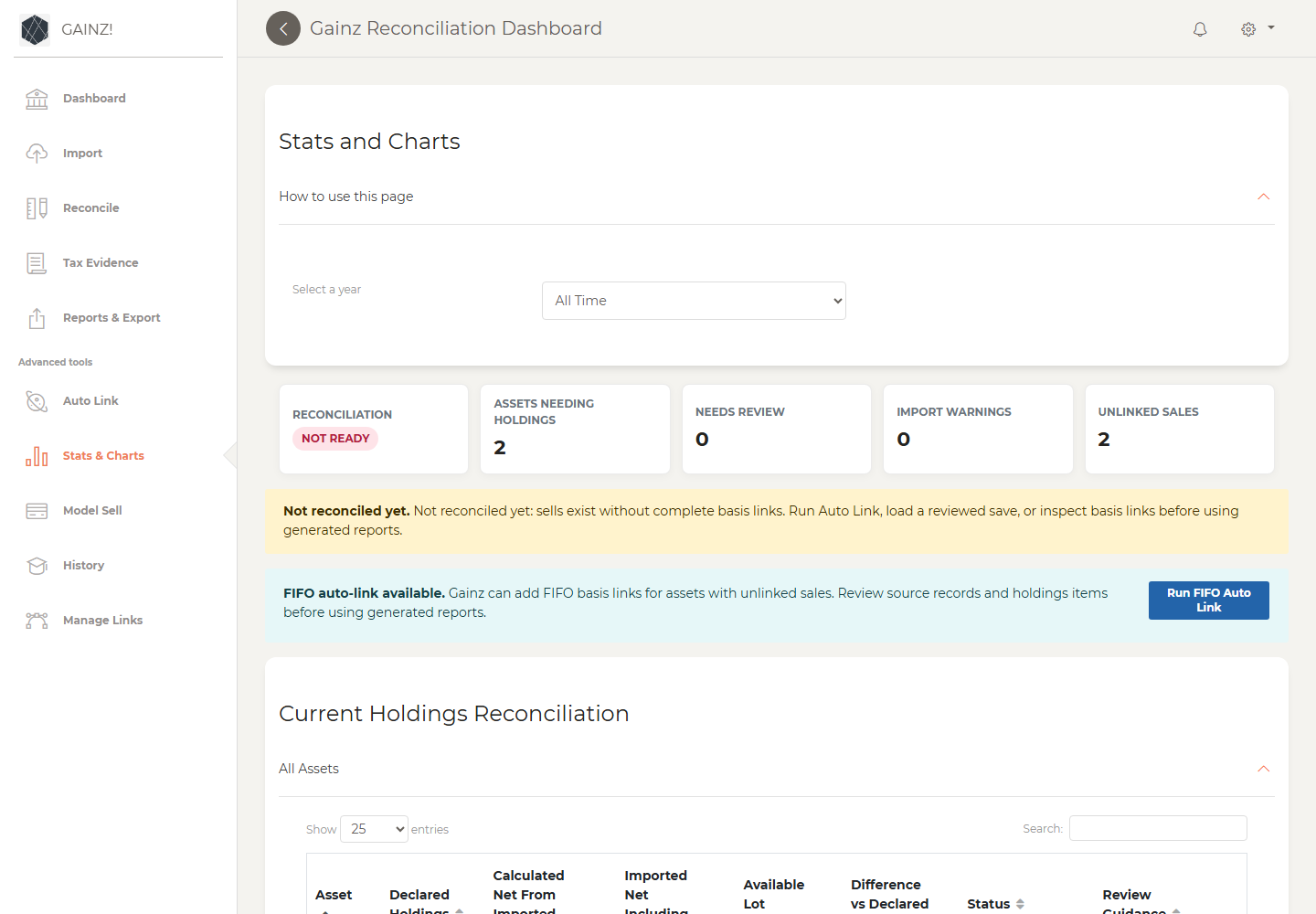
Open Reports & Export when Dashboard says you are ready to review output, or when you want to see exactly what is blocking readiness.
The Readiness Review panel shows:
- Reconciliation checklist.
- Form 8949 row count.
- Form 8949 gain/loss total.
- Unlinked sales count.
- Holdings gaps.
- Holdings review items.
- Import warnings and review decisions.
- Possible overlapping source files.
- Tax evidence inventory items.
- Missing acquisition basis before sales.
- Next action.
If the status is Not ready, review the listed blockers before using the packet. Gainz should tell you whether the blockers are current-holdings gaps, unreviewed import warnings, missing basis before sales, overlapping source files, missing tax evidence, or draft-only research items.
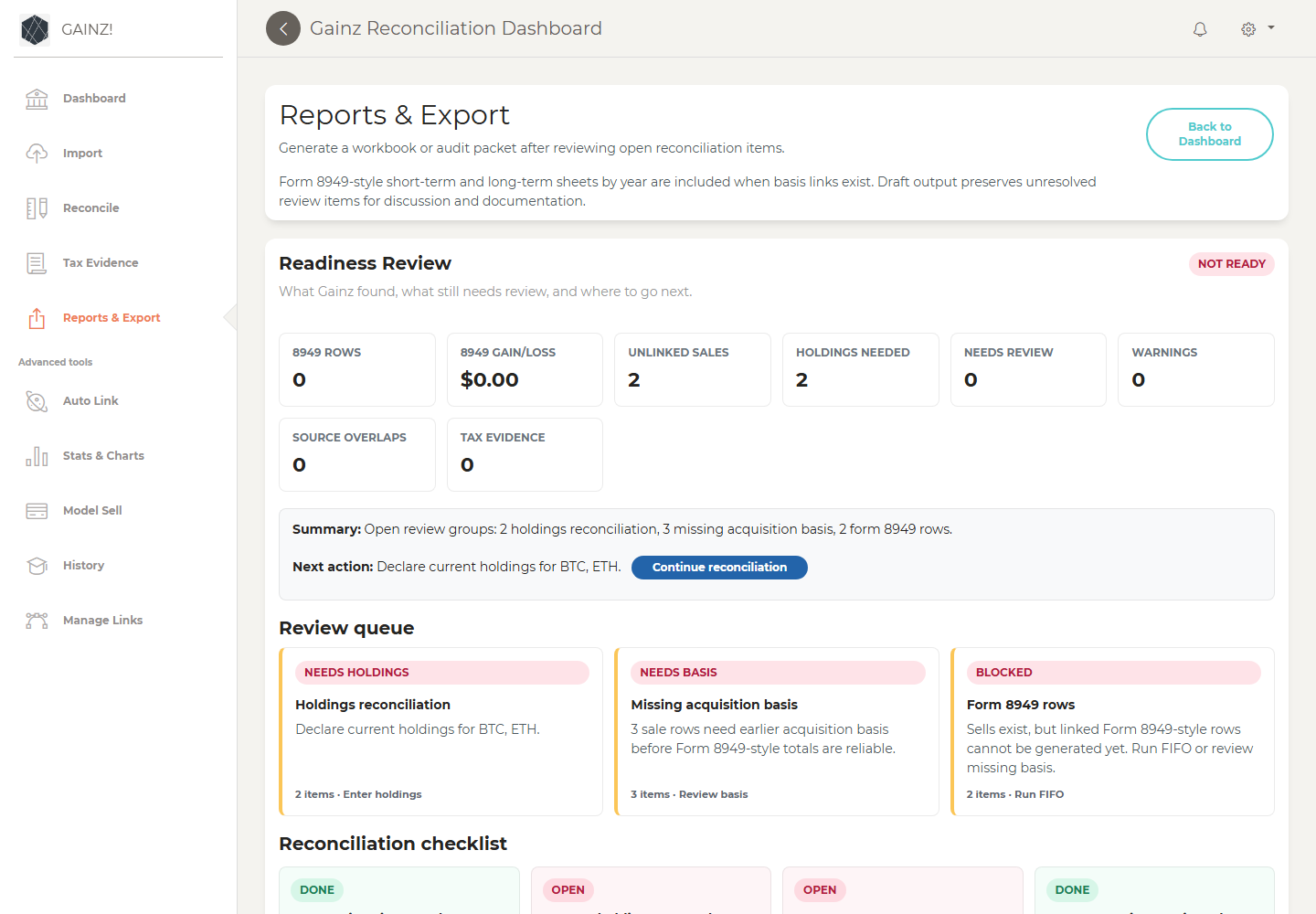
Reports & Export keeps raw evidence tables collapsed under Review Details so the page starts with the decision-making workflow.
Expand Review Details when you need row-level evidence for:
- Missing acquisition basis.
- Import warning decisions.
- Holdings explanations.
- Source overlaps.
- Tax evidence inventory.
- Form 8949 totals.
Use those tables for review and documentation, not as the first place to decide what to do next.
On Reports & Export, choose an output folder and create:
- Excel workbook export.
- Audit packet.
If blockers remain, Gainz can generate draft output only after you acknowledge that unresolved review items remain.
The audit packet includes:
- Excel workbook with transactions, stats, links, sales, and 8949 sheets.
- Form 8949 short-term and long-term detail CSVs.
- Form 8949 totals CSV and JSON.
- Tax filing review CSV and JSON.
- Tax evidence inventory CSV and JSON.
- Suggested filed totals CSV and JSON.
- Holdings reconciliation CSV.
- Current holdings lots CSV.
- Import warnings CSV with active warnings and preserved review decisions for warnings that were later cleared by source updates.
- Missing basis review CSV.
- Source overlap review CSV.
- Source files copied into the packet when they are still available on disk.
- Tax evidence files copied into the packet when evidence paths are available on disk.
- Evidence manifest.
- Packet inventory.
- SHA-256 hashes.
- Methodology memo.
Gainz is documentation support. It is not tax, legal, accounting, filing, or financial advice.
Before filing, review outputs yourself and with a qualified tax professional. Pay special attention to import warnings, unlinked sales, holdings review items, manually reclassified transactions, and any asset whose source history is incomplete.
The website version is published at https://cryptogainz.store/user-walkthrough/.