Scan Timeline
Scan Timeline gives every RedAmon project a history of its recon scans. Instead of each new scan silently wiping and rebuilding the graph, you can keep each full scan as an immutable version: a point-in-time snapshot of the entire attack-surface graph. From there you can view any past version read-only, activate any version to make it the live graph the agent works on, compare two versions field by field (Recon Delta), rename/pin/delete versions (Version Manager), and schedule future scans to run automatically (Scan Scheduler).
Think of it as git for your recon graph: the live Neo4j graph is your working copy, past versions are commits you can diff and check out, and the Scan Scheduler is your cron.
Three ideas make everything else obvious:
- The live Neo4j graph is the current (active) version. It behaves exactly as it always has: the agent, RedZone analytics, partial recon, and every live feature read and write it. The active version defaults to the newest scan.
-
A past version is a saved snapshot. It is the
{nodes, links}payload of the graph at a moment in time, serialized and gzip-stored in Postgres. Past versions are read-only. Nothing live (the agent, partial recon, analytics) can ever touch old snapshot data, so history can never leak into a running operation. - You snapshot before a scan overwrites the graph, and only if you ask for it. When you start a full scan you choose whether to keep the outgoing graph as a version or discard it.
Everything you do with versions (switch, compare, rename, delete, schedule) operates on stored snapshots plus the live graph. Nothing is rewritten historically inside Neo4j, and the graph schema is untouched.
What activation swaps, and what it does NOT. Activating a version swaps only the recon graph. Derived artifacts that live at the project level (GVM / secret-scan output, CypherFix remediations, reports, and captured TrafficMind traffic) stay put and continue to reflect the latest scan. Only the nodes and relationships of the attack-surface graph change.
Scan Timeline surfaces in two places on the Red Zone:
-
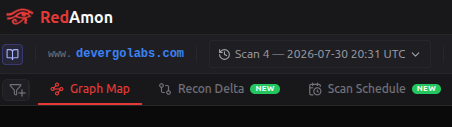
The version switcher in the global header, next to the target name. It reads
Scan N — <date> UTCand opens the list of versions. - Two top-level tabs next to Graph Map: Recon Delta and Scan Scheduler (each carries a green NEW badge).
There are two ways a version comes into existence.
When you click Start Recon (see Running Reconnaissance) and a graph already exists, the confirmation modal shows an Existing Data Found notice and asks what to do with it. This is the scan mode:
| Scan mode | Label in the Start Recon modal | What happens to the current graph |
|---|---|---|
new |
Create a new version (recommended) | The current graph is frozen (captured, gzip-compressed, and stored as a past version), demoted to history, and the scan builds a fresh current version on top. Nothing is lost. The confirm button reads Save Version & Start. |
overwrite |
Overwrite current version | No snapshot is taken. The scan wipes and rebuilds the live graph in place. Faster and uses no storage, but the previous graph is gone ("This cannot be undone"). The confirm button reads Discard & Start. |
If the project has no graph yet, there is nothing to keep, so the modal skips the choice and simply starts a fresh scan.
A note on wording. The Scan Scheduler offers the same two modes but labels them Keep as a new version and Overwrite (discard) in its Previous graph dropdown. Same behavior, slightly different phrasing.
Fail-closed guarantee. In
newmode the freeze happens before the scan is allowed to start. If the snapshot capture fails for any reason, the scan does not run, so you can never lose the old graph to a half-finished freeze.Empty graphs are not snapshotted. If the current graph has 0 nodes, there is nothing worth keeping, so
newsimply reuses the current version row instead of storing an empty snapshot.
Auto-generated version labels follow the format Scan {N} — YYYY-MM-DD HH:MM UTC (this is the string you see in the header switcher). If you rename a version, your custom label is preserved across future scans.
You can also snapshot the live graph at any time from the Version Manager with the Save current graph as a version button (see below). This freezes the graph now as a past version and immediately rotates to a fresh current version, without running a scan. Useful for bookmarking a graph state before you hand it to the agent or start manual testing.
You cannot save an empty graph ("The graph is empty, there is nothing to save as a version."), and you cannot save while a scan or activation is writing to the graph (to avoid capturing a half-written state).
Click the header switcher to open the Scan versions list.
Each row shows:
- The version label.
- An Active badge (with a radio icon) on the current version. Its tooltip: "This version is the live graph the agent works on."
- A check mark on the row you are currently viewing.
- A meta line:
v{seq} · {date} · {node count} nodes(for examplev3 · 2026-07-30 14:22 · 1,204 nodes). A non-current version with no stored snapshot appends· no snapshot. - At the bottom: Manage versions…, which opens the Version Manager.
Selecting a version only changes what you SEE. Clicking a past version renders that snapshot read-only in the graph map and node tables. It never touches the live graph and does not activate anything. Activation is a separate, explicit step (see below). Click the current (Active) version to return to the live view.
While you are viewing a past version, a read-only badge appears next to the label, and a banner explains the situation:
This analysis reflects the active version ({active label}) You are viewing {viewed label}, a saved snapshot. The graph map and node tables show that snapshot, but analytics run against the live graph. [Activate this version] to analyze it.
The reason for this split: RedZone analytics panels (Insights, attack-path scoring, and so on) run live Cypher queries against the active graph. They always reflect whatever version is active, and cannot be recomputed from a static snapshot. So to fully analyze a past version, you activate it.
Open it from Manage versions… in the switcher, or the Manage entry point on the toolbar. The modal is titled Scan versions.
Each version is a point-in-time snapshot of this project's recon graph. View renders a snapshot read-only; Activate makes it the live graph the agent, RedZone analytics and partial recon work on.
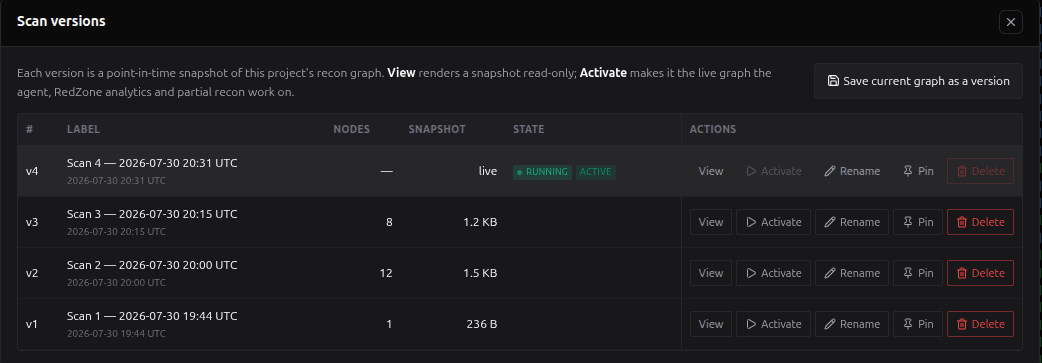
| Column | Meaning |
|---|---|
| # | The version sequence, shown as v{seq}. |
| Label | The version label plus its created date. Inline-editable via Rename. |
| Nodes | Node count in that version (or —). |
| Snapshot | Stored snapshot size for past versions (B / KB / MB). The current version shows live (it is the graph itself, not a stored blob). |
| State | Status badges: Active (current), Pinned, No snapshot (a past version whose bytes cannot be restored, so it cannot be activated). If a scan is writing to the current version, a live badge shows its phase: Starting, Running, Pausing, Paused, or Stopping. |
| Actions | The per-row buttons below. |
- Save current graph as a version (top of the modal): freeze the live graph as a new past version right now. Success toast: "Current graph saved as a version."
- View: render that version read-only. Disabled for a past version with no snapshot.
- Activate (play icon): make this version the live graph. Disabled for the current version and for any version without a snapshot. See the next section.
- Rename (pencil icon): inline-edit the label (max 120 chars; Enter saves, Escape cancels).
- Pin / Unpin (pin icon): protect a version from automatic cleanup. Pinned versions are never auto-deleted by retention.
- Delete (trash icon): permanently remove the version and its snapshot. Disabled for the current version (it is the live graph) and for pinned versions (unpin first). Confirmation: "Delete "{label}"? Its saved snapshot ({size}) is removed permanently and cannot be recovered."
You cannot delete the active version, and you cannot delete a pinned version until you unpin it. This makes it hard to accidentally destroy the graph you are currently working on.
Activate swaps the live Neo4j graph for the chosen snapshot. The confirmation reads:
This will save the current graph as a version and load "{label}" as the working graph the agent uses. Only the recon graph is swapped: GVM/secret scan output, remediations, reports and captured traffic stay project-level and still reflect the latest scan.
Under the hood, activation is safe and atomic:
- It freezes the outgoing current version from the live graph first (not from old stored bytes, because partial recon may have edited the graph since). If this freeze fails, the whole activation aborts and nothing is deleted (fail-closed).
- It clears the live recon graph (keeping agent session nodes) and restores the target snapshot.
- It moves the "current" pointer in a single database transaction. The newly-active version sheds its stored snapshot bytes, because from now on it renders straight from the live graph.
- It invalidates the graph cache so every panel reflects the swap.
Guards you may encounter:
- A version with no snapshot cannot be activated (it predates Scan Timeline or its capture failed).
- You cannot activate while another writer is running (a scan or partial recon). Stop it first.
The Recon Delta tab diffs any two comparable versions and tells you exactly what changed on your attack surface between them: new ports, new CVEs, resolved vulnerabilities, certificate rotations, technology upgrades, and more.
Pick the two versions with the From and To dropdowns (an arrow sits between them). Only versions that are current or have a stored snapshot are comparable. If a project has fewer than two comparable versions, you will see: "Recon Delta needs at least two versions to compare." Run another scan with Create a new version selected, or save the current graph as a version first.
Once loaded, a totals bar summarizes the diff: {n} added, {n} removed, {n} changed, {n} unchanged, and {fromNodes} → {toNodes} nodes. Above the tabs, scorecard chips break the change down per node type (for example Port +2 ~1). The JSON button exports the whole diff as recon-delta-{from}-to-{to}.json.
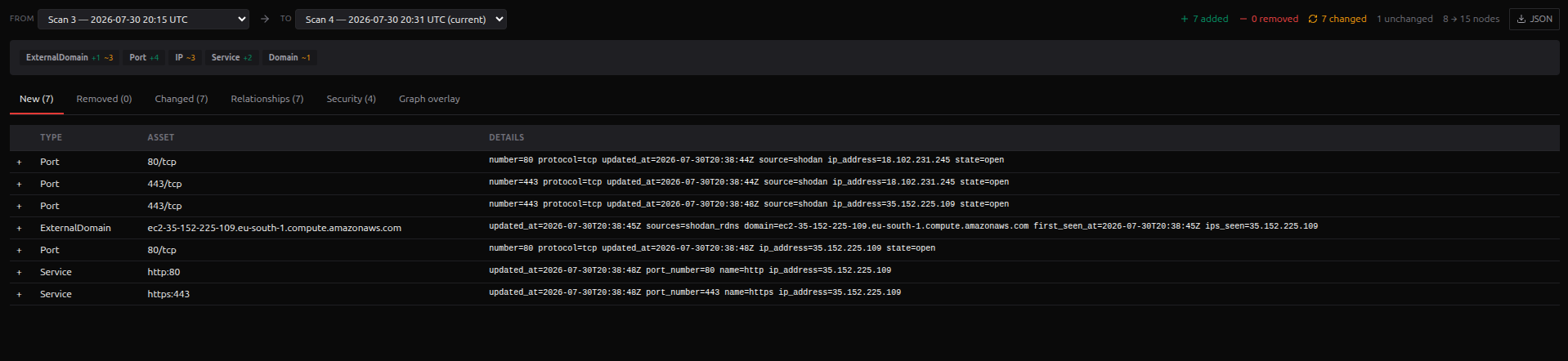
| Tab | Shows | Columns / content |
|---|---|---|
| New ({n}) | Nodes that exist in To but not From (newly discovered assets). |
Type, Asset, Details. Empty: "Nothing added."
|
| Removed ({n}) | Nodes that were in From but are gone in To. |
Type, Asset, Details. Empty: "Nothing removed."
|
| Changed ({n}) | Nodes present in both whose properties changed, one row per changed field. |
Type, Asset, Field, Before (old value, red), After (new value, green). Empty: "Nothing changed."
|
| Relationships ({n}) | Added and removed graph relationships (edges). |
Relationship, From, To, with + for added and − for removed. Empty: "No relationship changes."
|
| Security ({n}) | Security-focused lenses that translate raw diffs into "what matters" (see below). | A titled list per lens; an empty lens shows None. |
| Graph overlay | Both versions merged and drawn on the graph canvas, colored by change state. | Interactive graph (see below). |
The Security tab is the fastest way to read a delta from an attacker's or defender's point of view. Each lens is a named list of the affected assets:
| Lens | Tone | Meaning |
|---|---|---|
| Newly exposed ports | Bad | Ports that opened between the two versions. |
| New vulnerabilities | Bad | Vulnerability findings that appeared. |
| New CVEs | Bad | CVE identifiers newly associated with your assets. |
| Resolved vulnerabilities | Good | Findings that are no longer present (likely remediated). |
| Closed ports | Good | Ports that were open in From and are closed in To. |
| New parameters / inputs | Neutral | Newly discovered request parameters / input surfaces. |
| Certificate changes | Neutral | TLS certificate changes (rotation, issuer, expiry). |
| Technology version changes | Neutral | Tech stack version moves, rendered as {asset}: {old} → {new}. |
The overlay draws both versions on one canvas so you can see the change spatially. Nodes are colored by state:
| Color | State |
|---|---|
| 🟢 Green | Added / new |
| 🔴 Red | Removed |
| 🟠 Amber | Changed |
| ⚪ Grey | Unchanged (stable) |
By default the overlay hides unchanged nodes so the diff stands out. Tick Show unchanged (on the controls bar) to bring the stable nodes back into view. Click any node to open a side drawer with its name/type, a {type} · {state} line, and a field-change table (Field, Before, After); if nothing changed at the field level it reads "No field-level changes."
The Scan Scheduler tab lets a project run recon automatically on a cadence, without you clicking Start Recon. It has two parts: the schedule list (top) and the run history (bottom).
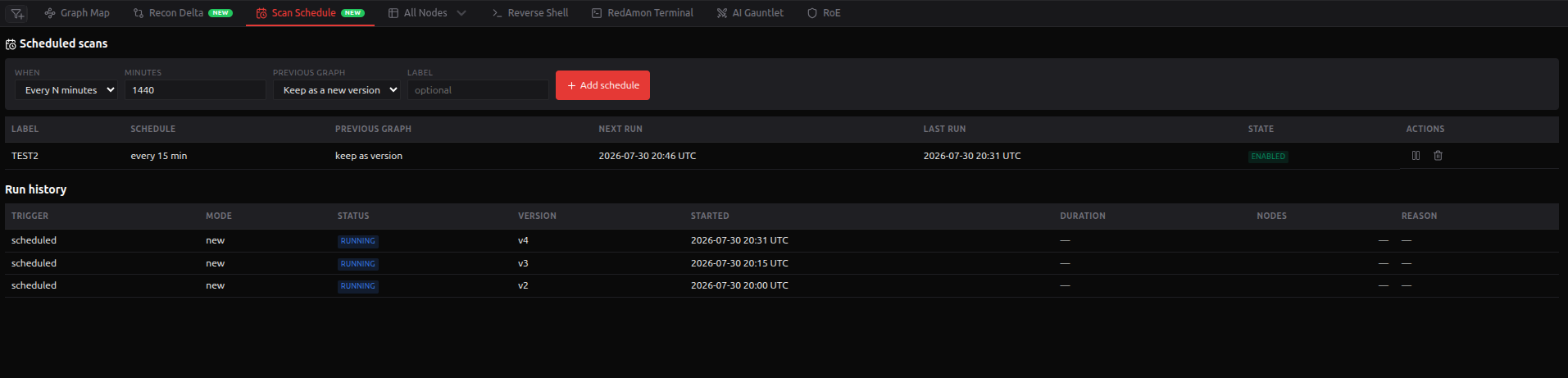
Under Scheduled scans, fill in the form:
-
When: the cadence.
- Once: pick a Date/time (local). Fires exactly once, then disables itself.
- Every N minutes: set Minutes (minimum 15, default 1440 = daily).
-
Cron: a UTC cron Expression (for example
0 3 * * *for 03:00 UTC daily).
-
Previous graph: the scan mode for each run (the same two modes as the manual Start Recon choice, worded here as): Keep as a new version (
new) or Overwrite (discard) (overwrite). - Label: an optional name (max 120 chars).
- Click Add schedule.
| Column | Meaning |
|---|---|
| Label | Your schedule name. |
| Schedule | The cadence in words: once at {date}, every {n} min, or cron {expr} (UTC). |
| Previous graph |
keep as version or overwrite. |
| Next run | When it fires next. |
| Last run | When it last fired. |
| State | Enabled or Disabled. |
| Actions | Pause/resume (disable/enable) and Delete. Deleting a schedule keeps its past runs in the history. |
The Run history table records every scan that touched this project, whether it was launched manually or by a schedule.
| Column | Meaning |
|---|---|
| Trigger |
manual or scheduled. |
| Mode |
new, overwrite, or —. |
| Status | The outcome (see below). |
| Version | The version the run produced (v{seq}) or —. |
| Started | When the run began. |
| Duration | How long it ran. |
| Nodes | Node count produced. |
| Reason | Why a run was deferred or could not start (RAM headroom, an activation in progress, or a scan already running). — when not applicable. |
Status values:
| Status | Meaning |
|---|---|
| completed | The scan finished successfully. |
| running | The scan is in progress. |
| deferred_ram | The scheduler postponed the run because the host did not have enough free memory. The Reason column explains. |
| failed | The run could not start or did not finish. The Reason column explains (for example, a scan or version activation was already in progress). |
| queued / canceled | Waiting to start / stopped before completion. |
What if a schedule fires while a scan is already running? RedAmon will not start a second concurrent scan on the same project. The scheduled run is not silently dropped: it is recorded in the run history as failed (or deferred_ram if the block was memory pressure) with the reason, so you always have a trace of every fire. The schedule then rolls forward to its next slot instead of hot-looping.
Does activating a version delete my reports, remediations, or captured traffic? No. Activation swaps only the recon graph. GVM/secret-scan output, CypherFix remediations, pentest reports, and TrafficMind captures are project-level and keep reflecting the latest scan.
Can I lose my graph by starting a new scan? Only if you choose the overwrite mode (Overwrite current version in the Start Recon modal, Overwrite (discard) in a schedule). In new-version mode the old graph is frozen before the new scan starts, and if the freeze fails the scan is refused.
Why can't I activate one of my versions? It has no stored snapshot (it predates Scan Timeline, or its capture failed), or a scan / partial recon is currently writing to the graph. The State column shows No snapshot in the first case.
Why does an old version look "read-only" and its analytics look wrong? Viewing a past version renders the snapshot, but analytics run against the active graph. Activate the version to analyze it fully.
Do my old versions fill up disk forever? No. Retention can auto-clean old, unpinned versions. Pin any version you want to keep permanently.
- Red Zone: the main interface where the version switcher and Scan Timeline tabs live.
- Running Reconnaissance: starting a full scan and choosing the "Create a new version vs Overwrite" scan mode.
- Attack Surface Graph: the Neo4j node/relationship schema that versions snapshot.
- Data Export & Import: exporting a project and its graph data.
- Insights Dashboard: the analytics that always reflect the active version.