Translate Dynamics 365 Customer Engagement / Dataverse metadata — tables, columns, choice values, view and form names, and form tab/section/field labels — from a single grid inside the Power Platform ToolBox (PPTB).
No solution exports, no spreadsheet round-trips: pick a table, pick a target language, type the translations, hit Save & Publish.
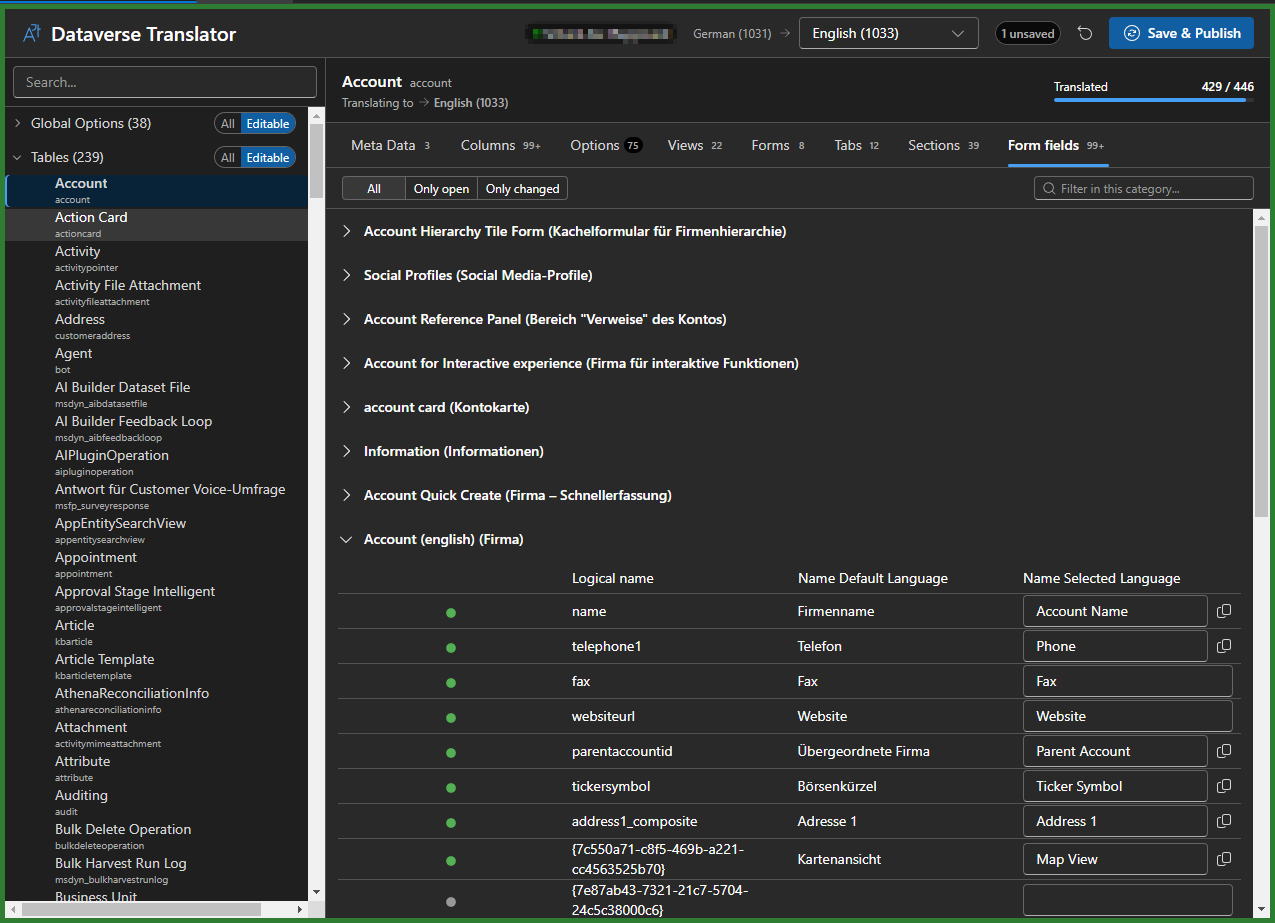
| Tab | Contents |
|---|---|
| Meta Data | Table display name, plural name, description |
| Columns | Column display names |
| Options | Choice (option set) values — label and description, grouped per option set |
| Views | View names |
| Forms | Form names |
| Tabs / Sections / Form fields | Form labels, grouped per form |
Global choices are translated too — they live in their own section of the left-hand tree, alongside the tables.
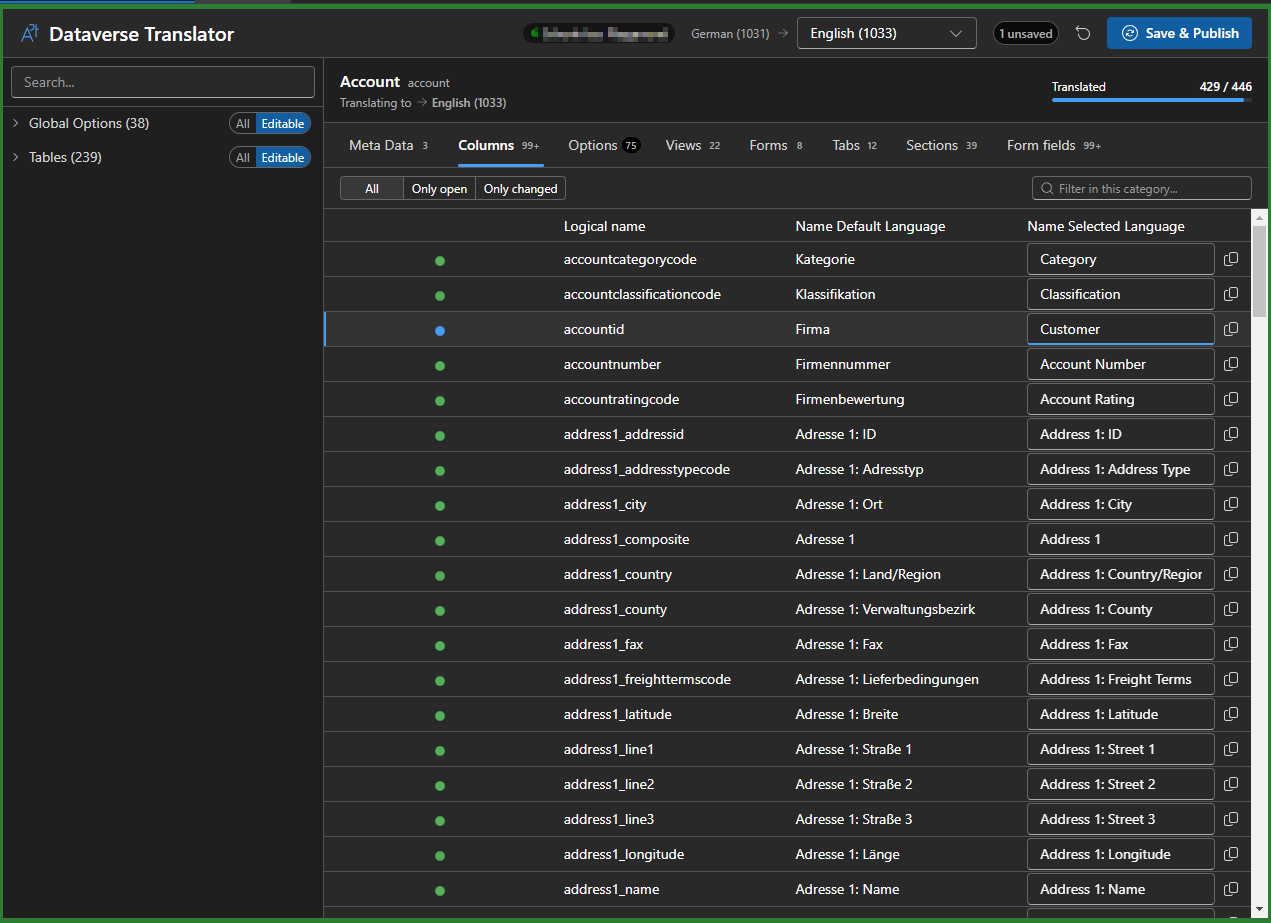
- Side-by-side editing. Every row shows the base-language value next to an input for the selected language, with a copy button to carry the base value over as a starting point.
- Any installed language. The target language selector offers every language installed in the environment, including the organization's base language — picking it edits the base labels directly. It defaults to your own Dynamics UI language.
- See what is left. A progress bar shows how much of the selected table is translated, each tab carries a count, and per grid you can filter to Only open or Only changed rows.
- Managed items are protected. The All / Editable pill hides non-customizable items; under All they stay visible but muted, carry a lock icon and are read-only, so a managed table cannot be edited by accident.
- Follows your theme. Light and dark mode follow the PPTB host.
Install Dataverse Translator from within Power Platform ToolBox and open it with an active Dataverse connection. Connection management is handled entirely by PPTB — the tool has no connection UI of its own and uses whichever connection is active.
- Select a Dataverse connection in PPTB.
- Choose the target language in the top right. The header shows the direction base → target.
- Pick a table — or a global choice — from the tree on the left. Use the search box or the All / Editable pill to narrow the list.
- Work through the tabs and fill in the Name Selected Language column. Filter to Only open rows to focus on what is still missing.
- Click Save & Publish. The badge counts unsaved edits; the result is reported as a toast.
Table metadata, columns and choice values come from the Dataverse metadata, which carries every installed language at once — these load and save quickly.
Form and view names and form tab/section/field labels are different: the Dataverse APIs only ever return them in the calling user's UI language, and there is no API that returns all languages at once. Like XrmToolBox's Easy Translator, this tool works around that by temporarily switching the connected user's UI language while reading and writing them, then restoring it. In practice:
- Your Dynamics UI language is changed for a few seconds during such a load or save. Avoid working in the same Dynamics session in another tab while it runs.
- Expect a short delay (~2s per language). Names and form labels are read in a single pass, so the names cost no extra time.
cd src/DataverseTranslator
npm install
npm run lint       # eslint
npm run build      # tsc (type-check) + vite build → dist/
npm run validate   # pptb-validate against the PPTB review rules
To test against the real Power Platform ToolBox, enable debug mode in the PPTB settings and load the
src/DataverseTranslator directory (the one containing package.json) via the debug menu. PPTB shows
debug-loaded tools as "Locally Developed Tool" — that is PPTB's label, not a manifest value.
For the design rationale and the non-obvious Dataverse/PPTB details — the metadata vs. form-XML split,
the language-impersonation mechanics, the MergeLabels pitfall and other hard-won gotchas — see
ARCHITECTURE.md.
MIT — see LICENSE.