002 ‐ TUTORIAL
To start, I needed a working example which demonstrated how to run a WebGL example within a HTML5 file. The key was finding one that loads a fragment shader. Luckily, I found a working an example from Pablo Colapinto that runs locally without any external dependencies. This example can be found here. Open the file in a web browser, ideally Chrome or Firefox. It will look like this:

I look for the Fragment Shader section and removed the code from inside the <script> tag. Below is what it should look like once you remove the code from the template.
...
<!-- FRAGMENT SHADER SOURCE -->
<script id="fragScript" type="text/glsl">
<!-- ADD GLSL SHADER CODE HERE -->
</script>
...
Then, I pasted my abstract video art GLSL shader, or Fragment Shader, I created where it says Add GLSL Shader Code.
<!-- FRAGMENT SHADER SOURCE -->
<script id="fragScript" type="text/glsl">
<!-- ADD GLSL SHADER CODE HERE -->
    #ifdef GL_ES
    precision mediump float;
    #endif

    #define PI 3.14159265359

    uniform vec2 uResolution;
    uniform vec2 uMouse;
    uniform float uTime;

    float plot(vec2 st, float pct){
      return  smoothstep( pct-0.02, pct, st.y) -
              smoothstep( pct, pct+0.02, st.y);
    }

    void main() {
        vec2 st = gl_FragCoord.xy/vec2(640,480);
        st -= 0.5;
        st *= 12.0;
        float pct2 = 0.0;
        pct2 = distance(st,vec2(0.5));

        float y3 = sin(cos((st.y)*(0.10)))-sin(st.x+st.y*02.2);
        float y = smoothstep(1.2-(sin(((y3)))*(cos(st.y/-9.2))),0.5,st.x) - smoothstep(0.5,0.1,(st.x*0.2))+(sin(st.x-(uTime*.0412)));
        float y2 = smoothstep(04.91,02.5,st.y+st.x) - smoothstep(0.481,0.918,st.y);
        vec3 colorA = vec3(y*y2)-(y3-(0.14))*(sin(st.x-(uTime*.02412)));
        colorA = (1.0)*colorA*vec3(.020+(sin(((y3+y)))+(cos(pct2*-0.2))),0.120,(0.10+(sin(y3))));

        float y4 = cos(cos((st.x)*(0.13)*sin(0.23)));
        float y5 = smoothstep(0.2,0.25,0.3) - smoothstep(0.25,0.31,(st.y*0.12));
        float y6 = smoothstep(0.9+(st.x*0.012),0.1915,st.y+cos(st.y)) - smoothstep(0.641,0.8191,(st.x+st.y)*0.2);
        vec3 colorB = vec3(y4+y5)-(y3*(0.913))*(sin(st.x+(uTime*.031592)));
        colorB = (1.0)*colorB*vec3(.920,0.95030,(0.20-y6))*(sin(st.y-(uTime*.032412)));

        vec2 bl = step(vec2(0.5),st);
        float pct = bl.x * bl.y;
        vec3 colorMix = vec3(0.0);
        colorMix = mix(colorA*0.432, colorB+0.3892, 0.983*(sin(((y6+y2)))*(cos(pct2/-2.2))));

        gl_FragColor = vec4(colorMix,1.0);
    }
</script>
For the tutorial, save the new file as index.html. Check to see if the shader rasters correctly by opening it in a web browser, ideally Chrome or Firefox. The complete example can be found here.

We’ve tested it locally, and it runs as expected. It’s time to inscribe.
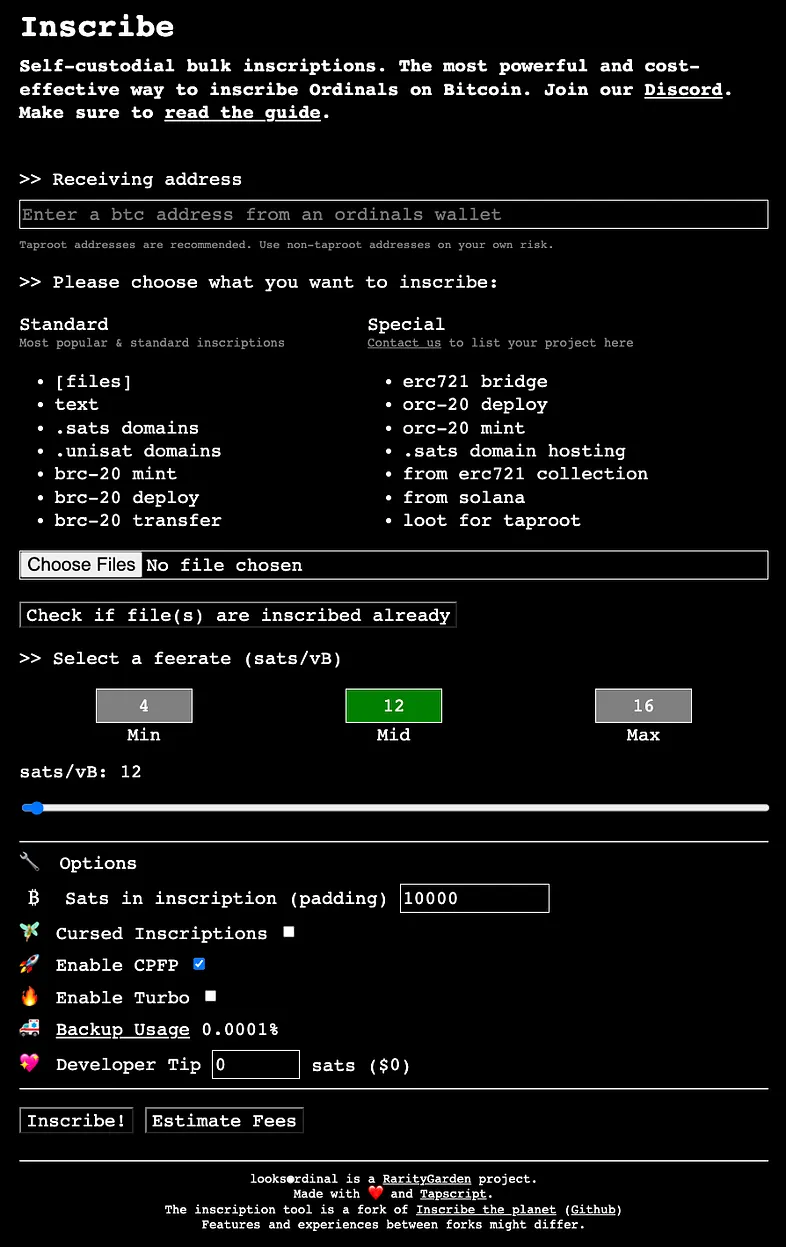
Go to looksordinal. It is a cost-effective site for self-custodial bulk inscriptions. The website looks like the image below.
Note, inscriptions have a size limit. Below is a table that provides more information.
| Size | Description |
|---|---|
| Standard limit | 4 MB per individual inscription, constrained by Bitcoin’s block size. |
| Practical limits | Often much smaller (e.g., 60 KB for images, 200 KB for GIFs) depending on the tool or service used. |
| Recursive inscriptions | Can exceed 4 MB in total size by combining multiple inscriptions, though each part remains under 4 MB. |
Add your Ordinal receiving address to the Receiving Address section. Don’t forget that your Ordinal address is different than your BTC recipient address. This can be found inside your Bitcoin wallet.

Choose the file you want to inscribe.

Select the freerate. I’d suggest Mid because if you choose Min, you risk waiting a long time for the inscription to complete. Don’t forget to tip your dev!

Click Estimate Fees to see the cost of the inscription. Then the press the inscribe button.

The page will continue to the payment process. Scan the QR code with your preferred Bitcoin wallet and send the payment to the Ordinal address provided.
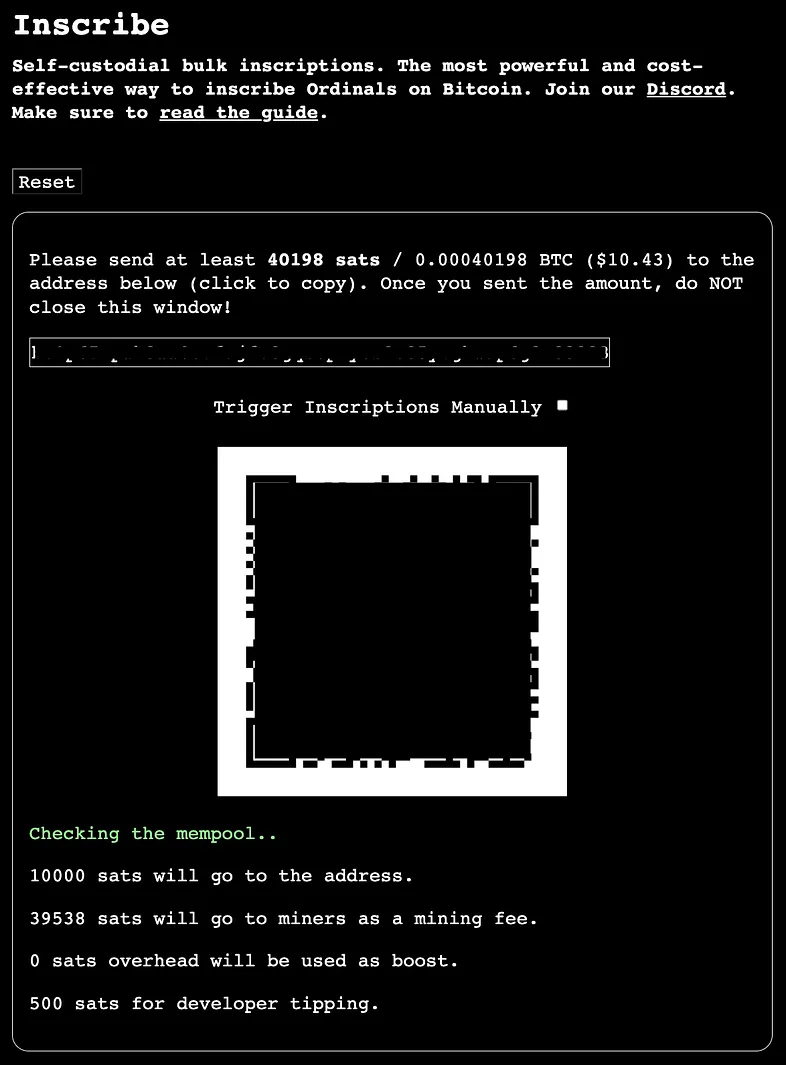
Once the payment is received by the platform, the inscription will be processed by Bitcoin's mempool. Click the transaction link.

Track the progress of your inscription by using mempool.space.

When the inscription has finished processing, check it out on Ordinals.com

- Basic example running WebGL in the browser using HTML5 and Javascript. The file displays a red box when opened in the browser.
- Basic example running a webglo example in the browser using HTML5 and Javascript. The file displays webglo abstract video art when opened in the browser.
webglo example mempool transaction
- Link to the Bitcoin mempool displaying the transaction from this example.
webglo example Ordinal source link
- Link to the inscription that was uploaded to the Bitcoin blockchain using the Ordinals protocol.