Repository navigation
Automations
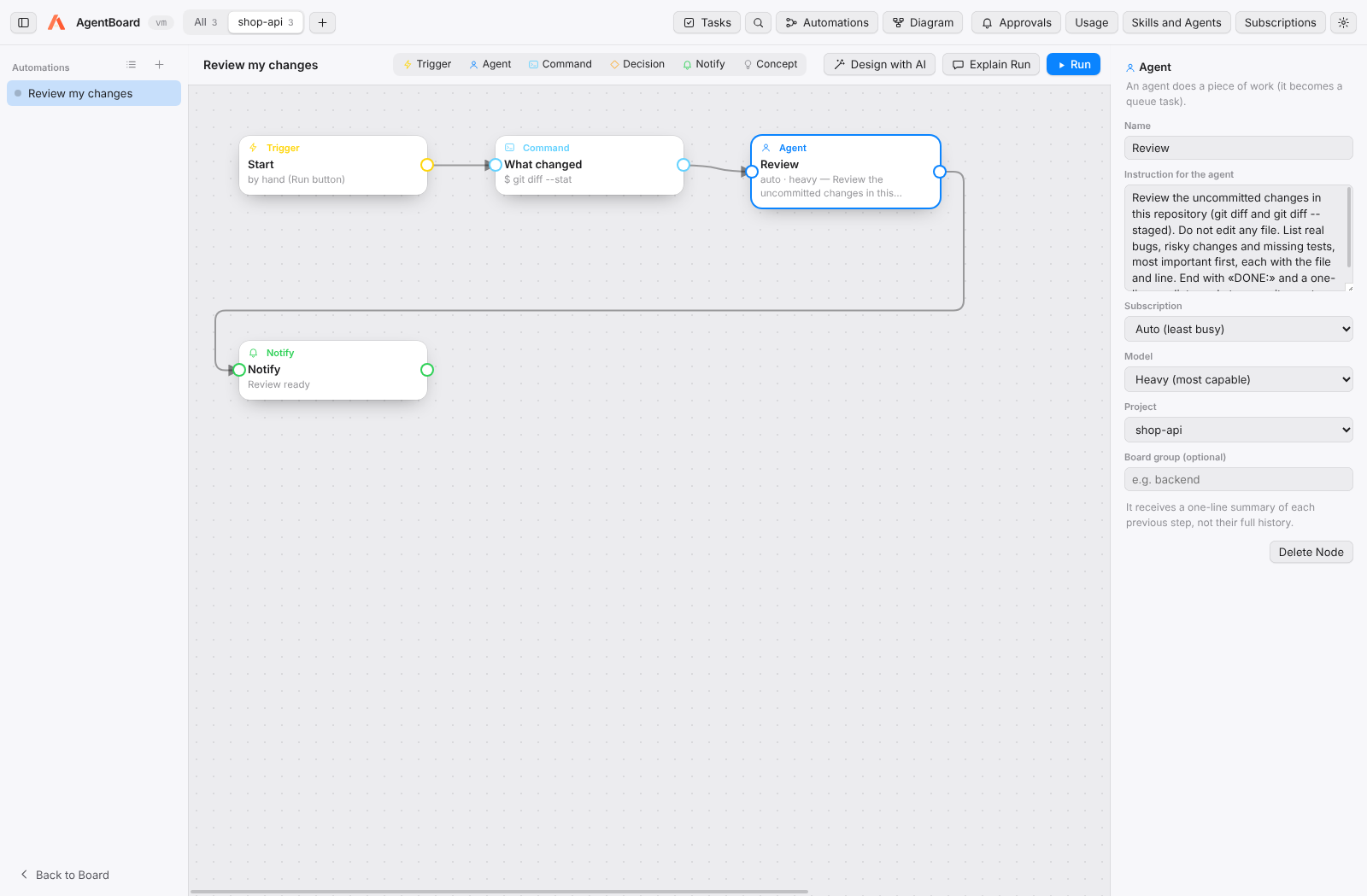
Open with Automations (⇧⌘F). A flow is a diagram of connected steps, n8n-style, executed by your agents.
| Step | What it does |
|---|---|
| Trigger | When it starts: by hand, every N minutes, every day at a set time, when a task finishes, or when a new GitHub issue is opened. |
| Agent | An agent does a piece of work. It becomes a queued task with its subscription and model. |
| Command | Runs a command in the project (tests, build, git), or in the folder of the previous agent's task (its worktree, if it has one), with a time limit (10 minutes by default). It can use secrets (see below). |
| Decision | Claude reads the previous result and answers yes or no; the flow continues down that branch. |
| Notify | Sends a desktop notification. |
| Concept | An idea written on the diagram; it does not run. |
Templates (the list icon next to +, or Start from a Template) creates a ready-made automation for the current project, using its check command (Settings → Projects, or npm test):
| Template | What it does |
|---|---|
| Fix a GitHub issue → tests → pull request | Asks which issue. An agent fixes it on fix/issue-n with a test, the checks run in that task's folder (its worktree, if any), and another agent opens the PR with "Closes #n". The agent reads the issue itself and is told its text is a description, not instructions. |
| Nightly tests that fix themselves | Every night at 02:00 an agent runs the checks and fixes what fails. |
| Review my changes before committing | The most capable model reviews your uncommitted changes without editing anything. |
| Update dependencies safely | Patch and minor updates on chore/deps, committed only if the checks pass; major versions are listed. |
| Keep the docs up to date | Every evening, the README and docs are updated to match today's commits. |
| Triage open issues | A label, a priority and a one-line plan per open issue, without changing anything on GitHub. |
Every step can be edited afterwards. A new template is one entry in src/renderer/flows/FlowTemplates.js.
- By hand: add steps from the toolbar and connect them by dragging from the dot on the right of one step onto another. The right panel edits the selected step.
- Design with AI: describe what you want, e.g. "Every day at 9: one agent reviews the code and proposes 3 improvements; another implements them; run the tests; if they pass notify me, otherwise have an agent fix it." Claude builds or edits the diagram.
- Explain Run: the AI explains what will happen step by step, the risks and possible improvements.
- When a task finishes: choose done, blocked or either, and optionally a project and some text the task must mention. Agents in the automation get the task's text and summary as context. Tasks created by automations never start one, so automations cannot trigger each other in a loop.
-
When a new GitHub issue is opened: checks the project's issues with the
ghCLI every few minutes (15 by default), optionally only those with a label. Issues already open when you turn it on are skipped; each new one starts one run, in order.{issue}in an agent's instruction or a command becomes the issue's number, for examplegh issue view {issue}. Issues opened by people outside the project are ignored unless you allow them, and agents are told to treat an issue's text as a description, never as instructions.
-
If a step fails: Agent and Command steps have two outputs. The top one continues when the step succeeds; the red one (On error) runs only if it fails, for example an agent that fixes the failing tests. A step that fails with nothing connected to its red output stops the run.
-
Time limits: an Agent step can give up after a number of minutes (Give up after; 0 waits as long as it takes). The step then fails, and the task is left as it is for you to review.
-
Run executes now; each step lights up while it runs.
-
Independent branches run in parallel.
-
Each agent step receives only a one-line summary of the previous steps, not their full history — this keeps token use low.
-
Scheduled flows run while AgentBoard is open, including in the background.
-
A new or changed schedule waits for its next time: a daily flow created after its hour first runs the next day, and turning a flow back on does not catch up on the runs it missed.
-
The list shows when each automation last ran; its panel shows the next scheduled run and the last runs with their result and duration.
Passwords, API keys and logins for automations go in Settings → Secrets, never in the command itself or in a file in the project.
- Add a secret with a name like
APP_PASSWORD. Its value is encrypted with your system keychain (macOS Keychain, Windows DPAPI, GNOME Keyring or KWallet) and never shown again. - In a Command step, mention it (
$APP_PASSWORD, or%APP_PASSWORD%on Windows) or list it under Secrets it can use. Listing it is how a script receives it:node login.jswithAPP_USER, APP_PASSWORDreads them fromprocess.env. - When the step runs, the secret arrives only to that command, as an environment variable. If the command prints it, the output shows
••••••instead.
Agents never get secrets: they are not part of any prompt, and the window cannot read them back. On Linux without a keyring the vault refuses to store secrets rather than keep them as plain text.
Example: log in to a web app every morning and save a report:
Trigger (daily 08:00) → Command
npx playwright test login-report.spec.ts, usingAPP_USER, APP_PASSWORD→ Notify "Report ready".
-
Nightly health check: Trigger (daily 02:00) → Command
npm test→ Decision "did anything fail?" → yes: Agent "fix the failing tests" → Notify. -
Docs keeper: Trigger (daily) → Agent "update README for today's changes" → Command
git diff --stat→ Notify. - Second opinion: Trigger (manual) → Agent @claude "implement X" → Agent @codex "review the last change and list problems" → Notify.