Settings
Global configuration for Audiobook Studio.
Access settings via the Sidebar menu.
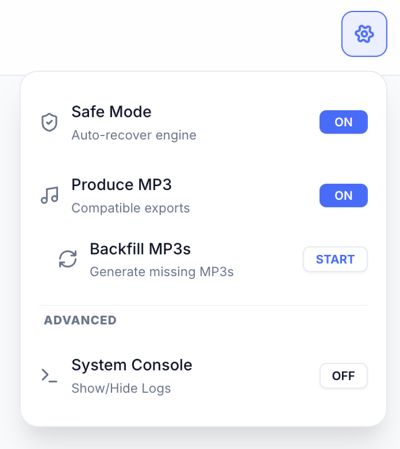
- Safe Mode: Automatically attempts to recover the AI engine if it encounters an error.
- Produce MP3: Toggles generation of MP3 files alongside WAV for better compatibility.
- Backfill MP3s: Scans your library and generates missing MP3 files for existing chapters.
-
Voxtral Enabled: Shows or hides
Voxtral (Cloud)voice options without deleting your saved API key. - Mistral API Key: Your personal key for Voxtral preview and render jobs.
- Voxtral Model: Optional override for the Mistral TTS model name if you need to change it.
-
XTTS (Local)remains the default private path. -
Voxtral (Cloud)is optional and stays hidden until you save a Mistral API key and enable it. - Turning Voxtral off hides the UI again, but your saved key can remain in Settings for later.
If you enable Voxtral (Cloud), the text being synthesized and any selected reference audio for that request are sent to Mistral. If you want a fully local workflow, keep your voices on XTTS (Local).
By default, the application stores data in the following folders:
-
/projects/: Current primary storage for project text, audio, and assembled books. -
/voices/: Current voice models and profile metadata. -
/chapters/: Default loose chapter-text folder for fresh installs when you use legacy text-file flows. -
/xtts_audio/: Legacy/global audio output root kept for compatibility with older non-project workflows. -
/audiobooks/: Legacy/global assembled.m4boutput root kept for compatibility.