Repository navigation
CreatePage
This guide explains how to create a brand new CEF page in the framework, using the actual frontend architecture used by this project.
This includes:
- creating the page component
- optionally creating a MobX store
- registering frontend events
- registering the page in the frontend
- adding the page to the client-side CEF page config
- opening the page from the server
- sending data to and from the page
In this project, a page is not just a React component.
A working page usually involves these parts:
- Frontend page component
- Optional frontend store
- EventManager handlers
- Frontend page registration
- Client-side page config (
CEFPages) - Server-side CEF emit/register
The flow usually looks like this:
sequenceDiagram
    participant S as Server
    participant C as Client Bridge
    participant F as Frontend
    participant P as Player

    S->>C: cef::system:setPage
    C->>F: system:setPage
    F->>P: Render page

    S->>C: cef::example:setData
    C->>F: example:setData
    F->>P: Update page state

    P->>F: Click button / submit action
    F->>C: emitServer("example", "submit")
    C->>S: server::example:submit
    S->>S: Validate & process
    S-->>C: cef::example:update
    C-->>F: example:update
    F-->>P: Refresh UI
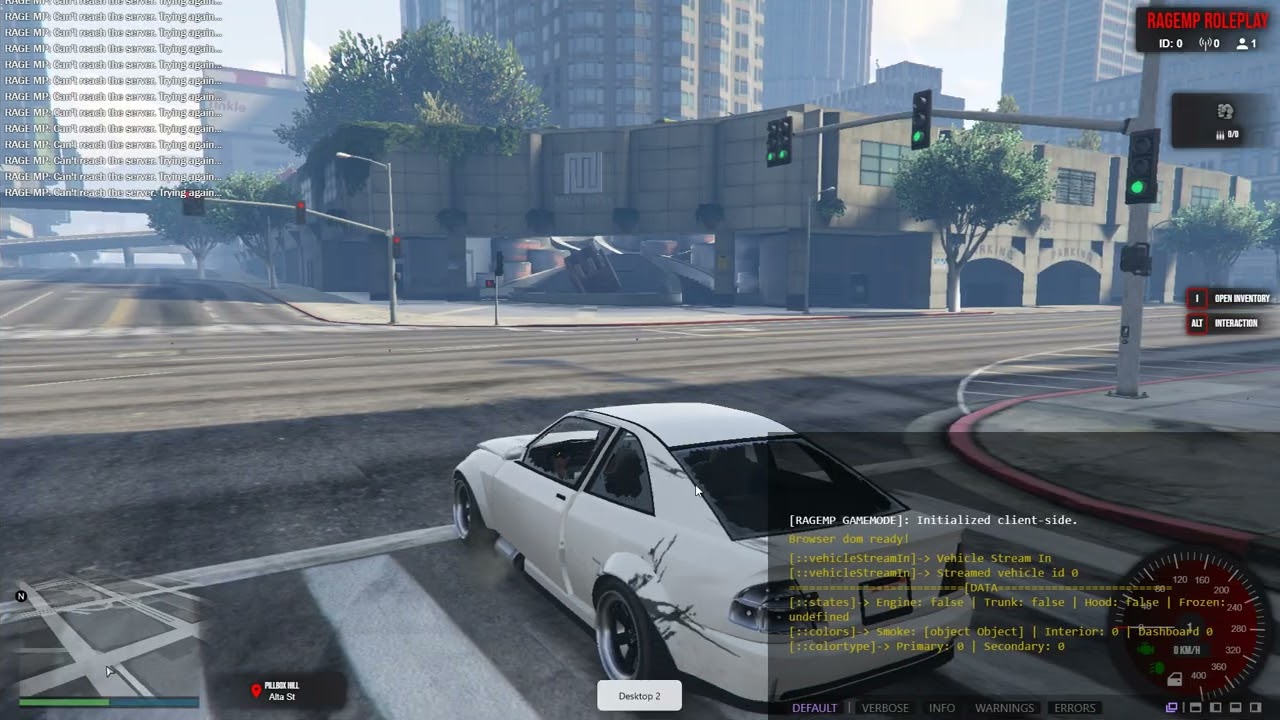
Click the image to watch the walkthrough.
Before creating a page, it is important to understand how pages are loaded.
Inside src/pages/index.ts:
import.meta.glob("./*/*.tsx", { eager: true });This means every page inside:
src/pages/<folder>/<File>.tsx
is imported automatically.
Pages are not rendered directly.
They are registered into a component registry using:
createComponent({
  pageName: "auth",
  component: Authentication,
  props: {},
});Inside App.tsx, the current page is taken from PageContext:
const { page } = usePage();
const pageComponent = getRegisteredComponent(page);
and then rendered dynamically.
Inside App.tsx:
EventManager.addHandler("system", "setPage", handleSetPage);So when the frontend receives:
system:setPage
the current page changes.
Inside the frontend, create a new folder under src/pages.
Example:
src/pages/example/
Inside it, create:
src/pages/example/Example.tsx
src/pages/example/example.module.scss
You can change the naming style, but this matches the current project structure.
Create the page file:
import { FC } from "react";
import { observer } from "mobx-react-lite";
import { createComponent } from "src/hoc/registerComponent";
import { exampleStore } from "store/Example.store";
import EventManager from "utils/EventManager.util";
import style from "./example.module.scss";

interface ExampleProps {
  store: typeof exampleStore;
}

const Example: FC<ExampleProps> = observer(({ store }) => {
  return (
    <div className={style.main}>
      <div className={style.title}>Example Page</div>
      <div className={style.description}>{store.text}</div>

      <button
        onClick={() =>
          EventManager.emitServer("example", "submit", { value: "hello" })
        }
      >
        Send To Server
      </button>
    </div>
  );
});

export default createComponent({
  pageName: "example",
  component: Example,
  props: { store: exampleStore },
});If the page has state, create a store.
Create:
src/stores/Example.store.ts
Example:
import { makeAutoObservable } from "mobx";
import EventManager from "utils/EventManager.util";

class _ExampleStore {
  text = "Default text";

  constructor() {
    makeAutoObservable(this);
    this.createEvents();
  }

  setText(value: string) {
    this.text = value;
  }

  createEvents() {
    EventManager.addHandler("example", "setData", (data: { text: string }) => {
      this.setText(data.text);
    });

    EventManager.addHandler("example", "update", (data: { text: string }) => {
      this.setText(data.text);
    });

    EventManager.stopAddingHandler("example");
  }
}

export const exampleStore = new _ExampleStore();In this project, frontend events are handled through EventManager.
Example:
EventManager.addHandler("example", "setData", (data) => {
  // update store
});
This registers an event for:
example:setData
When CEF receives:
example:setData
it will call the matching handler.
This works because window.callHandler in src/index.tsx forwards everything into:
EventManager.callHandler(event, ...args);Example example.module.scss:
.main {
  width: 100vw;
  height: 100vh;
  display: flex;
  align-items: center;
  justify-content: center;
  flex-direction: column;
  color: white;
}

.title {
  font-size: 32px;
  margin-bottom: 12px;
}

.description {
  font-size: 18px;
  margin-bottom: 20px;
}
This step is optional, but most pages in the project use a local SCSS module.
Creating the frontend page is not enough.
You also need to define the page in the client-side CEFPages configuration so the browser knows how the page should behave.
Add your new page inside:
source/client/assets/CEFPages.asset.ts
Example:
example: {
    blur: true,
    controls: true,
    freezeCamera: true,
    radar: false
}
These settings control things like:
- blur
- radar visibility
- controls
- camera freeze
- cursor handling
Without this, opening the page properly from the client side will not work as expected.
To switch to your new page, use:
RAGERP.cef.emit(player, "system", "setPage", "example");Why this works:
- server emits
cef::system:setPage - client bridge receives it
- browser starts the page
- frontend
App.tsxreceivessystem:setPage -
PageContextswitches current page to"example"
This is the page-opening event in this framework.
After opening the page, send the initial data:
RAGERP.cef.emit(player, "example", "setData", {
  text: "Hello from server",
});
This becomes:
cef::example:setData
The client forwards it to the frontend, and the store handler receives it.
From the frontend, use:
EventManager.emitServer("example", "submit", {
  value: "hello",
});
This becomes:
server::example:submit
The client forwards this event to the server.
On the server, register the incoming event:
RAGERP.cef.register("example", "submit", (player, data) => {
  console.log(data);

  RAGERP.cef.emit(player, "example", "update", {
    text: `Server received: ${data.value}`,
  });
});
This gives you the full loop:
- open page
- send initial page data
- user interacts
- frontend emits to server
- server validates/processes
- server sends updated data back
import { FC } from "react";
import { observer } from "mobx-react-lite";
import { createComponent } from "src/hoc/registerComponent";
import { exampleStore } from "store/Example.store";
import EventManager from "utils/EventManager.util";

const Example: FC<{ store: typeof exampleStore }> = observer(({ store }) => {
  return (
    <div>
      <h1>{store.text}</h1>
      <button
        onClick={() =>
          EventManager.emitServer("example", "submit", { value: "hello" })
        }
      >
        Send
      </button>
    </div>
  );
});

export default createComponent({
  pageName: "example",
  component: Example,
  props: { store: exampleStore },
});import { makeAutoObservable } from "mobx";
import EventManager from "utils/EventManager.util";
class _ExampleStore {
text = "Waiting for data...";
constructor() {
makeAutoObservable(this);
this.createEvents();
}
setText(text: string) {
this.text = text;
}
createEvents() {
EventManager.addHandler("example", "setData", (data: { text: string }) => {
this.setText(data.text);
});
EventManager.addHandler("example", "update", (data: { text: string }) => {
this.setText(data.text);
});
EventManager.stopAddingHandler("example");
}
}
export const exampleStore = new _ExampleStore();RAGERP.cef.emit(player, "system", "setPage", "example");
RAGERP.cef.emit(player, "example", "setData", {
text: "Hello from server",
});
RAGERP.cef.register("example", "submit", (player, data) => {
RAGERP.cef.emit(player, "example", "update", {
text: `You sent: ${data.value}`,
});
});You do not always need a store.
- page has reusable state
- multiple components depend on the same data
- page receives multiple updates from server
- page logic should stay outside the component
- page is very small
- local state is enough
- page is mostly static
A store is recommended for bigger pages, but not mandatory.
This project does not use a typical route-based frontend.
A page here is:
- registered into a component registry
- opened through
system:setPage - updated through EventManager events
- connected to the game through the client bridge
So creating a new page means wiring it into the framework event flow, not just creating a React component.
If you do not export the page using:
createComponent(...)the page will never be registered.
Sending page data alone will not switch the rendered page.
You must open it with:
RAGERP.cef.emit(player, "system", "setPage", "example");If the page does not exist inside the client-side page config, browser-related behavior will be missing or incorrect.
Frontend should not:
- validate gameplay rules
- change persistent data
- become the source of truth
The server must remain authoritative.
Try to keep:
- rendering in the component
- state in the store
- validation on the server
Example final structure:
src/pages/example/
├── Example.tsx
└── example.module.scss

src/stores/
└── Example.store.ts
And outside the frontend:
source/client/assets/CEFPages.asset.ts
source/server/... your CEF emit/register logic
To create a new page in this framework:
- create the page folder and component
- register it with
createComponent - optionally create a store
- register frontend handlers with
EventManager - add the page to client-side
CEFPages - open it using
RAGERP.cef.emit(player, "system", "setPage", pageName) - send page data with
RAGERP.cef.emit(player, page, pointer, data) - receive frontend actions with
RAGERP.cef.register(page, pointer, handler)
That is the full page creation flow used by this project.