Home
This Wiki explains how to install and use the independent LILYGO T-Display-S3 wireless monitor for Battery Emulator.
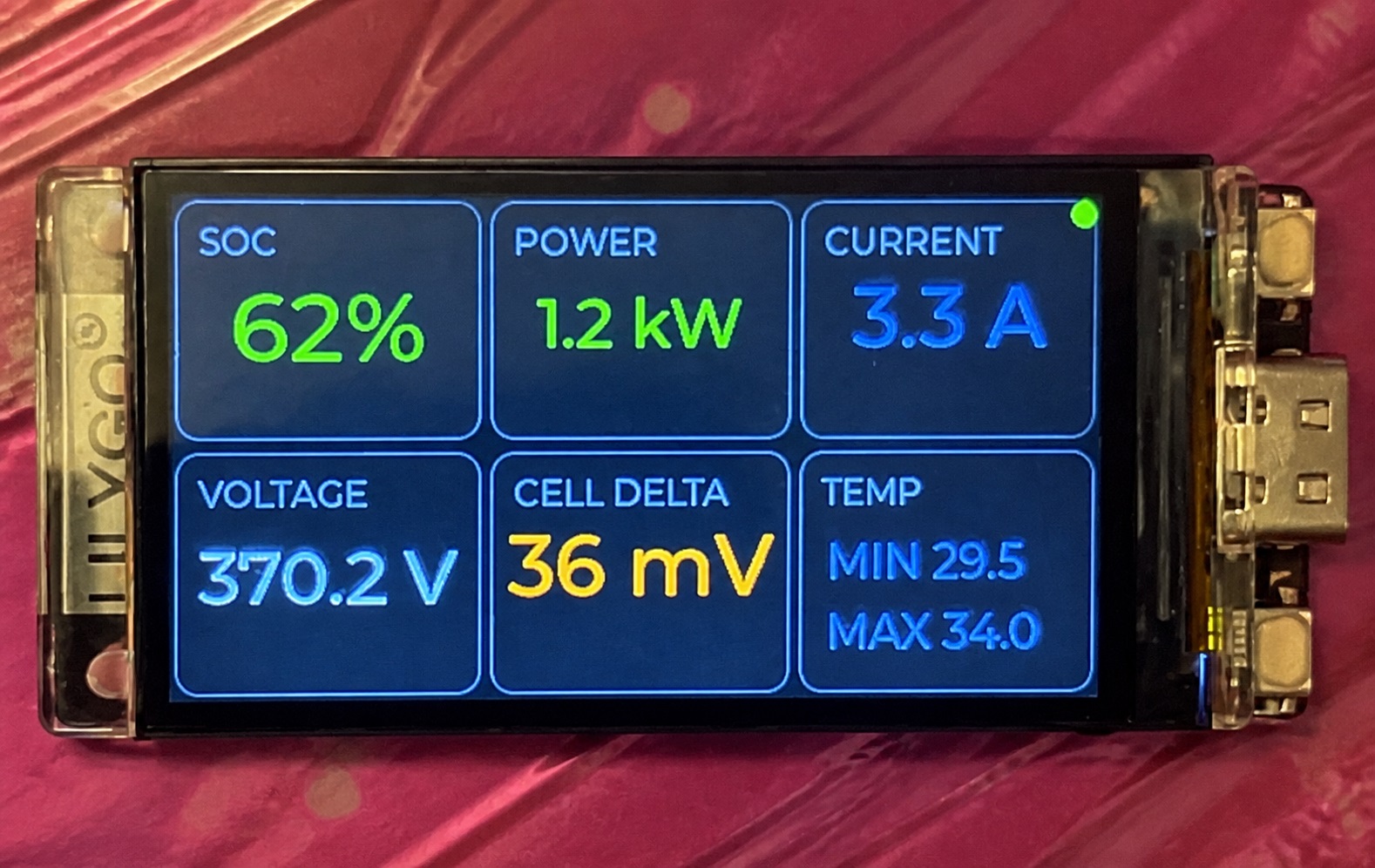
The display receives live Battery Emulator data over ESP-NOW and shows it on four switchable screens. ESP-NOW allows the display and Battery Emulator to communicate directly without a router.
This community project is an optional external monitor. It does not modify Battery Emulator control functions.
- LILYGO T-Display-S3
- USB-C data cable
- A Battery Emulator device configured to transmit the supported ESP-NOW data
Choose the 1.9-inch ST7789 T-Display-S3 and confirm the board variant with the seller before ordering.
SOC, power, current, pack voltage, cell delta and temperature.
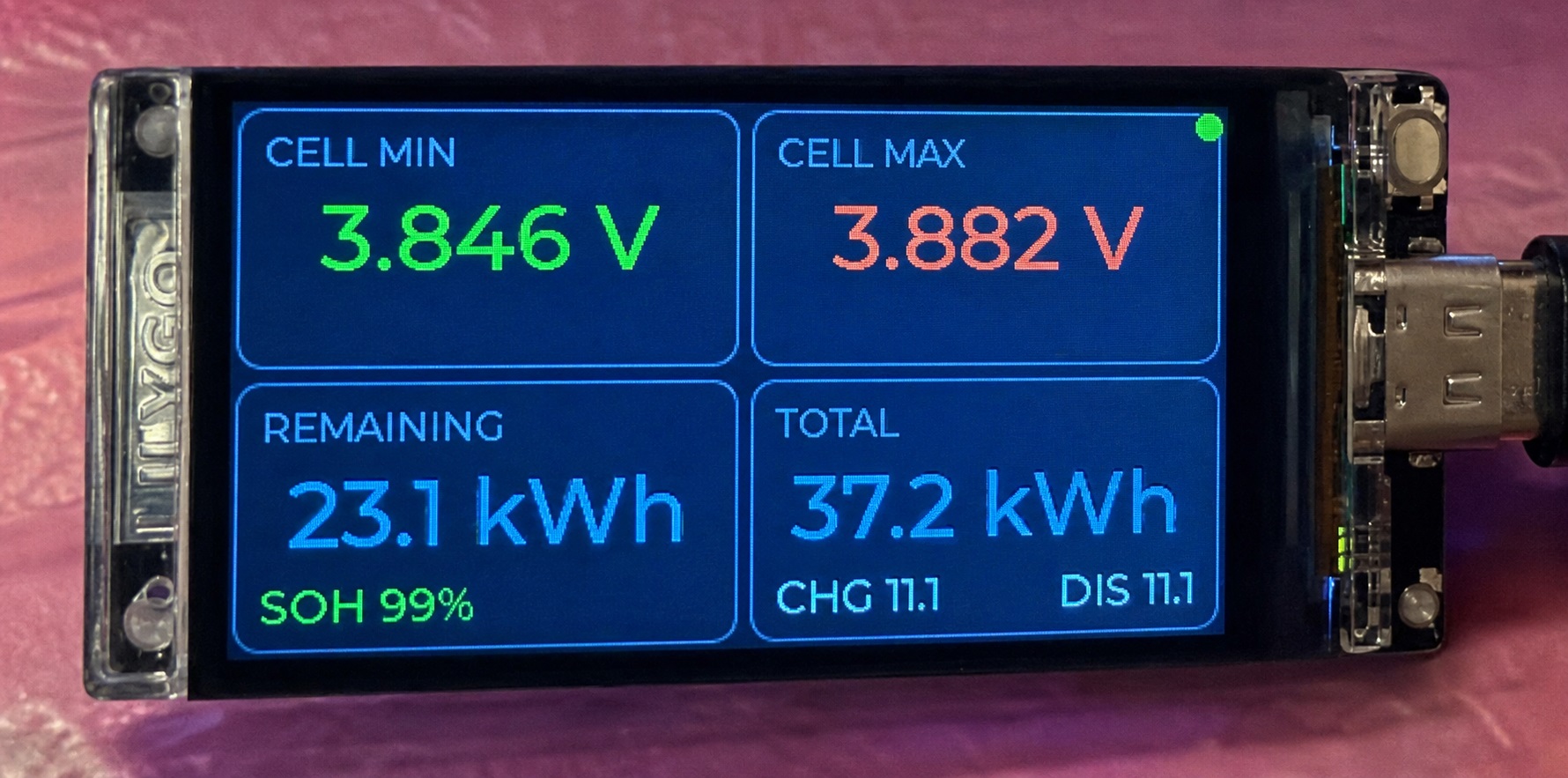
Minimum and maximum cell voltage, remaining energy, total energy, SOH and charge/discharge counters.
Wi-Fi status, Battery CAN status, inverter CAN status and last-reset information.

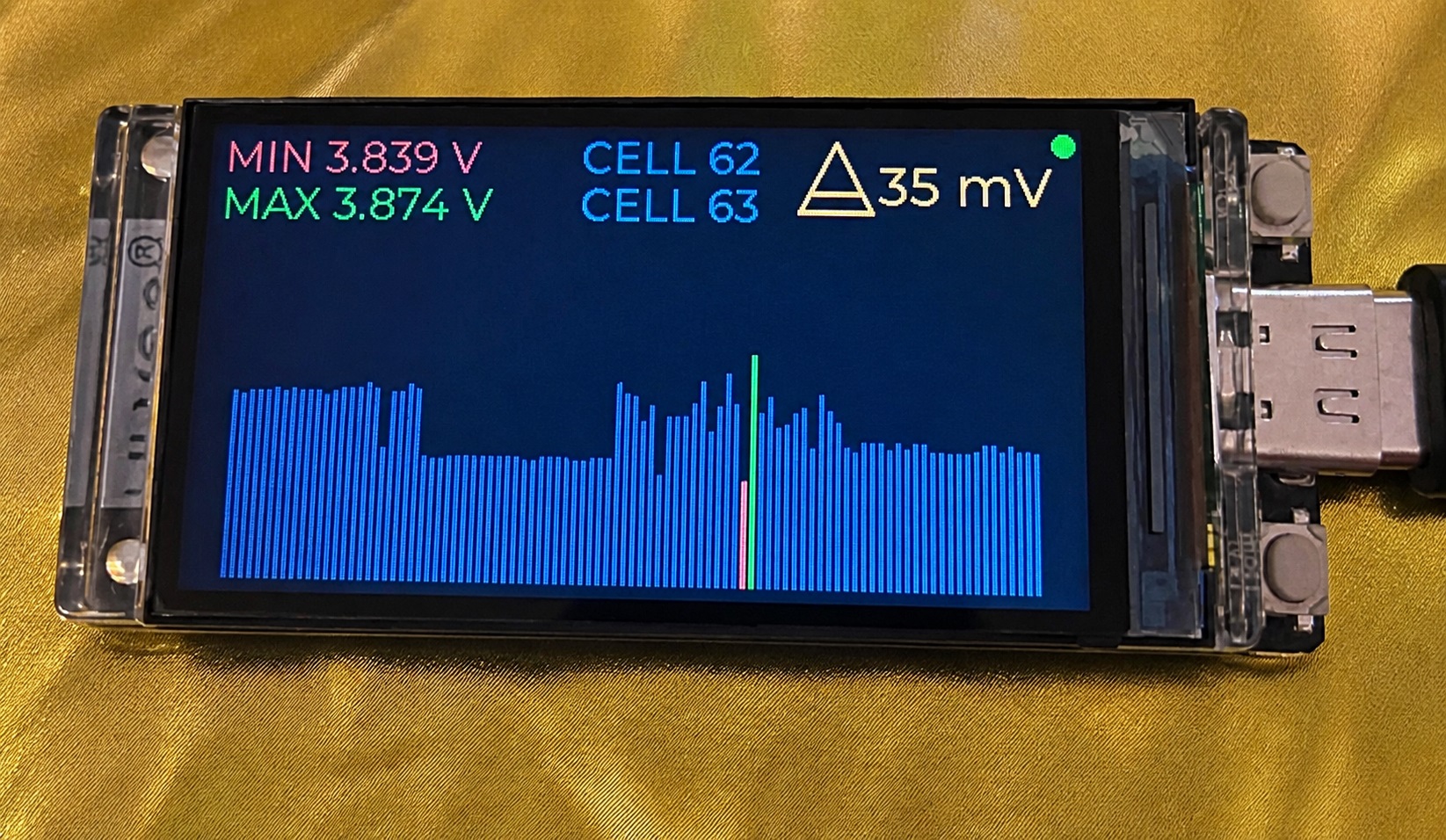
Graphical overview of all cell voltages with highlighted minimum and maximum cells and the voltage delta.
- Use Google Chrome or Microsoft Edge on a computer.
- Open the Battery Display Web Installer.
- Connect the T-Display-S3 with a USB data cable.
- Choose Update firmware to keep current settings, or Factory install for a new board or full recovery.
- Select the T-Display-S3 serial port.
- Wait until the progress indicator reaches 100% and the board restarts.
When the display shows PHONE SETUP ACTIVE:
- Open Wi-Fi settings on the phone.
- Join
BatteryDisplay-Setup. - Enter password
123456789. - Open
http://192.168.4.1in the phone browser. - Select direct ESP-NOW mode or enter the local Wi-Fi settings and save.
The display reports PHONE CONNECTED after the phone joins its setup network.
When the display is connected to a local Wi-Fi network, open its shown IP address in a browser. The web interface provides basic controls such as display brightness, start screen, color theme and SOC badge visibility.
Use the T-Display-S3 buttons to move between the four information screens. Button handling is debounced so a normal short press advances one screen.
- Use a USB data cable, not a charge-only cable.
- Close serial monitors and other programs using the same COM port.
- Reload the installer page and reconnect the board.
- Confirm the phone is connected to
BatteryDisplay-Setup. - Disable mobile-data switching temporarily if the phone leaves networks without internet access.
- Enter
http://192.168.4.1directly; do not use127.0.0.1.
Use Update firmware for routine updates. Factory install intentionally resets stored configuration.
- Confirm the Battery Emulator is running and transmitting ESP-NOW data.
- Check the System diagnostics screen.
- Verify the ESP-NOW peer/channel settings in phone setup.
This is an independent community project and is not an official part of Battery Emulator. Verify the displayed values against the Battery Emulator interface before relying on them for diagnostics.