Repository navigation
Chat
The Chat page (Ctrl+1) has your chats on the left, the conversation in the middle, and that chat's settings on the right (hide them with Ctrl+B).
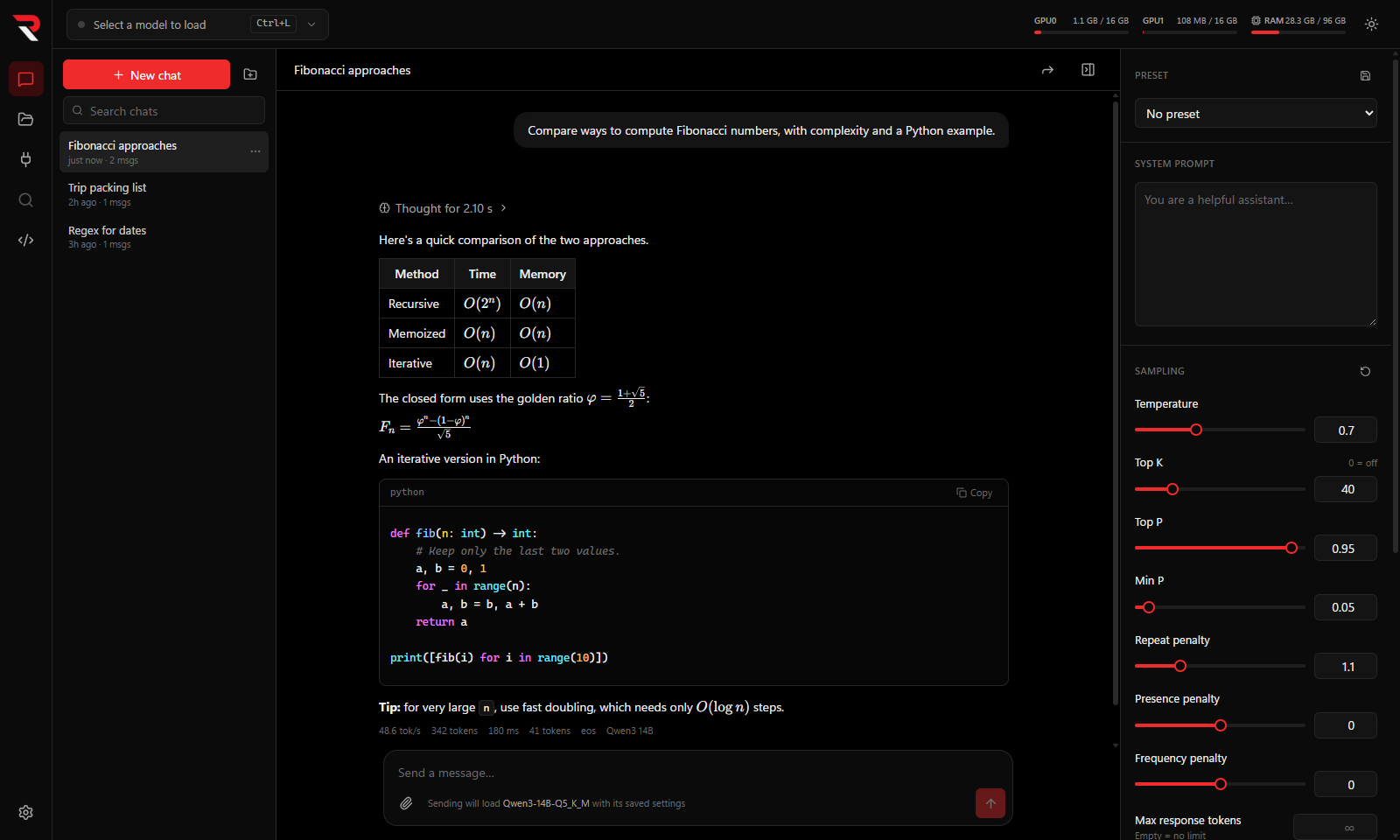
- New chat (Ctrl+N) starts an empty chat with your default system prompt and sampling settings. A chat is saved as you go.
- Each chat has a ⋯ button with rename (double-clicking the chat also renames it), pin, move to a folder, duplicate and delete. Delete moves the chat to the Recycle Bin.
- Use New folder to group chats, and the search box to filter by title. Pinned chats stay at the top.
- Click the chat's title above the conversation to rename it.
Type in the box at the bottom and press Enter (Shift+Enter for a new line). Esc or the stop button stops a reply.
If the model you picked isn't loaded yet, sending a message loads it first with its saved settings.
Each reply shows its tokens per second, the number of generated tokens, the time to first token, the prompt size (and how much was served from cache), and why it stopped.
Models that "think" before answering show a collapsible Thinking block with a running timer; it folds away when the answer starts. Settings → New chats → Expand reasoning blocks by default keeps them open.
The Thinking section of the chat settings panel controls how much a reasoning model thinks. The settings are sent with each message, so changes apply to the next reply without reloading the model.
| Setting | What it does |
|---|---|
| Thinking |
Auto keeps the model's own behaviour; On or Off asks the chat template to think or skip thinking (the template's enable_thinking switch). |
| Reasoning effort | Minimal through Max, for models whose template takes an effort level (gpt-oss, for example). Model's default sends nothing. |
| Thinking budget | The most tokens the model may spend thinking before it has to answer. Empty = unlimited; 0 skips thinking. |
| Budget message | Shown once a budget is set: text added when the budget runs out, such as "Okay, time to give the answer." |
With Thinking set to Off, the effort and budget settings are hidden and not sent. Presets save these settings along with sampling, and Settings → New chats sets them for new chats. Models that don't support a setting simply ignore it.
Click the paperclip, drag files onto the window, or paste.
- Images (up to 20 MB) are sent to the model if it was loaded with a vision projector. Otherwise you get a warning and the images are ignored. See Model Library.
- Text and code files (up to 2 MB) are inserted into your message as fenced code blocks.
Hover a message for its actions: copy, edit, regenerate (or resend, for your own message), continue (keep going from where a reply stopped), branch (copy the chat up to that message into a new chat) and delete. Editing your own message can resend it from that point.
A meter above the conversation shows how much of the model's context window the chat uses, for example 3.3K / 8K. It includes the tool descriptions sent with every message, so it matches what the model actually receives.
When a chat grows past the window, Chat settings → Context decides what happens:
- Truncate middle (default) drops the oldest messages in the middle, keeping the system prompt and your first message.
- Stop and show an error leaves the chat alone and tells you to load a larger context or start a new chat.
When a chat reaches 85% of the context window, a popup offers a handoff. You can also start one at any time with the arrow button in the chat header (it asks to confirm).
If you accept:
- The model writes a detailed handoff message, in your voice, covering the goal, key facts and decisions, important specifics, progress so far, and open questions and next steps. You watch it being written and can cancel.
- A new chat opens with the same model, system prompt, sampling settings, preset and folder, and the handoff is sent as its first message.
- The original chat stays as it was.
To leave room for the summary, the model's reasoning is switched off while it writes the handoff. Images from the old chat aren't carried over. If you choose Not now in the automatic popup, it won't ask again for that chat; the button still works.
| Section | What it holds |
|---|---|
| Preset | Save the chat's system prompt, sampling and thinking settings under a name, and apply or delete presets. |
| System prompt | Instructions the model sees at the start of the chat. |
| Sampling | Temperature, Top K, Top P, Min P, repeat, presence and frequency penalties, max response tokens, seed and stop strings. The reset button restores the defaults from Settings → New chats. |
| Thinking | Thinking on or off, reasoning effort, thinking budget and budget message. See Thinking mode. |
| Tools (MCP) | Switch tool use on or off for chats and see what is loaded. See MCP Tools. |
| Structured output | Constrain replies to a JSON schema. The schema must be valid JSON. |
| Context | The overflow behaviour described above. |
Settings belong to each chat, so changing them doesn't affect your other chats.
Replies render Markdown with tables, task lists and syntax-highlighted code blocks with a copy button. Maths written as $…$, $$…$$, \(…\) or \[…\] renders with KaTeX.