Repository navigation
Model Library
The My Models page (Ctrl+2) lists every GGUF model in your models folder.
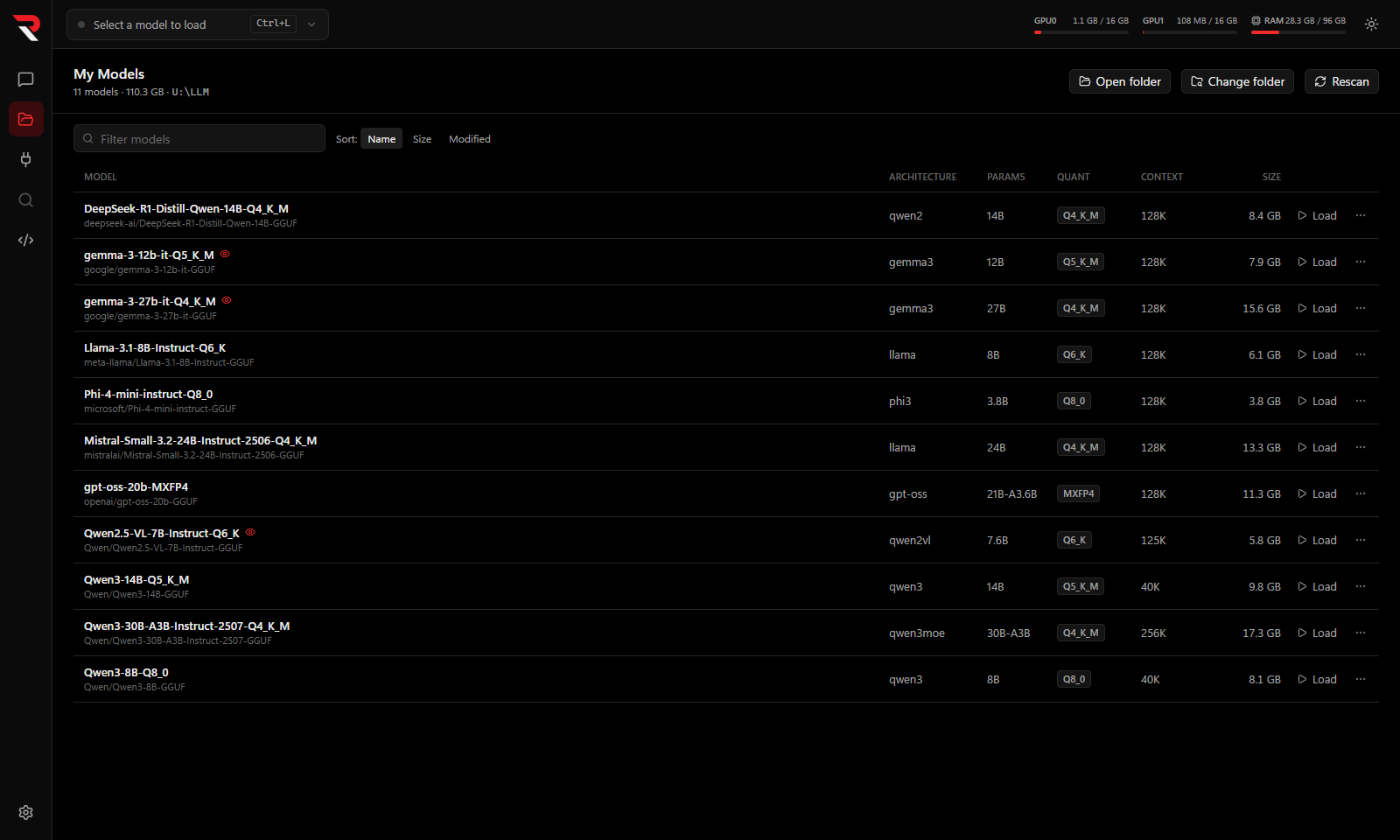
- The default folder is
C:\LLM. Change it with Change folder on the page or in Settings → Models. - The scan is recursive, down to about eight folders deep. Folders and files whose names start with a dot are skipped.
- RulZ reads only the header of each file, so a scan of hundreds of gigabytes takes seconds. The results are cached in
gguf-cache.jsonand re-read only when a file's size or date changes. - The folder is watched. New, removed or changed
.gguffiles show up a couple of seconds later; Rescan forces it. - A folder whose name ends in
.ggufis handled correctly; only real files count as models.
Each row shows the model's name (its file name without .gguf), architecture, parameter count, quantization, trained context length and size. A small eye icon marks models that have a vision projector.
Some models come with extra files. RulZ pairs them with the model automatically when they are in the same folder:
| Sidecar | How it is recognised | What it enables |
|---|---|---|
| Vision projector | The file's architecture is clip, or its name contains mmproj
|
Image input. See Chat. |
| Draft head | The file name starts with mtp, eagle3, dflash or dspark (or its architecture ends in -assistant) |
Speculative decoding |
| Extra shards |
name-00002-of-00005.gguf and so on |
Joined into one model; only the first shard is listed |
Keep each model, with its own projector and draft head, in its own folder. If a folder holds several models, every model in it gets the same sidecar, which only works if they share one.
A model whose name merely contains "MTP" (for example Some-Model-MTP-Q4_K_M.gguf) is still treated as a model; draft heads are the small files that start with mtp.
Click a row to open the details panel: architecture, layers, attention heads, experts, sliding window, whether a chat template is included, the sidecar files, and the file path.
At the bottom of the panel you can edit the model's default load settings and press Save as default. These are used whenever the model is loaded without opening the load panel, for example by a chat or by the API server. Reset goes back to the app defaults from Settings → Default load settings.
- Load opens the load panel with that model selected.
- Show in Explorer reveals the file.
- Move to Recycle Bin removes the model's files after a confirmation, and they can be restored from the Recycle Bin. A model that is currently loaded must be ejected first.