This repository was archived by the owner on Oct 28, 2026. It is now read-only.
Repository navigation
Getting Started
This page takes you from nothing to a model answering in the chat.
- Windows 10 or 11, 64-bit.
-
A llama.cpp build that includes
llama-server.exe. RulZ does not bundle an engine; it runs yours. See Building the Engine, or download a prebuilt Windows release from the llama.cpp releases page, unzip it, and point RulZ at the folder. -
One or more GGUF model files in a folder. The default folder is
C:\LLM; you can change it. - An NVIDIA GPU is strongly recommended. Models also run on the CPU, but much more slowly.
- Open the latest release and download
RulZ-LLM-Suite-Setup-<version>.exe. - Run it. It installs for your user account and lets you pick the install folder.
The installer is not code-signed, so Windows SmartScreen shows an "unrecognized app" warning the first time. Choose More info → Run anyway.
Install Node.js 22.12 or newer, then in the project folder:
install.bat     # installs dependencies, downloads Electron and builds the app
run.bat         # starts the app
run.bat build rebuilds before starting; run.bat dev starts with hot reload. See Development for more.
- Choose your look. A dialog asks for Dark or Light; dark is preselected. You can change it any time with the sun/moon button in the top bar or in Settings → Appearance.
-
Check the engine. Open Settings (Ctrl+5). Under Engine you should see your
llama-serverversion and your GPUs. If it says not available, set the folder that containsllama-server.exeand press Test. The app also looks inC:\coding\llama.cpp\build-cuda\bin\Releaseand...\build\bin\Releaseby itself. -
Check the models folder. Under Settings → Models, or on the My Models page, make sure the folder is the one that holds your
.gguffiles. Changing it rescans immediately.
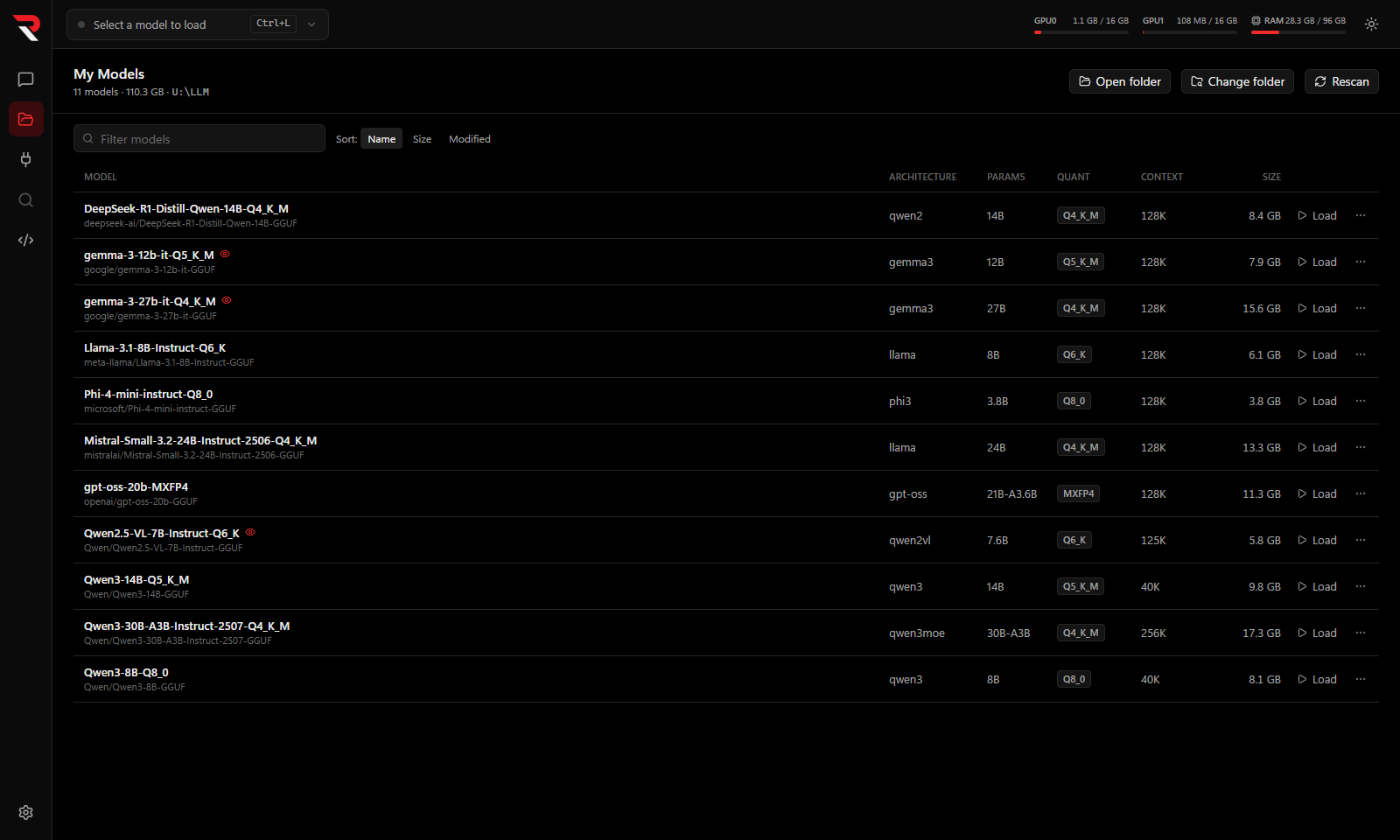
- Press Ctrl+L (or click the model box in the top bar).
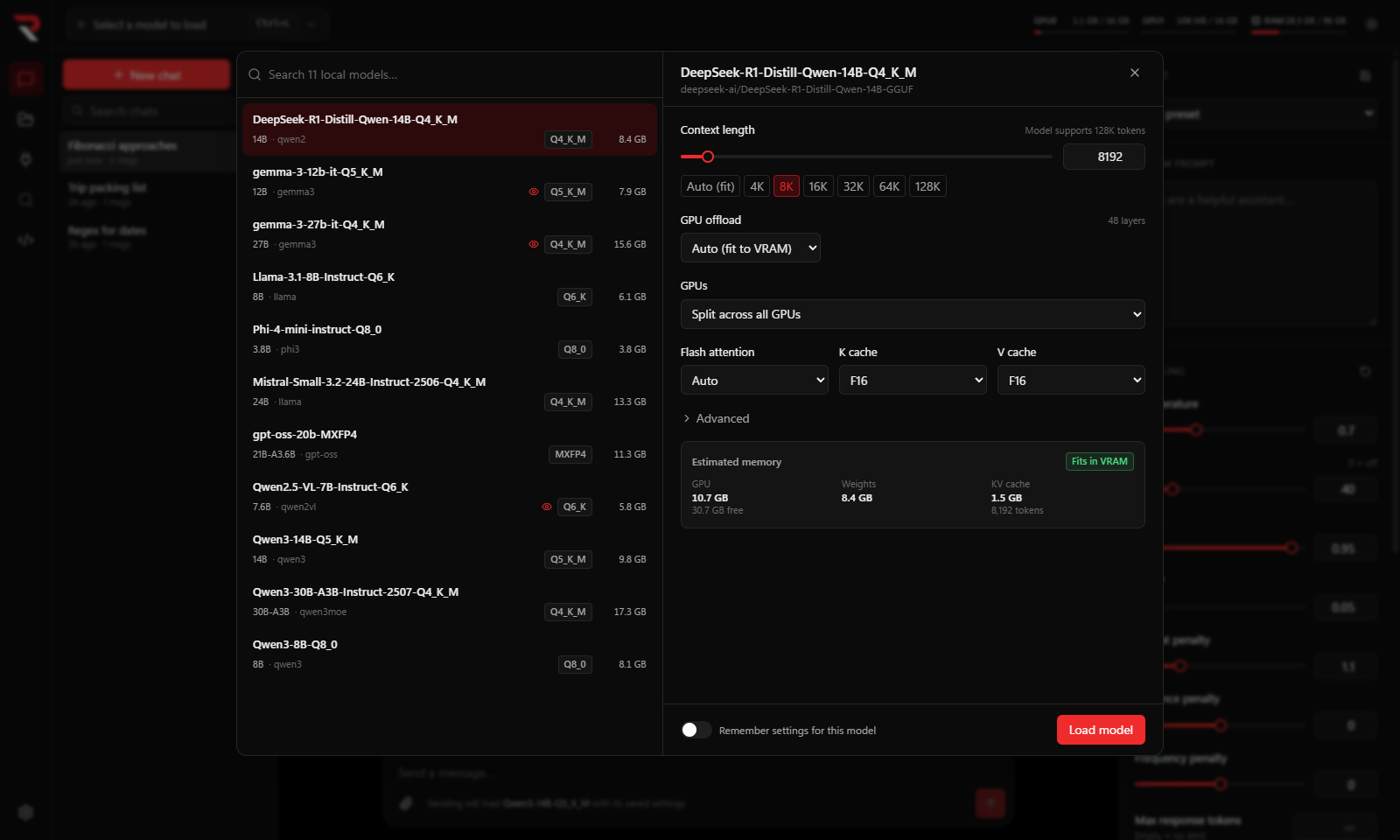
- Pick a model on the left. The defaults are sensible: an 8K context, GPU offload set to Auto, and flash attention on Auto. The panel shows a memory estimate so you can see whether it will fit.
- Click Load model. A progress bar in the top bar follows the load; the small file icon next to it opens the live server log if something goes wrong.
- Type a message and press Enter.
Good to know:
- If you pick a model and send a message without loading it first, RulZ loads it for you with its saved settings.
- Turn on Remember settings for this model to keep the settings you chose for next time. See Loading Models for every option.
- By default, loading a second model unloads the first. You can change that in Settings → Models.
- Chat — everything the chat window can do.
- MCP Tools — let the model use tools.
- Local API Server — use your models from other programs.
- Troubleshooting — if something did not work.