Welcome to the setup guide for your Hands-on Lab Challenge using Microsoft Dev Box. This document is designed to facilitate your preparation process, ensuring you have a seamless experience during the challenge. Microsoft Dev Box provides developers with self-service access to cloud-based, preconfigured, and ready-to-code workstations, streamlining the development process. This setup guide incorporates key concepts from Microsoft Dev Box to assist in your setup.
Before you begin, ensure you have the following:
- A Microsoft 365 subscription, required for Intune.
- An Azure subscription. Please use your external subscription and avoid guest accounts for this setup.
- Either use Azure Cloud Shell or ensure Az CLI you've installed is up to date.
Microsoft Dev Box gives developers self-service access to preconfigured and ready-to-code cloud-based workstations. You can configure the service to meet your development team and project structure, and manage security and network settings to access resources securely. Different components play a part in the configuration of Microsoft Dev Box.
It offers preconfigured cloud-based environments tailored for application development. The key components of Microsoft Dev Box include Dev Centers, Projects, Dev Box Definitions, and Network Connections, all designed to simplify and secure your development workflow.
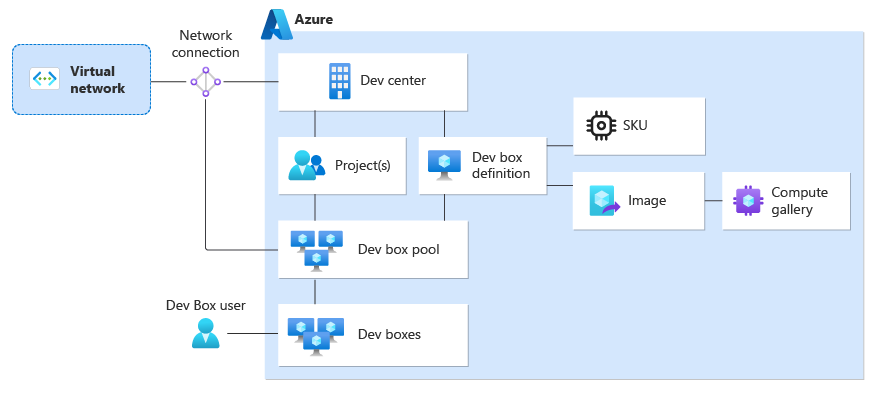
Serve as a collection of Projects with similar settings, managing the images, SKUs, and network configurations for development teams.
Represent teams or business functions within an organization, comprising pools that denote regions or workloads.
Specify a source image and size for dev boxes, allowing customization and standardization across projects.
Configure the network settings for dev boxes, ensuring secure access to both cloud-based and on-premises resources.
A dev box pool is a collection of dev boxes that can be managed together and to which similar settings are applied. Multiple dev box pools can be created to support the needs of hybrid teams that work in different regions or on different workloads.
A dev box is a preconfigured workstation that you create through the self-service developer portal
Follow these steps to prepare your environment for the Hands-on Lab Challenge. Please execute these commands in your Azure CLI, ensuring you are logged in with your external subscription credentials.
- Install or Upgrade Azure DevBox Extension
Begin by ensuring you have the latest Azure DevBox functionalities available.az extension add --upgrade -n devcenter
- Set Required Variables
Set the necessary variables for resource creation.ResourceGroupName=devbox-csu-rg ResourceLocation=australiaeast DevCenterName=CSUBootcampDevCenter ProjectName=CSUDevProject ProjectDescription='This is CSU Bootcamp demo project.' DevBoxDefinitionName="CSUDevBox" DevPool="CSUDevPool" SubscriptionId=$(az account show --query id -o tsv) CurrentUserId=$(az ad signed-in-user show --query id -o tsv)
- Create a New Resource Group
az group create --name $ResourceGroupName --location $ResourceLocation
- Create Dev Center
This step might take 2-3 minutes to complete.az devcenter admin devcenter create --location $ResourceLocation --name $DevCenterName --resource-group $ResourceGroupName
- Set Your Dev-center-Id
DevCenterId="/subscriptions/$SubscriptionId/resourceGroups/$ResourceGroupName/providers/Microsoft.DevCenter/devcenters/$DevCenterName" - Create a Project
Expect this to take about 3-4 minutes.az devcenter admin project create --location $ResourceLocation --description "$ProjectDescription" --dev-center-id "$DevCenterId" --name $ProjectName --resource-group $ResourceGroupName --max-dev-boxes-per-user "3"
- Set DevBox Compute Gallery Image Reference Id
ImageReferenceId="/subscriptions/$SubscriptionId/resourceGroups/$ResourceGroupName/providers/Microsoft.DevCenter/devcenters/$DevCenterName/galleries/Default/images/microsoftvisualstudio_visualstudioplustools_vs-2022-ent-general-win11-m365-gen2" - Create Devbox Definitions
This step is about 2-3 minutes long.az devcenter admin devbox-definition create --location $ResourceLocation --image-reference id="$ImageReferenceId" --name $DevBoxDefinitionName --dev-center-name "$DevCenterName" --resource-group $ResourceGroupName --os-storage-type "ssd_256gb" --sku name="general_i_8c32gb256ssd_v2" --hibernate-support enabled
- Create DevPool
This will take approximately 5 minutes.az devcenter admin pool create --location $ResourceLocation --devbox-definition-name $DevBoxDefinitionName --virtual-network-type managed --pool-name $DevPool --project-name $ProjectName --resource-group $ResourceGroupName --local-administrator "Enabled" --managed-virtual-network-regions $ResourceLocation
- Set Your DevCenter-Project-Id
ProjectResourceId="/subscriptions/$SubscriptionId/resourceGroups/$ResourceGroupName/providers/Microsoft.DevCenter/projects/$ProjectName" - Assign Permissions to Current User
Ensure the current user has permissions to log in and create a DevBox. Note that guest accounts or personal accounts are not supported.az role assignment create --assignee $CurrentUserId --role "DevCenter Dev Box User" --scope $ProjectResourceId
After completing these steps, you should have a fully configured environment ready for the Hands-on Lab Challenge. If you encounter any issues during setup, please reach out for assistance.