Make GLM 5.2 See Images in Claude Code with 1flowbase
GLM-5.2 is becoming a popular coding model for Claude Code, OpenCode, Cline, and other agentic development tools. It is strong at long-context coding work, but in many coding-agent setups it should still be treated as a text-first model. For example, Z.ai's own model switching guide tells Cline users to disable image support when configuring GLM-5.2.
That creates a practical problem:
Claude Code can receive a screenshot.
GLM-5.2 is strong at reasoning and coding.
But the GLM-5.2 text model path should not receive raw image input directly.
1flowbase solves this by turning a workflow into a virtual model endpoint. The client still calls one model name, but 1flowbase can intercept image input, call a multimodal model as a tool, return structured visual context to GLM-5.2, and keep the whole execution trace visible.
The result is a Claude-compatible or OpenAI-compatible endpoint that behaves like a multimodal coding model:
Claude Code
  -> 1flowbase virtual model endpoint
  -> GLM-5.2 main text model
  -> mounted vision tool
  -> GLM-5V-Turbo / Gemini / GPT vision model
  -> structured visual result
  -> GLM-5.2 final coding answer
This guide is based on the original Linux.do demo: 1flowbase 重磅升级 - 将文本模型升级多模态 - GLM 5.2, DeepSeek V4 均跑通验证.
GLM-5.2 is attractive because it is a strong long-horizon coding model with a large context window. Z.ai positions it for coding agents and long engineering tasks: GLM-5.2: Built for Long-Horizon Tasks.
But image-heavy frontend work needs more than text reasoning. If you are building UI from screenshots, inspecting a design, reading charts, or debugging a visual layout, a high-level image caption is usually not enough. You need a workflow that can route the visual part to a vision model and keep GLM-5.2 focused on planning, coding, and final synthesis.
Z.ai also provides GLM-5V-Turbo, a multimodal coding model that can process image, video, text, and file input: GLM-5V-Turbo documentation. With 1flowbase, GLM-5V-Turbo can become a mounted vision tool inside a broader GLM-5.2 workflow.
This is not only model routing. A normal router chooses one upstream model for a request. 1flowbase can compose a new virtual model from a workflow:
- use GLM-5.2 as the main model
- intercept image input before it reaches a text-only model path
- call GLM-5V-Turbo, Gemini, GPT vision, or another multimodal model as a mounted tool
- return structured visual context to the main model
- publish the workflow as a Claude-compatible or OpenAI-compatible endpoint
- inspect model calls, tool callbacks, node outputs, token usage, latency, failures, and trace logs
To the client, it is still one model. To you, it is an observable multi-model workflow.
Start with this minimal workflow:
User message with image
  -> Main LLM: GLM-5.2
  -> Tool registration: vision_analyzer
  -> Branch LLM: GLM-5V-Turbo or another vision model
  -> Tool result: detailed visual analysis
  -> Main LLM: final answer, patch, or plan
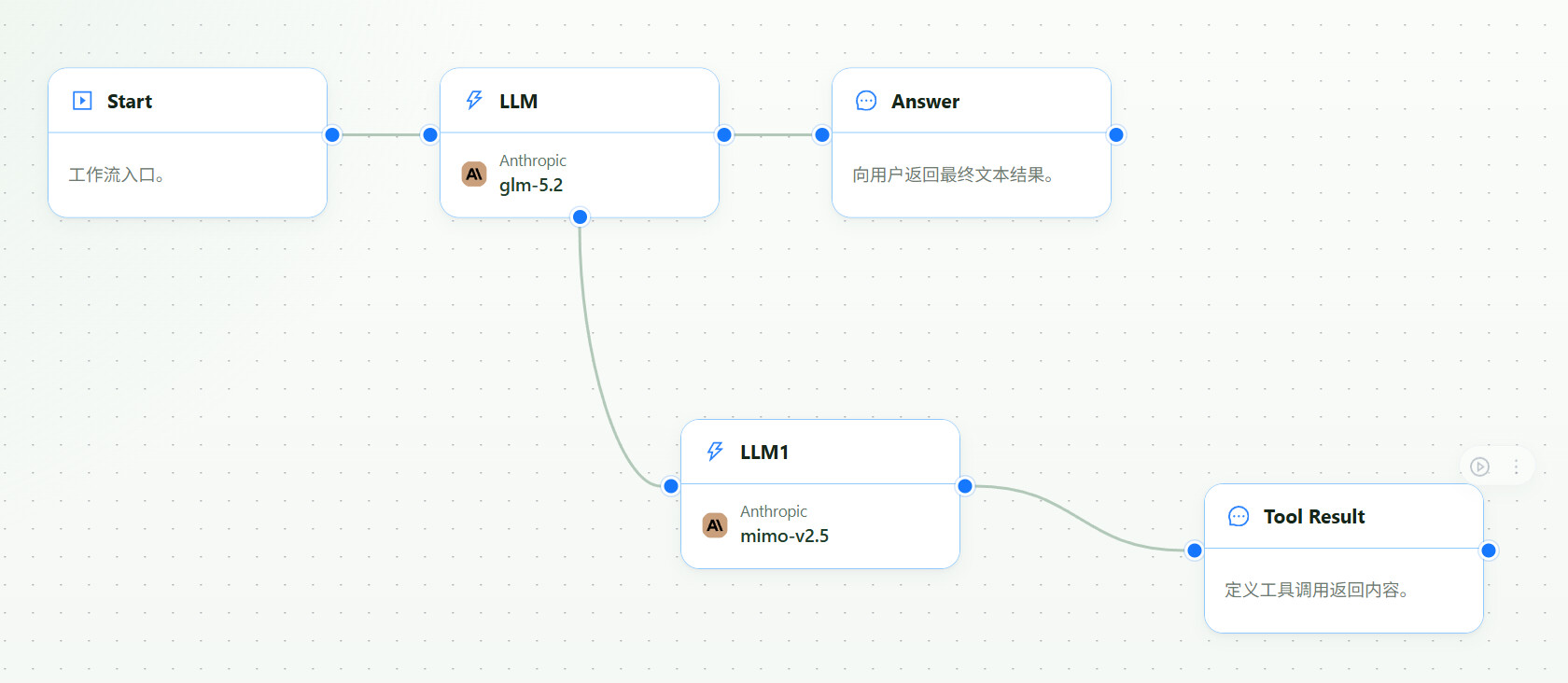
You can use the same pattern with DeepSeek V4 or another strong text model. The important idea is:
Keep the strong text model as the main reasoning model.
Mount the multimodal model as a tool.
Use 1flowbase to intercept and pass image references safely.
In the main LLM node, enable the mounted-tool capability. Register a tool that the main model can call when the user provides an image or asks for visual understanding.
Recommended tool names:
vision_analyzer
image_understanding
ui_screenshot_reader
design_to_code_helper
Use only letters, numbers, and underscores in the tool identifier.
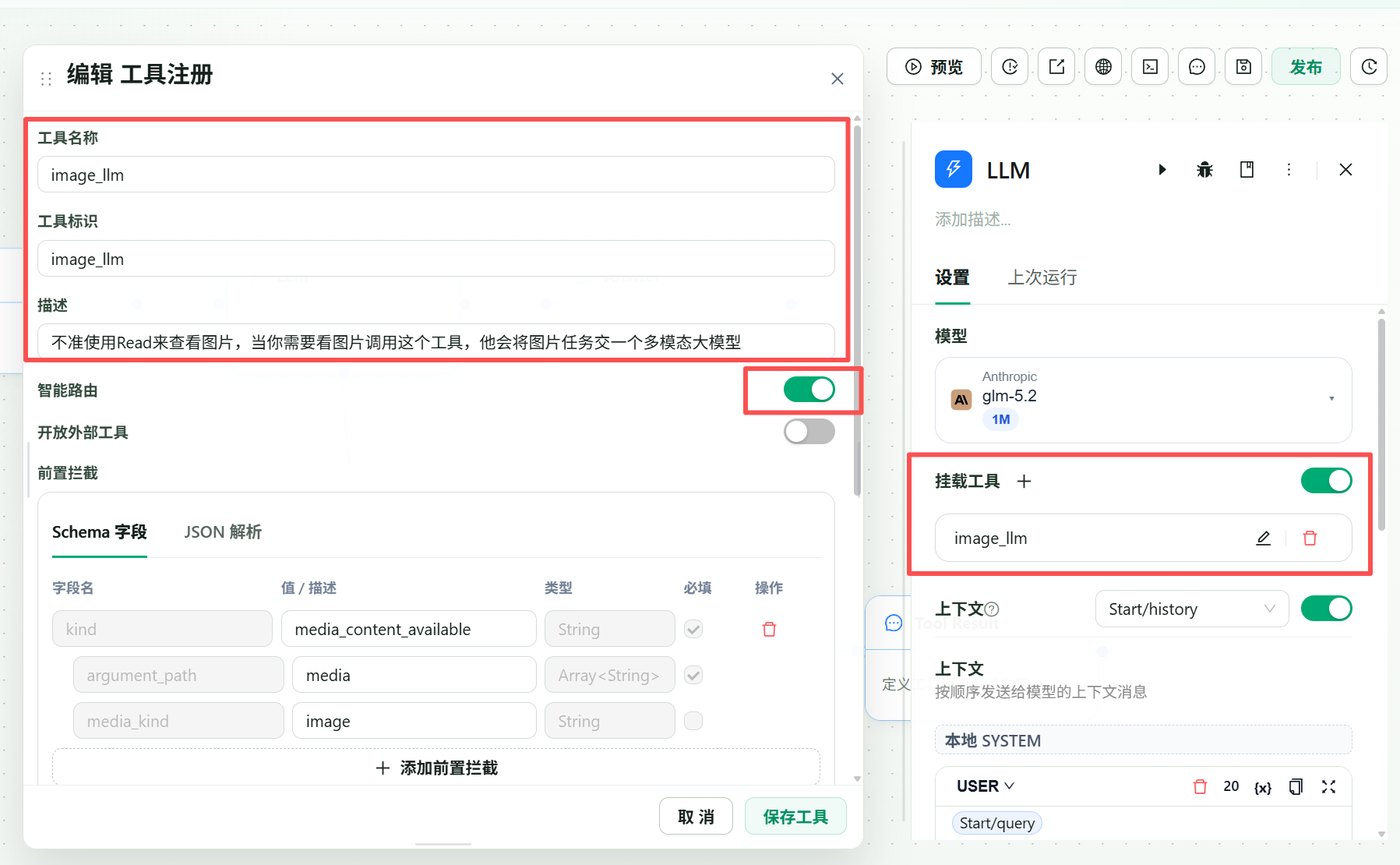
Write a tool description that tells the main model exactly when to call it:
Use this tool when the user provides an image, screenshot, UI mockup, chart, PDF page, or any task that requires visual understanding before answering.
If raw image content is sent directly to a text-only upstream model path, the upstream provider may reject the request. Add an image intercept rule so 1flowbase can route the media reference into the mounted tool instead.
Use this pre-intercept JSON:
[
  {
    "kind": "media_content_available",
    "media_kind": "image",
    "argument_path": [
      "media"
    ]
  }
]
This says: when image media is available, expose it to the tool argument path media.
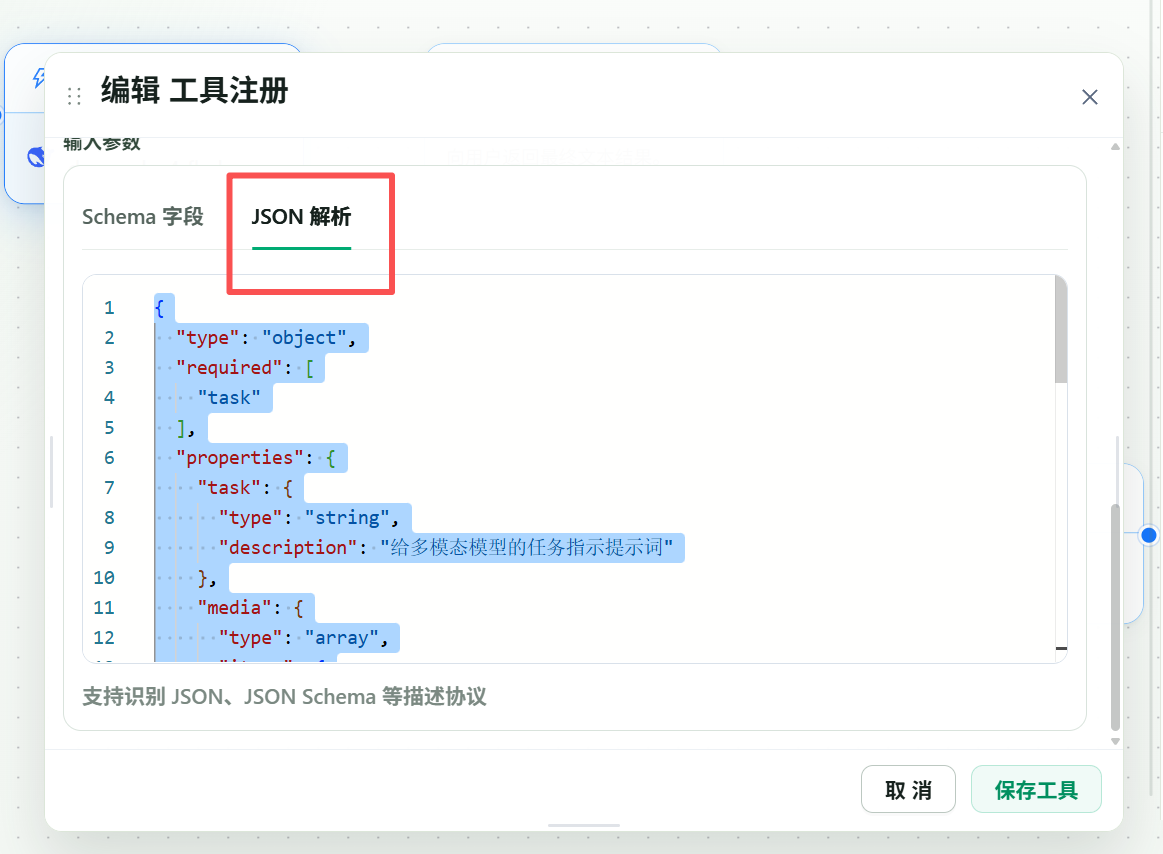
The main model needs a schema so it knows how to call the vision tool.
Use this JSON Schema:
{
  "type": "object",
  "required": [
    "task"
  ],
  "properties": {
    "task": {
      "type": "string",
      "description": "Instruction for the multimodal model. Describe what visual details it should inspect and return."
    },
    "media": {
      "type": "array",
      "items": {
        "type": "object",
        "required": [
          "kind",
          "path",
          "source"
        ],
        "properties": {
          "kind": {
            "enum": [
              "image"
            ],
            "type": "string",
            "description": "Media type."
          },
          "path": {
            "type": "string",
            "description": "Workspace image path, for example uploads/image_aionui_1781014667000.png."
          },
          "source": {
            "enum": [
              "workspace_path"
            ],
            "type": "string",
            "description": "Media source."
          }
        }
      },
      "description": "Media references that should be processed by the multimodal model."
    }
  }
}
After saving the schema, the main model can call the tool with a task and image references.
Connect a branch LLM that can handle visual input. Good candidates:
-
glm-5v-turbofor GLM-native multimodal coding - Gemini vision-capable models for screenshot and document understanding
- GPT vision-capable models for broad image reasoning
- OCR or document models when the input is scanned text, tables, or PDFs
The branch model should return a structured result, not a vague caption.
Ask for details such as:
- UI layout and hierarchy
- visible text
- colors, spacing, and component states
- chart axes and data points
- errors, warnings, and visual anomalies
- implementation hints for frontend code
This makes the final GLM-5.2 answer much more useful for real UI and coding tasks.
When the workflow works in preview, publish it as a virtual model endpoint.
1flowbase can expose workflows through common model APIs:
OpenAI Responses API
OpenAI Chat Completions API
Claude-compatible Messages API
The external client calls one model name, such as:
glm-5.2-vision
glm-5.2-with-eyes
glm-vision-coder
claude-code-glm-vision
Behind that model name, 1flowbase runs the full workflow.
Configure Claude Code, Cline, OpenCode, Continue, or another local agent client to call your published 1flowbase endpoint.
Conceptually:
Base URL: your 1flowbase endpoint base URL
API key: your 1flowbase app key
Model: the published virtual model name, such as glm-5.2-vision
Protocol: Claude-compatible Messages API or OpenAI-compatible API
Then send a prompt with a screenshot:
Look at this UI screenshot. Recreate the layout in React and Tailwind. Pay attention to spacing, colors, typography, and component states.
GLM-5.2 can keep the coding and planning role, while the mounted vision model reads the screenshot and returns the visual facts it needs.
Open the 1flowbase run log after a request. You should see:
- the main GLM-5.2 call
- the registered vision tool call
- the intercepted image media
- the branch multimodal model execution
- the tool result returned to the main model
- token usage, latency, status, and errors per node
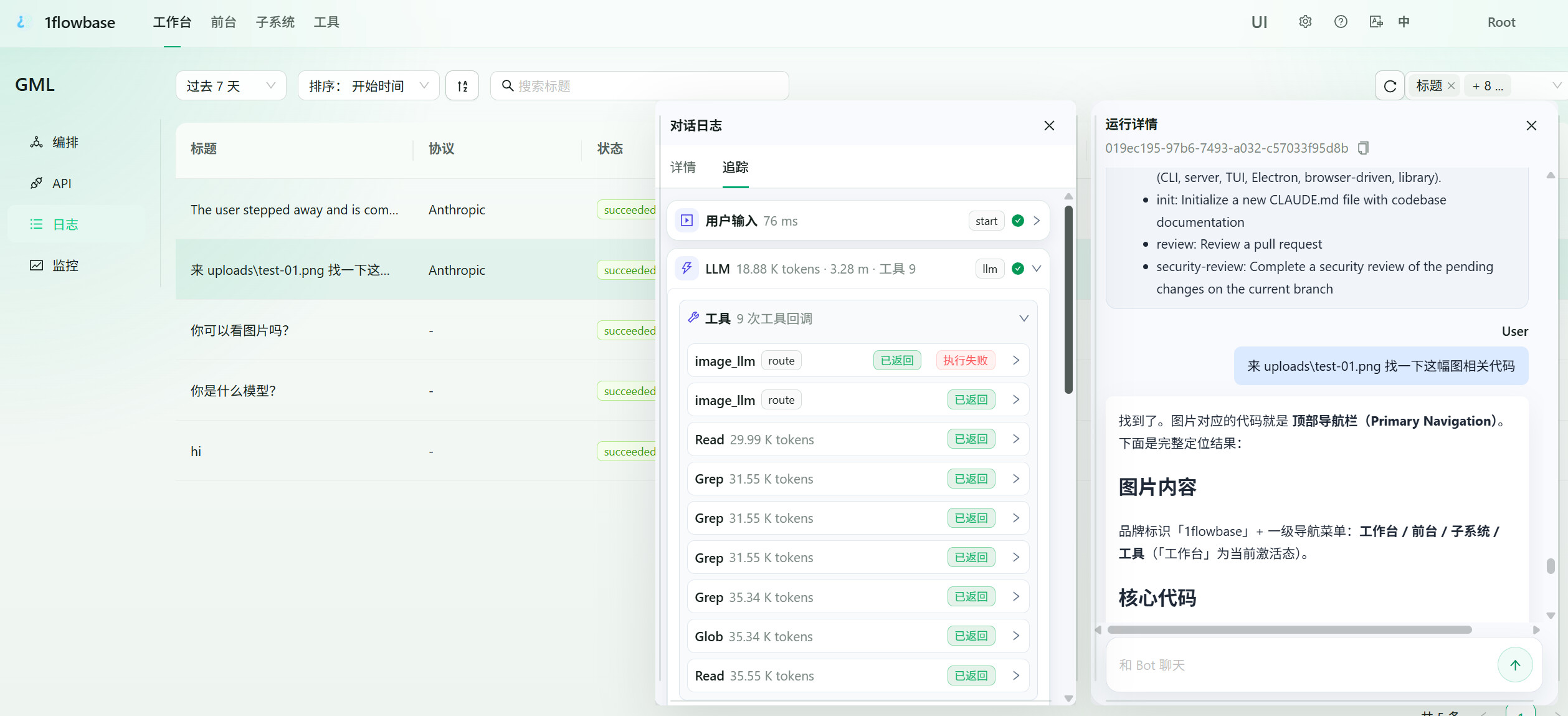
This is the main reason to use 1flowbase instead of a hidden proxy. You can see why the answer succeeded or failed.
The main model says it cannot see the image.
Check whether the image was passed as media. If the tool call does not include the media array, the pre-intercept rule did not expose the image to the tool.
The upstream text model rejects the request. Do not send raw image input directly to the GLM-5.2 text model path. Use the pre-intercept rule and route image input to the mounted multimodal tool.
The vision result is too vague.
Strengthen the task instruction. Ask for layout, text, positions, colors, component hierarchy, and implementation details instead of a generic description.
The tool call fails before execution.
Check that the required media input exists. In the Linux.do demo, missing media was intentionally intercepted so the model is forced to ask the user to provide the image.
The workflow is too expensive. Only call the vision tool when image media exists or when the user explicitly asks for visual analysis. Keep normal text-only coding requests on the GLM-5.2 main path.
This guide is relevant if you are searching for:
GLM-5.2 image compatibility
GLM 5.2 Claude Code vision
GLM cannot read PNG
make GLM see images
GLM-5.2 multimodal workflow
GLM-5V-Turbo Claude Code
Claude Code image input
Claude Code multimodal model
OpenAI compatible vision endpoint
Claude compatible virtual model
1flowbase virtual model gateway
1flowbase multimodal workflow
vision model before text model
GLM-5.2 is the planner and coder.
GLM-5V-Turbo or another vision model is the eyes.
1flowbase turns both into one observable virtual model endpoint.
If you are using GLM-5.2 in Claude Code and need image understanding, do not wait for every client to support every multimodal edge case. Build a 1flowbase workflow, mount the vision model as a tool, publish it as one compatible endpoint, and inspect the trace behind every request.