Advanced DLSS & Proton Manager for Linux
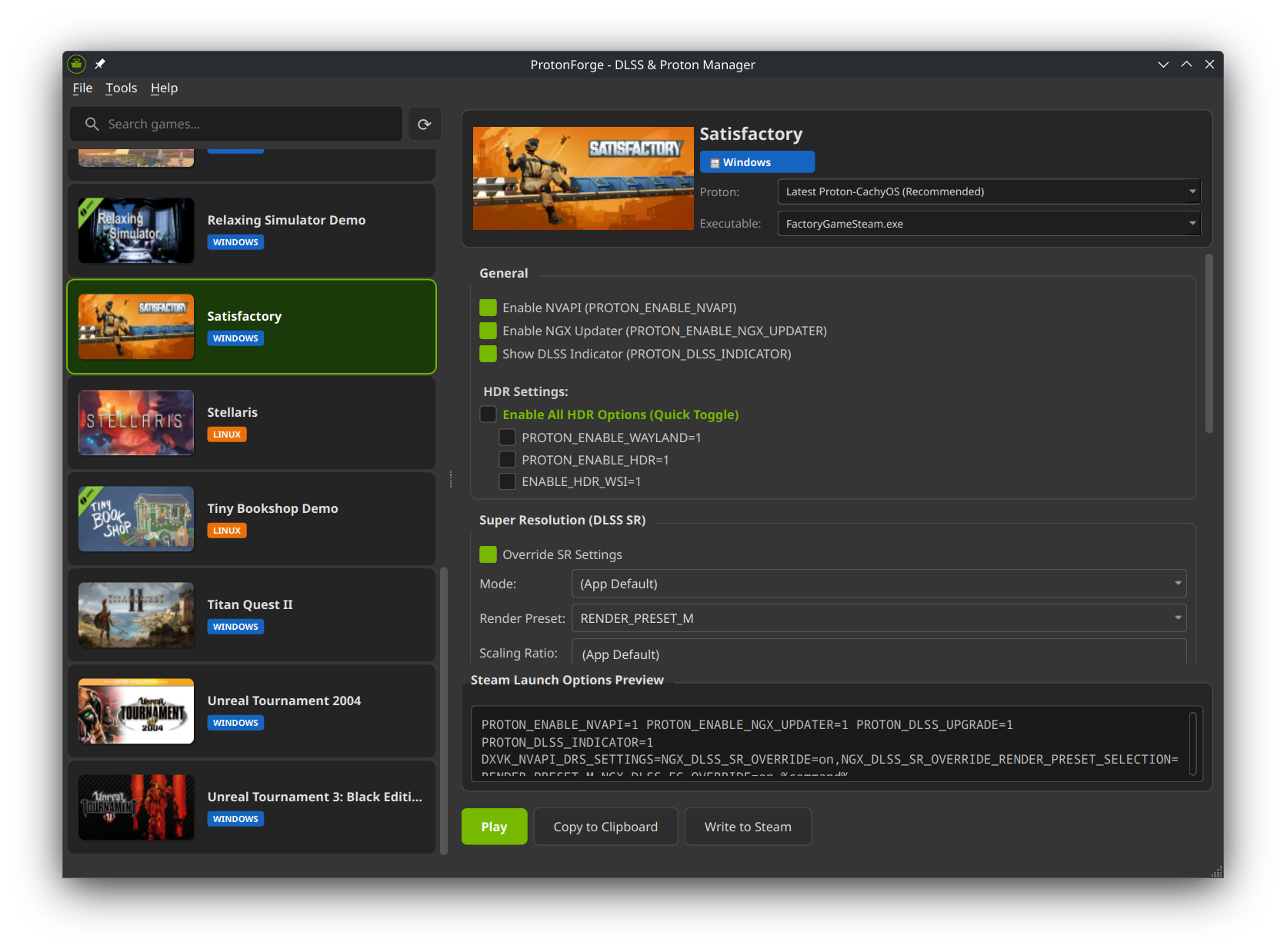
ProtonForge is a powerful Qt6 application designed to give Linux gamers full control over NVIDIA DLSS settings and Proton versions. Configure DLSS Super Resolution, Ray Reconstruction, Frame Generation, HDR support, and more - all from a single, intuitive interface.
It handles two game sources side by side: your local Steam libraries, and your GOG account — and because there is no GOG client for Linux, ProtonForge downloads and installs those games itself. Steam does not need to be installed for any of it.
Note: ProtonForge currently focuses on NVIDIA graphics cards for DLSS-related features. Proton management features work with any GPU.


- Super Resolution (SR): Configure DLSS upscaling modes (Performance, Balanced, Quality, DLAA, Ultra Performance)
- Ray Reconstruction (RR): Fine-tune ray tracing denoising
- Frame Generation (FG): Control DLSS Frame Generation — Multi-Frame Generation up to 6x, the FG mode (On/Off/Auto/Dynamic) and an FG render preset
- NVIDIA Reflex: Lower input latency in Vulkan games (DXVK_NVAPI_VKREFLEX) — the recommended companion to Frame Generation and Smooth Motion
- Custom Scaling Ratios: Set precise render resolution percentages
- Render Presets: Pick the DLSS model preset, including the DLSS 4 transformer presets (J/K plus the DLSS 4.5 L/M models), with in-app tooltips documenting which presets actually exist
- Compatibility Warnings: Options that require a newer NVIDIA driver or Proton version are flagged with a non-blocking warning based on your detected driver and the selected Proton version
- Platform Gating: On a native Linux game the options that only Proton, DXVK, vkd3d-proton or DXVK-NVAPI would read are greyed out with a one-line explanation, because nothing in a native process reads them — the DLSS overrides in particular travel in
DXVK_NVAPI_DRS_SETTINGS, and NVIDIA does not support preset overrides outside NVAPI. Driver-level options (Smooth Motion, PRIME offload) and the Vulkan HDR layer stay live, and your saved values are kept untouched, so forcing a compatibility tool in Steam still gets the full launch string
- Individual HDR Options: Separately configure PROTON_ENABLE_WAYLAND, PROTON_ENABLE_HDR, and ENABLE_HDR_WSI
- Smart Detection: Automatic detection of system HDR status on KDE Plasma and Gnome
- Desktop Environment Awareness: Provides specific instructions for enabling HDR based on your DE
- Wayland Check: Warns if you're running on X11 (HDR requires Wayland)
- Automatic Updates: Check for and install Proton-CachyOS and Proton-GE updates
- Version Selection: Choose specific Proton versions per game
- Version Browser: Browse and install any available Proton release
- Smart Notifications: Get notified about new versions, with intelligent "don't ask again" for dismissed updates
- Delete Versions: Remove unused Proton installations to save disk space
- GitHub API Token (optional): Add a Personal Access Token in Settings to raise the GitHub API rate limit (60 → 5,000 requests/hour); ProtonForge warns when the limit is hit and when the configured token is invalid or has expired
- Steam: games are discovered from your local Steam libraries, and launch options can be written back into Steam
- GOG: sign in with your GOG account, browse the games you own, and install them — there is no GOG client for Linux, so ProtonForge downloads and installs them itself, then launches them through Proton
- Native Linux builds preferred: a GOG game that ships a Linux version gets it; everything else runs under Proton, without the Steam overlay or a Steamworks identity it never had
- Owned but not installed: with a Steam Web API key configured, Steam games you own but have not installed are listed too, one click from installing via the Steam client
- One library, both sources: GOG games sit in the same list as Steam ones, with their own cover art, a source badge and a source filter, and get the same per-game DLSS/HDR/Proton profile
- Sign in from the app: the login opens in your normal browser; you paste the redirect URL back. No embedded browser, and your password never passes through ProtonForge
- Downloads that survive the long tail: parallel chunked downloads with md5 verification, pause/resume, and resume-after-quit — a partial download keeps a journal inside its own folder, so deleting the folder is complete cleanup
- Updates are deltas: only the files that actually changed are fetched, and files a new version dropped are removed
- Choose where games go: install location and preferred language in Settings → GOG, with a directory picker. Another drive works; games go under
<location>/GOGand their Proton prefixes under<location>/prefixes/GOG - Uninstall knows what it owns: ProtonForge deletes only what it recorded installing — a Heroic or Lutris library in the same directory is never touched
- Credentials in the keyring: the GOG refresh token, the Steam Web API key and the GitHub token go to the system keyring when one is available, otherwise to a 0600 file — never into
settings.json
- Direct Launch: Start games directly from ProtonForge with custom settings
- Steam Integration: Copy launch options to clipboard or write directly to Steam
- Per-Game Settings: Save unique configurations for each game
- Executable Selection: Automatically detect or manually choose the correct game executable
- Launch Preview: See exactly what environment variables will be set before launching
- High Priority: Set game process to high CPU scheduling priority (PROTON_PRIORITY_HIGH)
- NTSync: Enable kernel-level Windows synchronization primitives for better multi-threaded performance (PROTON_USE_NTSYNC, requires Linux 6.14+)
- Debug Logging: Enable Proton log output for troubleshooting (PROTON_LOG)
- Steam Overlay: Toggle the Steam Performance Overlay (gameoverlayrenderer.so injection via LD_PRELOAD) — enabled by default, can be disabled to improve performance or fix compatibility issues. Never injected into a non-Steam game, which could not talk to Steam anyway
- MangoHud: Enable the MangoHud performance overlay for real-time FPS, CPU/GPU usage, temperatures, and frame time metrics
- MangoHud Configuration: Built-in GUI editor for
~/.config/MangoHud/MangoHud.conf— configure display metrics, appearance, position, logging, the HUD/FPS-limit/logging keybinds, and more without editing config files manually, with a live preview of what the overlay will look like (accessible per-game via Configure button or globally via Tools menu) - Installation Detection: Automatically detects whether MangoHud is installed and disables the option with a helpful message if not
- Frame Rate Limiting: Set precise FPS caps (DXVK_FRAME_RATE)
- Smooth Motion: Enable driver level frame generation
- DLSS Upgrade: Force newer DLSS DLL versions
- Game Library Browser: Beautiful card view with cover art for both Steam and GOG games
- Source Badge & Filter: Each game shows where it came from, and the list can be filtered to one source — both appear only once you actually have more than one, so a Steam-only setup looks exactly as it always did
- Game Stores Dialog: One place to browse every store you have an account with (Library → Game Stores), with install progress, pause and uninstall. Owned games are listed alphabetically by title, from both stores. The details panel adds what the owned-games listing does not carry — a short description, whether there are achievements, the text and voice languages, genres, features and the platforms the store really lists — fetched per title from each store's public catalogue endpoint (no API key) and cached on disk for a week
- Real-time Preview: See launch command changes in real-time
- Native Linux Support: Separate settings for native Linux games, with the Proton-only controls greyed out and explained rather than left to look effective
- Single Instance: Prevents multiple app instances running simultaneously
- Operating System: Linux (tested on Ubuntu, Arch, Fedora)
- Desktop Environment: KDE Plasma 5.27+ or Gnome 46+ (for HDR support)
- Display Server: Wayland (required for HDR)
- Qt: Qt6 6.4 or later (the oldest version ProtonForge is built and tested against)
- A game source: a Steam installation, a GOG account, or both — neither is required for the other, and Proton can be installed and managed with no Steam present at all
- NVIDIA GPU: For DLSS features (GTX 16xx/RTX 20xx or newer). The newest options (Smooth Motion, 5x/6x Multi-Frame Generation, transformer presets) require recent NVIDIA drivers — ProtonForge shows a warning when your driver or selected Proton version is too old
- CMake 3.16+
- C++17 compatible compiler (GCC 9+ or Clang 10+)
- Qt6 development packages:
- Qt6Core
- Qt6Widgets
- Qt6Network
- Qt6Concurrent
- Qt6DBus
- zlib (
zlib1g-dev) — GOG's content system serves everything zlib-encoded with noContent-Encodingheader, so nothing in Qt will inflate it for us - QtKeychain (
qtkeychain-qt6-dev) — optional; without it credentials fall back to a 0600 file
The authoritative list is
packaging/build-depends.txt— CI, the release workflow and the test containers all install from it:grep -vE '^\s*(#|$)' packaging/build-depends.txt | xargs sudo apt-get install -y
Flatpak provides the easiest installation method that works across all Linux distributions:
# Download from GitHub releases
https://github.com/theinvisible/proton-forge/releases/

# Install
flatpak install protonforge.flatpak

# Run
flatpak run org.protonforge.ProtonForge
Or from Flathub (once published):
flatpak install flathub org.protonforge.ProtonForgeOne file, no package manager, no sandbox. Built against Debian bookworm's glibc 2.36, so it runs on anything at least that new:
# Download from GitHub releases
https://github.com/theinvisible/proton-forge/releases/

chmod +x ProtonForge-*-x86_64.AppImage
./ProtonForge-*-x86_64.AppImage
On Ubuntu 24.04 and newer, AppImages need FUSE 2, which is no longer installed by default:
sudo apt install libfuse2t64. Without it, run the file with--appimage-extract-and-runinstead — it unpacks to a temporary directory and needs nothing installed at all.
Games launched from the AppImage get your system's libraries, not the bundle's: the bundled paths are stripped from every process ProtonForge starts, so a game does not end up loading the AppImage's Qt and then losing it when ProtonForge exits.
Every release ships one package per supported Ubuntu LTS, named after the distribution it was built for:
| Package | For |
|---|---|
protonforge_X.Y.Z~noble_amd64.deb |
Ubuntu 24.04 LTS and derivatives (Qt 6.4) |
protonforge_X.Y.Z~resolute_amd64.deb |
Ubuntu 26.04 LTS and newer (Qt 6.10) |
Pick the one that matches your distribution. A
.debis linked against that distribution's Qt and carries its symbol versions, so the newer package will install on an older system and then refuse to start. On anything else, use the Flatpak or build from source.
# Download the latest release
https://github.com/theinvisible/proton-forge/releases/

# Install (apt-get pulls the dependencies; dpkg -i does not)
sudo apt-get install ./protonforge_*_amd64.deb# Clone the repository
git clone https://github.com/theinvisible/proton-forge.git
cd protonforge
# Create build directory
mkdir build && cd build
# Configure and build
cmake -DCMAKE_BUILD_TYPE=Release ..
cmake --build . -j$(nproc)
# Install (optional)
sudo cmake --install .# Build release version
mkdir cmake-build-release && cd cmake-build-release
cmake -DCMAKE_BUILD_TYPE=Release ..
cmake --build . -j$(nproc)
cd ..
# Create .deb package
bash build-deb.shbash build-appimage.sh . dist # artifact lands in dist/This one always builds in a container, and that is deliberate twice over: an
AppImage only runs on glibc at least as new as the one it was built against, so
the base distribution decides who can run the result — and the build wants
qt6-wayland, patchelf, libsecret and a downloaded linuxdeploy, none of
which belongs on your machine for the sake of a release artifact. The script
builds packaging/appimage/Dockerfile (Debian bookworm) on first use and
re-executes itself inside it, with no network and the source tree read-only. All
your system gets is one Docker image.
-
Start ProtonForge:
protonforge
-
Select a Game: Click on any game in the library
-
Configure Settings:
- Enable NVAPI (required for DLSS)
- Configure DLSS options as needed
- Set up HDR if you have compatible hardware
- Choose Proton version
-
Launch or Export:
- Click Play to launch directly with custom settings
- Click Copy to Clipboard to get launch options
- Click Write to Steam to save settings permanently — Steam games only; for a GOG game there is nothing to write to, so the button is not shown and Play is the way in
Sign in:
-
Library → Game Stores…, pick GOG, click Sign in
-
The GOG login opens in your normal browser. Sign in there
-
GOG lands on a page that looks blank — copy that page's address out of the address bar and paste it back into ProtonForge
ProtonForge never sees your password, and only the refresh token is stored (in your keyring where one is available).
Install a game: pick it in the list and click Install. The download runs in the background and survives closing the dialog — and quitting the app, which resumes where it left off. Where games land and which language they get is under Settings → GOG.
Update or uninstall: a game with a newer build shows Update available; installing again fetches only what changed. Uninstall removes the game and its Proton prefix, and nothing else.
ProtonForge talks to GOG using the same interface the GOG Galaxy client uses. It is not affiliated with or endorsed by GOG.
Install/Update Proton:
- Go to Tools → Install Proton-CachyOS
- Select desired version from the list
- Wait for download and installation
Check for Updates:
- Tools → Check for Proton Updates
- Get notified about new releases
Delete Old Versions:
- Open version dialog
- Select installed version
- Click Delete Selected
For HDR to work, you need:
- HDR-capable display
- Wayland session
- HDR enabled in system settings
KDE Plasma:
- System Settings → Display Configuration
- Select your monitor
- Enable "Allow HDR"
Gnome:
gsettings set org.gnome.mutter experimental-features "['hdr']"ProtonForge answers a handful of questions without opening a window, which is useful for scripting and for reporting bugs:
protonforge --list-games                 # every game from every source, as JSON
protonforge --launch <id> --dry-run      # exactly what would be run, writing nothing
protonforge --gog-status                 # signed in? which credential store?
protonforge --gog-login-url              # the sign-in URL, for a headless setup
protonforge --store-list GOG             # what you own, installed or not
protonforge --gog-plan <productid>       # what installing would fetch — writes nothing
protonforge --gog-install <productid>    # install it
protonforge --gog-uninstall <productid>  # remove it and its Proton prefix
--dry-run and --gog-plan are the two that touch nothing at all; reach for them
first when something behaves unexpectedly.
ProtonForge stores configurations in:
| Path | What |
|---|---|
~/.config/ProtonForge/settings.json |
per-game and default DLSS/HDR/Proton profiles |
~/.config/ProtonForge/ProtonForge.conf |
Qt settings — install location, preferred language, UI state |
~/.config/ProtonForge/gog-installs.json |
what ProtonForge installed from GOG, and the only record it acts on |
~/.config/ProtonForge/gog-manifests/ |
file fingerprints per install, so the next update is a delta |
~/.config/ProtonForge/secrets.json |
credentials — only when no system keyring is available, at 0600 |
~/Games/ProtonForge/ |
where GOG games and their Proton prefixes go (configurable) |
~/.cache/ProtonForge/ |
cover art, ProtonDB and GOG API caches — safe to delete |
Settings are automatically saved per-game and persist across sessions. Credentials go to the system keyring when one answers; secrets.json is the fallback and is never part of settings.json, which is meant to be readable and pasteable into a bug report.
protonforge/
├── src/
│   ├── core/           # Game data, settings, DLSS config, feature gating, SecretStore
│   ├── launchers/      # Steam and GOG launchers, plus the store-account interface
│   ├── gog/            # GOG auth, account API, content system, downloader, ZIP reader
│   ├── network/        # Image downloading, ProtonDB, JSON disk cache
│   ├── parsers/        # VDF parser for Steam configs
│   ├── runner/         # Game execution and Proton handling
│   ├── ui/             # Qt widgets and dialogs
│   └── utils/          # Utilities (EnvBuilder, ProtonManager, GpuInfoCache, HDRChecker)
├── tests/              # Unit tests and the steam-lab harness — see TESTS.md
├── packaging/          # Build dependencies and target distributions, one list each
├── debian/             # Debian package configuration
├── CMakeLists.txt
└── build-deb.sh        # Automated .deb builder
Contributions are welcome! Please feel free to submit pull requests or open issues for bugs and feature requests.
# Clone and build debug version
git clone https://github.com/theinvisible/proton-forge.git
cd protonforge
mkdir cmake-build-debug && cd cmake-build-debug
cmake -DCMAKE_BUILD_TYPE=Debug ..
cmake --build . -j$(nproc)

# Run from build directory
./ProtonForge- C++17 standard
- Qt naming conventions
- Descriptive variable names
- Comments for complex logic
ProtonForge is licensed under the MIT License. See LICENSE file for details.
Copyright (c) 2025 ProtonForge

Permission is hereby granted, free of charge, to any person obtaining a copy
of this software and associated documentation files (the "Software"), to deal
in the Software without restriction, including without limitation the rights
to use, copy, modify, merge, publish, distribute, sublicense, and/or sell
copies of the Software, and to permit persons to whom the Software is
furnished to do so, subject to the following conditions:

The above copyright notice and this permission notice shall be included in all
copies or substantial portions of the Software.

THE SOFTWARE IS PROVIDED "AS IS", WITHOUT WARRANTY OF ANY KIND, EXPRESS OR
IMPLIED, INCLUDING BUT NOT LIMITED TO THE WARRANTIES OF MERCHANTABILITY,
FITNESS FOR A PARTICULAR PURPOSE AND NONINFRINGEMENT. IN NO EVENT SHALL THE
AUTHORS OR COPYRIGHT HOLDERS BE LIABLE FOR ANY CLAIM, DAMAGES OR OTHER
LIABILITY, WHETHER IN AN ACTION OF CONTRACT, TORT OR OTHERWISE, ARISING FROM,
OUT OF OR IN CONNECTION WITH THE SOFTWARE OR THE USE OR OTHER DEALINGS IN THE
SOFTWARE.
- NVIDIA: For DLSS technology and NVAPI
- Valve: For Proton and Steam
- CachyOS Team: For Proton-CachyOS builds
- GloriousEggroll: For Proton-GE builds
- Qt Project: For the excellent Qt framework
- dxvk-nvapi: For making NVIDIA features work on Linux
- Claude (Anthropic): This project was developed with AI assistance from Claude Code
- GitHub: https://github.com/theinvisible/proton-forge
- Issues: https://github.com/theinvisible/proton-forge/issues
- Releases: https://github.com/theinvisible/proton-forge/releases
Q: Do I need an NVIDIA GPU? A: Yes, DLSS features require NVIDIA RTX. However, you can still use ProtonForge for Proton management on any GPU.
Q: Does this work with non-Steam games? A: Yes — GOG is supported end to end: sign in, browse what you own, install, update and launch. Other stores are a matter of writing an adapter; the launcher and store layers are interfaces, not special cases.
Q: Do I need Steam installed? A: No. With only a GOG account, games install and launch, and Proton is downloaded and managed by ProtonForge itself.
Q: Is my GOG password safe? A: ProtonForge never sees it. The login happens in your own browser on GOG's site; you paste back the URL GOG redirects to, which carries a one-time code. Only the refresh token is kept, in your system keyring where one is available.
Q: Can I install GOG games onto another drive? A: Yes — set the location in Settings → GOG. In the Flatpak build it has to be somewhere the sandbox can reach.
Q: Will ProtonForge touch my Heroic or Lutris GOG installs? A: No. It lists and deletes only what it recorded installing itself, so there is never a question about who owns a directory.
Q: Can I use this on X11? A: Yes, but HDR features require Wayland. All other features work on both X11 and Wayland.
Q: Will this break my Steam installation?
A: No, ProtonForge only modifies per-game launch options and installs Proton versions to the standard location (~/.steam/root/compatibilitytools.d/). GOG games are never written into Steam and never get a Steam identity or the Steam overlay.
Q: How do I report bugs? A: Please open an issue on GitHub with:
- Your Linux distribution and version
- Desktop environment
- Steps to reproduce
- Expected vs actual behavior
Made with ❤️ for the Linux gaming community