1. PhenoDB Connection and Usage Instructions
PhenoDB is a PostgreSQL relational database hosted on Amazon Web Services. There is a quick-start guide available with screenshots here (select 'Download' to get the PDF-file to your own device rather than viewing it in the web-viewer).
The URL of the database is:
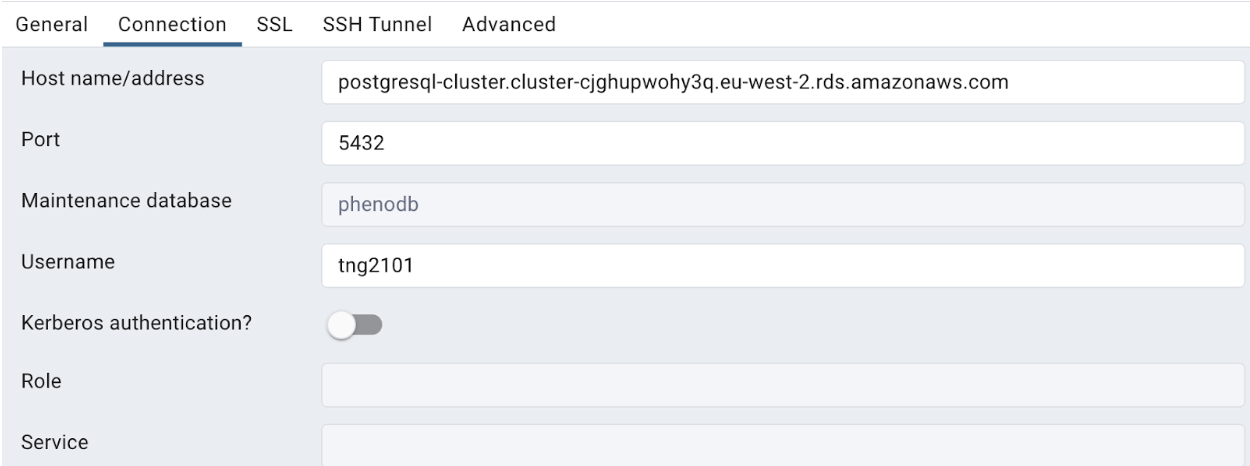
postgresql-cluster.cluster-cjghupwohy3q.eu-west-2.rds.amazonaws.com
And the default port to connect to is
5432
To access the database you need to connect through the SSH server. The URL of the server is:
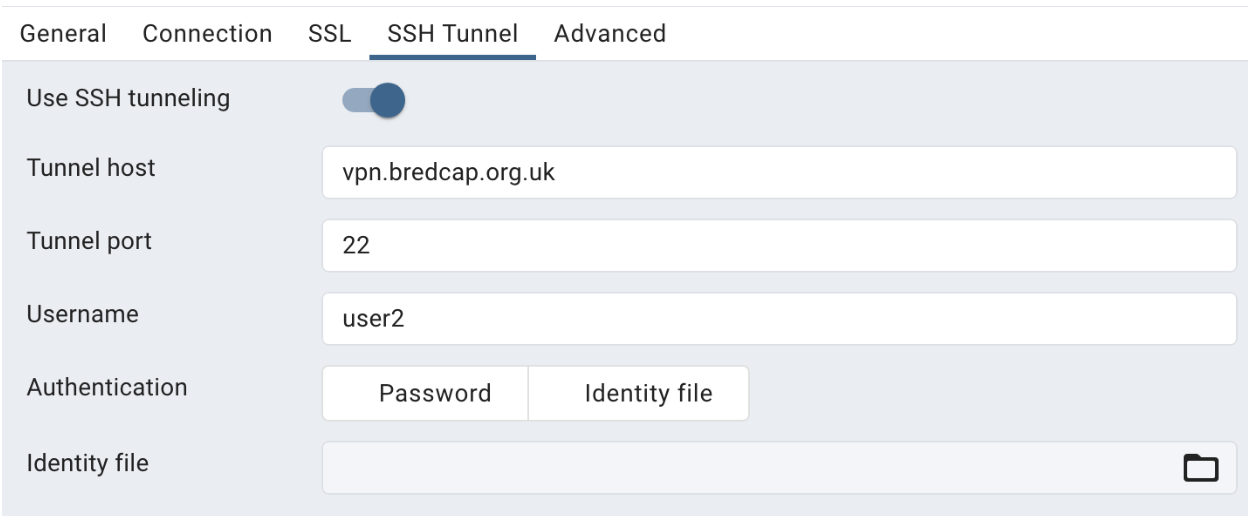
vpn.bredcap.org.uk
And the port to use on the SSH server is
22
To connect to the PhenoDB you need two accounts, a SSH tunnel account and a database account.
You can set up an SSH tunnel using the command line utility. An SSH tunnel can open a connection between a local port and some remote server (local port forwarding). When the tunnel is open, you can connect to the remote server using the tunneled local port, for example localhost:65432.
Setting up an SSH tunnel can be done as (here using my user2 and local port 65432):
#Linux version
# -f Go to background
# -L local connection - Specifies that connections to the given TCP port or Unix socket on the local (client) host are to be forwarded to the given host and port, or Unix socket, on the remote side.
# -N Do not execute a remote command, for forwarding port only
ssh -f -L 65432:postgresql-cluster.cluster-cjghupwohy3q.eu-west-2.rds.amazonaws.com:5432 user2@vpn.bredcap.org.uk -N

#Windows version
#seemingly working
ssh -fN -L 65432:postgresql-cluster.cluster-cjghupwohy3q.eu-west-2.rds.amazonaws.com:5432 user2@vpn.bredcap.org.uk
Alternatively you can specify the SSH tunnel details in your SQL GUI tool, such as pgAdmin or DBeaver. Then you don’t have to open the tunnel from the command line - see below for the full tool configuration.
This is how you configure the connection settings on pgAdmin (here using my tng2101 database user and user2 SSH user):
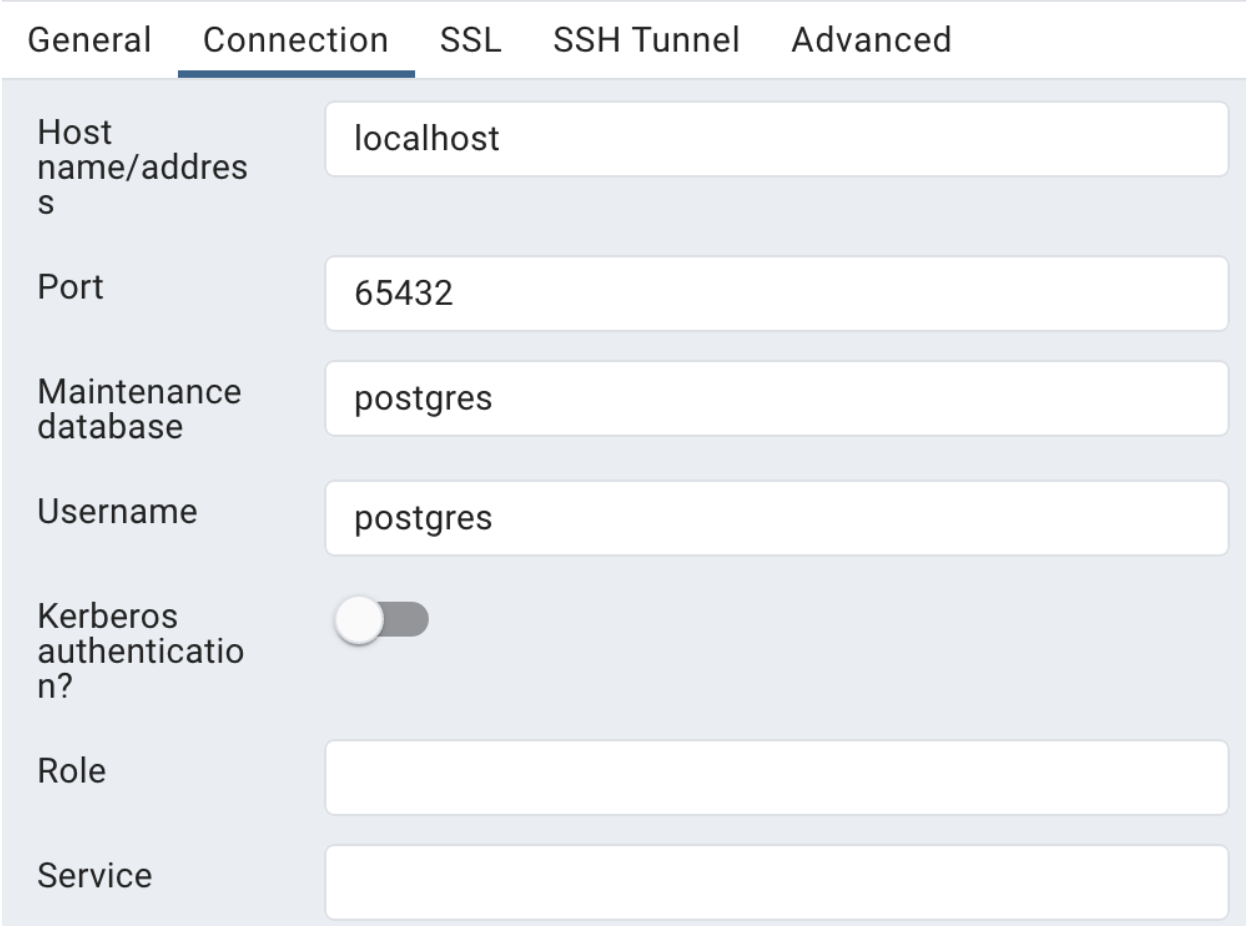
To not use the tool SSH settings but rather the command line SSH tunnel (using port 65432 as previously, and the postgresql user):

Here is a list of tools to use as graphical interfaces with the database.
- DBeaver https://dbeaver.io/ Or use Eclipse (https://www.eclipse.org/downloads/) with the DBeaver plugin.
- PgAdmin https://www.pgadmin.org/