3. Code templates
To set up the database from scratch you will need to run some SQL code under the 'src-db' folder in the database instance of your choice. The recommended database instance creation code is in the 'src-db/create-dbs.sql' file.
NOTE: The very central 'met.cohort_inventory' view has the database name hard-coded as 'phenodb' to correctly map system metadata about tables and columns. If you use another database name, this has to be changed in your definition of 'met.cohort_inventory' (src-db/create-views.sql).
Then the code should be run in this order:
- create-schemas.sql
- create-roles.sql
- create-types.sql
- create-functions.sql
- create-tables.sql
- create-views.sql
- create-initial-data.sql
- create-user-rights.sql
- Additional study-specific adaptations, such as covidcns/create-adaptations-covidcns.sql
Whether restoring a database from backup or from a state where settings have been otherwise changed, it is possible to restore the original settings by running a part of the same procedure above. For a database backup restoration you may have to (re)create the database and the roles, but you may omit files/code for parts that are functional or already existing, such as schemas, roles, tables, and types.
Study specific adaptations should be treated as one-time manual entries and further avoided to be run multiple times as they may not be safe for this (i.e. may create unnecessary duplicated data).
At any state you should be able to re-run the following code in this order to revert back to original functionality and settings:
- Optional - if user rights may prevent the latter from not being properly executed - create-user-rights.sql
- create-functions.sql
- create-views.sql
- create-user-rights.sql (yes, again if you ran it previously at 1.)
Metadata on all assessments in the database can be found in the met.assessment table:
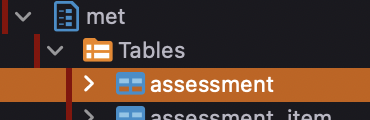
View it by navigating to it in your GUI tool or select from the table by
SELECT * FROM met.assessment;Use the assessment code and version code to extract information from this assessment from the cohort inventory below.
The study-specific schema coh_covidcns has four views to give an overview of the items and variables in COVID-CNS.

View them by navigating to them in your GUI tool or select from the views by (example)
--Selecting the complete dictionary (simple version)
SELECT * FROM coh_covidcns.dictionary_items_simple dis

--Only selecting the dictionary for the PHQ9 questionnaire
SELECT * FROM coh_covidcns.dictionary_items_simple dis WHERE dis.assessment_code = 'phq9';
The function coh.create_current_assessment_item_variable_tview stores a selection of cohort data in the temporary view t_export_data. Example: simple selection of specified items from the demographics questionnaire:
SELECT * FROM coh.create_current_assessment_item_variable_tview(
	cohort_code => 'covidcns',
	instance_code => '2023',
	assessment_code => 'covidcnsdem',
	assessment_version_code => '1',
	assessment_item_code => ARRAY['dateofbirth','dobage','ethnicorigin']
	);
SELECT * FROM t_export_data;

-- Include data from the secure schema 'sec', such as study persion ID, using the join_sec argument. You need to have the corresponding access privileges.
SELECT * FROM coh.create_current_assessment_item_variable_tview(
	cohort_code => 'covidcns',
	instance_code => '2023',
	assessment_code => 'covidcnsdem',
	assessment_version_code => '1',
	join_sec => TRUE
);
SELECT * FROM t_export_data;

-- Or if you have access to the secure schema 'sec' you can join in the study ID like this
SELECT ici.identifier_cohort, t_export_data.* FROM t_export_data INNER JOIN sec.individual_cohortinstance_identifier ici
ON t_export_data._individual_identifier = ici.identifier;
Example: select specified items from the demographics questionnaire into a temporary table named mydem (think of this as an object or variable in another programming language):
SELECT * FROM coh.create_current_assessment_item_variable_tview(
	cohort_code => 'covidcns',
	instance_code => '2023',
	assessment_code => 'covidcnsdem',
	assessment_version_code => '1',
	assessment_item_code => ARRAY['dateofbirth','dobage','ethnicorigin']
	);
CREATE TEMP TABLE mydem AS SELECT * FROM t_export_data;
Example: extract more data from the PHQ-9 questionnaire and store in the myphq9 temporary table:
SELECT * FROM coh.create_current_assessment_item_variable_tview(
	cohort_code => 'covidcns',
	instance_code => '2023',
	assessment_code => 'phq9',
	assessment_version_code => '1'
	);
CREATE TEMP TABLE myphq9 AS SELECT * FROM t_export_data;
Example: join both temporary tables to get a combined view (individuals part of both datasets):
SELECT * FROM mydem, myphq9
WHERE mydem._stage=myphq9._stage AND mydem._individual_identifier=myphq9._individual_identifier;The phenodbr package works as a wrapper for most of the functions in the PhenoDB database. Get the package from: https://github.com/tnggroup/phenodbr
A typical installation from R would include installing devtools and then using the install_github function to install the phenodbr package from GitHub.
install.packages("devtools")
devtools::install_github("tnggroup/phenodbr")
Making a cohort data extraction with the phenodbr package is done by setting up your connection by creating a phenodbr object (with the pgDatabaseUtilityClass function) and then using the selectExportData member function. Example below using my tng2101 user and an SSH tunnel connection activated from the command line on port 65432.
library(phenodbr)

cinfo<-c()
cinfo$pw <- rstudioapi::askForPassword(prompt = "Enter database password for specified user.") #Enter your password each time you run the script, not to have to store it in the code. Only works on rstudio with a graphical interface.
cinfo$host<-"localhost"
cinfo$dbname<-"phenodb"
cinfo$user<-"tng2101"
cinfo$port<-65432

dbutil <- pgDatabaseUtilityClass(host=cinfo$host, dbname=cinfo$dbname, user=cinfo$user, port=cinfo$port, password= cinfo$pw)

dbutil$selectExportData(
  cohortCode = "covidcns",
  instanceCode = "2023",
  assessmentCode = "covidcnsdem",
  assessmentVersionCode = "1",
  assessmentItemCodeList = c("dateofbirth","dobage","ethnicorigin")
  )
View(dbutil$exportDataDf) #The extraction will be in dbutil$exportDataDf
Reading and writing files
#Writing extracted data to a tab separated value file, include variable names, quote text content
write.table(dbutil$exportDataDf, file = file.path("folder","myData.tsv"), quote = TRUE, sep = "\t", row.names = FALSE, col.names = TRUE)

#Reading previously extracted data from a tab separated value file, include variable names, quote text content, configure which strings should be interpreted as NA-values
myReadData<-read.table(file.path("folder","myData.tsv"), header=T, quote="\"", fill=T, na.string=c(".",NA,"NA",""), sep="\t")

#Writing your object to an R data-set file (.Rds)
saveRDS(object = dbutil$exportDataDf, file = file.path("folder","myData.Rds"))

#Reading your object from an R data-set file (.Rds)
myReadData<-readRDS(file=file.path("folder","myData.Rds"))