3. Management
Storefront provides easy tools to enable, disable, configure, and delete items directly from your device.
On the Installed tab, you can quickly turn plugins or patches on or off without uninstalling them. Disabled items are unchecked and sync with KOReader's main plugin management settings.
You can delete any installed plugin, patch, font, or screensaver at any time:
- Plugins & Patches: Tap Remove on the installed item. Storefront will clean up the files from your device.
- Fonts: Tap Remove next to any installed font on the Installed tab. Storefront removes the font files completely. If you're removing multiple fonts, you can tap Restart Later for each one and perform a single restart when you're done.
- Screensavers: Tap Remove next to any downloaded wallpaper on the Installed tab. Storefront instantly deletes the image from your device's screensaver folder.
Storefront includes a built-in Screensaver Settings card that integrates directly with KOReader's sleep-screen system.
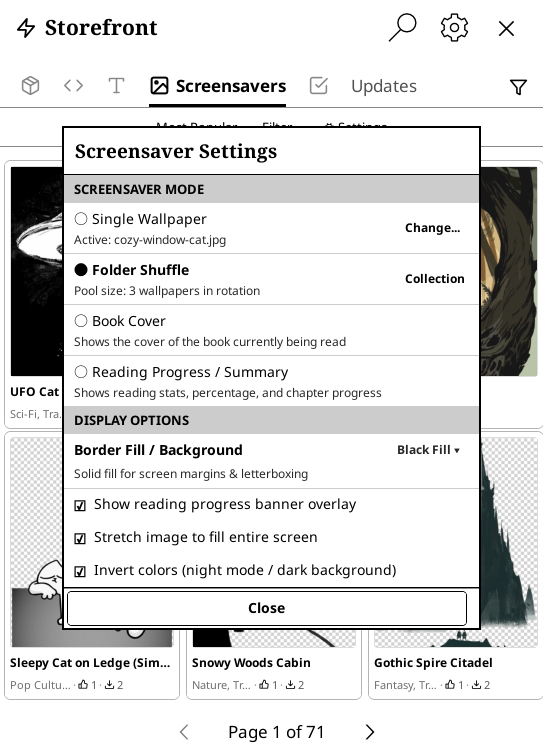
- Tap the Gear icon (⚙️) from within Storefront and select Screensaver Settings, or access it directly from the Screensavers browser toolbar.
- Single Wallpaper: Pick a specific downloaded image to display whenever your device goes to sleep.
- Folder Shuffle: Rotates randomly through all wallpapers in your screensavers folder each time the device sleeps. Shows the active pool size in the setting description.
- Book Cover: Shows the cover of the book currently being read.
- Reading Progress / Summary: Displays reading stats, page count, and completion percentage.
- Border Fill / Background: Cycle between Black Fill, White Fill, or No Fill (Transparent) to customize padding around non-standard aspect ratio images and background on transparent images.
- Reading Progress Banner Overlay: Toggle reading progress summary banner on top of the sleep wallpaper.
- Stretch to Fill: Scale images proportionally to fill the full device screen.
- Invert Colors: Invert image colors (ideal for dark mode aesthetics on e-ink).
Storefront auto-links plugins installed outside of Storefront with their GitHub repositories whenever possible so you can keep them updated easily.
The Versions tab lets you manage individual releases for any plugin or patch.
- Ignore releases – Tap the eye icon next to a version to ignore it; ignored versions are excluded from update notifications.
- Pre‑release toggle – Use the toggle at the top of the Versions list to show or hide pre‑release and beta builds.
- Install specific version – Tap a version and choose Install to install that exact release, whether it’s the latest, an older version, or a pre‑release.
- Version details – Open a version to view its full release notes, release date, and metadata.
These controls are accessible from the version details page and refresh the main version list instantly.
By default, Storefront excludes repositories that are forks with zero stars from search results to keep your browsing clean. You can change this in the settings dialog.
- Open Storefront.
- Tap the gear icon (⚙️) in the top-right corner.
- Toggle Include 0-star forks on or off.
- The setting takes effect immediately and applies to future searches.
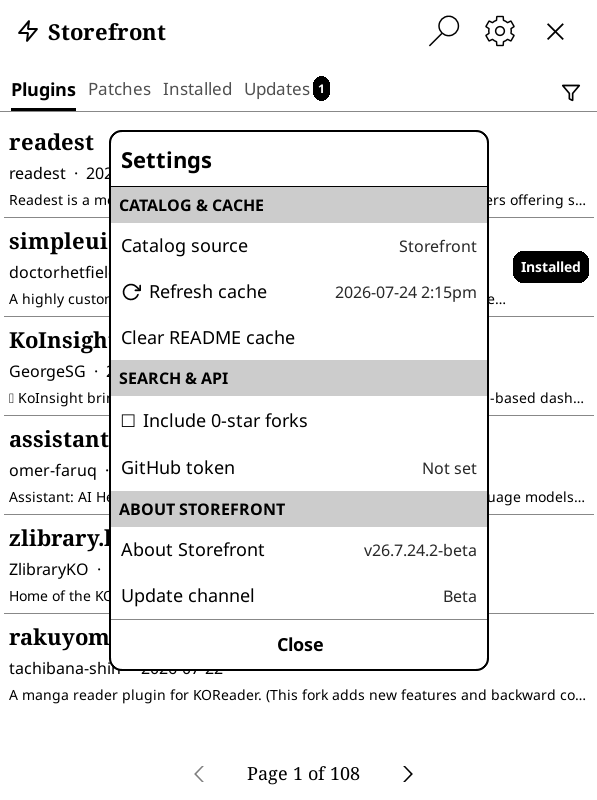
Storefront includes an in-app updater to check for and install updates to Storefront itself:
- Open Storefront and tap the Gear icon (⚙️) in the top-right toolbar.
- Scroll to the About Storefront section.
- Tap Check for updates. Storefront will query GitHub for newer releases and prompt you to install them directly.