4. Management
The Storefront plugin provides built-in tools to disable, delete, and match with repositories for installed plugins and patches directly from the update dialogs.
Uses KOReader's native disable mechanism. On the **Installed ** tab Disabled plugins/patches appear unchecked and sync with the Tools → Plugin management or Patch management screen.
Allows you to delete a plugin or patch from your device. Be careful with this if you installed from a non-GitHub source as it might be hard to get back.
This plugin does its best to auto-link plugins installed outside of Storefront with their GitHub repositories.
The Versions tab lets you manage individual releases for any plugin or patch.
- Ignore releases – Tap the eye icon next to a version to ignore it; ignored versions are excluded from update notifications.
- Pre‑release toggle – Use the toggle at the top of the Versions list to show or hide pre‑release and beta builds.
- Install specific version – Tap a version and choose Install to install that exact release, whether it’s the latest, an older version, or a pre‑release.
- Version details – Open a version to view its full release notes, release date, and metadata.
These controls are accessible from the version details page and refresh the main version list instantly.
By default, the Storefront plugin excludes repositories that are forks with zero stars from search results. You can change this in the setting dialog.
-
Default behavior (off): The plugin skips the
fork:only stars:0query at the GitHub API level, so 0-star forks never reach your device. This reduces noise and speeds up browsing. -
When enabled: The plugin includes an additional
fork:only stars:0query, bringing all forks into the search results regardless of star count.
- Open the Storefront Plugins
- Tap the gear icon (⚙️) in the top-right corner.
- Toggle Include 0-star forks on or off.
- The setting takes effect immediately and applies to all future cache refreshes.
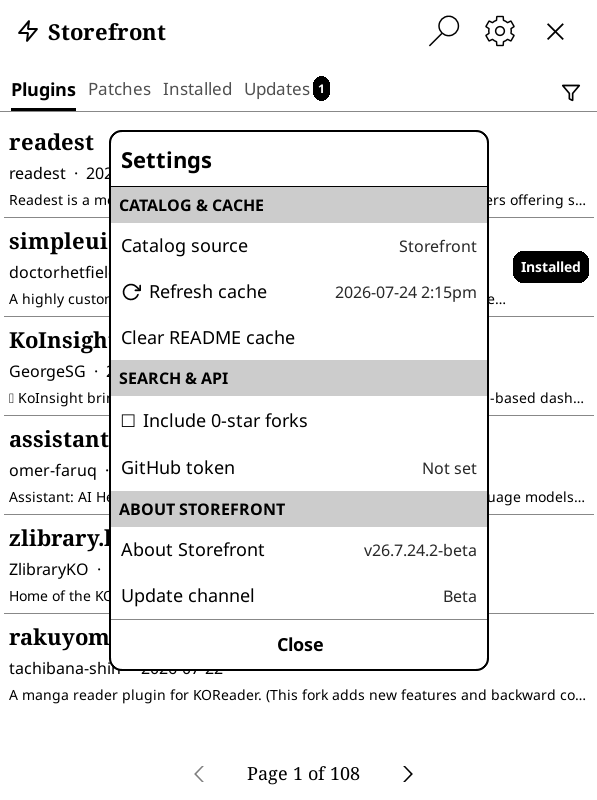
Note: Changing this setting does not automatically refresh the cache. Use the Refresh cache action from the toolbar to apply the new filter scope to your current results.