Releases: valley-soft/powertoys-diskanalyzer
Releases · valley-soft/powertoys-diskanalyzer
v1.3.0

TreeSize-like disk usage analyzer for PowerToys Run and Windows Command Palette.
Components
This release includes three separate tools:
- Standalone App (WinUI 3) — fully featured GUI window with interactive Visual Charts!
- PowerToys Run Plugin (
dskeyword in Alt+Space) — labeled DiskAnalyzer (PowerToys Run) in Command Palette - Command Palette Extension (MSIX) — labeled DiskAnalyzer in Command Palette, no keyword needed
Screenshots
1. Standalone App (WinUI 3)
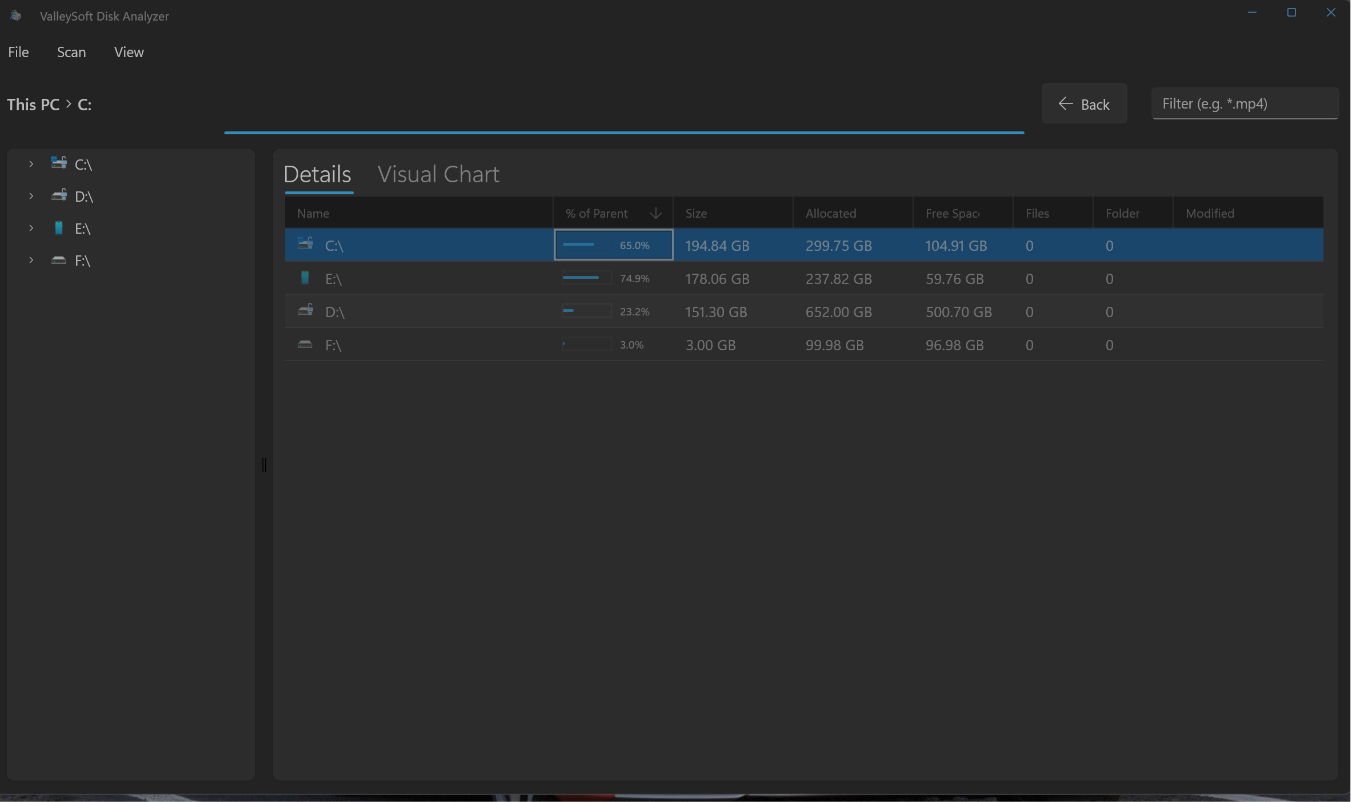
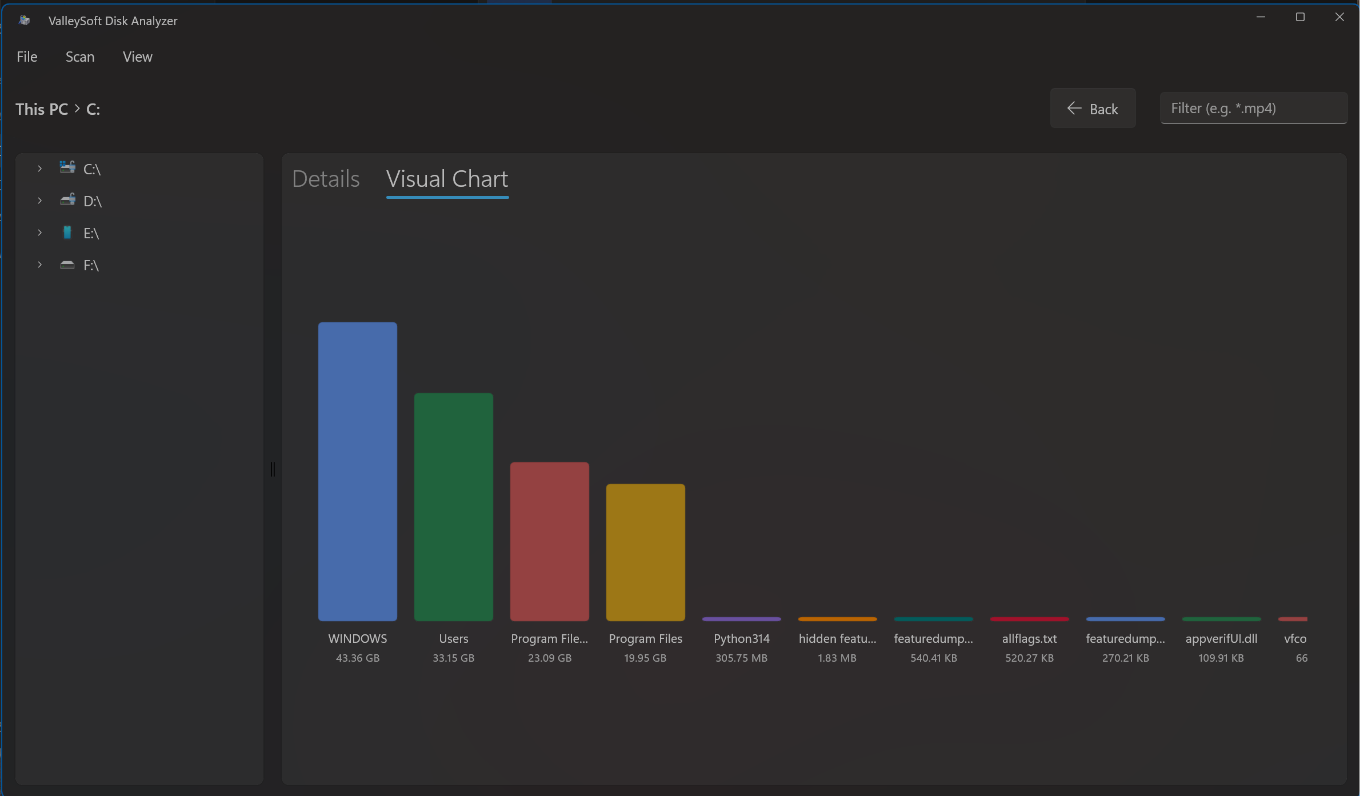
2. PowerToys Run Plugin
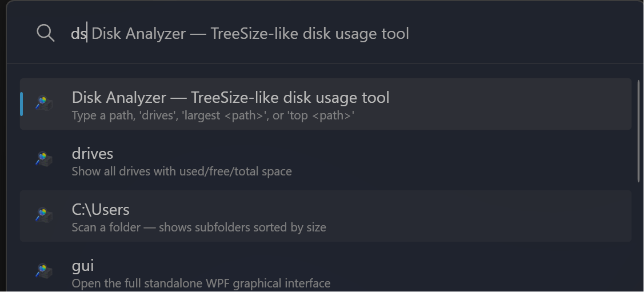
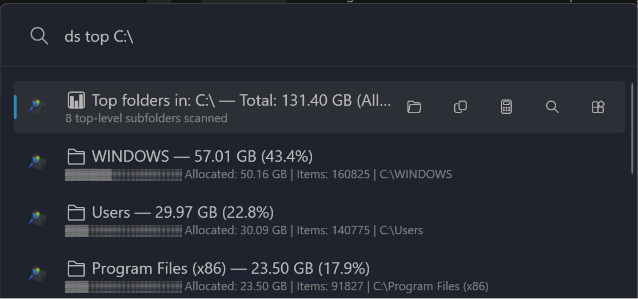
3. Command Palette Extension
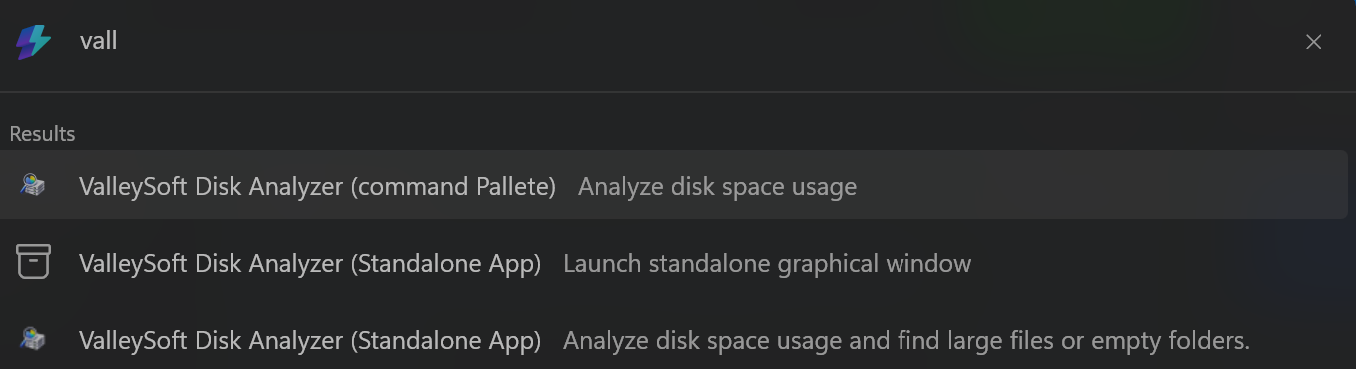
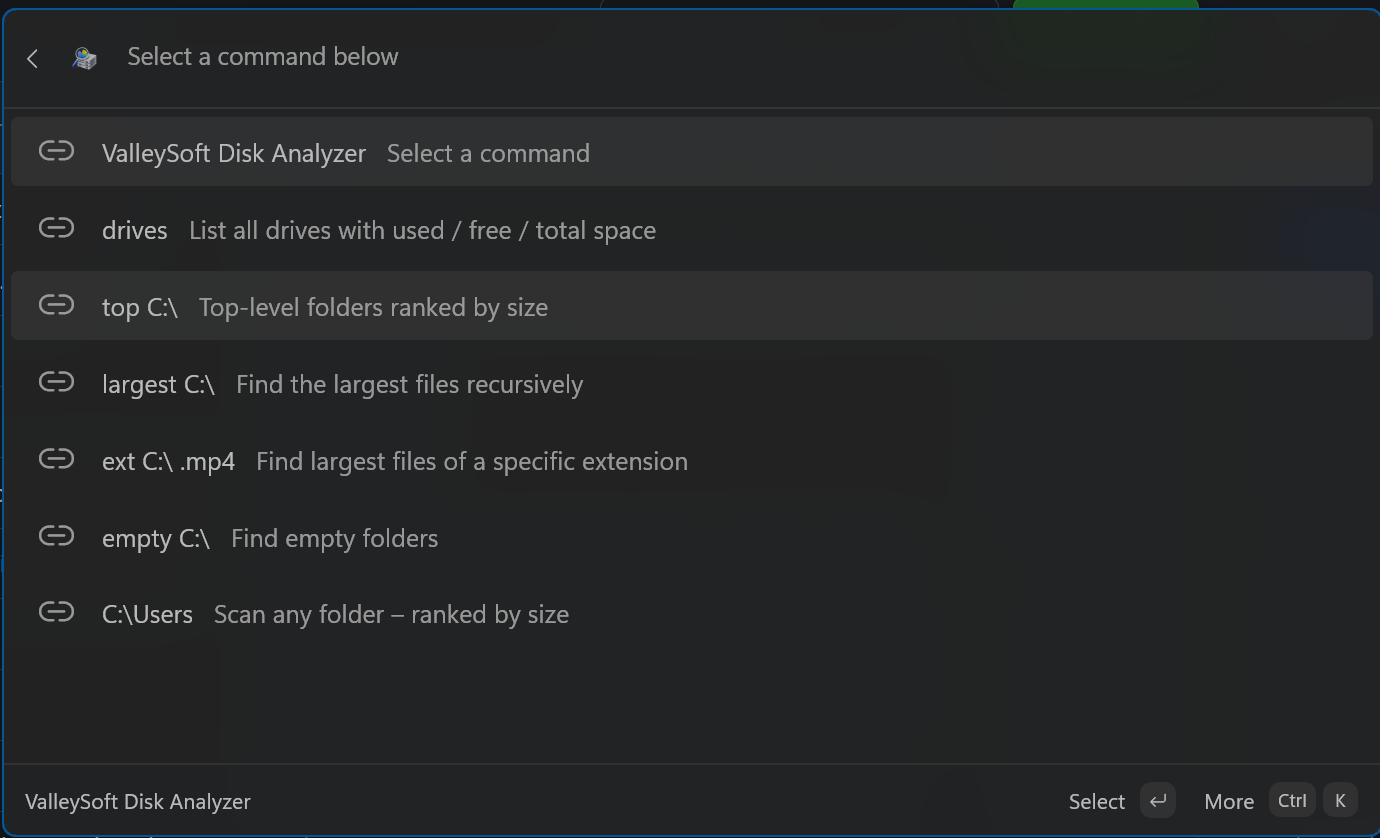
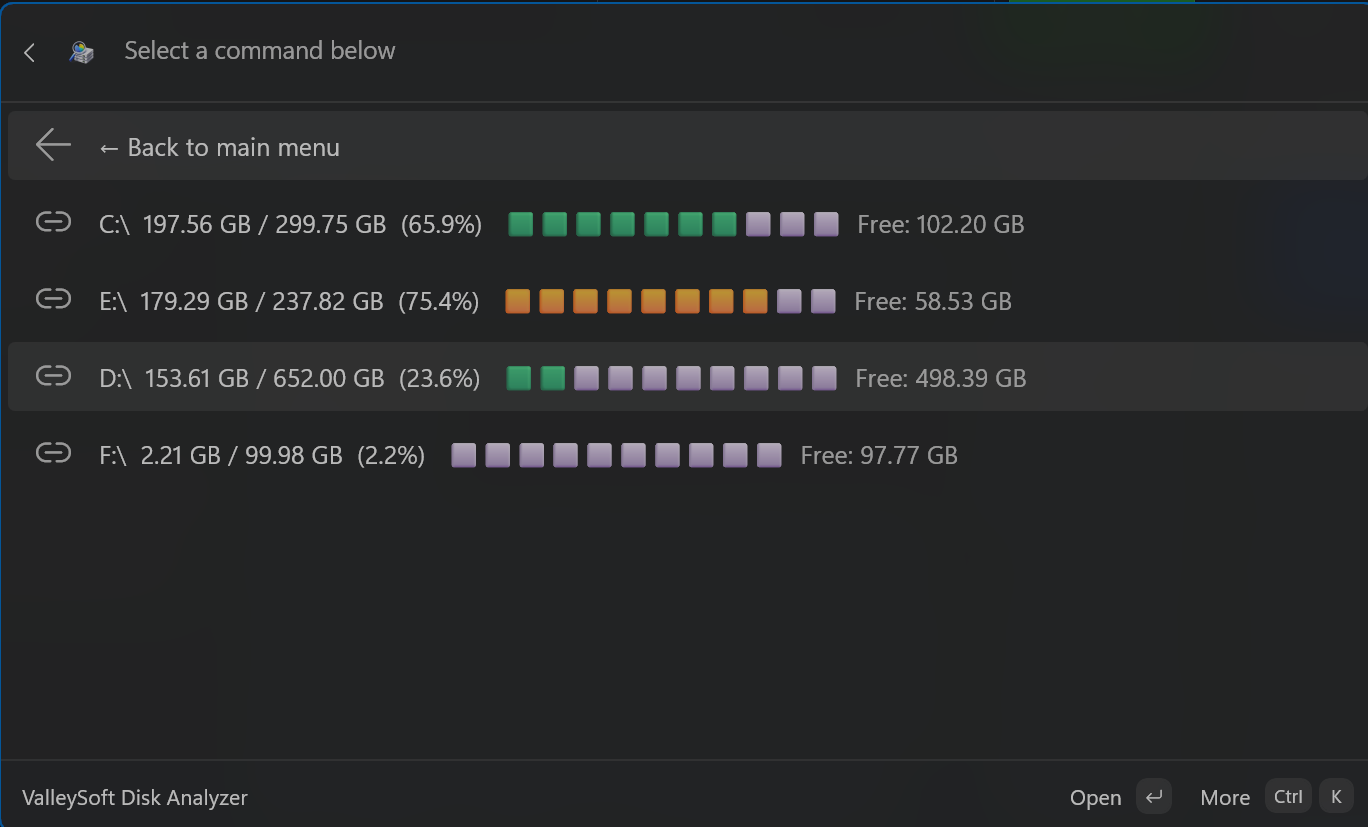
Installation — Standalone App
- Download
ValleySoft.DiskAnalyzer.App_1.3.0.0_x64.msix(orarm64) from the assets below. - Double-click the
.msixfile and click Install. - Launch the app from your Start Menu.
Note: The standalone app is not yet available in the Microsoft Store. When it is officially available, the Microsoft Store will be the recommended way to install and keep the app automatically updated!
Alternatively, you can install it instantly via the command line using
winget:winget install --id 9NF073KLTVWN --source msstore

Installation — PowerToys Run Plugin
- Download
ValleySoft.DiskAnalyzerInstaller-v1.3.0-x64.exe(orarm64) - Exit PowerToys (right-click tray icon → Exit)
- Run the installer — it will flawlessly clean install to
%LOCALAPPDATA%\Microsoft\PowerToys\PowerToys Run\Plugins\DiskAnalyzer - Restart PowerToys and enable the plugin in Settings → PowerToys Run → Plugins
Installation — Command Palette Extension
- Download
DiskAnalyzerExtension_1.3.0.0_x64.msix(orarm64) - Double-click the
.msixfile and click Install - Open Command Palette — DiskAnalyzer will appear as a top-level entry
Usage
| Command | Description |
|---|---|
ds drives |
List all drives |
ds top C:\ |
Top folders ranked by size |
ds largest C:\ |
Find largest files recursively |
ds ext C:\ .mp4 |
Find files by extension |
ds empty C:\ |
Find empty folders |
ds gui |
Open the standalone GUI window |
Changes in v1.3.0
Added
- Fully featured Standalone WinUI 3 App with interactive Visual Charts (Pie/Bar/Donut/Sunburst) for deeper disk analysis!
- Unified Installer features a flawless 1-click Clean Install mode, automatically purging old DLLs from
%LOCALAPPDATA%to prevent version conflicts. - Completely separated and distinct display names for the Standalone App, Command Palette Extension, and PowerToys Run plugin to eliminate confusion.
- Official Microsoft Store submission packaging and configuration for the Standalone App.
Changed
- Upgraded the Core project and shared logic to .NET 10.0 for maximum performance and modern API support.
- Extracted the shared core scanning engine into a perfectly synchronized standard, improving accuracy and maintainability.
- Deeply cleaned the repository, permanently ignoring and removing old legacy build artifacts (e.g.
/AppPackages,obj,bin).
Fixed
- PowerToys Run
AssemblyLoadContextbug completely resolved! Core logic is now natively compiled directly into the plugin instead of usingProjectReference, fixing all load failures. - Standalone App sizes and calculations rigorously synced with Windows Explorer to ensure accurate byte-for-byte size reporting.
- Resolved hidden files straggler toggles in XAML and WPF; hidden system files are now properly counted and interactable.
- Fixed severe junction point infinite loop bugs in the directory scanner.
- Fixed mojibake text corruption in several source code files.
DiskAnalyzer v1.2.0
TreeSize-like disk usage analyzer for PowerToys Run and Windows Command Palette.
Components
This release includes two separate tools:
- PowerToys Run Plugin (
dskeyword in Alt+Space) — labeled DiskAnalyzer (PowerToys Run) in Command Palette - Command Palette Extension (MSIX) — labeled DiskAnalyzer in Command Palette, no keyword needed
Installation — PowerToys Run Plugin
- Download
DiskAnalyzerInstaller-v1.2.0-x64.exe(orarm64) - Exit PowerToys (right-click tray icon → Exit)
- Run the installer — it copies files to
%LOCALAPPDATA%\Microsoft\PowerToys\PowerToys Run\Plugins\DiskAnalyzer - Restart PowerToys and enable the plugin in Settings → PowerToys Run → Plugins
Installation — Command Palette Extension
- Download
DiskAnalyzerCommandPalleteVersion_1.2.0.0_x64.msix(orarm64) - Double-click the
.msixfile and click Install - Open Command Palette — DiskAnalyzer will appear as a top-level entry
Usage — PowerToys Run
| Command | Description |
|---|---|
ds |
Show help and available commands |
ds drives |
List all drives with used/free/total space |
ds C:\Users |
Scan a folder and show subfolders by size |
ds largest C:\ |
Find the largest files recursively |
ds top C:\ |
Show top subfolders by size |
ds ext C:\ .mp4 |
Find largest files by extension |
ds empty C:\ |
Find empty folders |
ds gui |
Open the standalone GUI window |
Usage — Command Palette Extension
| Command | Description |
|---|---|
drives |
List all drives |
top C:\ |
Top folders ranked by size |
largest C:\ |
Find largest files recursively |
ext C:\ .mp4 |
Find files by extension |
empty C:\ |
Find empty folders |
C:\Users |
Scan any folder path |
Changes in v1.2.0
- New: Native Command Palette MSIX Extension — type commands directly without a keyword prefix
- New: Async background scanning in CmdPal — live Scanning… placeholder updates automatically
- New: Interactive drill-down in CmdPal — click results to navigate
- New: Standalone WPF GUI window (
ds gui) with full tree explorer - New:
ds extcommand — filter files by extension - New:
ds emptycommand — find empty folders - New: ARM64 support — installer and MSIX for ARM64
- New: PowerToys Run plugin labeled DiskAnalyzer (PowerToys Run) in CmdPal
- Fixed: Disk used space now matches Windows Explorer exactly
- Fixed: Folder size calculation avoids reparse point loops
Changes in v1.1.0
- Feature: Added "Allocated on Disk" size metrics to scan results
- Performance: Implemented parallel processing for deep directory scans
- Update: Upgraded target framework to
.NET 10.0 - Fix: Corrected missing plugin icon in PowerToys Run settings
1.1.0
TreeSize-like disk usage analyzer for PowerToys Run.
Installation
- Download the zip for your architecture from Releases
- Close PowerToys completely ΓÇö Right-click the PowerToys icon in the system tray and select Exit.
- Extract the downloaded zip file.
- Copy the extracted
DiskAnalyzerfolder into:%LOCALAPPDATA%\Microsoft\PowerToys\PowerToys Run\Plugins - Restart PowerToys from the Start menu.
- Enable the plugin — Open PowerToys Settings → PowerToys Run → Plugins → find DiskAnalyzer → toggle ON.
- (Optional) Enable "Include in global result" to activate global mode. Once enabled, press
Alt+Space, typedsand select a drive letter (e.g.C:,D:) to instantly scan that drive ΓÇö no keyword prefix needed.
Usage
| Command | Description |
|---|---|
ds |
Show help and available commands |
ds drives |
List all drives with used/free/total space |
ds C:\Users |
Scan a folder and show subfolders by size |
ds largest C:\ |
Find the largest files recursively |
ds top C:\ |
Show top subfolders by size |
Changes in v1.1.0
- Feature: Added "Allocated on Disk" size metrics to scan results alongside actual logical size.
- Performance: Implemented parallel processing for deep directory scans, significantly improving speed.
- Update: Upgraded target framework to
.NET 10.0for latest PowerToys compatibility. - Fix: Corrected an issue where the plugin icon was missing from the PowerToys Run settings menu.
DiskAnalyzer v1.0.2
DiskAnalyzer v1.0.2
TreeSize-like disk usage analyzer for PowerToys Run.
Installation
- Download the zip for your architecture (x64 or ARM64)
- Extract to
%LOCALAPPDATA%\Microsoft\PowerToys\PowerToys Run\Plugins\DiskAnalyzer - Restart PowerToys
- Open PowerToys Run and type
ds
Usage
| Command | Description |
|---|---|
ds |
Show help and available commands |
ds drives |
List all drives with used/free/total space |
ds C:\Users |
Scan a folder and show subfolders by size |
ds largest C:\ |
Find the largest files recursively |
ds top C:\ |
Show top subfolders by size |
Bug Fixes in v1.0.2
- Fixed: Mouse click on results was removing the
dsprefix - Fixed: Double
dsappearing in search bar after selecting a result - Fixed: iCloud and OneDrive showing allocated size instead of actual size
- Fixed: Folder sizes were not fully recursive (capped at 1 level deep)
- Fixed: Several ChangeQuery calls missing
dsprefix and string interpolation
DiskAnalyzer v1.0.1
Fixes
- Enter now scans the selected drive instead of opening File Explorer
- Open in Explorer moved to Ctrl+O
Full Changelog
DiskAnalyzer v1.0.0
TreeSize-like disk space analyzer for PowerToys Run.
Features
ds drives— View all drives with usage barsds <path>— Scan folders sorted by sizeds largest <path>— Find biggest files recursivelyds top <path>— Rank top folders by size- Right-click context menu: Open in Explorer, Copy path/size, Drill down
Install
- Close PowerToys
- Extract the
DiskAnalyzerfolder to%LocalAppData%\Microsoft\PowerToys\PowerToys Run\Plugins\ - Restart PowerToys
- Press Alt+Space → type
ds
Requirements
- PowerToys v0.88.0+
- Windows 10/11